When a bookitlive account is connected to Dropbox storage, files can be uploaded against a client record. Each client record will have an additional tab called "Files" that can be used to upload, sort, rename and delete files against that specific Client.
Uploading files
- Logon to your bookitlive account
- From the Dashboard search for and select the client by typing in the client name
- Use Edit Client button to open the client record
- Select the File tab
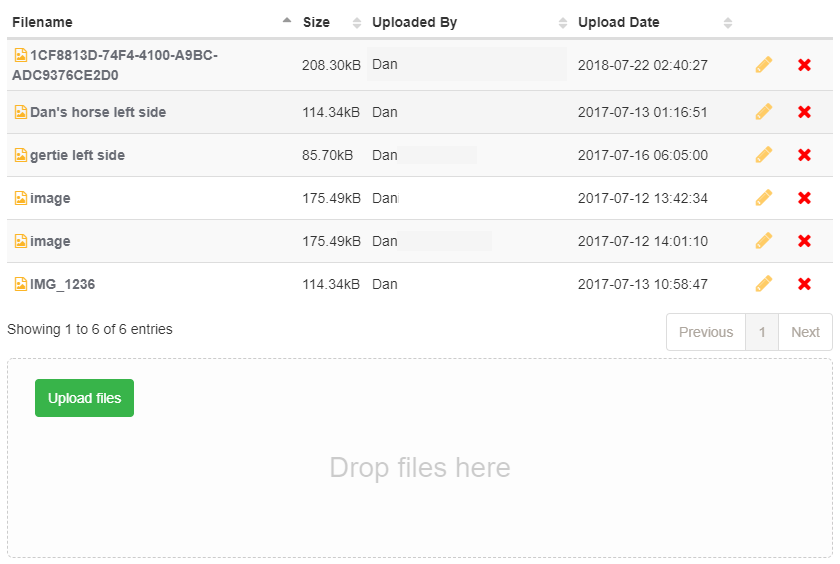
- Select the Upload files button
- Select the file or files that you want to upload
Renaming files
- Logon to your bookitlive account
- From the Dashboard search for and select the client by typing in the client name
- Use Edit Client button to open the client record
- Select the File tab
- All files that have been uploaded against the selected client are listed
- Select Edit to rename the file

Deleting files
- Logon to your bookitlive account
- From the Dashboard search for and select the client by typing in the client name
- Use Edit Client button to open the client record
- Select the File tab
- All files that have been uploaded against the selected client are listed
- Select Delete to remove the file

When a file is uploaded a icon will appear next to the file indicating the file format.
 | A spreadsheet file uploaded to a client record will appear as an Excel file. |
 | An image file uploaded to a client record will appear as an image. |
 | A document file uploaded to a client record will appear as an Word document. |
 | A print file uploaded to a client record will appear as a PDF file. |
 | A file uploaded to a client record with an unknown format. |
 | A video file uploaded to a client record will appear as a video. |
 | A compressed file uploaded to a client record will appear as a Zip file. |
Was this article helpful?
That’s Great!
Thank you for your feedback
Sorry! We couldn't be helpful
Thank you for your feedback
Feedback sent
We appreciate your effort and will try to fix the article