BookItLive's Membership Subscriptions feature makes it incredibly easy to create and manage recurring customer memberships. Once the initial Membership Subscription Product has been purchased, BookItLive will automatically renew the Membership Subscription via a regular recurring payment for the lifetime of the Membership Subscription.
NOTE: Membership subscriptions and recurring payments are only available for businesses on the BookItLive "Regular" and "Premium" packages that operate in Australia and New Zealand.
How it works
Customers purchase the Membership Subscription as a Product from your Mini Website or Products pages to completes the initial membership payment. The card details are stored on the payment gateway to be used for the future subscription recurring payments.
After the Membership Subscription Product is purchased, BookItLive will generate a unique Membership Number and share the Membership Number to the purchasing customer via email.
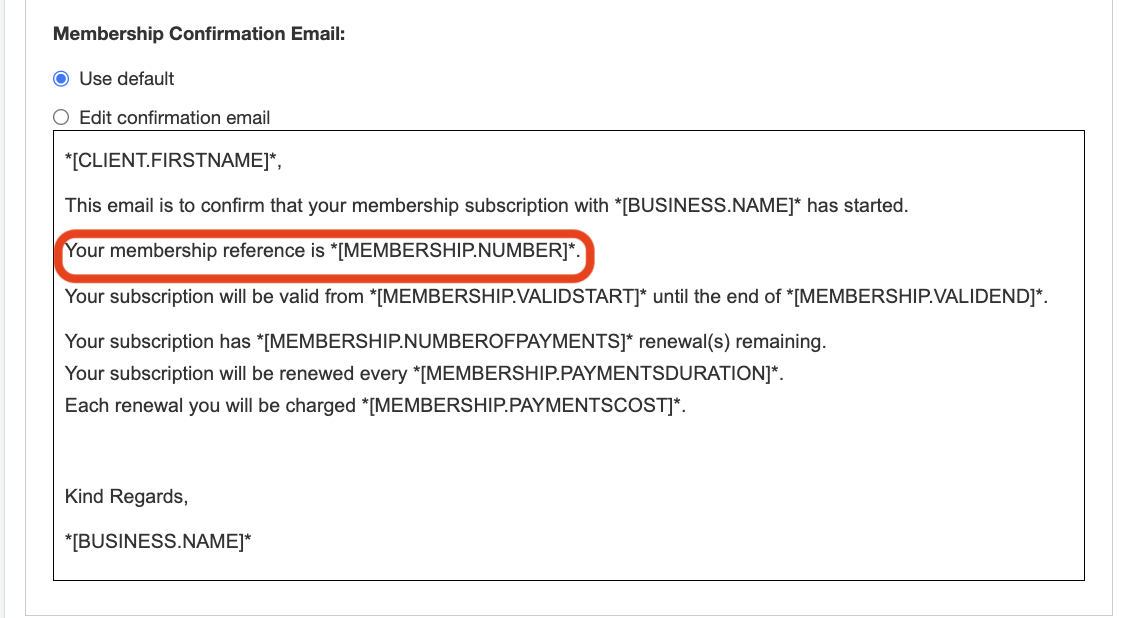
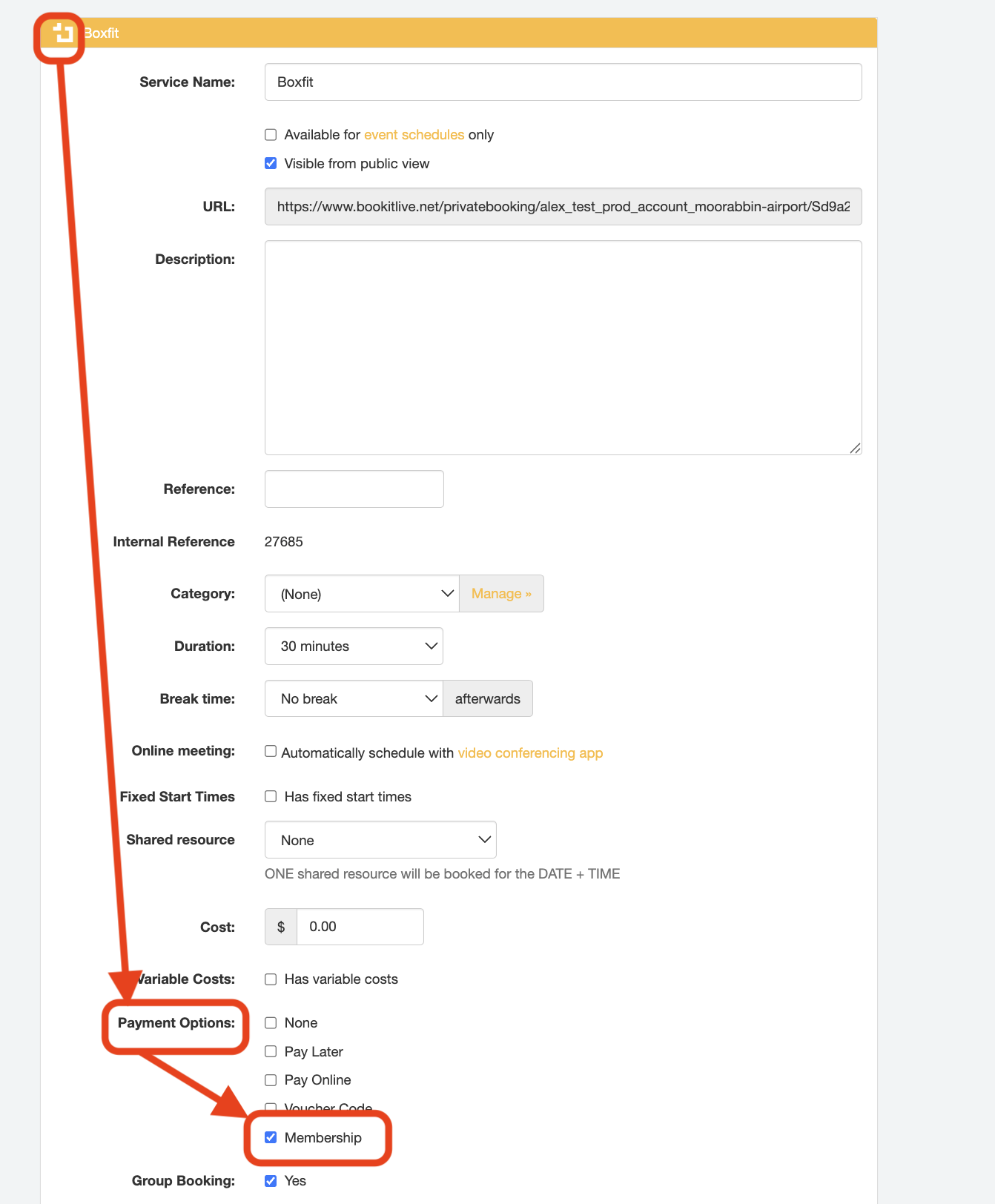
NOTE: Membership Numbers can only be used to book Services that have enabled Membership payments as one of the Service's payment options. This can be done by accessing the Service details from the "Configuration" tab "Services" page and enabling the "Membership" checkbox under "Payment Options".
Setting up a Membership Subscription Product in your BookItLive account
- Login to BookItLive.
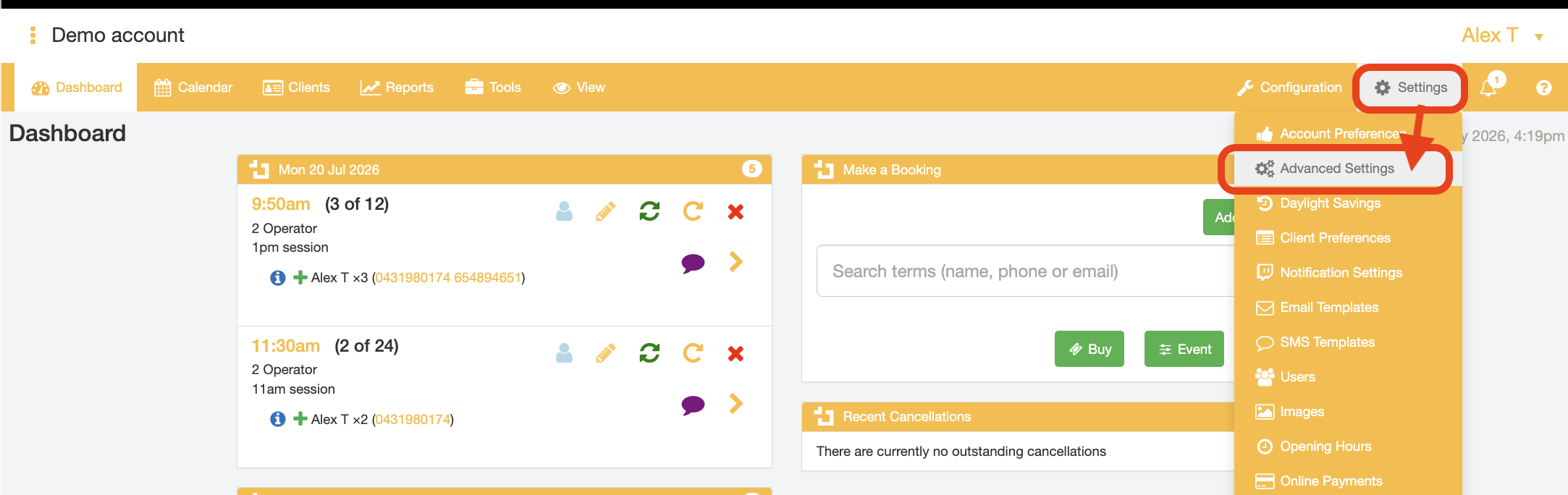
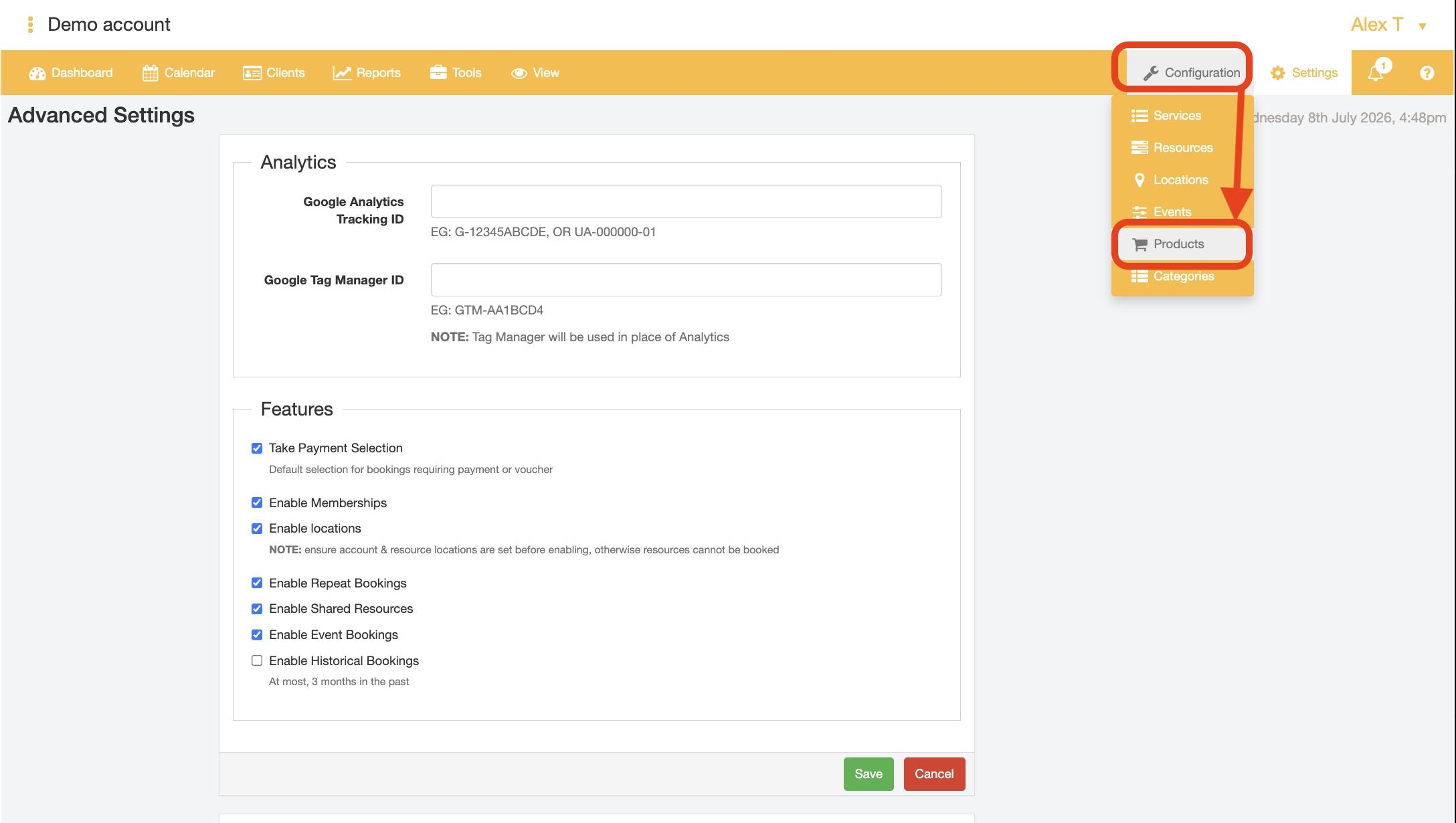
- Select the "Settings" tab and select the "Advanced Settings" option.
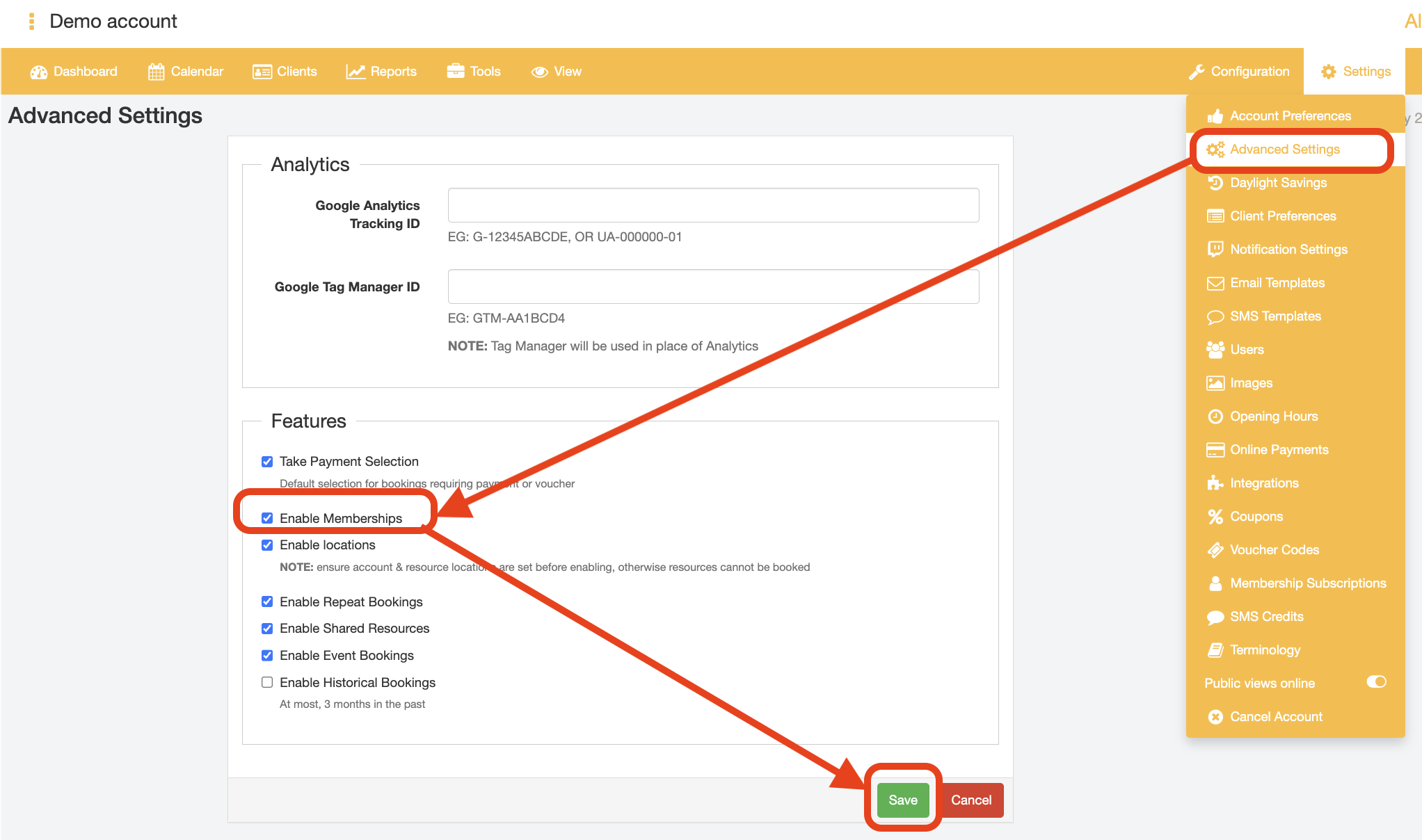
- Tick the "Enable Memberships" checkbox.
- Submit the Settings changes by clicking the "Save" button at the bottom of the page.
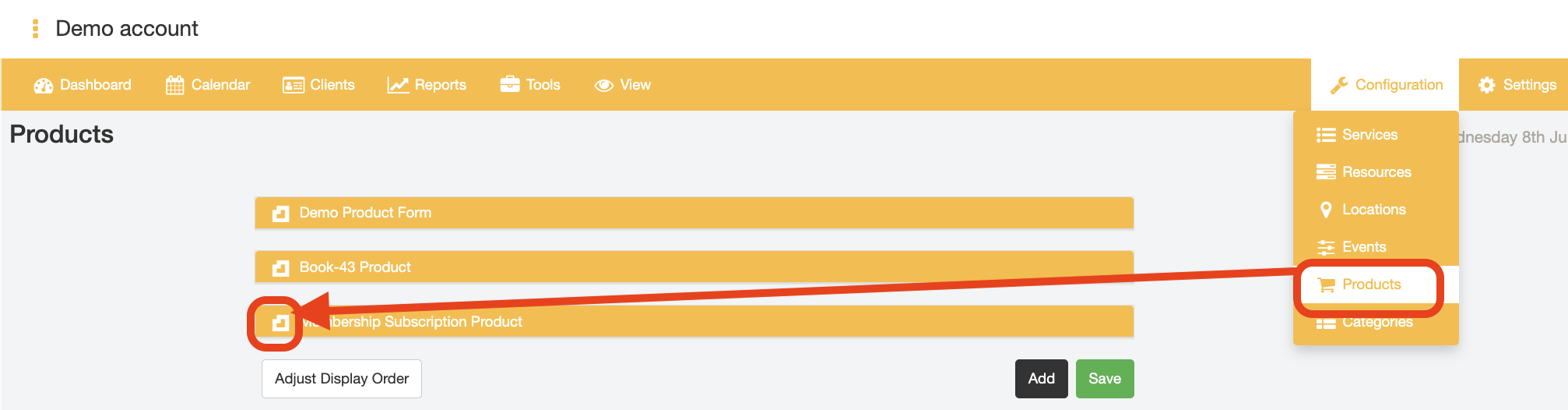
- Select the "Configuration" tab and select the "Products" option.
- Open the details of the Product you want to sell the Membership Subscription under by selecting the BookItLive icon next to the Product name.
- Set the "Cost" of the Membership Subscription.
The "Cost" determines the amount that the subscribing member pays for the first instalment of that Membership Subscription.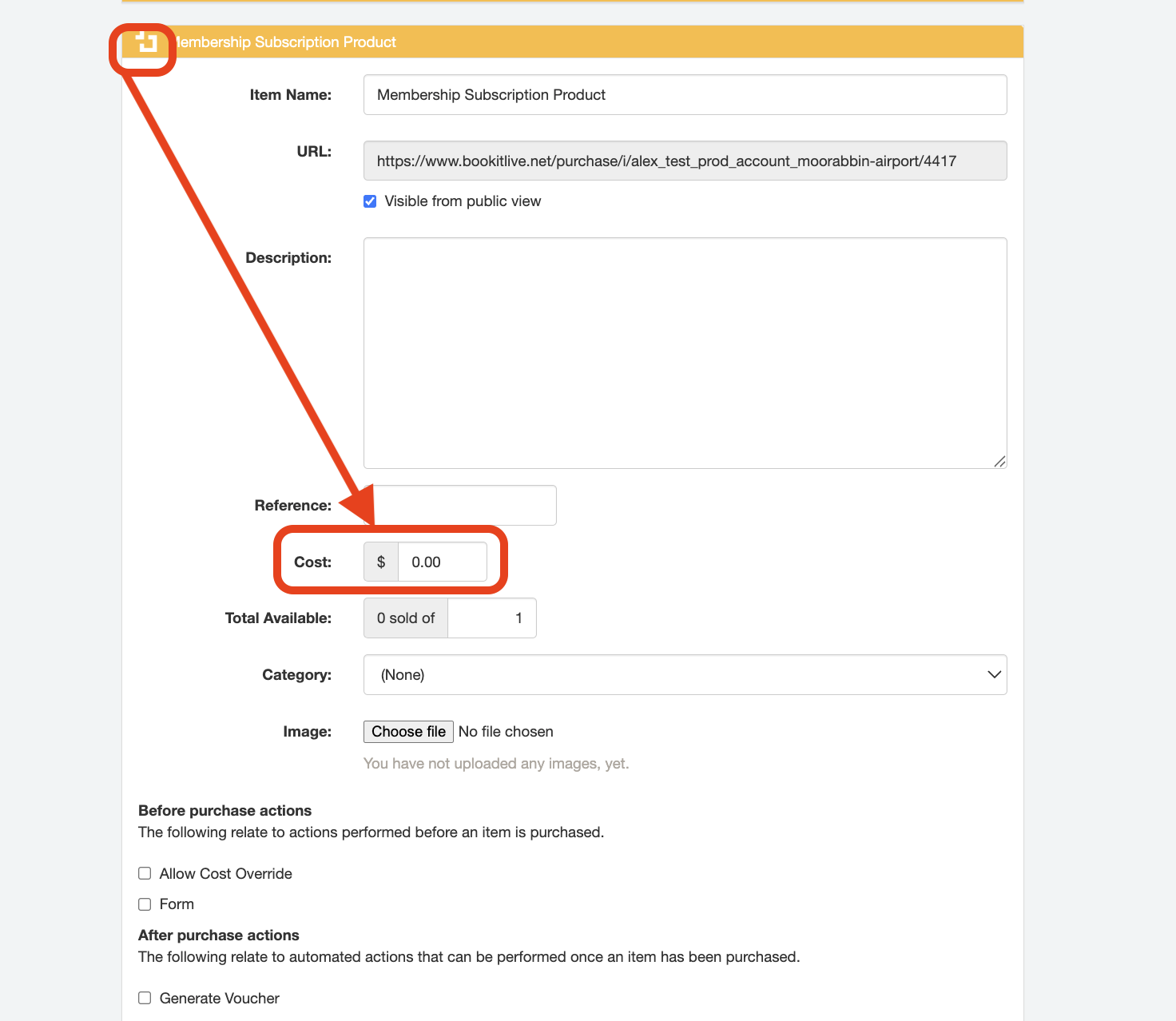
- The interval/length of the first instalment is set in step 9 below ("Initial Duration").
- The interval/length of the first instalment is set in step 9 below ("Initial Duration").
- Under the "After purchase actions" section, tick the "Membership Subscription" checkbox. Additional input fields for the Membership Subscription details will then appear beneath this checkbox.
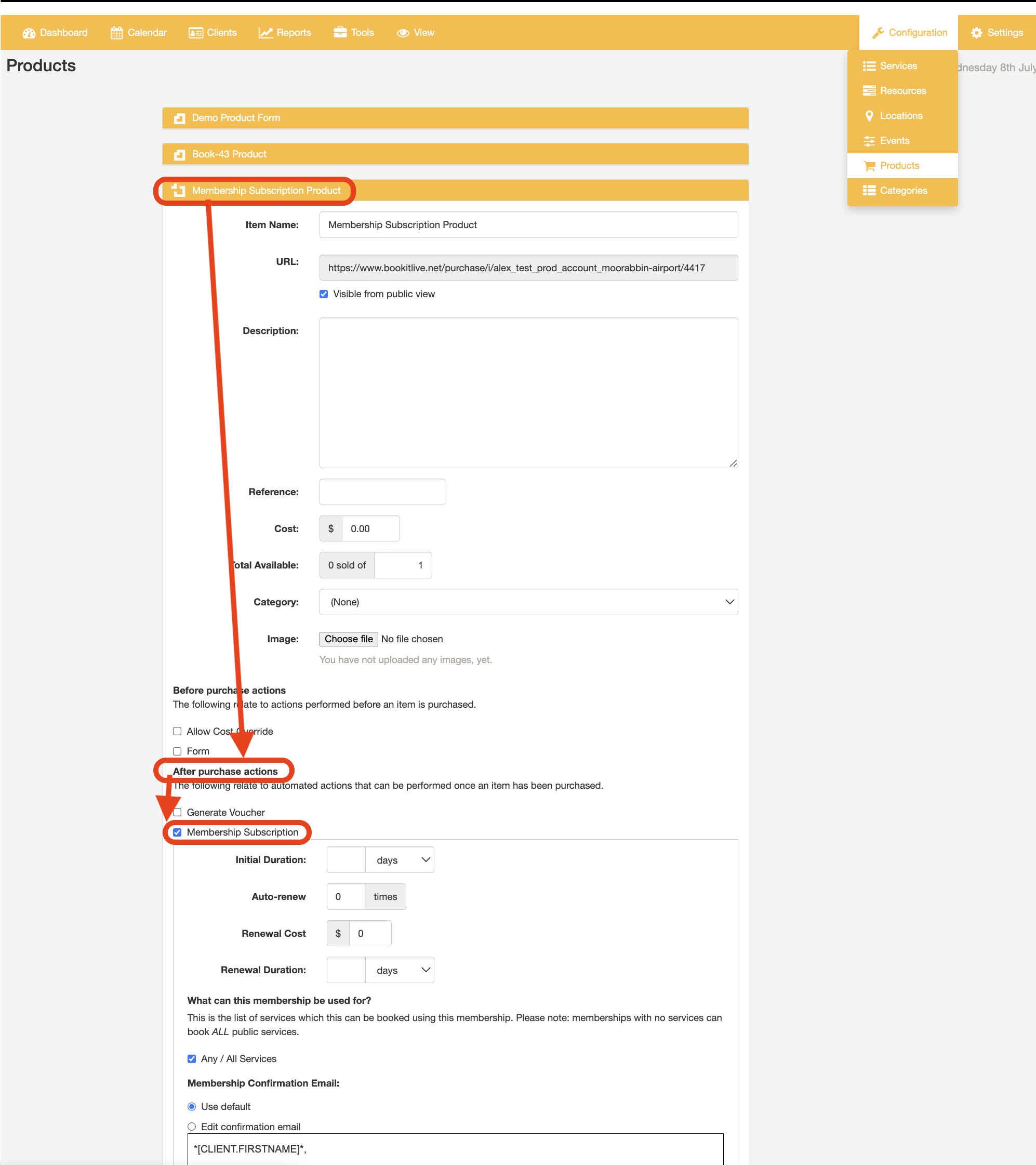
- Set the "Initial Duration" value by entering the number of days/weeks/months/years and using the accompanying dropdown menu to specify the unit of time.
The "Initial Duration" is the length of the first subscription cycle before the Membership subscriber is automatically billed to continue their subscription.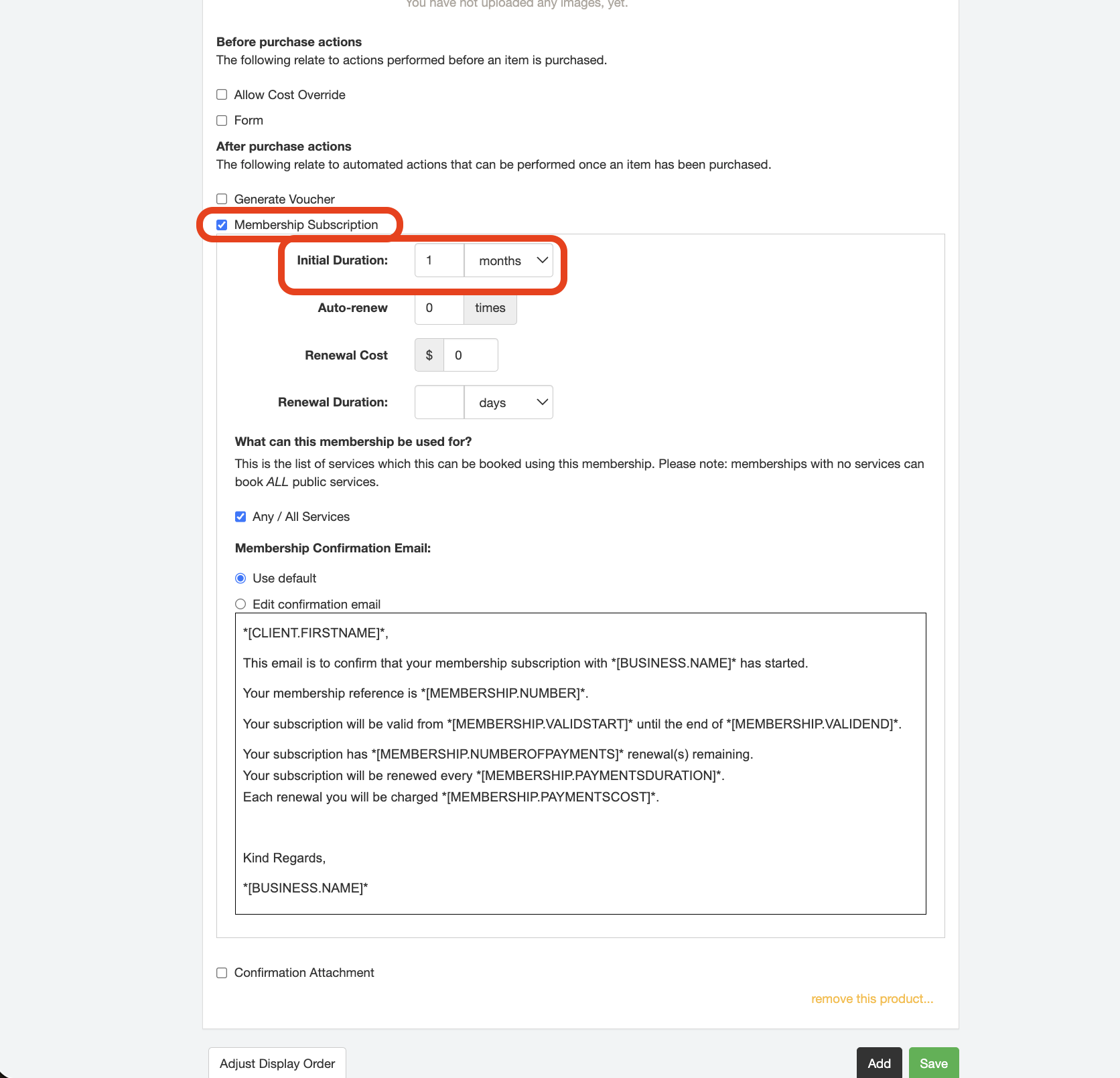
- Set the desired "Auto-Renew" value.
"Auto Renew" controls the number of times that the Membership subscription is automatically renewed following the Initial Membership subscription invoicing, which in turn determines the number of times that the subscribed Member is billed for their Membership Subscription.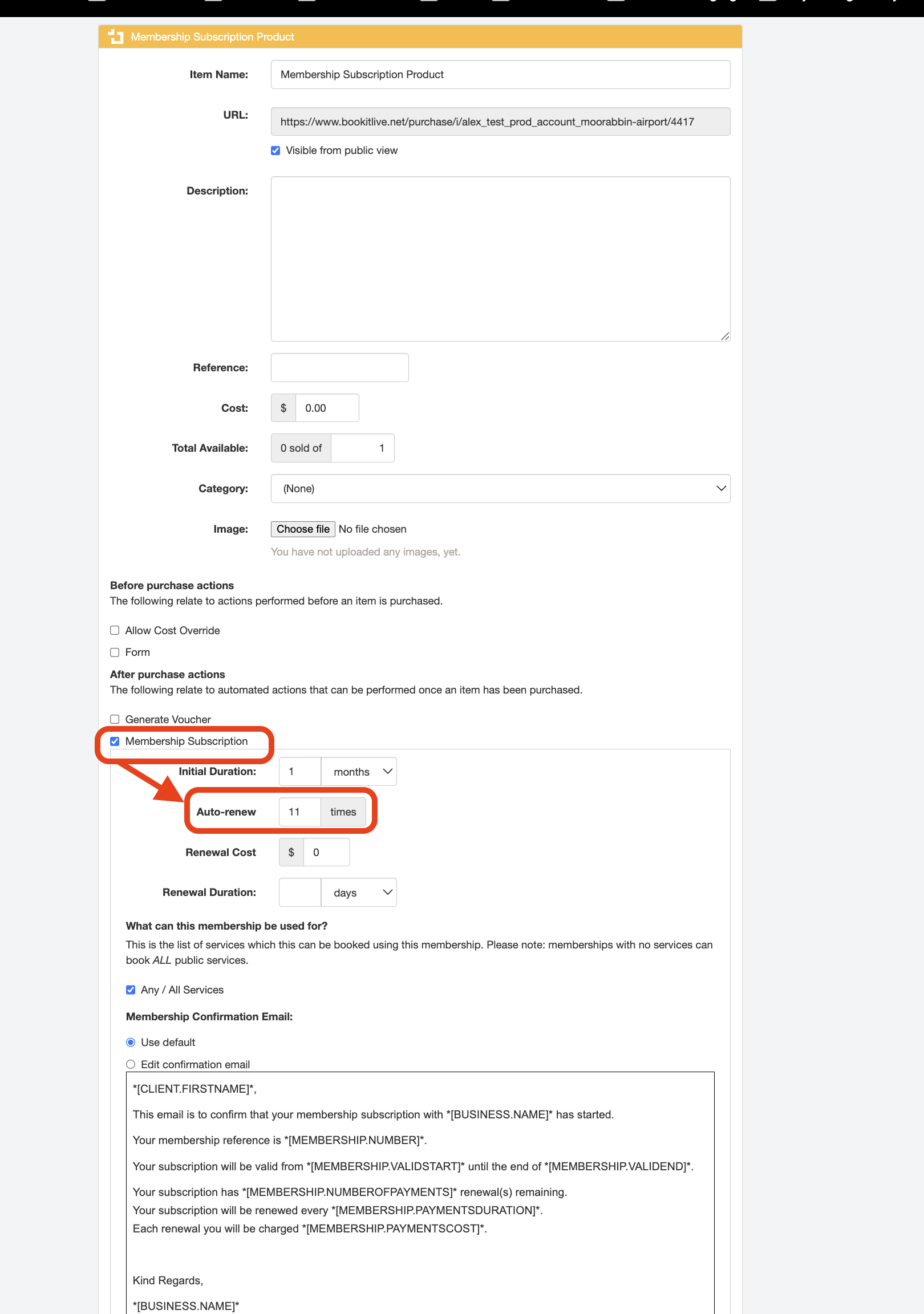
- Set the "Renewal Cost" value for the Membership Subscription.
The "Renewal Cost" is the amount that the subscribing customer is automatically charged at the date of Member Subscription Auto-Renewal.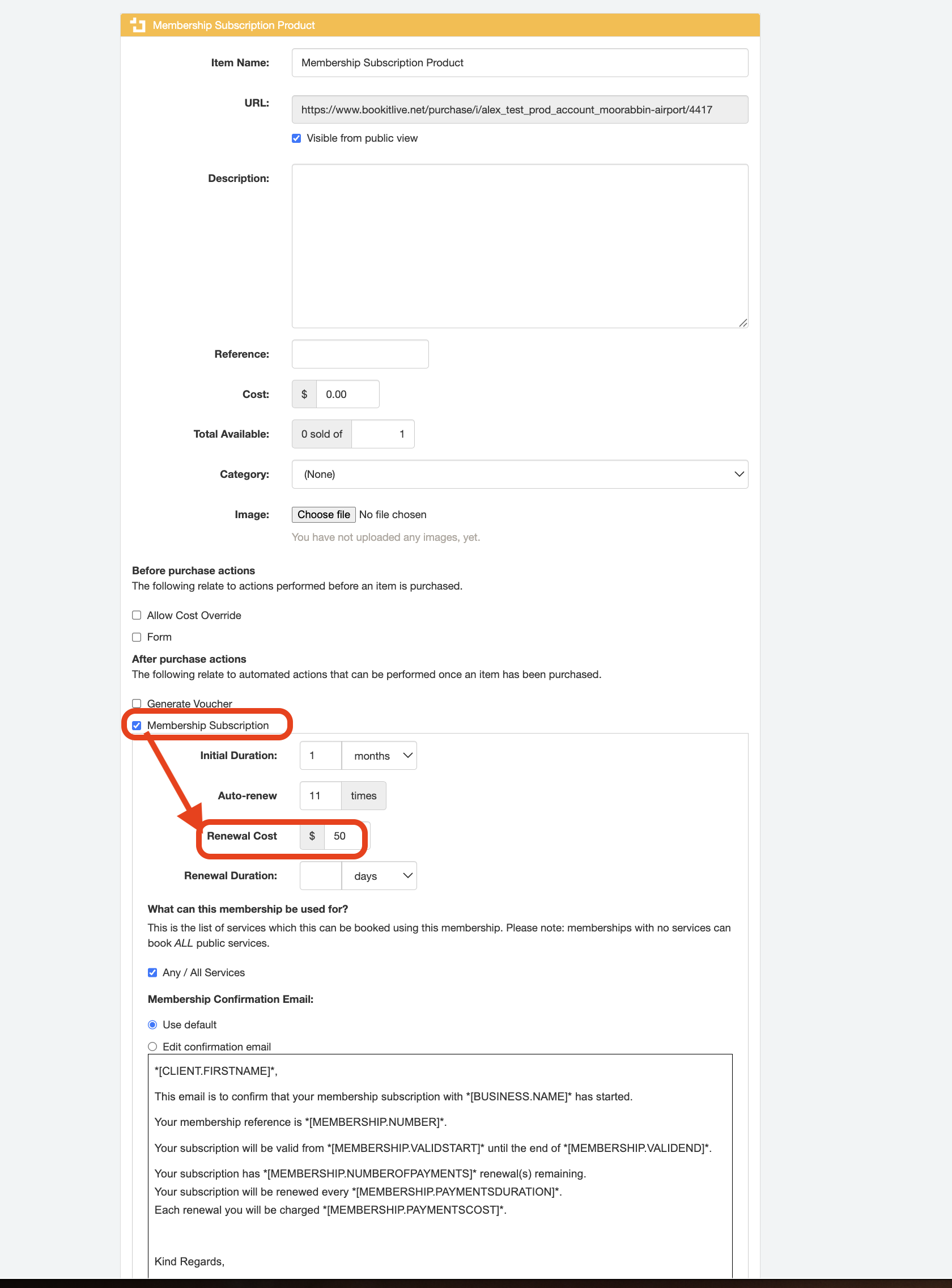
- Set the "Renewal Duration" value.
The "Renewal Duration" is the interval of recurring Membership Subscription renewal. When the Renewal Duration elapses, the subscribed Member is automatically charged the Renewal Cost set, assuming that the number of Auto Renew cycles for the subscription has not been fully exhausted.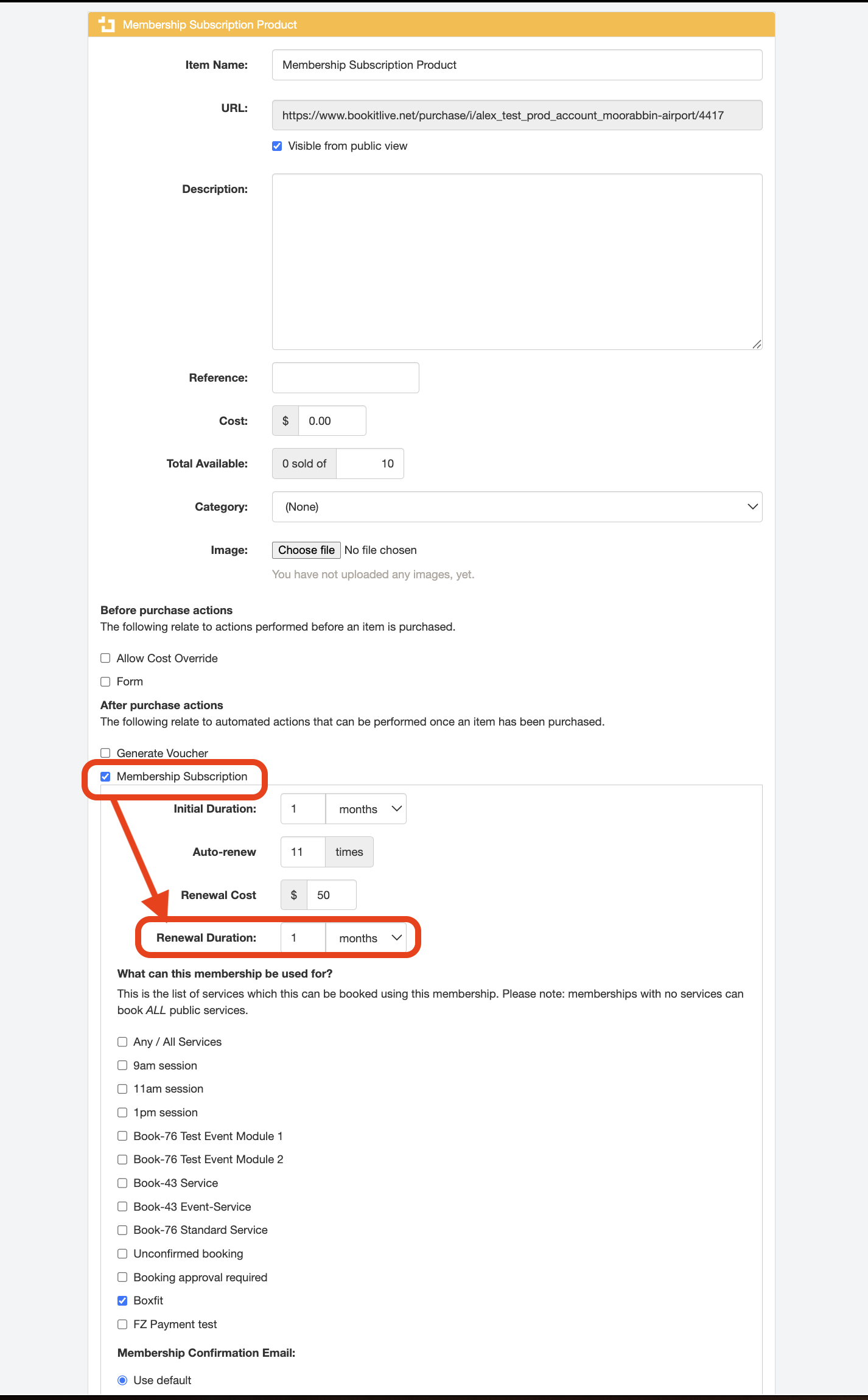
- Set the Service(s) that Members can use their Membership can be used to book under the "What can this membership be used for?" field.
By default, the "Any / All Services" checkbox is ticked under this field, meaning that the Membership is valid for use to book any Services with by default. However, this can be unticked to reveal the full list of Services in the account (from the "Configuration" tab "Services" page), allowing the business user to restrict which Services they can book using this Membership Subscription.
Any Service names that are ticked can be booked using a valid Membership code generated from purchashing this membership Subscription Product, while any unticked Service names in this list cannot be booked using this Membership Subscription code.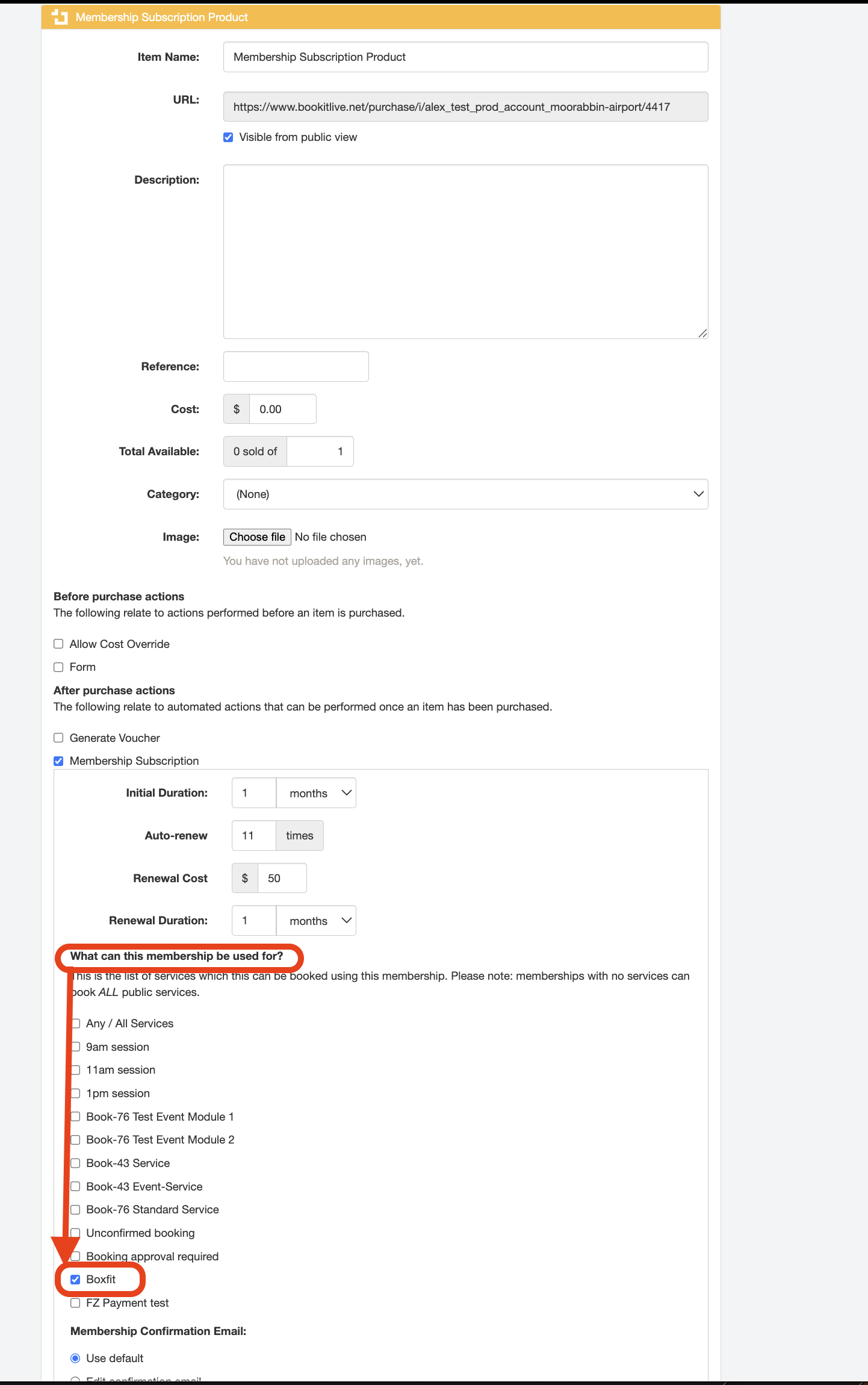
- End.
Membership Configuration Analysis using example values above
In the example values used above for Membership Subscription "Cost" ($0), "Initial Duration" (1 month), "Auto Renew" (11 times), "Renewal Cost" ($50), and "Renewal Duration" (1 month), this Membership Subscription is:
- Free for the first month of subscription.
- Charges the Member $50 one month following the creation of the Membership Subscription .
- Scheduled to automatically bill subscribers for the the next 11 months.
- Only valid to be used to book the "Boxfit" Service.
Was this article helpful?
That’s Great!
Thank you for your feedback
Sorry! We couldn't be helpful
Thank you for your feedback
Feedback sent
We appreciate your effort and will try to fix the article