Daylight Saving commencement and completion dates vary across different countries and regions. All booking systems rely on your local time being correct to avoid booking conflicts.
The Daylight Savings setting is used to set the dates when times need to be adjusted for daylight saving (summer time).
How to adjust your BookItLive account's timing for Daylight Savings times
- Login to your company's BookIt live account as either the Business Owner (Administrator) user or a Manager user.
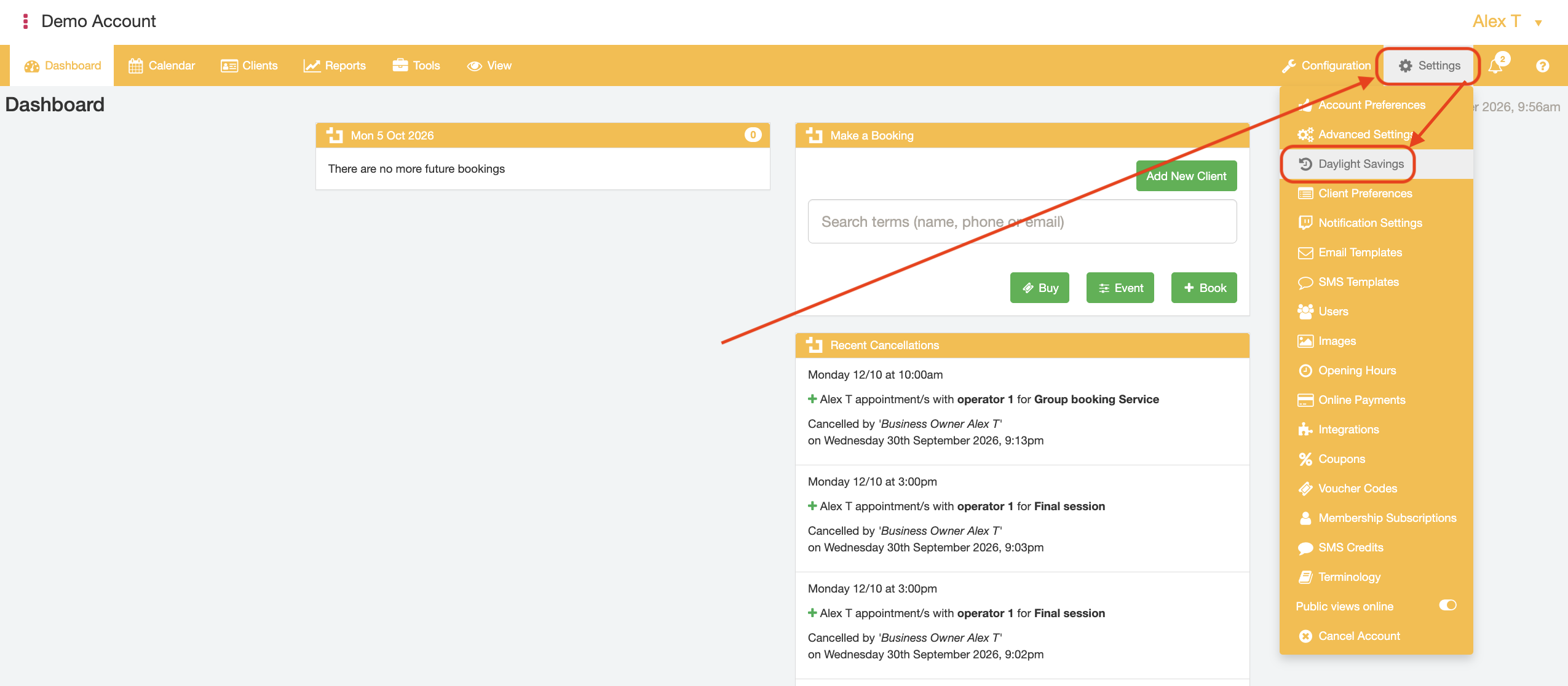
- Hover your cursor over the "Settings" tab and select the "Daylight Savings"menu option.
- Enter the Daylight Savings Start Date into the "Start Date" field. This is the date at which you Daylight Savings time adjustment will take effect in your BookItLive account.
TIP: Click on the Calendar icon in the "Start Date" field to open the date picker tool. The in-built date picker tool can be used to ensure that the date input is entered in the accepted valid date format.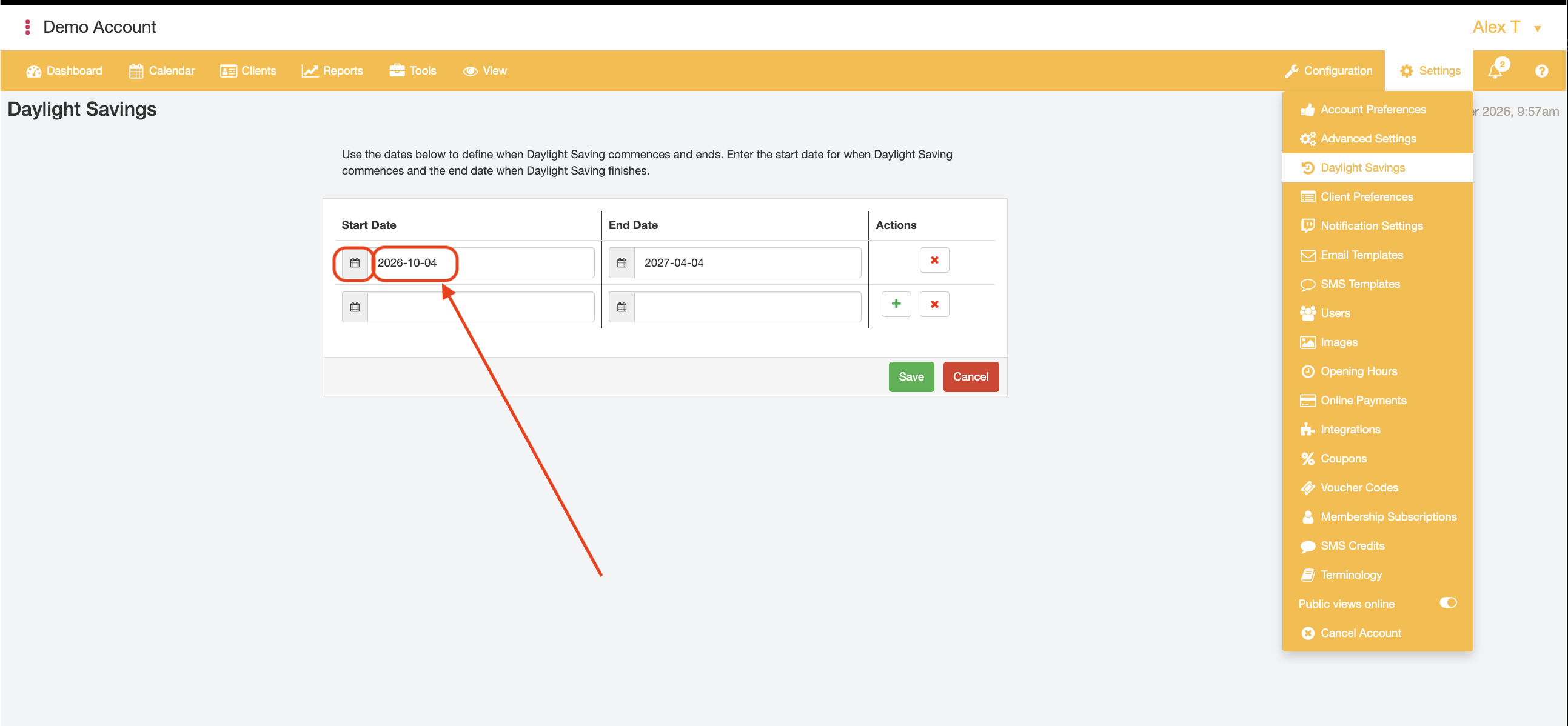
- Enter the Daylight Savings End Date into the "End Date" field. This is the date at which you Daylight Savings time adjustment will no longer take effect in your BookItLive account.
TIP: Click on the Calendar icon in the "End Date" field to open the date picker tool. The in-built date picker tool can be used to ensure that the date input is entered in the accepted valid date format.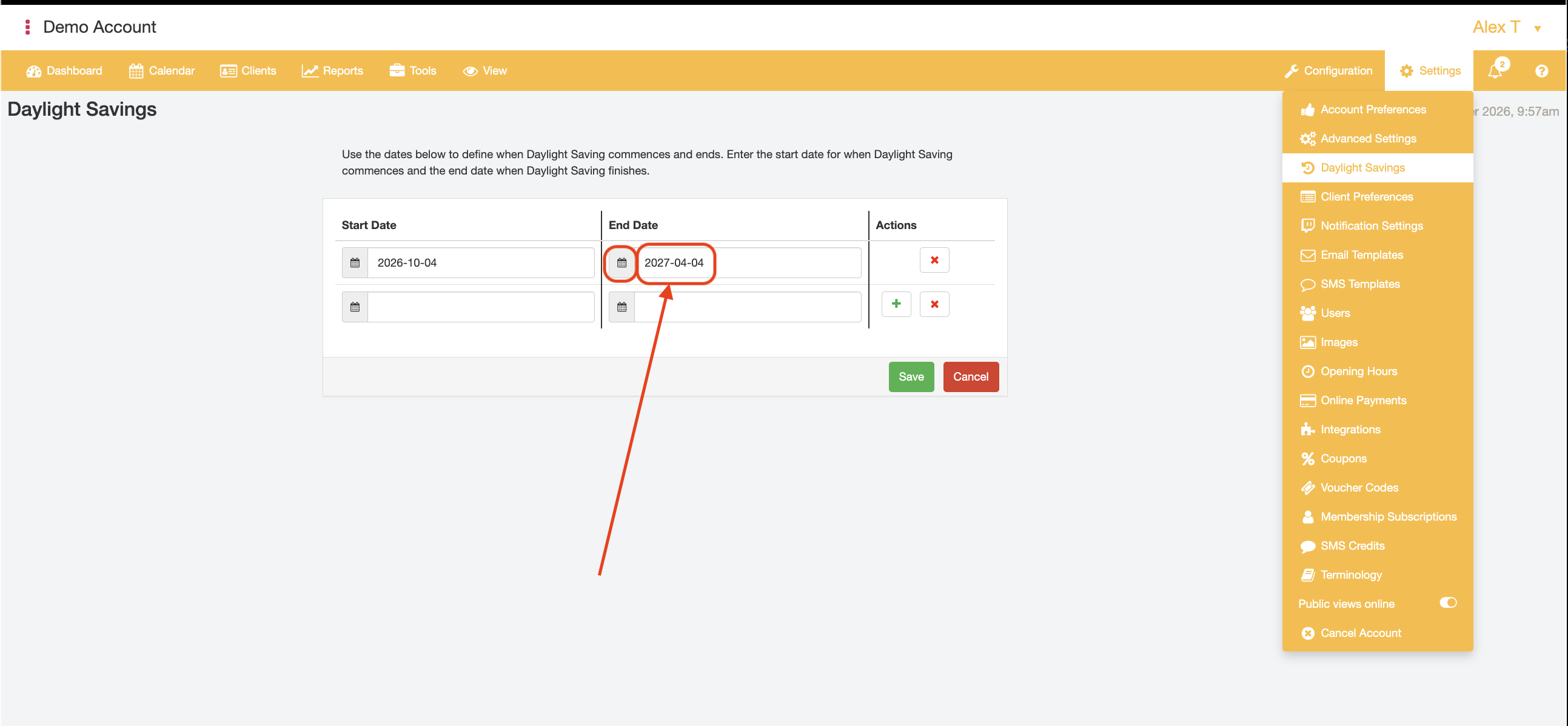
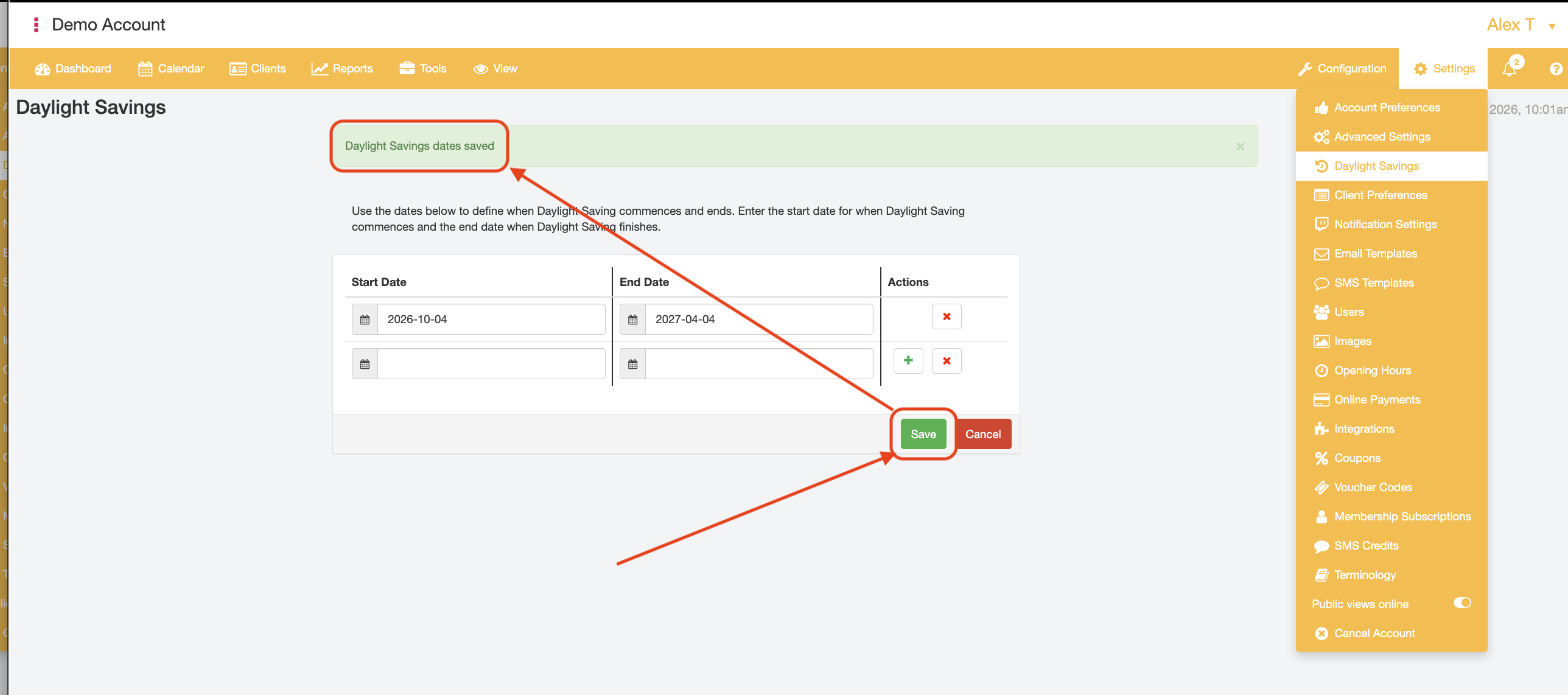
- Click the "Save" button to confirm when the Daylight Savings time adjustment will take effect in your account. A success message will appear informing the user that the Daylight Savings settings have been confirmed.
- End.
Was this article helpful?
That’s Great!
Thank you for your feedback
Sorry! We couldn't be helpful
Thank you for your feedback
Feedback sent
We appreciate your effort and will try to fix the article