bookitLive integrates the online booking processes to automatically schedule Webex video web conferencing at the time of booking.
It only takes a minute to connect your Webex account. Once connected and configured, bookings automatically create a scheduled Webex session in your Webex account. The session includes a unique meeting ID and dynamic password, ensuring a secure video web conferencing experience.
What You Need
Connecting bookitLive to Webex Meetings
Log into your bookitlive account and use the integration page to connect bookitLive to Webex.
- Go to https://bookitlive.net
- Logon to your bookitlive account
- Select Settings > Integration
- Select Video Conferencing
- Select the cog to configure Webex Meetings

- Select Enable Cisco Webex
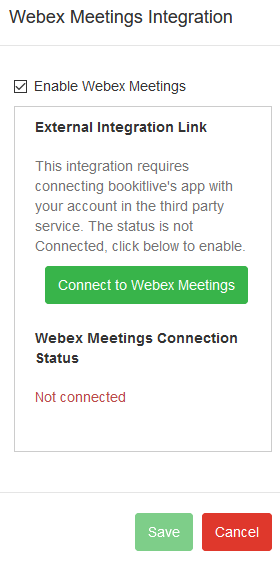
- Select Connect to Webex Meetings
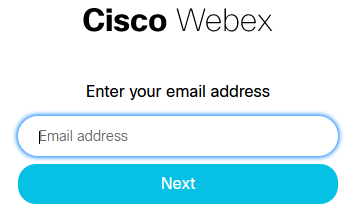
- Enter your Webex email address
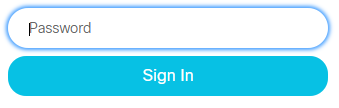
- Enter your Webex password
- On successful login the Integration page will reappear
Disconnecting bookitLive to Webex Meetings
Log into your bookitlive account and use the integration page to connect bookitLive to Webex.
- Go to https://bookitlive.net
- Logon to your bookitlive account
- Select Settings > Integration
- Select Video Conferencing
- Select the cog to configure Webex Meetings
- Deselect Enable Cisco Webex
- Select Save
Service configuration to schedule Webex meetings
Once Webex is connected to your bookitLive account services can be configured to automatically schedule the Webex meeting when the service is booked.
- Logon to your bookitlive account
- Select Configuration > Services
- Open the service that needs to create Webex meeting schedules when booked
- Select the option Online meeting to schedule Webex meetings when this service is booked

5. Select Save
Adding Webex meeting details into emails and SMS
The bookitlive email and SMS templates need to be updated to include the Webex meeting details for client and provider email and SMS templates.
Client templates
The following tags can be added to the client templates to communicate the Webex meeting details. The IF statement is used to only include Webex meeting details for service configured for online meetings.
*[IF:BOOKING.VIDEOMEETINGJOINLINK]*Meeting Details*[/IF]*
*[IF:BOOKING.VIDEOMEETINGJOINLINK]*Meeting Link: *[BOOKING.VIDEOMEETINGJOINLINK]* *[/IF]*
*[IF:BOOKING.VIDEOMEETINGJOINLINK]*Meeting password: *[BOOKING.VIDEOMEETINGJOINPASS]* *[/IF]*
Provider templates
The following tags can be added to the provider templates to communicate the host details for the Webex meeting details. The IF statement is used to only include Webex meeting details for service configured for online meetings.
*[IF:BOOKING.VIDEOMEETINGHOSTLINK]*Meeting Details *[/IF]*
*[IF:BOOKING.VIDEOMEETINGHOSTLINK]*Meeting Link: *[BOOKING.VIDEOMEETINGHOSTLINK]* *[/IF]*
*[IF:BOOKING.VIDEOMEETINGHOSTLOGIN]*Host Login: *[BOOKING.VIDEOMEETINGHOSTLOGIN]* *[/IF]*
*[IF:BOOKING.VIDEOMEETINGHOSTLOGIN]*Host Password: *[BOOKING.VIDEOMEETINGHOSTPASS]* *[/IF]*
Was this article helpful?
That’s Great!
Thank you for your feedback
Sorry! We couldn't be helpful
Thank you for your feedback
Feedback sent
We appreciate your effort and will try to fix the article