BookItLive automatically captures all financial transaction data that has been processed through BookItLive's bookings and purchases pages via its "Reports" tool.
BookItLive manager-, business owner- (administrators), and Reseller-level users will be able to access Reports within the BookItLive application that provides information on monetary transactions that have been processed through their business account(s).
Reseller vs. non-Reseller user accounts
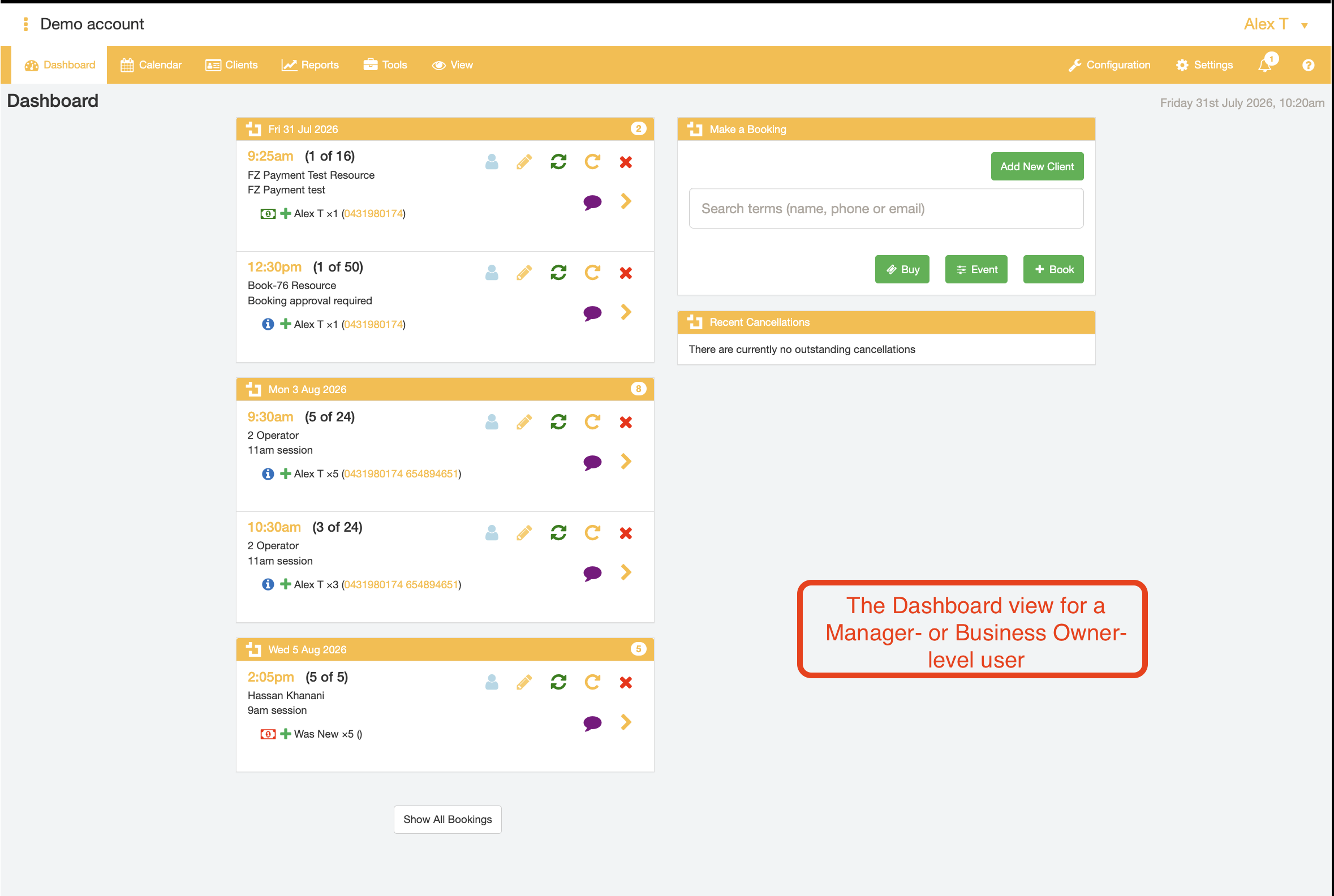
Manager and Business Owner users will only have access the Purchase Transactions Report for their own (single) business account.
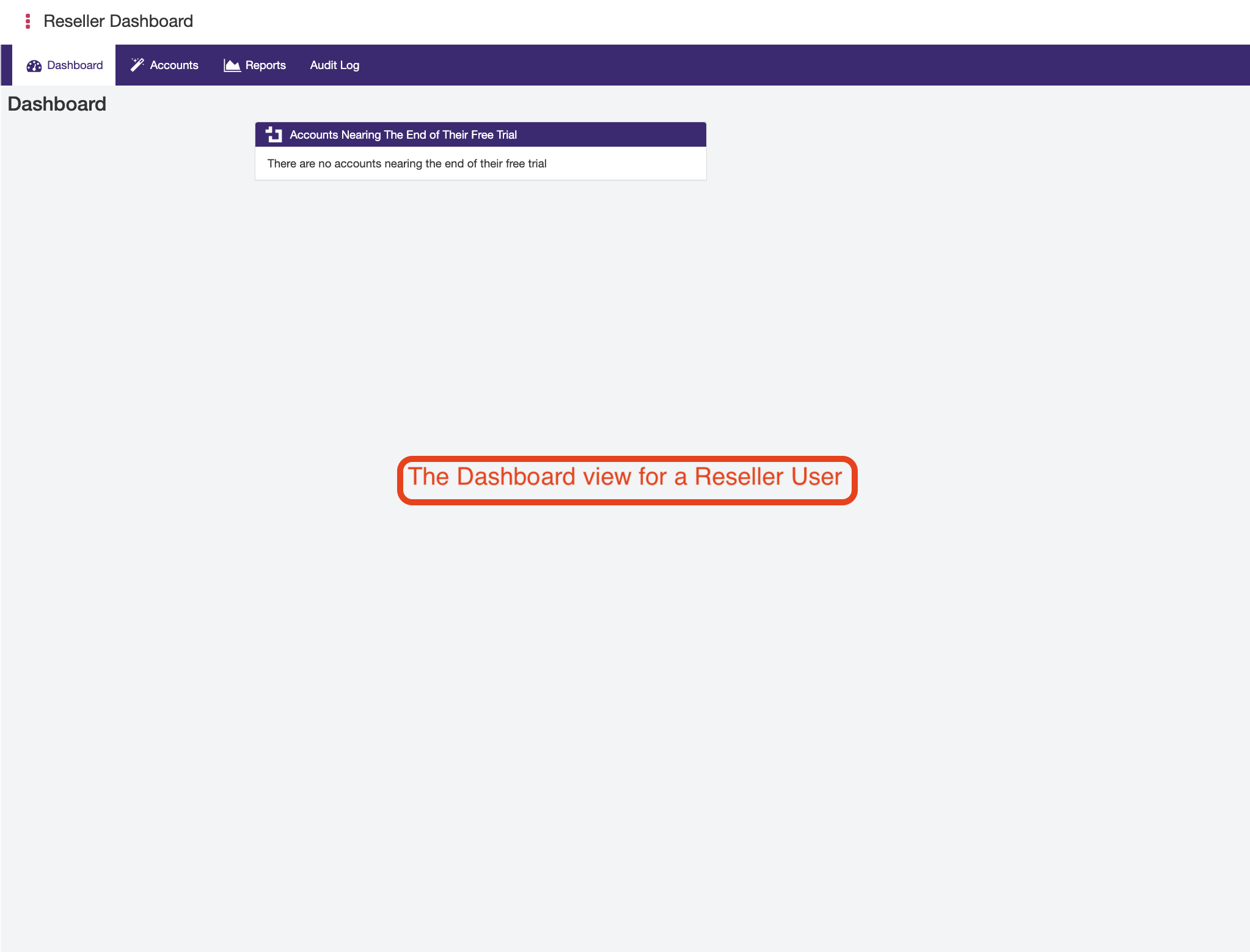
A Reseller user is a special type of user that has business owner level access to multiple linked BookItLive business accounts. If, for example, your business had many operating locations, with each location having its own BookItLive account, a Reseller 'super-user' account could be set up for the business administrator(s) to manage and oversee these multiple BookItLive accounts.
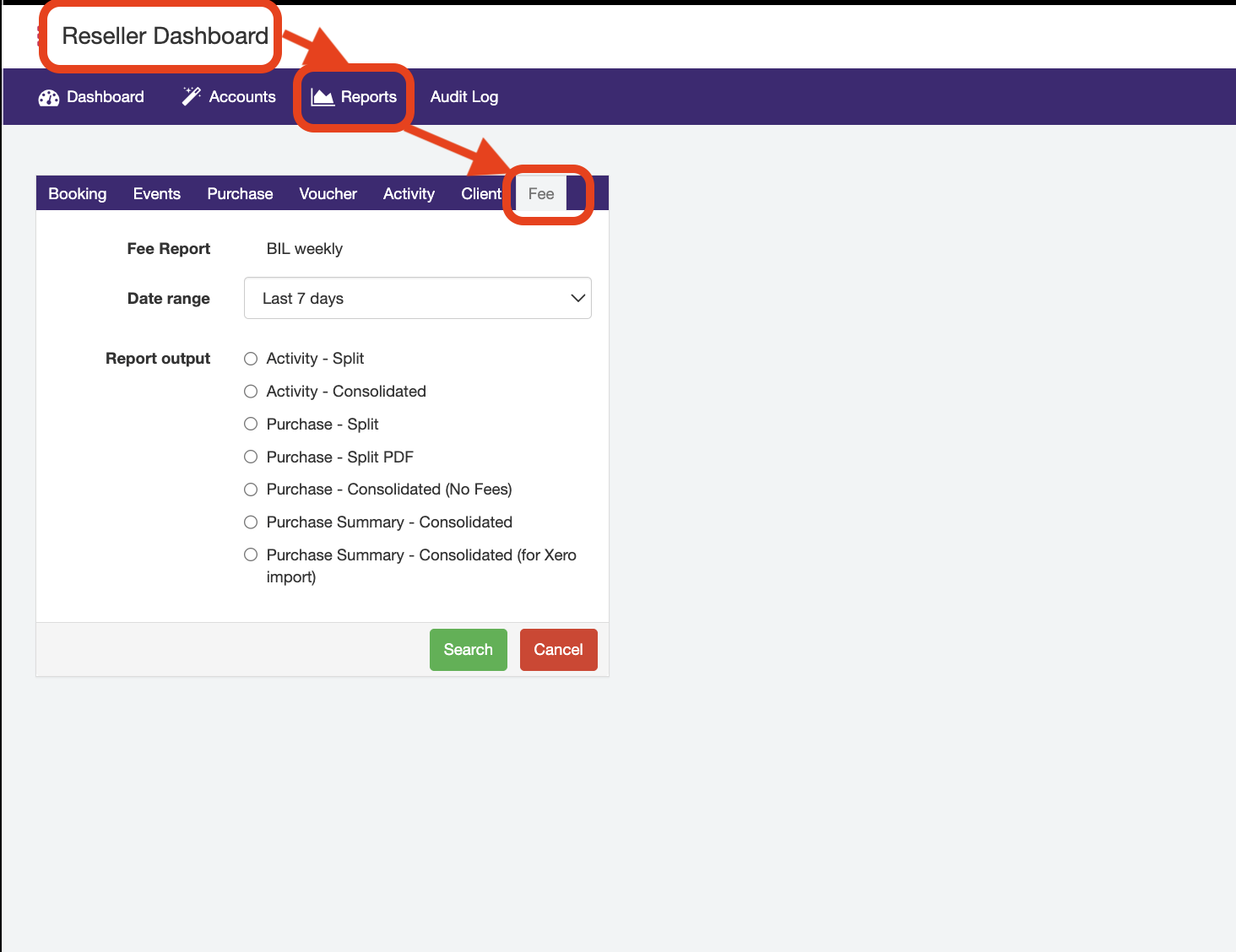
Reseller users have access to additional menu within the Reports tool called "Fee" reports. The Fee Report is effectively the same as a standard "Purchase" Report, but covering multiple business accounts linked to that Reseller user. As a non-reseller user, you can get the equivalent information of a Reseller user's Fee report from the Report Purchase tab.
If you only use a single BookItLive business account, you would not be considered to be a Reseller user and hence you would not have access to this "Fee" Report option from your BookItLive user account.
Extracting financial transaction reporting as a Manager/Business Owner user
- Log into https://bookitlive.net with your Manager or Business Owner user account
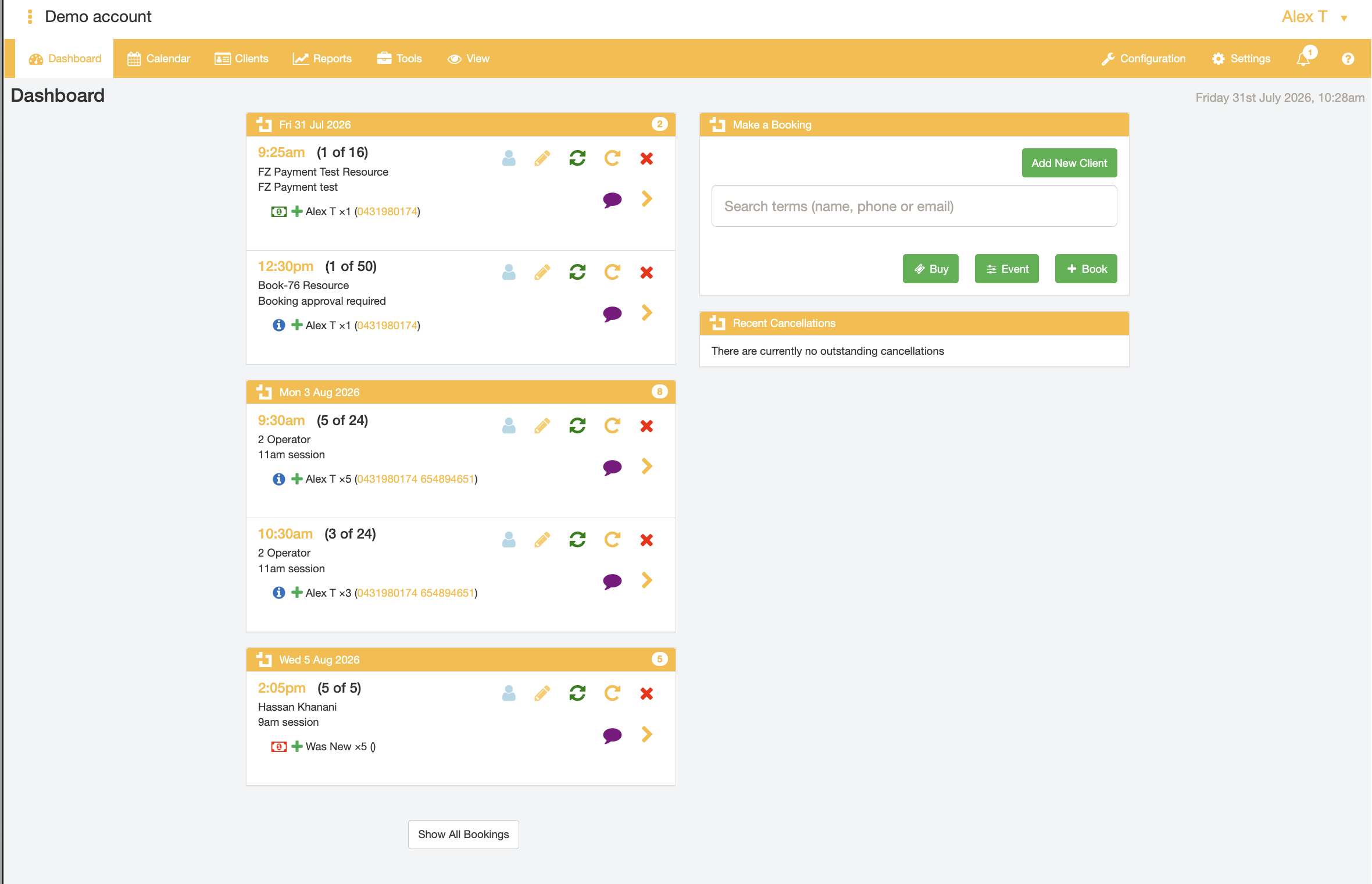
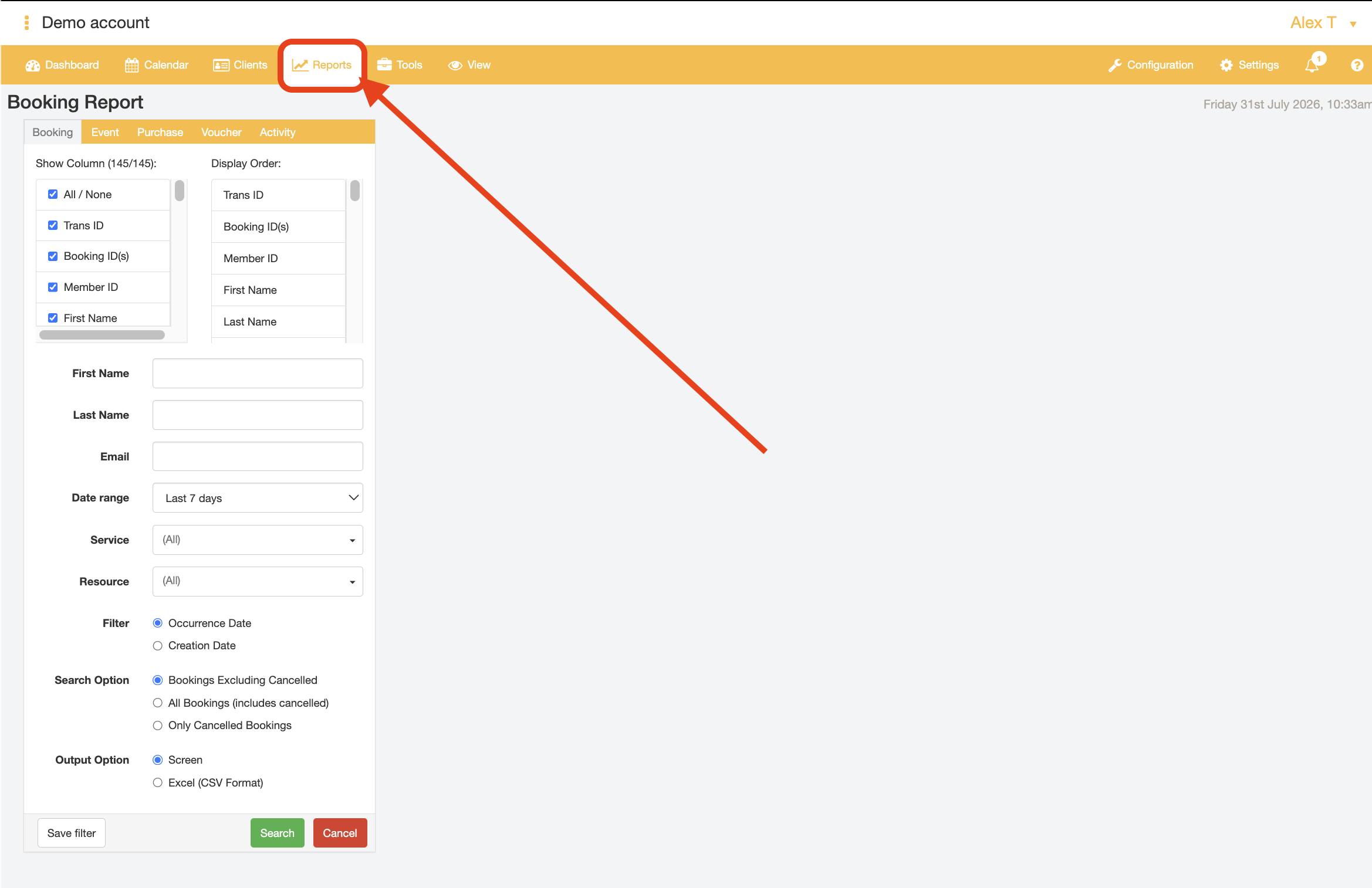
- Select the "Reports" tab.
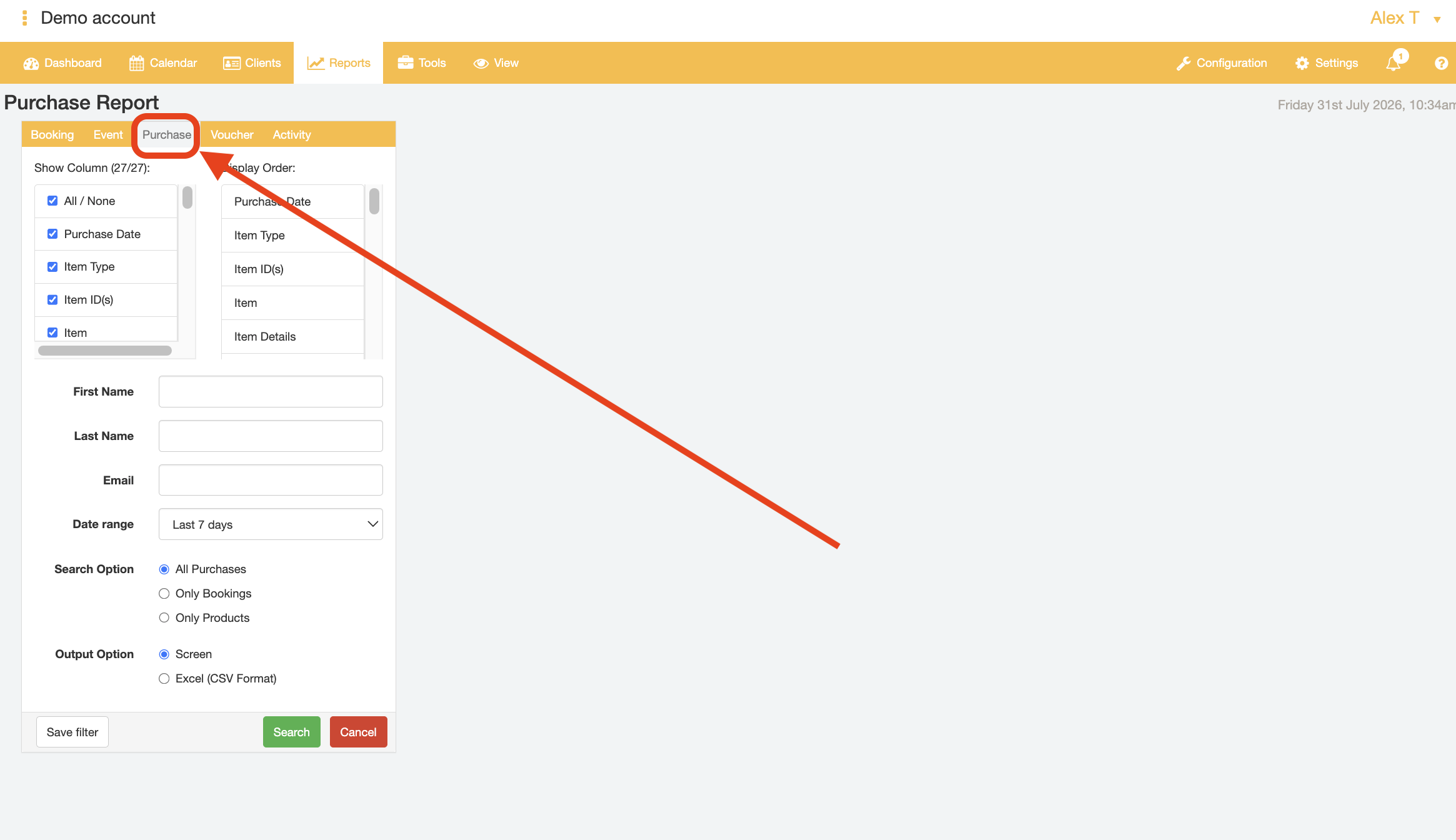
- Within the Reports page, select the "Purchase" tab
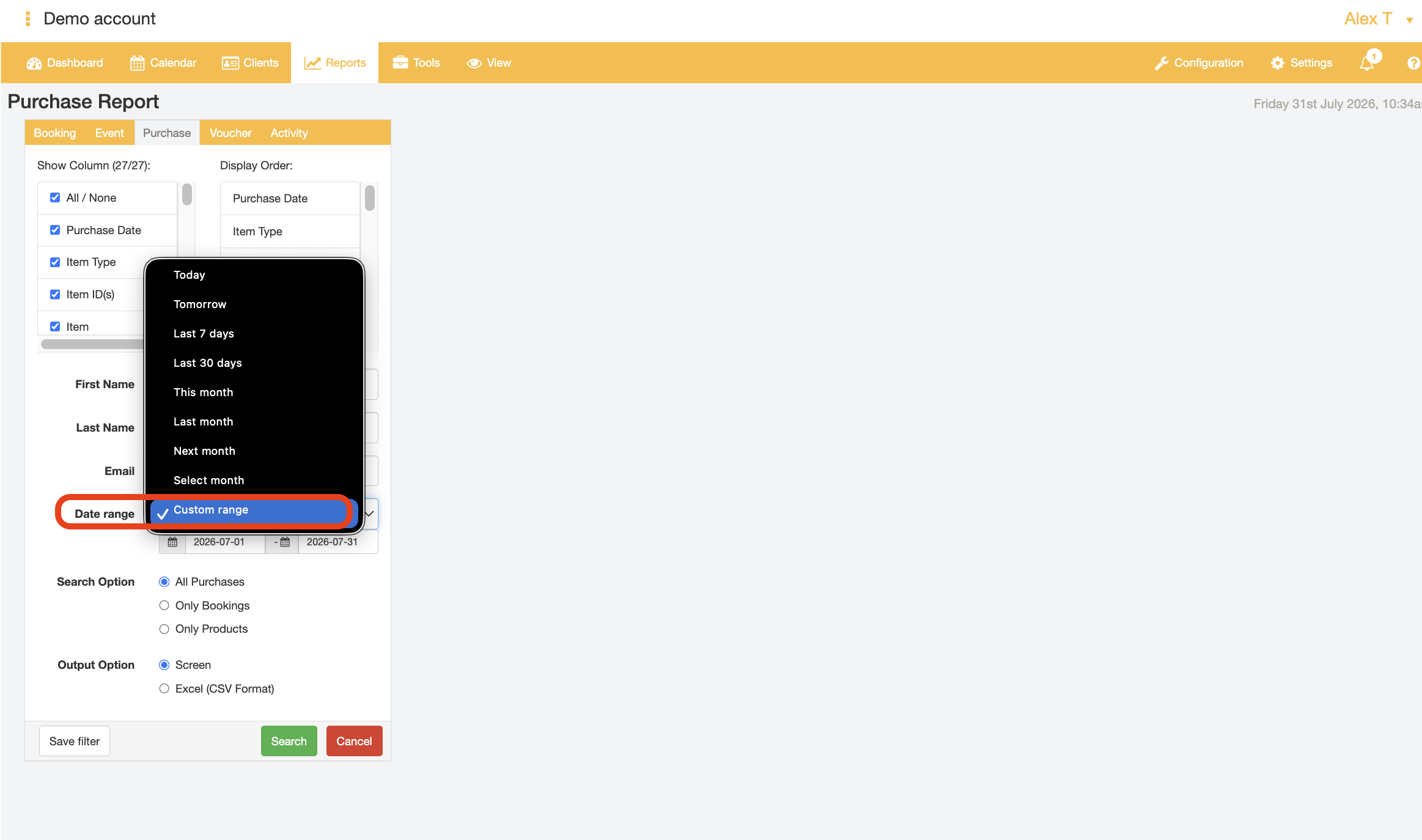
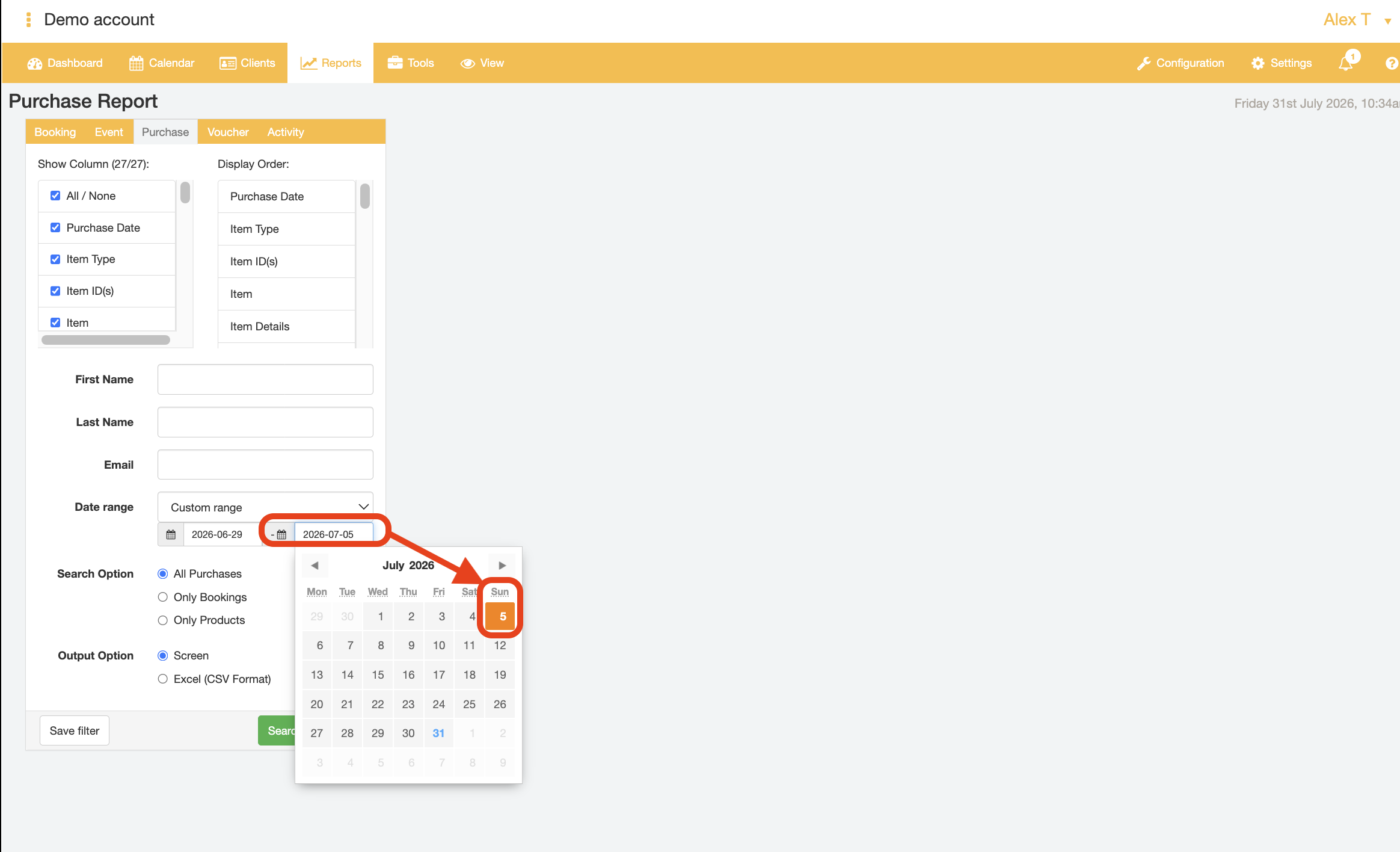
- Select Custom range for the "Date range" dropdown field
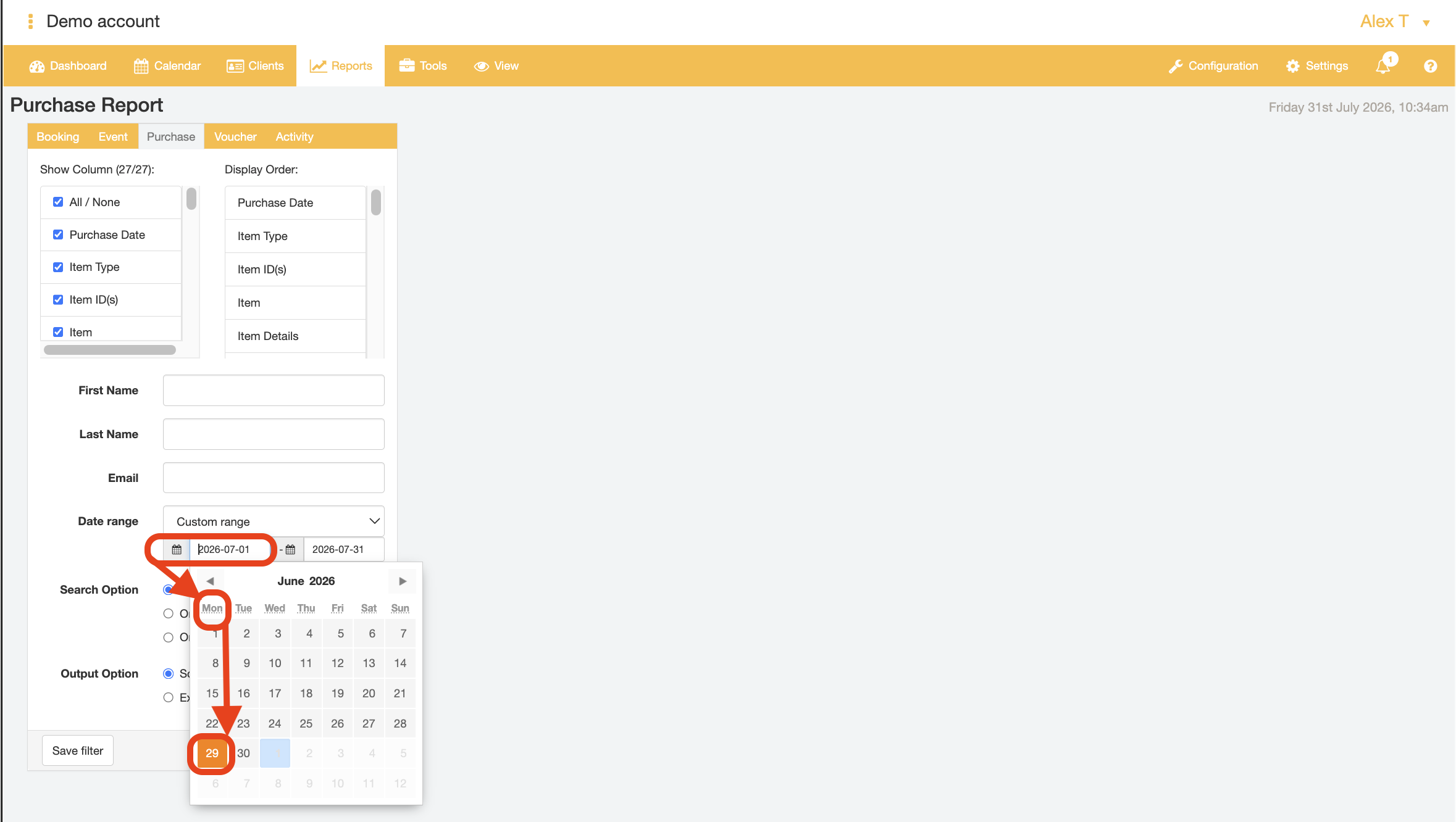
- Select the data range to run the report for using the respective start and end date date picker tools that appear from the "Custom Range" date range selection
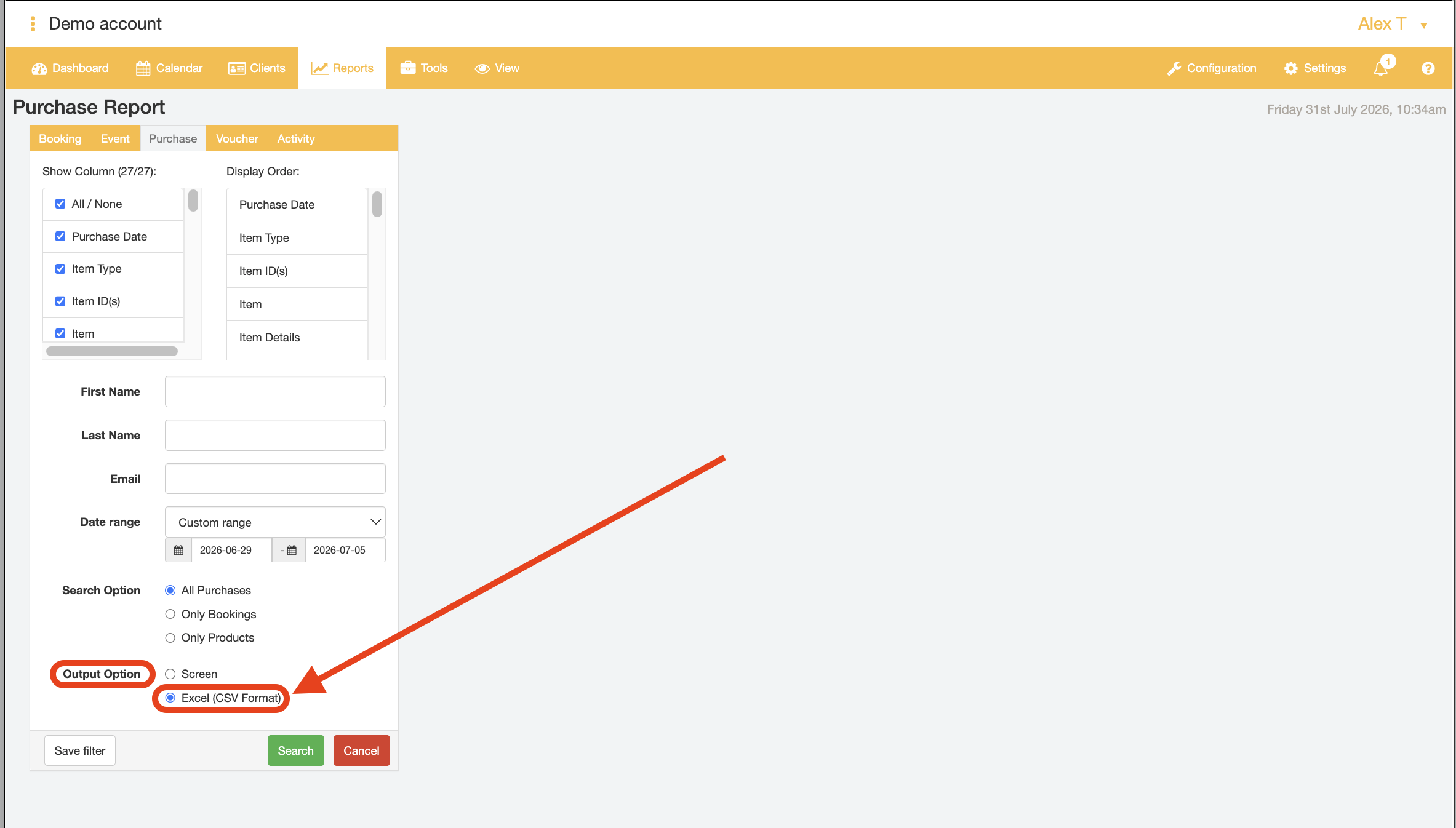
- Select "Excel (CSV format)" in the "Output Option" field.
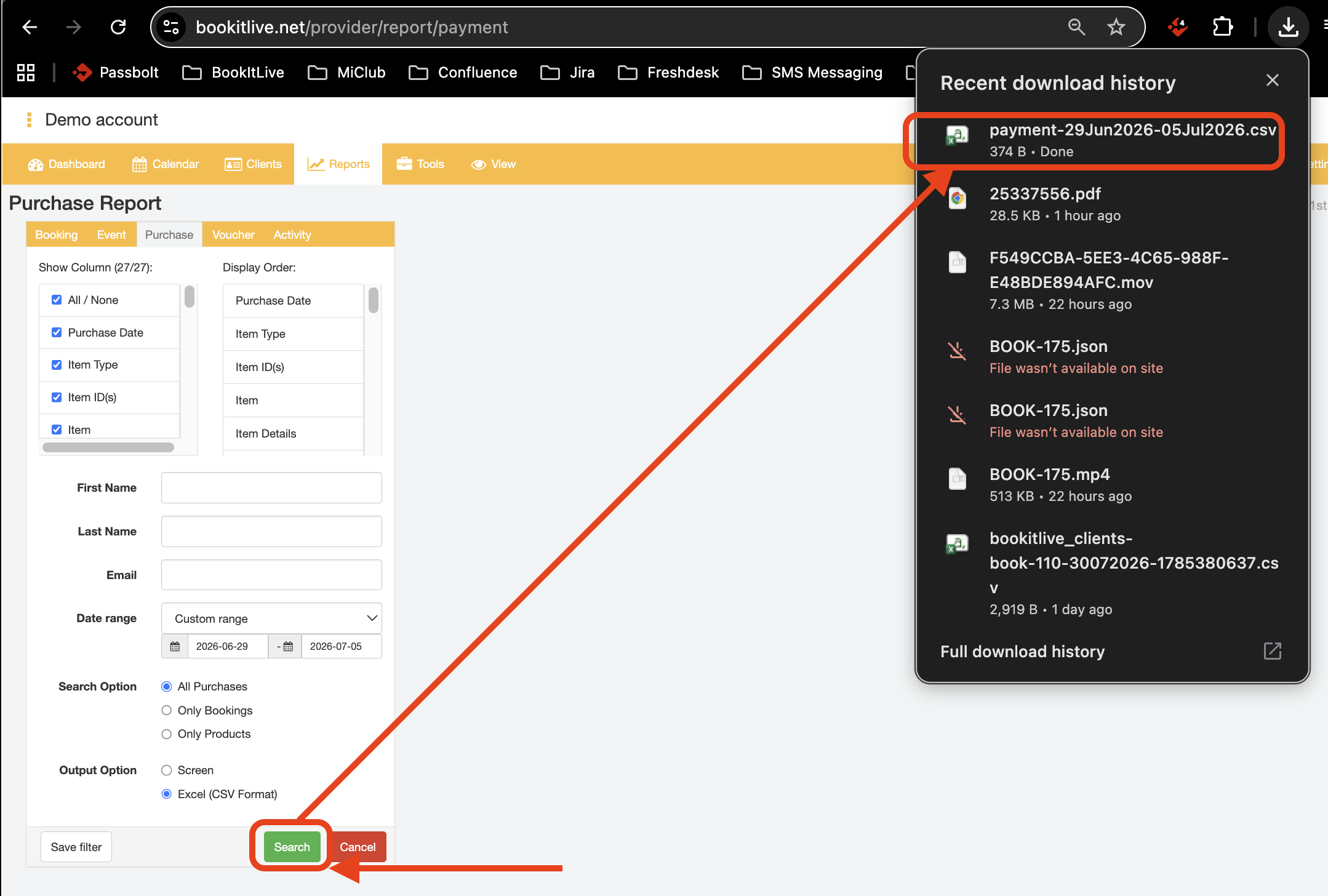
- Select the "Search" button to run and download the .csv report. The downloaded report will have the file name "payment-<start date>-<end date>.csv"
- End.
Extracting financial transaction reporting as a Reseller user
- Log into https://bookitlive.net with your Reseller user account
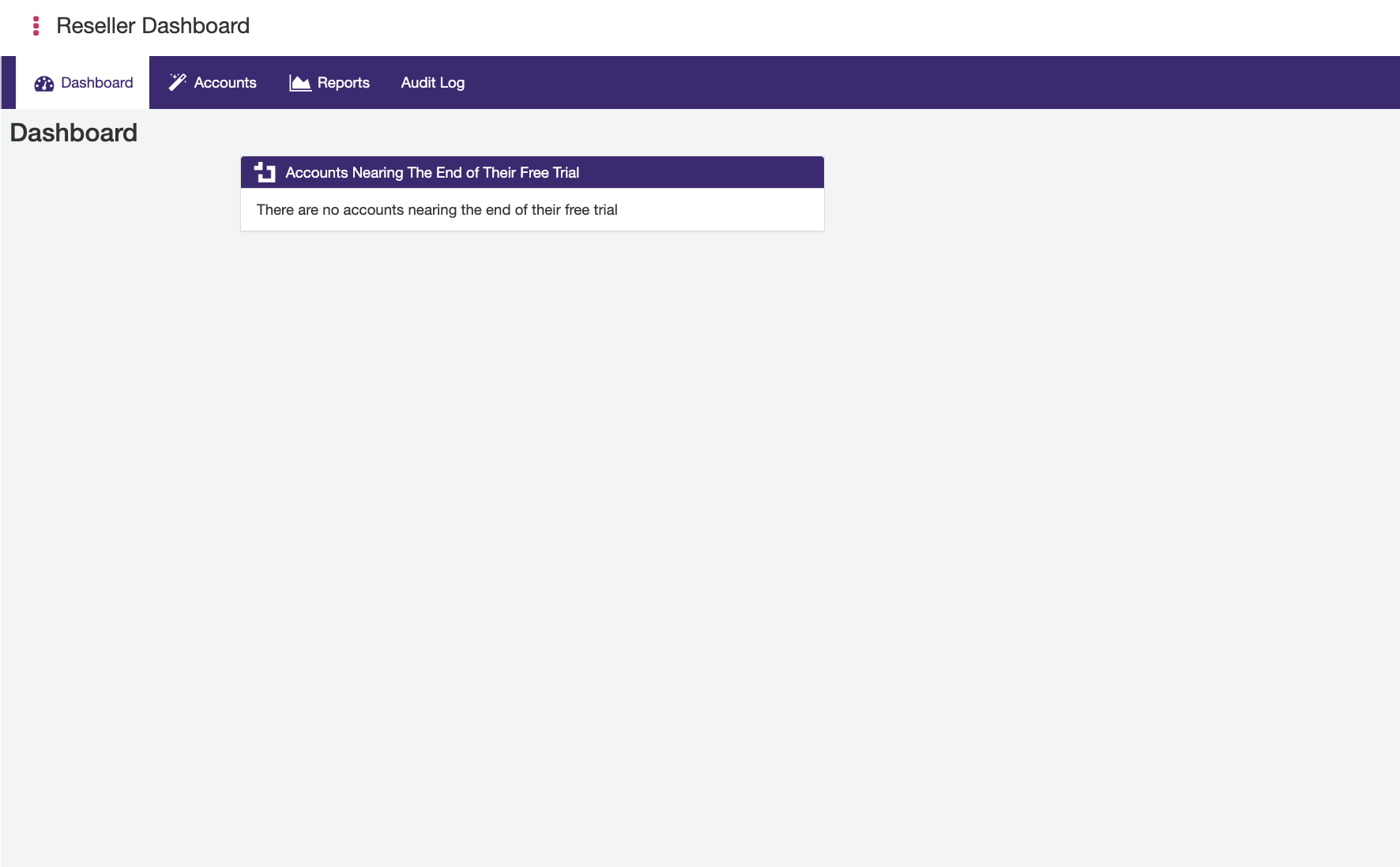
- Select the "Reports" tab
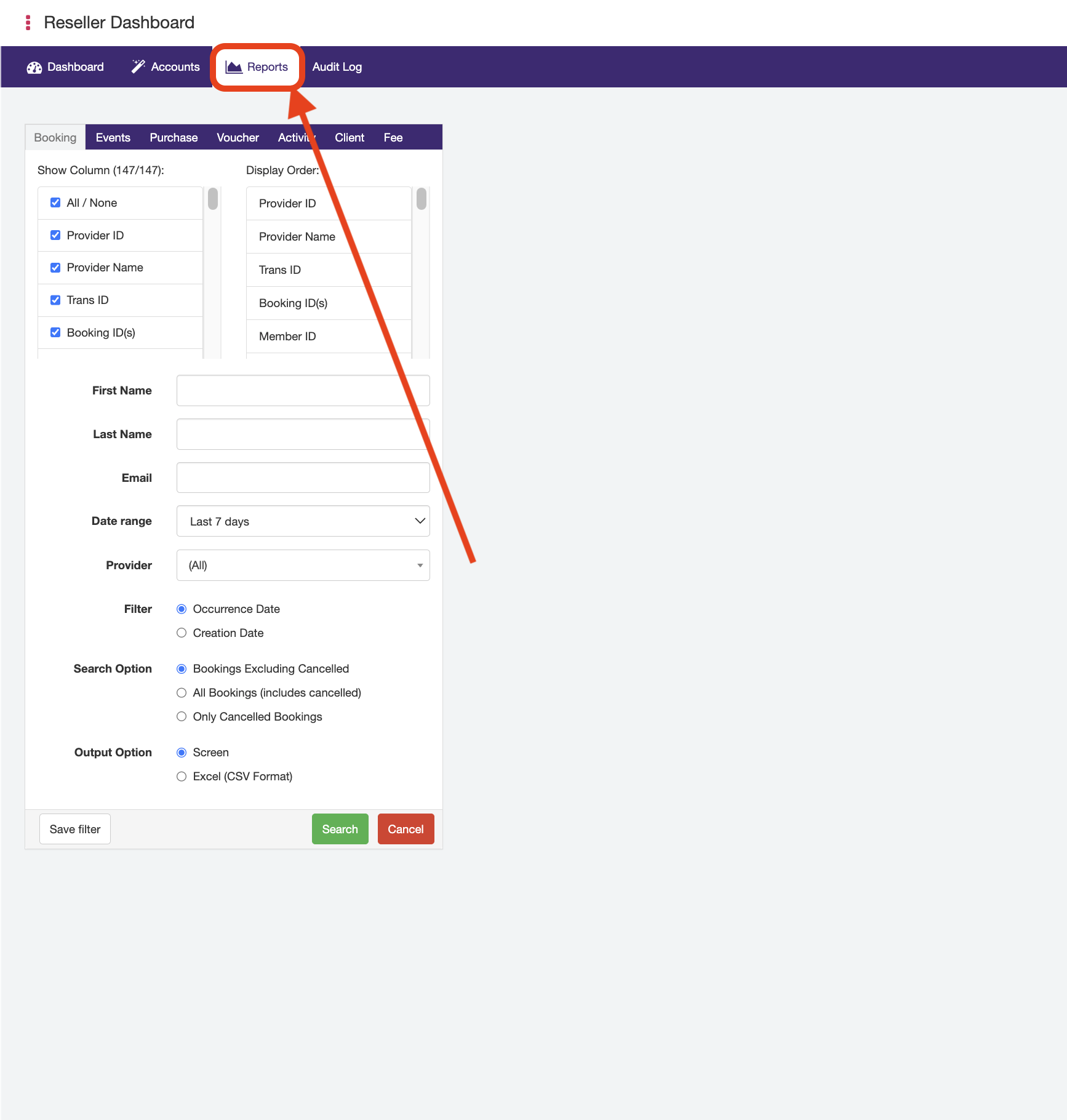
- Within the "Reports" page, select the "Fees" tab
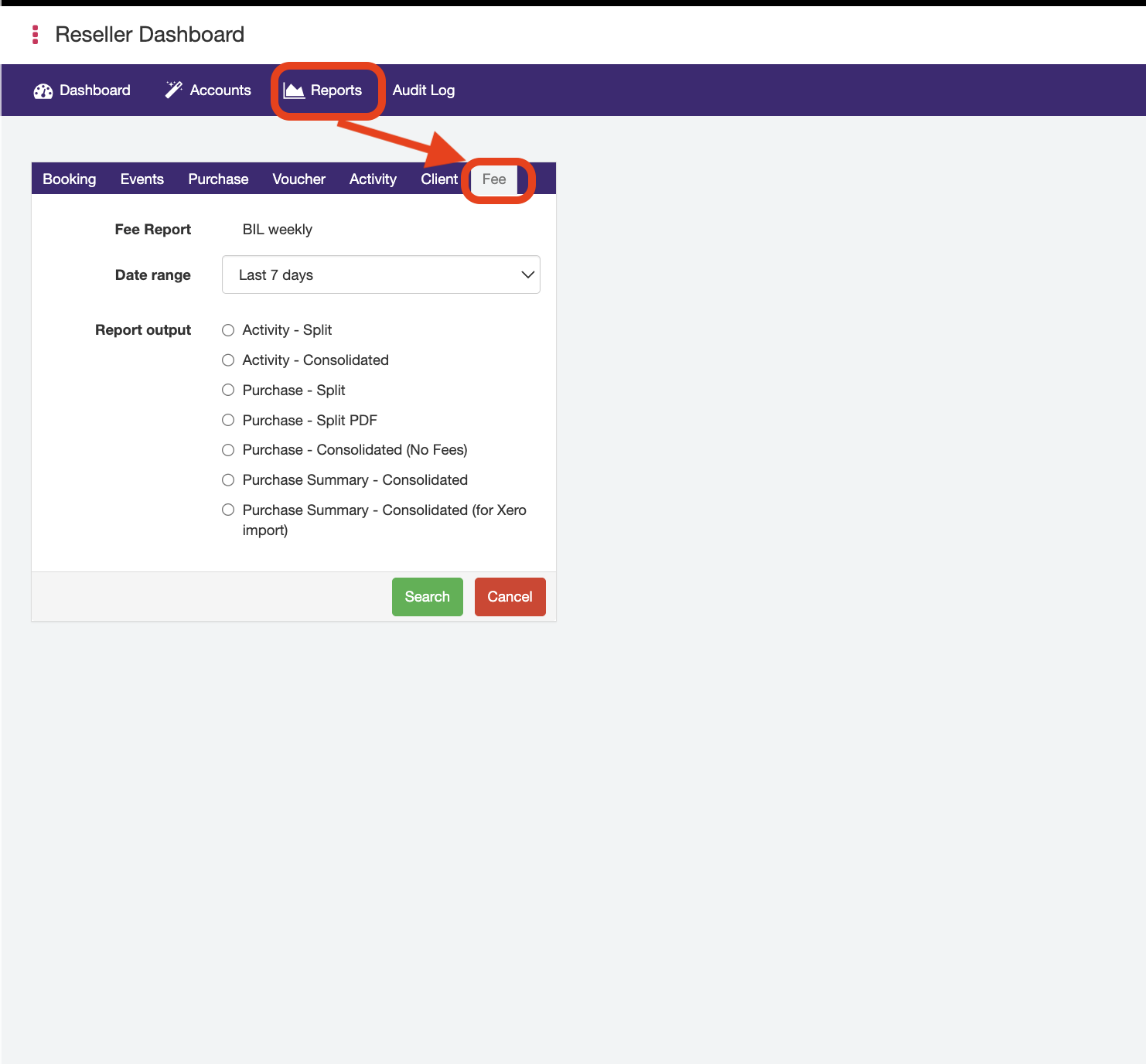
- Select Custom range for the "Date range" dropdown field
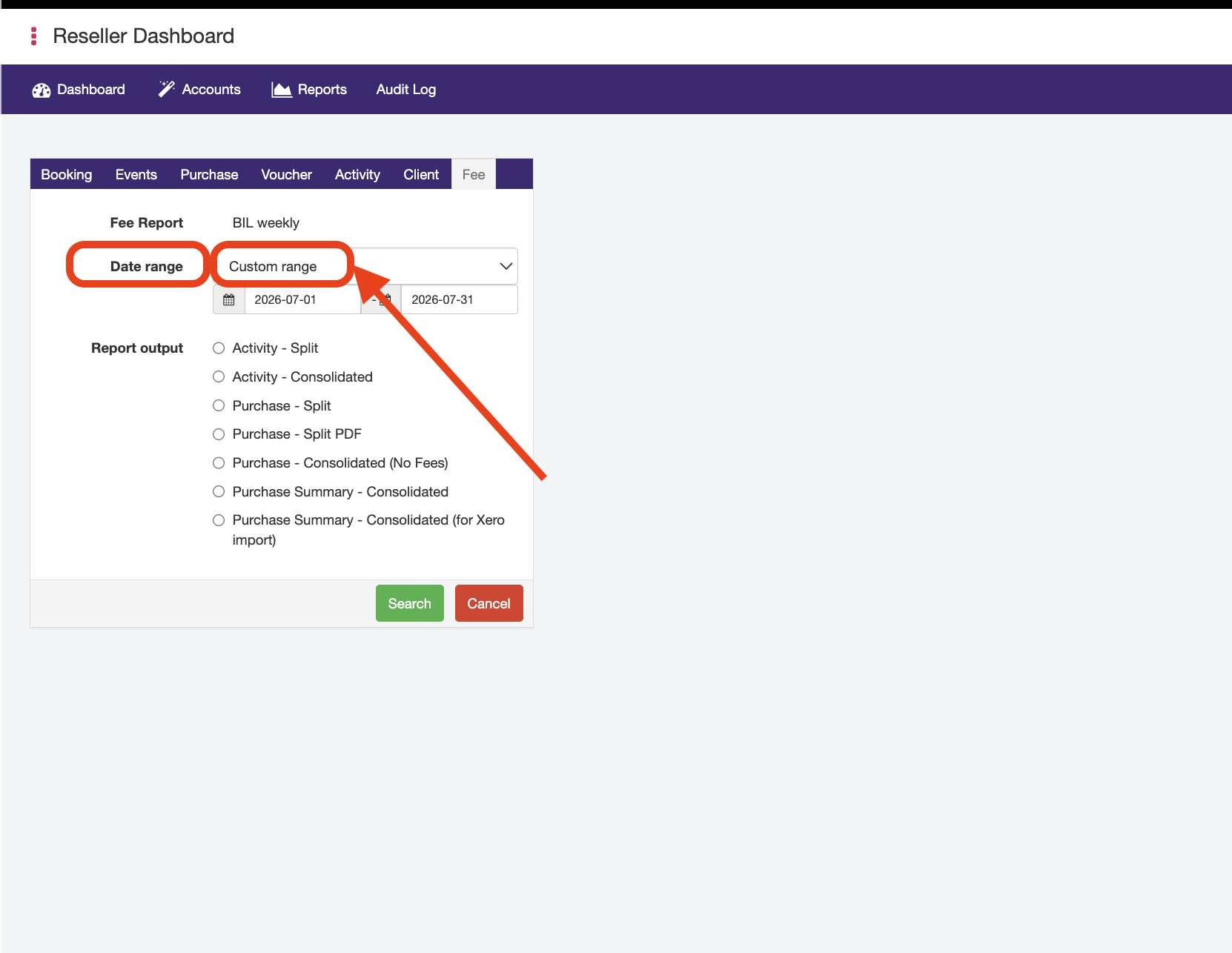
- Select the data range to run the report for using the respective start and end date date picker tools that appear from the "Custom Range" date range selection
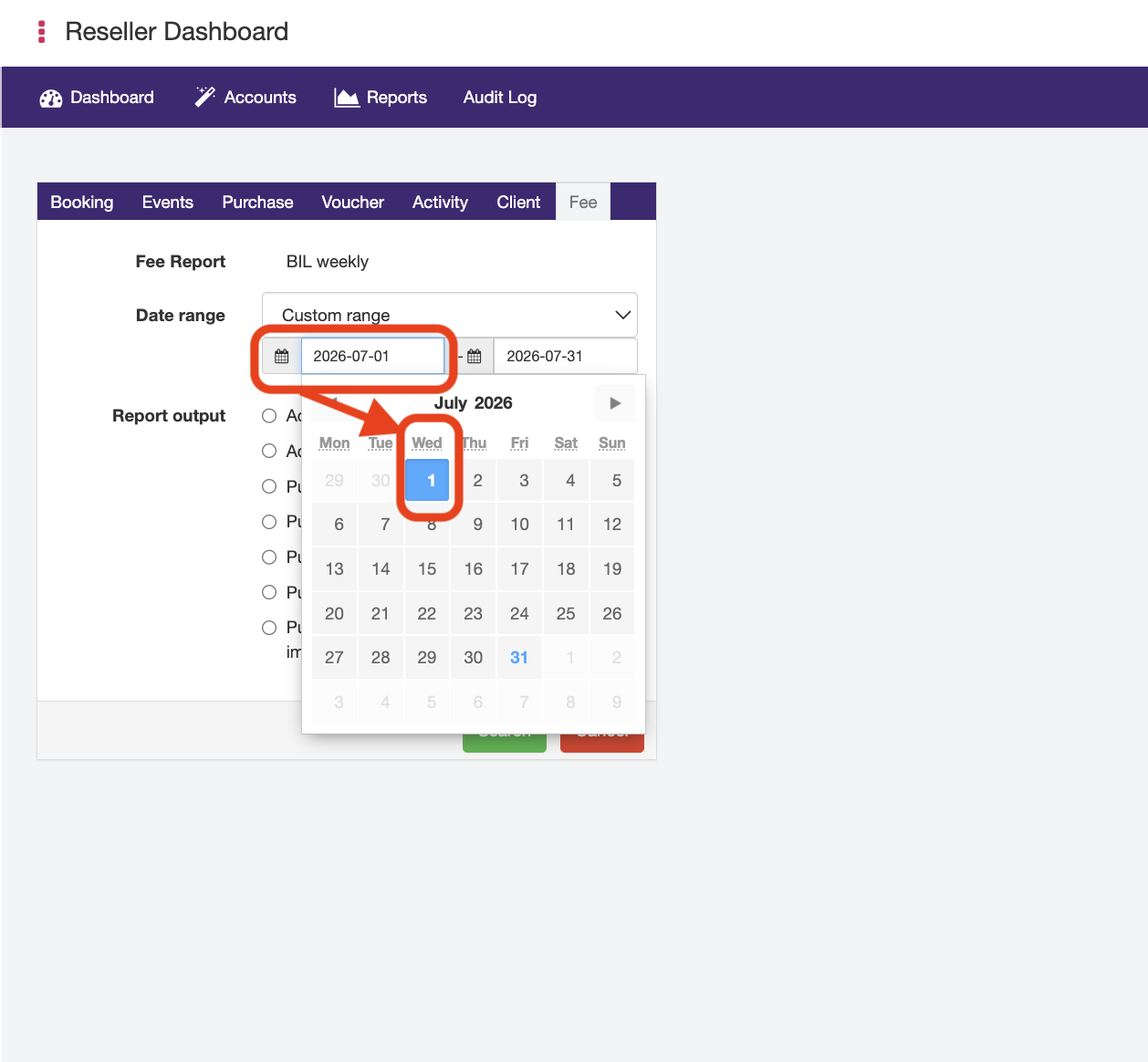
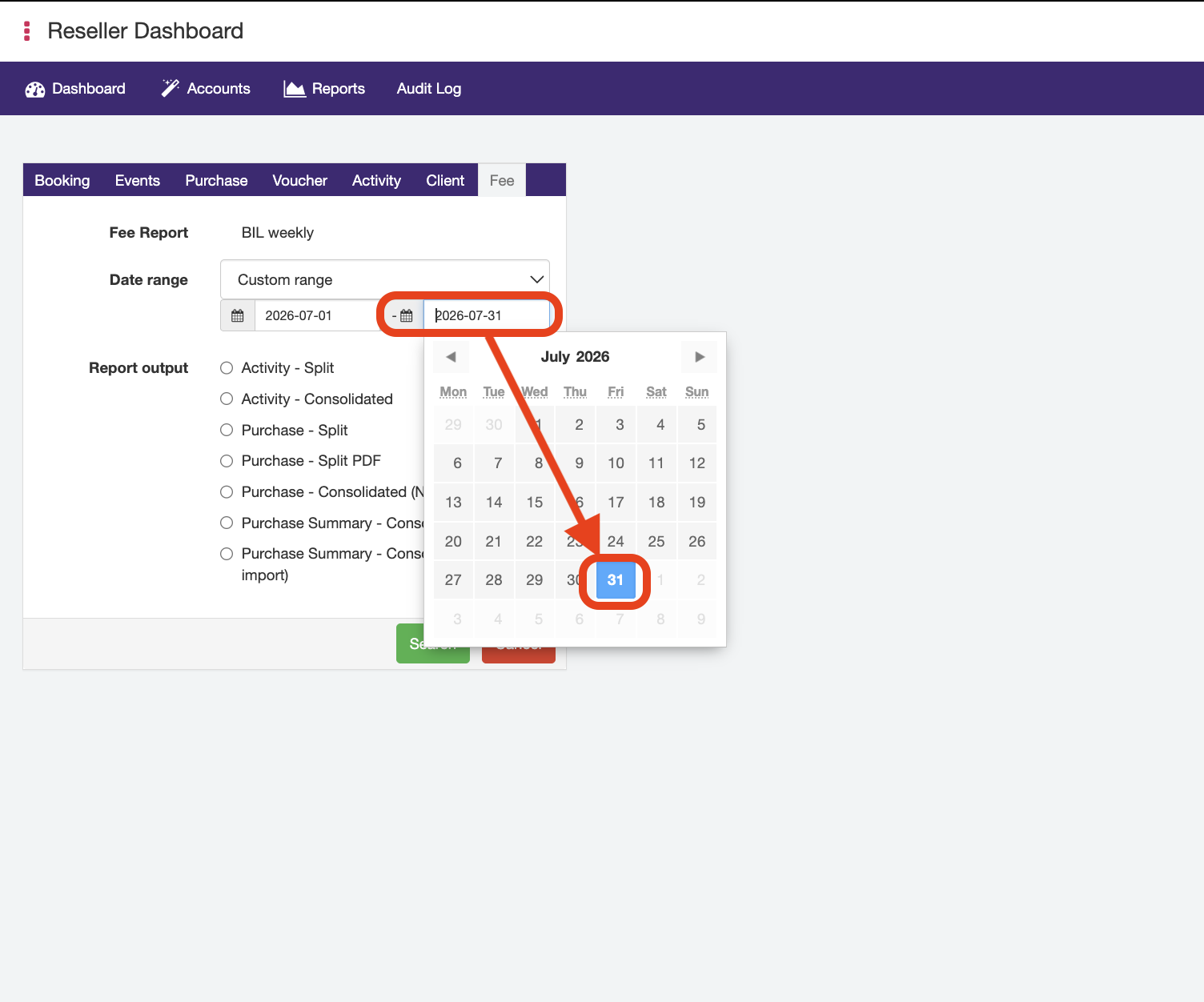 Note: it is important that the date range is correct as setting a range that is longer than 3 months can impact server performance for all bookitLive users
 - Select any of the "Purchase"-type reports from the "Report Output" field
- The "Purchase - Split" report will break up the downloaded results into a single .csv file per account that a fee file is generated for and place all individual csv files into a .zip folder.
The downloaded report will have the file name "<Fee Report name>-purchase-<start date>-<end date>.zip"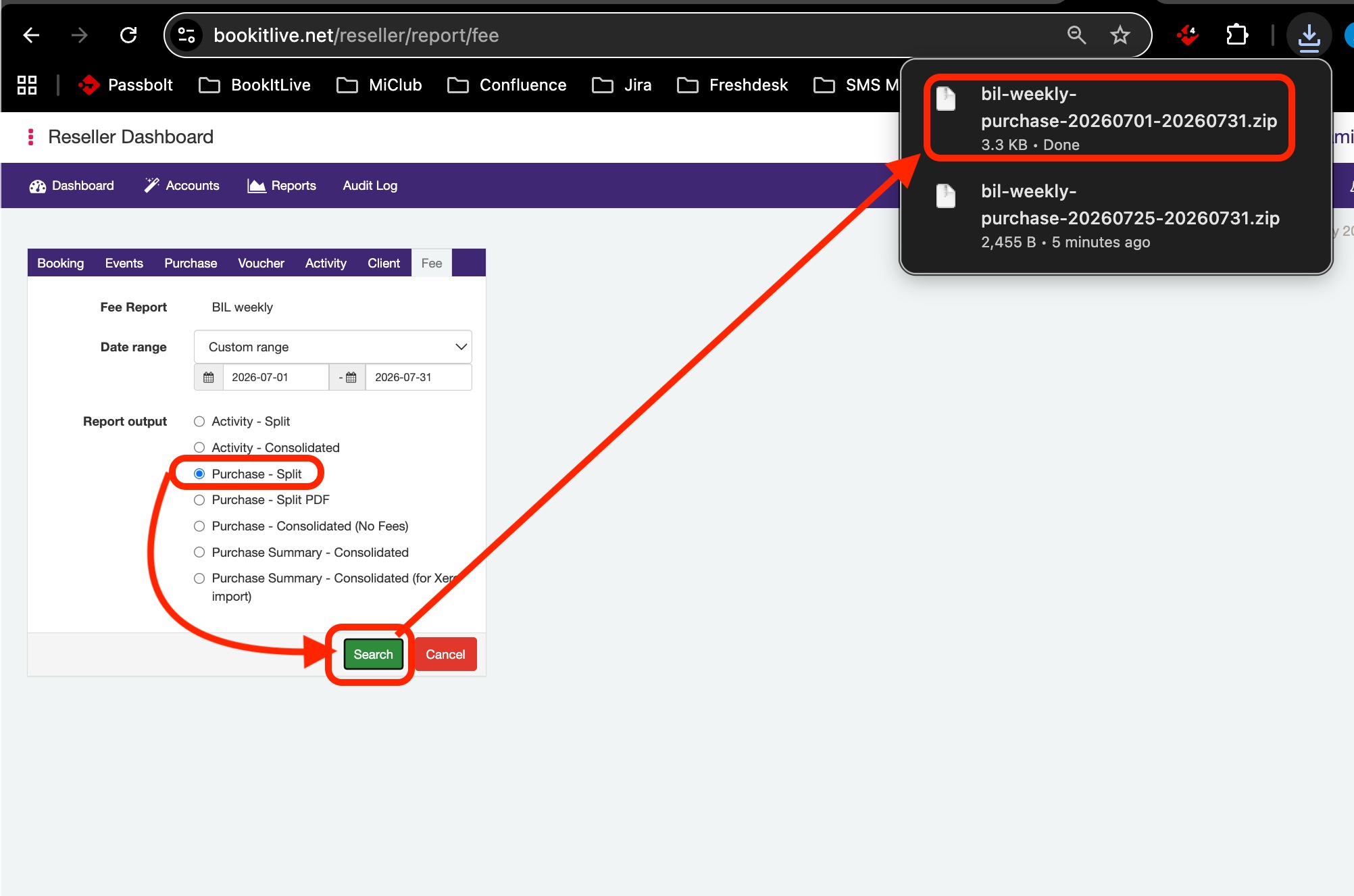
- Alternatively, you can select the "Purchase - Split PDF" output option, which will also break up the downloaded results into individual files per account in acollated .zip folder but each constituent file will be in .pdf format instead of .csv.
The downloaded report will have the file name "<Fee Report name>-purchase-pdf-<start date>-<end date>.zip"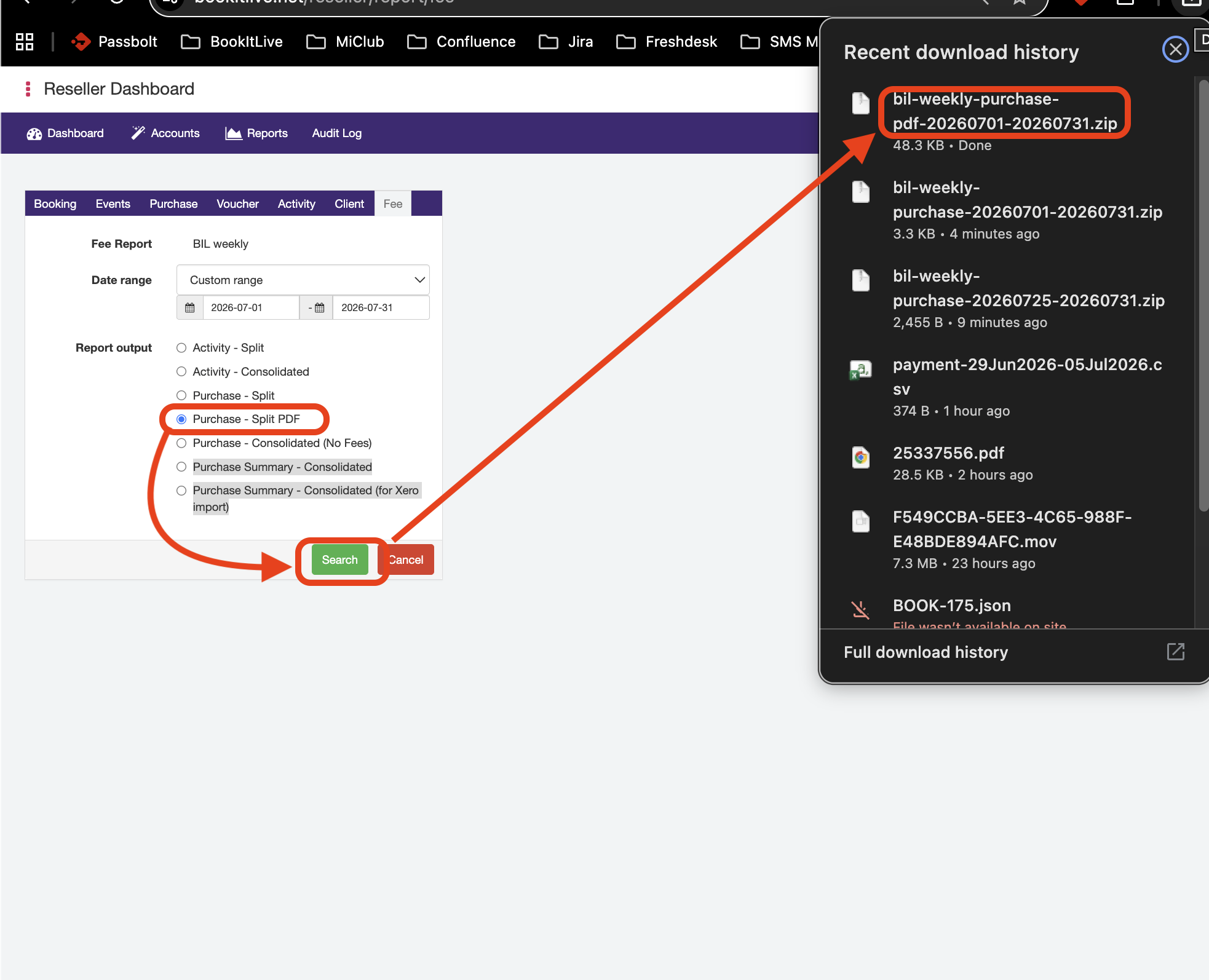
- You could also export the report as "Purchase - Consolidated (No Fees)" output, which will display all transactions for all Reseller-linked accounts in a single csv file, but omitting any fees that have been configured for the given fee template that the businesses abide by (e.g., merchant fees, transaction fees, GST, etc.)
The downloaded report will have the file name "<Fee Report name>-purchase-consolidated-<start date>-<end date>.csv"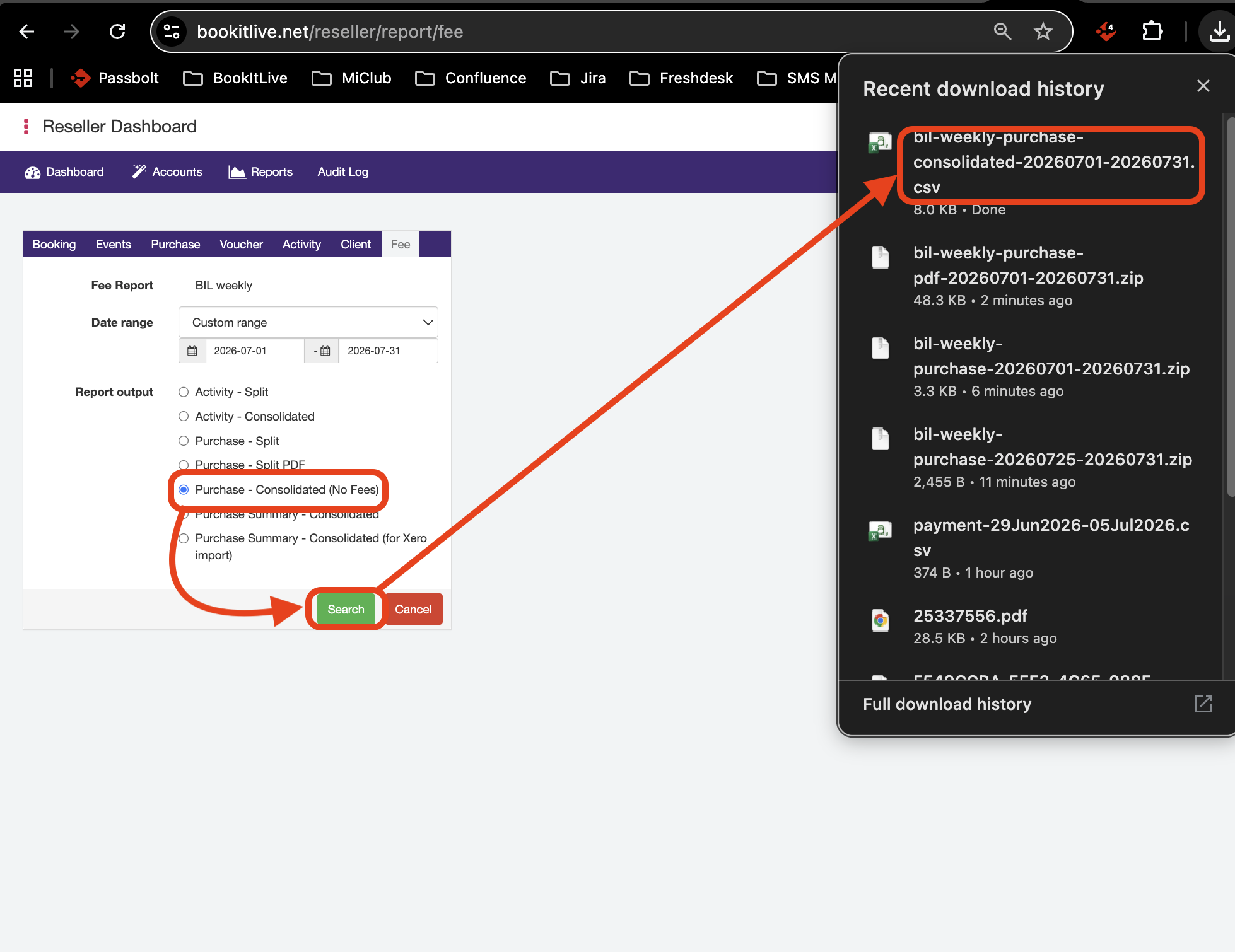
- The "Purchase - Split" report will break up the downloaded results into a single .csv file per account that a fee file is generated for and place all individual csv files into a .zip folder.
- Select the "Search" button to run and export the Fee report.
Note: Exporting of the report should take approximately 5-10 seconds to process for a date range of a full week (~7 days) and approximately 20-30 seconds to run for a date range of a full month (~30 days). - End.
Was this article helpful?
That’s Great!
Thank you for your feedback
Sorry! We couldn't be helpful
Thank you for your feedback
Feedback sent
We appreciate your effort and will try to fix the article