bookitlive uses both email and SMS notifications to communicate to clients and staff when a booking or purchase occurs.
Booking notifications
A booking notification is sent to a client and staff when a booking is:
- Added
- Modified; or
- Cancelled
Each booking notification has its own email and SMS template that can be customised to send the information that is required by your business. Different information can be communicated in the notification to clients and staff.
Booking notifications include:
- Booking confirmations notifications
- Booking reminders notifications
- Booking cancellation notifications
- Booking Modification notifications
All SMS and email notifications sent from bookitlive can be customised to make sure your clients get all the correct information and that the emails come from your own email address so that they can reply.
Controlling notifications
bookitlive sends a wide variety of automated email and SMS notifications communications to your clients. You can select which types of email and SMS notifications you choose to send, who they are sent to, and also fully customise their contents.
There are multiple levels or controls available to refine what notifications are sent, these include:
- Account wide notification settings
- Client notification settings
- Staff notification settings
- Selecting when making bookings
Account wide notification settings
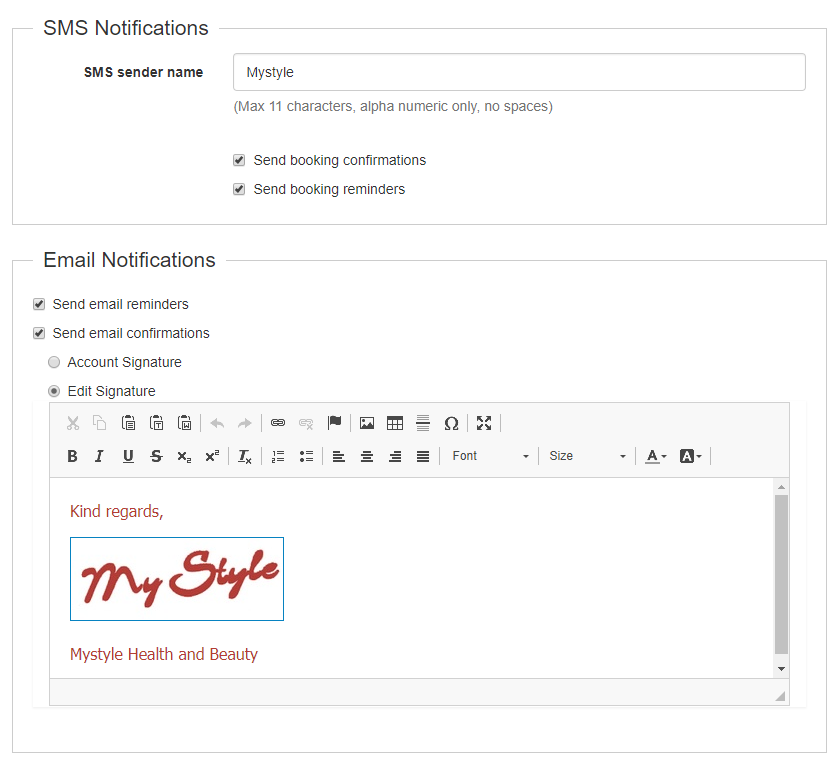
The account wide notification setting control notifications for all booking actions. Use these setting to select the notification that your business wants to use. The notification can be set for emails and SMS. For example if you only require email booking confirmation to be send only you can deselect SMS booking confirmations.
- Login to bookitlive
- Select Settings
- Select Notifications
- Choose the notification settings required by your business
- Save
Client notification settings
The client notification setting are set on the client record and only apply to the specific client.
- Login to bookitlive
- Select the "Clients" tab
- Search and choose the client(s) who you wish to notify
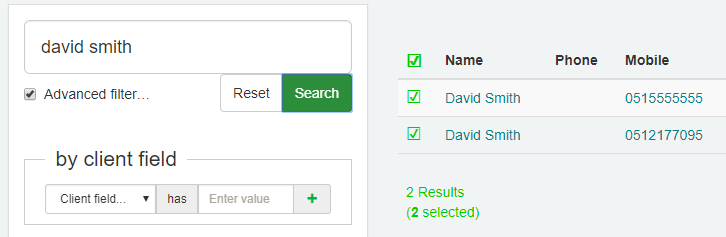
- Open the Client Details by clicking on the client's name
- Select the Settings tab
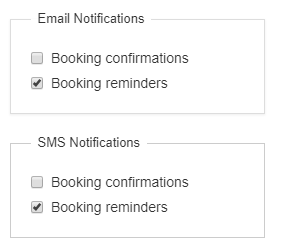
- Select the SMS and email notifications settings that you wish to notify this specific client by.
Note: Account wide settings will override these settings - Click the "Save" button confirm your changes.
Staff notification settings
The staff notification settings are set on user accounts that are created on the Provider's business owner (admin) BookItLive account. When creating a user on your account, you can connect the Resource to the specific user account. When a bookings are added the associated staff user, they are notified based on the notification settings.
- Login to bookitlive
- Select the "Settings" tab
- Select the "Users" option from the Settings menu
- Add or edit a user
- Select the associated resources
- Select the notifications that this user account will be able to view and receive notifications for.
Ticking the checkbox against the Resource name will mean that the person with access to this user account for the business will be able to see the bookings and notifications of the selected Resource(s).
For example, you may have set a manager-level user account for a person within your business and would like this person to be able to

- Click the "Save" button confirm your changes.
Selecting when making bookings
When a booking is add/modified/cancelled by a user from the business' Dashboard, the user will have the option to select what notification are sent.
Note: Using the notification option to stop notification will also stop reminder notification from sending.
Was this article helpful?
That’s Great!
Thank you for your feedback
Sorry! We couldn't be helpful
Thank you for your feedback
Feedback sent
We appreciate your effort and will try to fix the article