Bookings can be added from your bookitlive Dashboard and uses a similar booking process as found in the "Client" page, except the Client Details are added first.
Adding a Booking from the Dashboard
- From the Dashboard, select "Add New Client" to add a new Client's details or search for an existing Client.
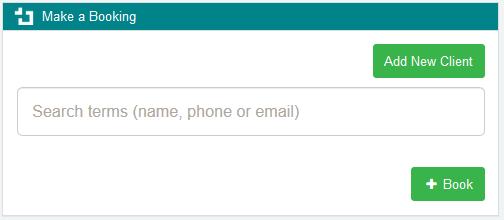
- Once a Client has been selected, select the Book button to add a new Booking for the newly-created Client. The Booking Page will then open.
- Select a Service and Resource to book for the Client. A list of times will be displayed
- Select the Booking Date and Time you want to book. The booking information detail will be displayed .
- Select "Next" to complete the Booking or go back to make amendments to the Booking.
- If payment is required, select the "Take Payment" to process a card payment.
- Once the Booking is complete, close the Booking page.
Once the Booking is completed, the booking appears on the Dashboard in the list of bookings. The Booking can be Modified or Cancelled from the Booking List.
Was this article helpful?
That’s Great!
Thank you for your feedback
Sorry! We couldn't be helpful
Thank you for your feedback
Feedback sent
We appreciate your effort and will try to fix the article