You can accept online payments in bookitlive with PayPal. If you don't yet have a PayPal business account, you can sign up for one.
Accessing the Online Payments Settings in BookItLive requires the account to have proceeded beyond the introductory 14-day trial period. Any business accounts that are still currently within their introductory trial period will not be able to access the Online Payments options.
If you wish to expedite access to the Online Payments tools in BookItLive in your account's trial period, please contact the BookItLive support team to confirm that you are happy to begin monthly subscription payments for your business account.
Both the business owner (administrator) user and any Manager users of the BookItLive business account are able to access the Online Payments page to enable online payments.
Note: To access to the Online Payments tool and by extension the PayPal payment gateway option, your BookItLive business account will need to be on the Premium- or Enterprise-level business plan. Regular-level Plan BookItLive subscribers Any business accounts on the Lite-level BookItLive business plan will not be able to process payments.
To set up payments using PayPal, follow these steps:
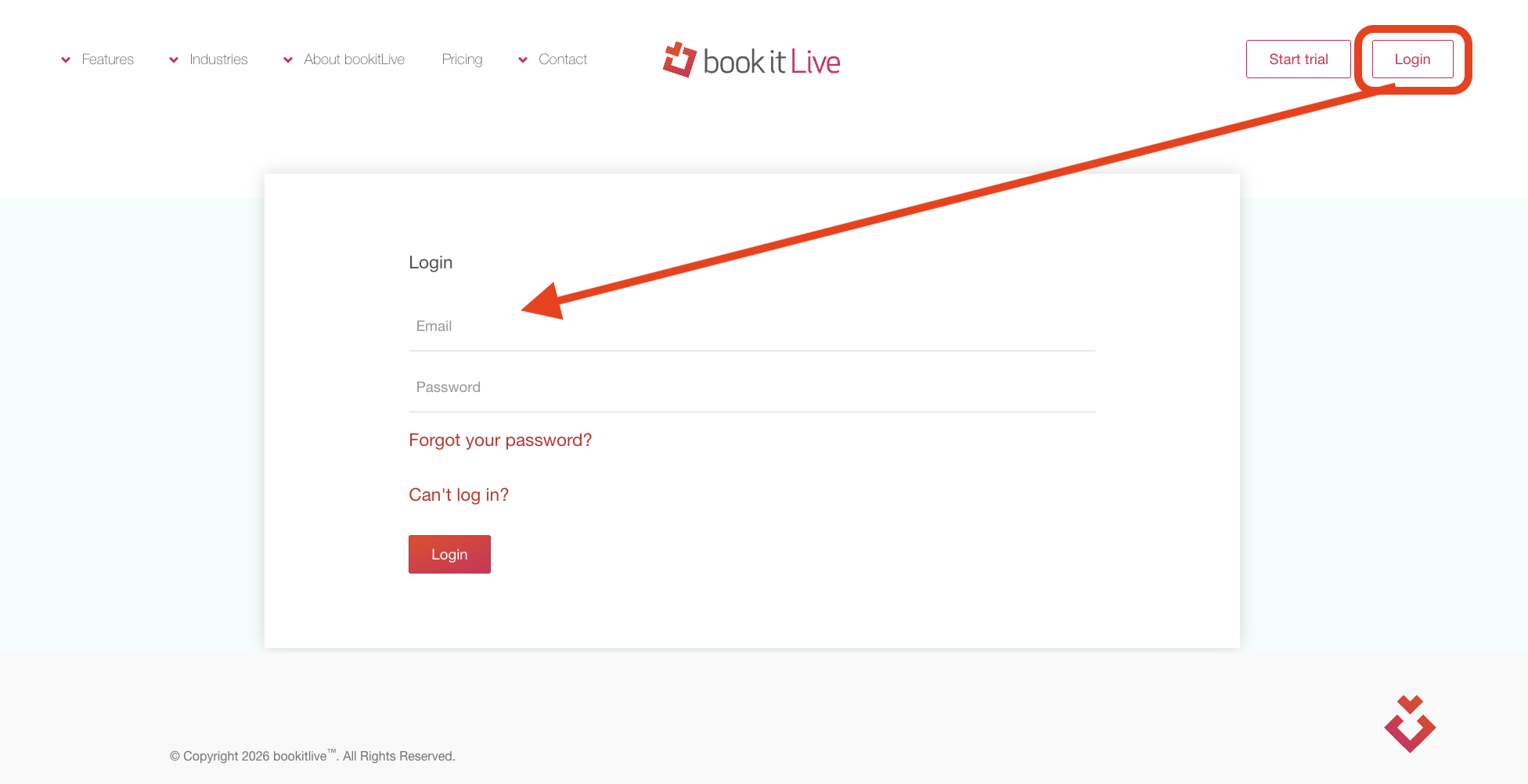
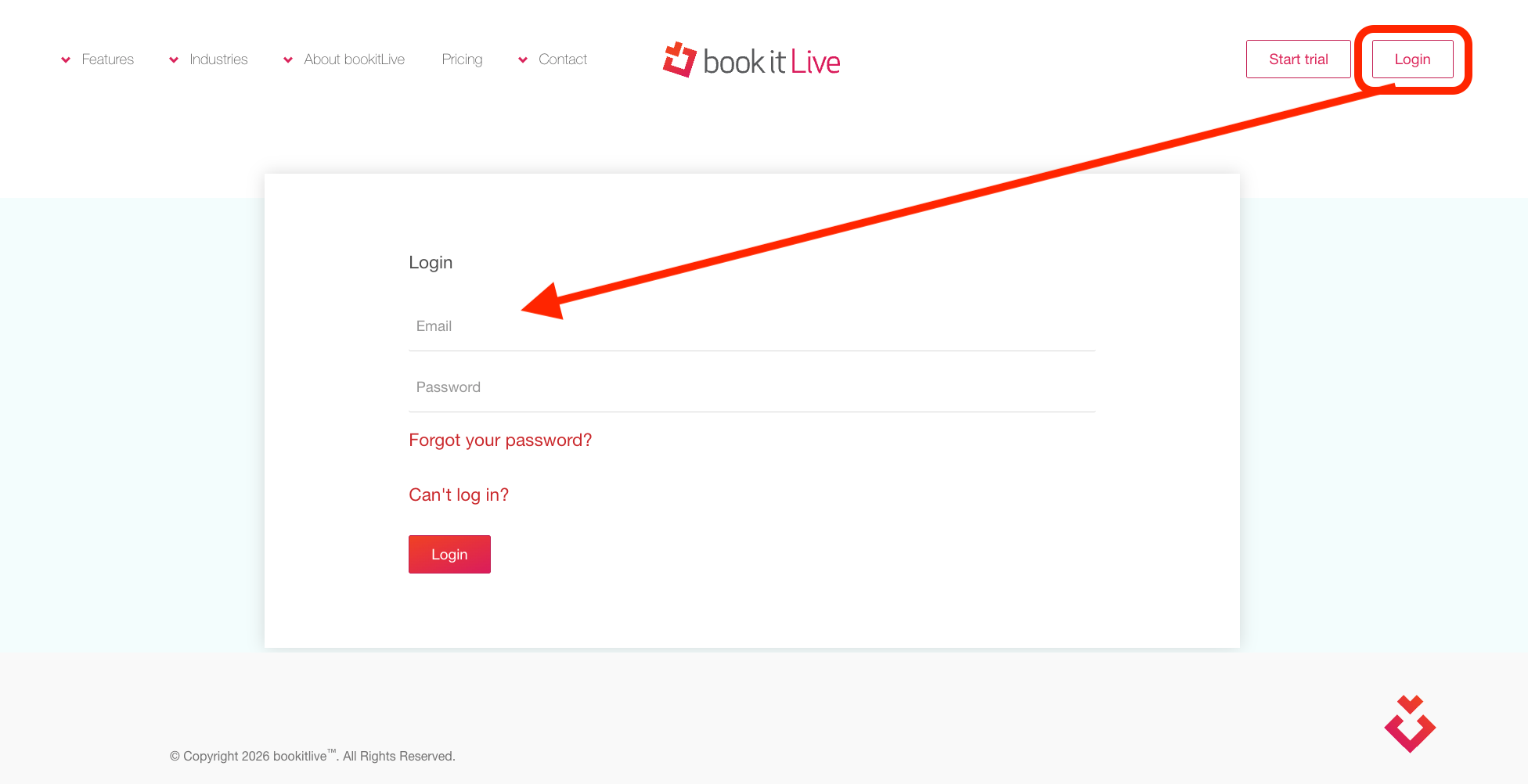
- Log in to BookItLive as the Business Owner (administrator) or Manager user.
- Open the "Settings" tab and select the "Online Payments" option from the menu
From the Payment Options page:
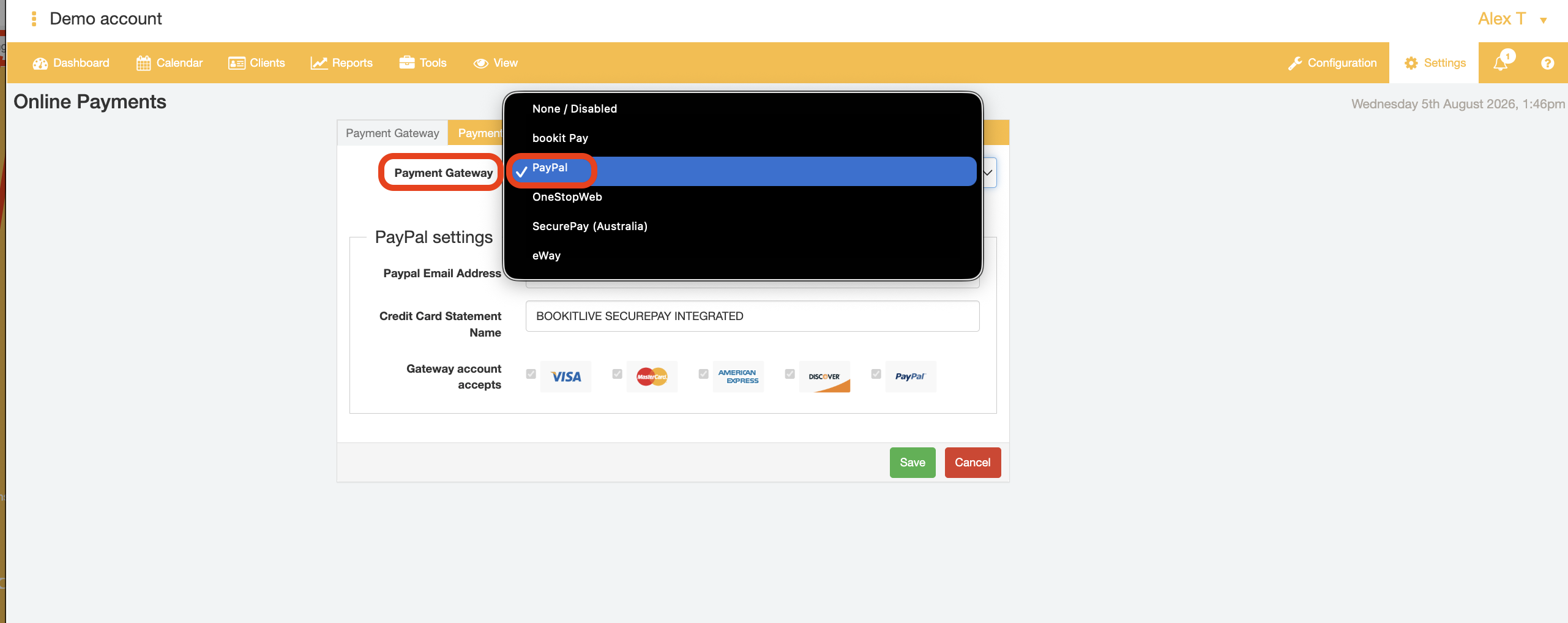
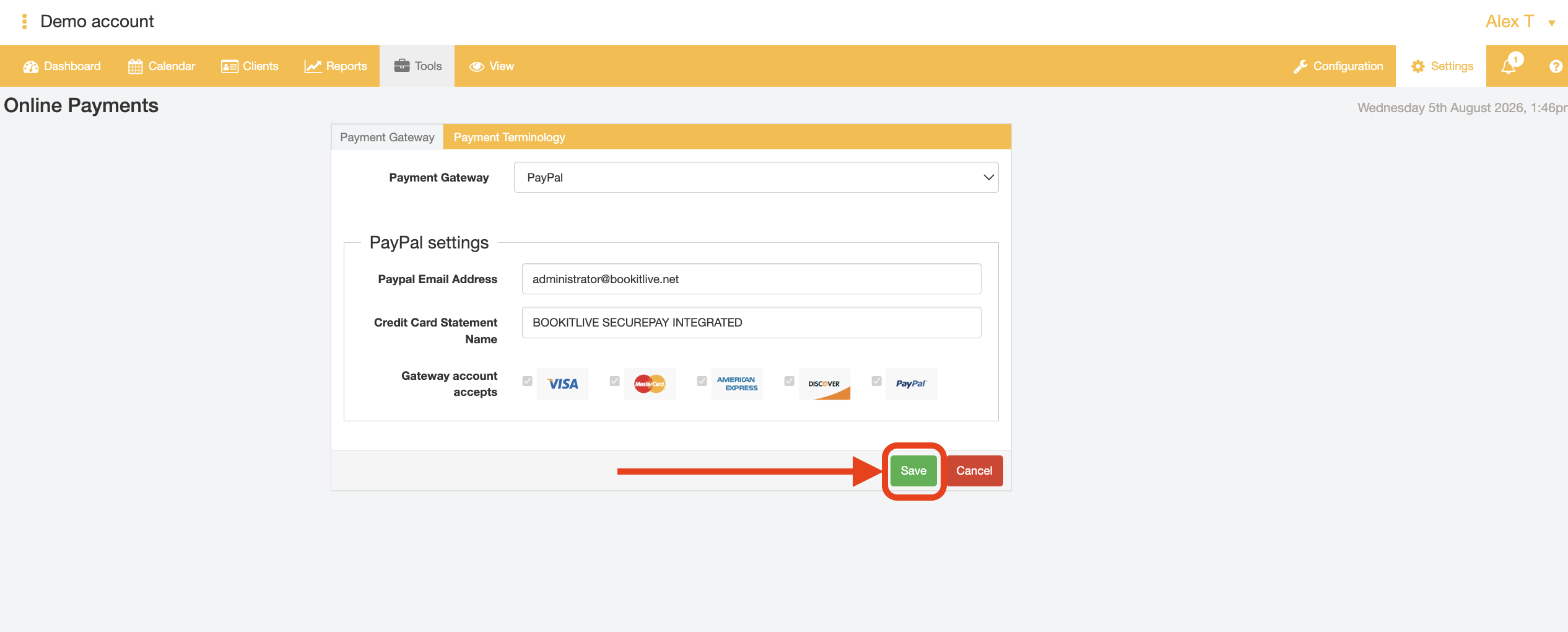
- Select "PayPal" from the payment gateway dropdown field
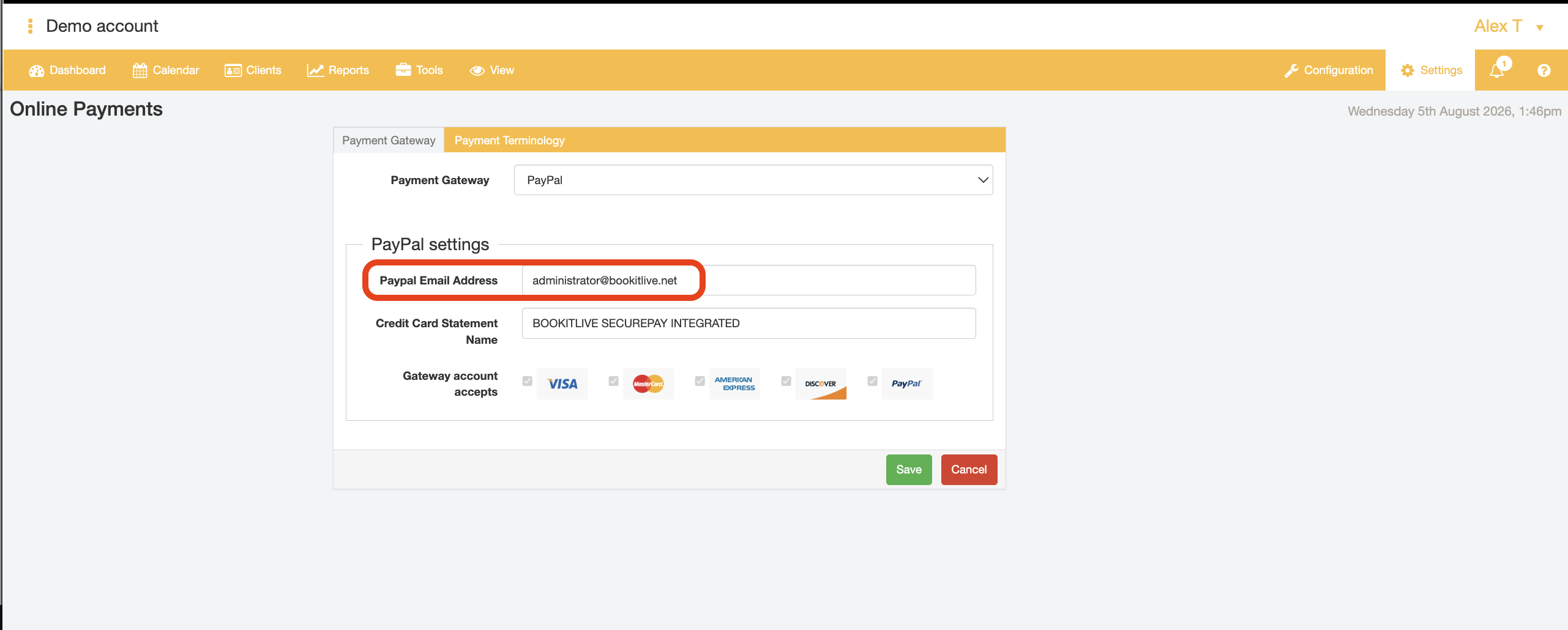
- Enter the email address associated with your PayPal account in the "PayPal Email Address" text field.
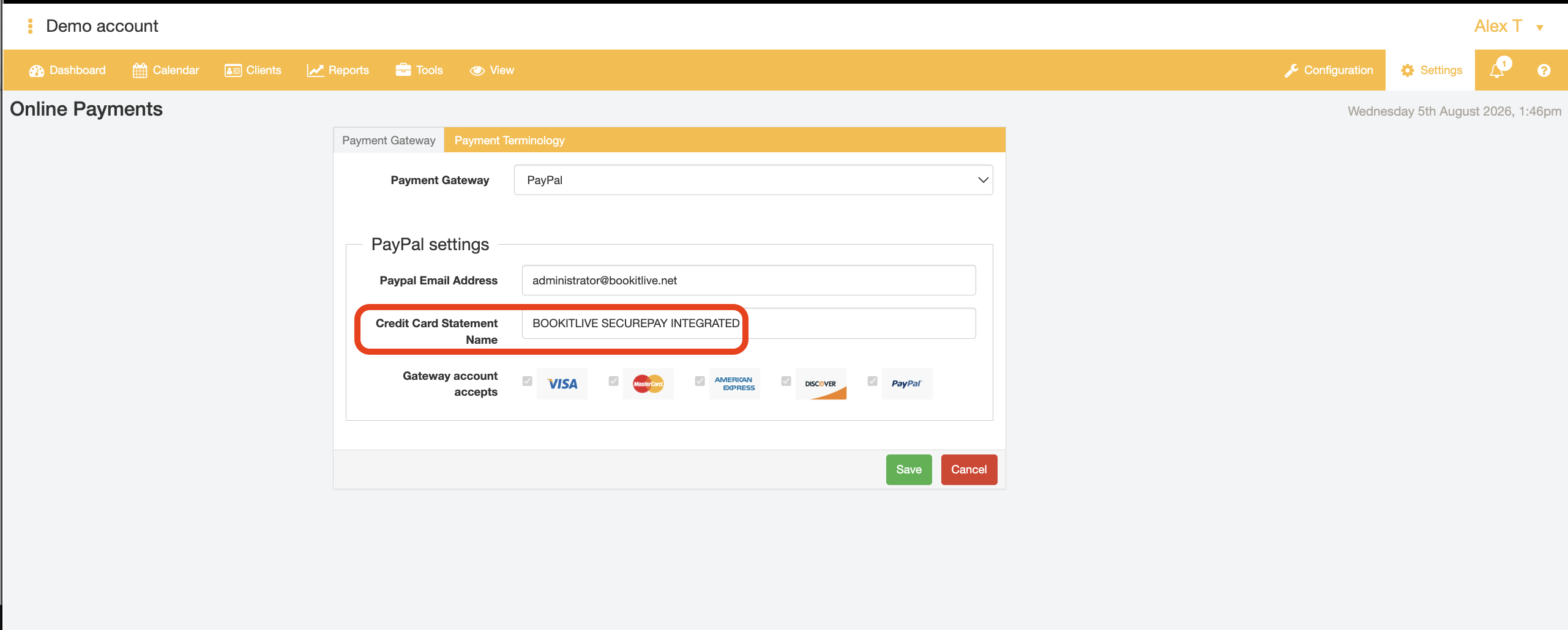
- Enter the details that will appear on the card statement in the credit card statement name field
- Click "Save" to confirm your payment gateway and payment settings selections.
- End.
Configuring a Service to take online (card) payment
BookItLive allows you to select and set the Services that require (card) payments to be taken in order for the Service booking to be completed/finalised. This means you can have your Services set to take payments and other Services that do not require payment can be omitted from requiring (card) payment details to be provided altogether.
- Log in to BookItLive as the Business Owner (administrator) or Manager user.
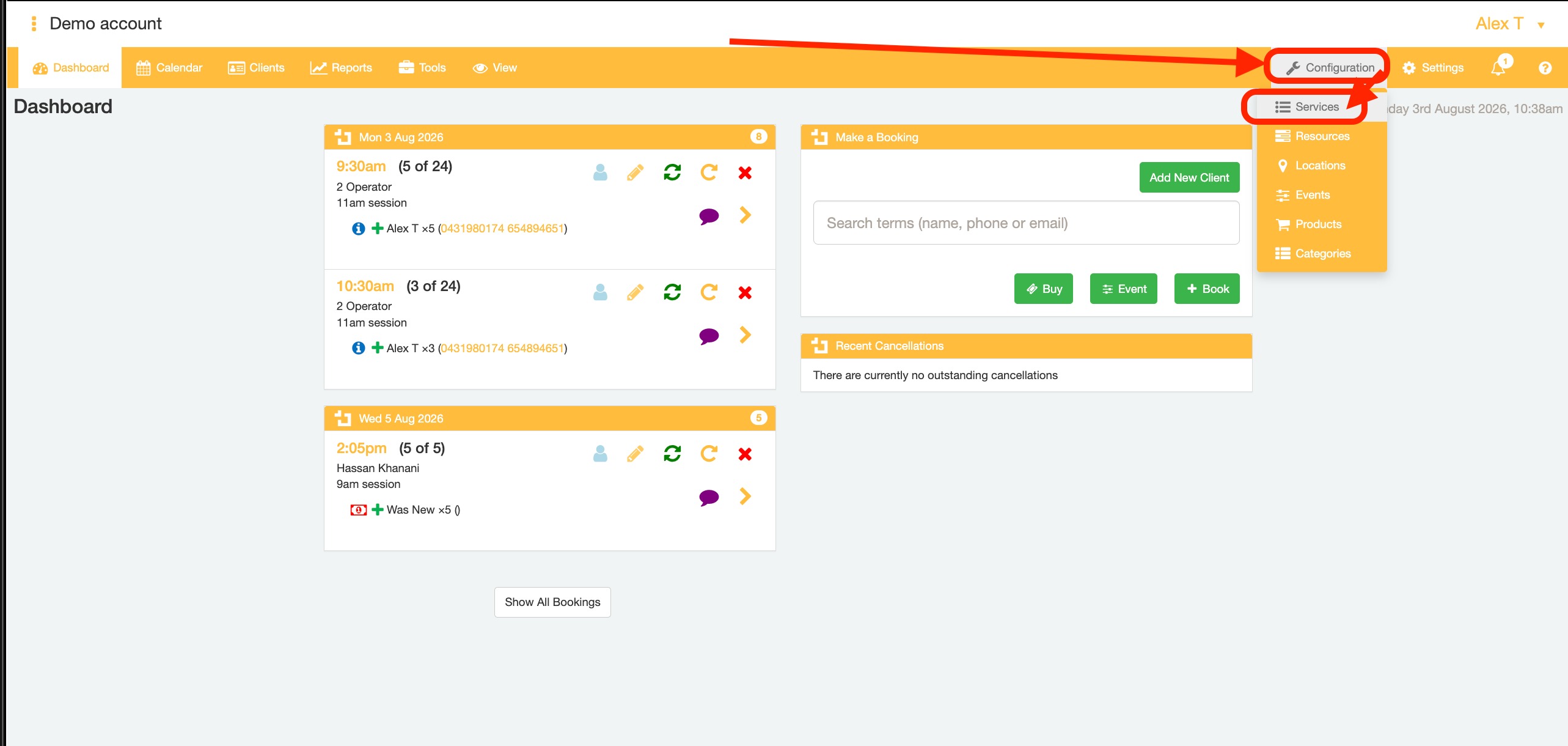
- Open the "Configuration" tab and select the "Services & Resources" menu option
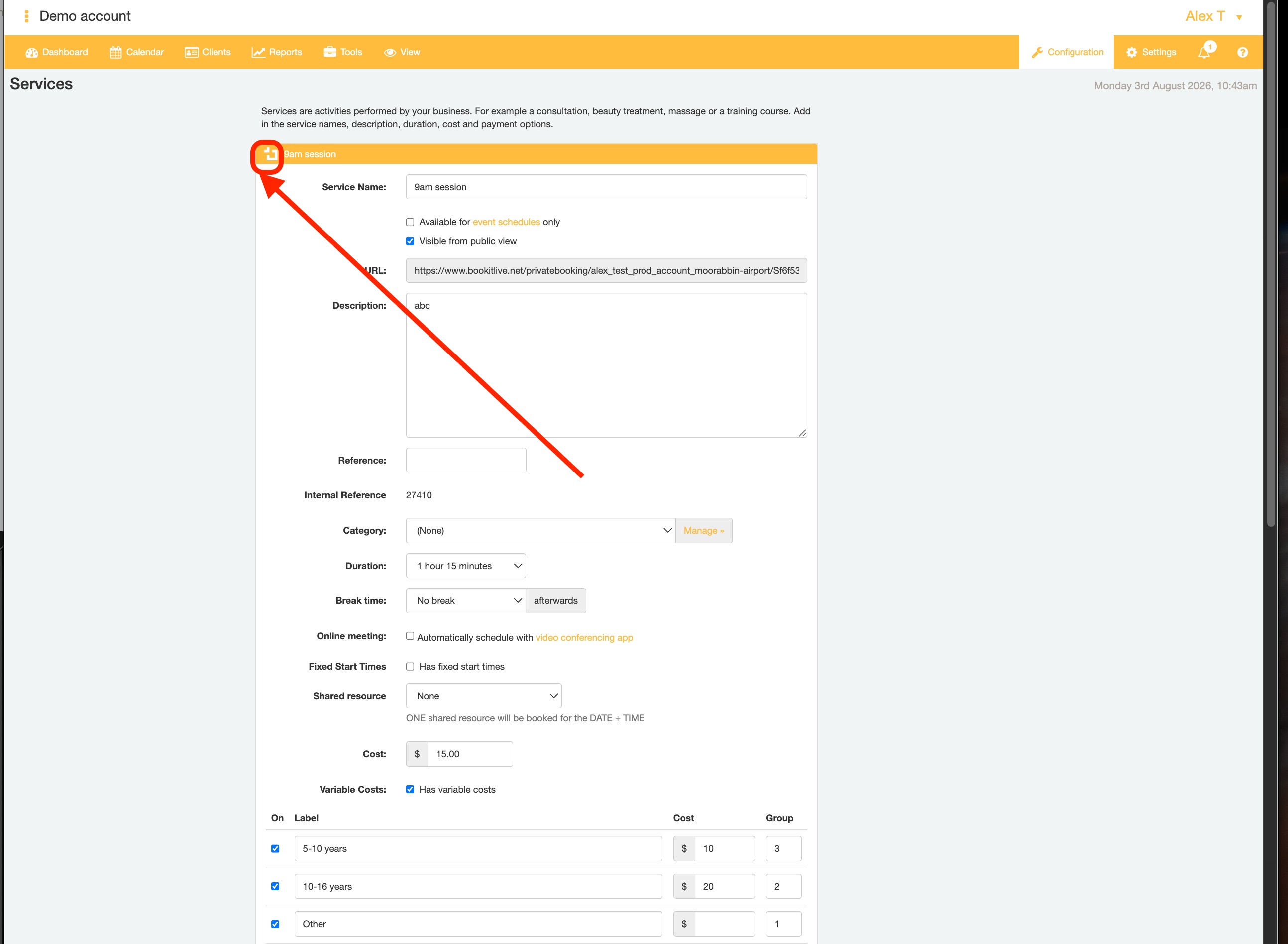
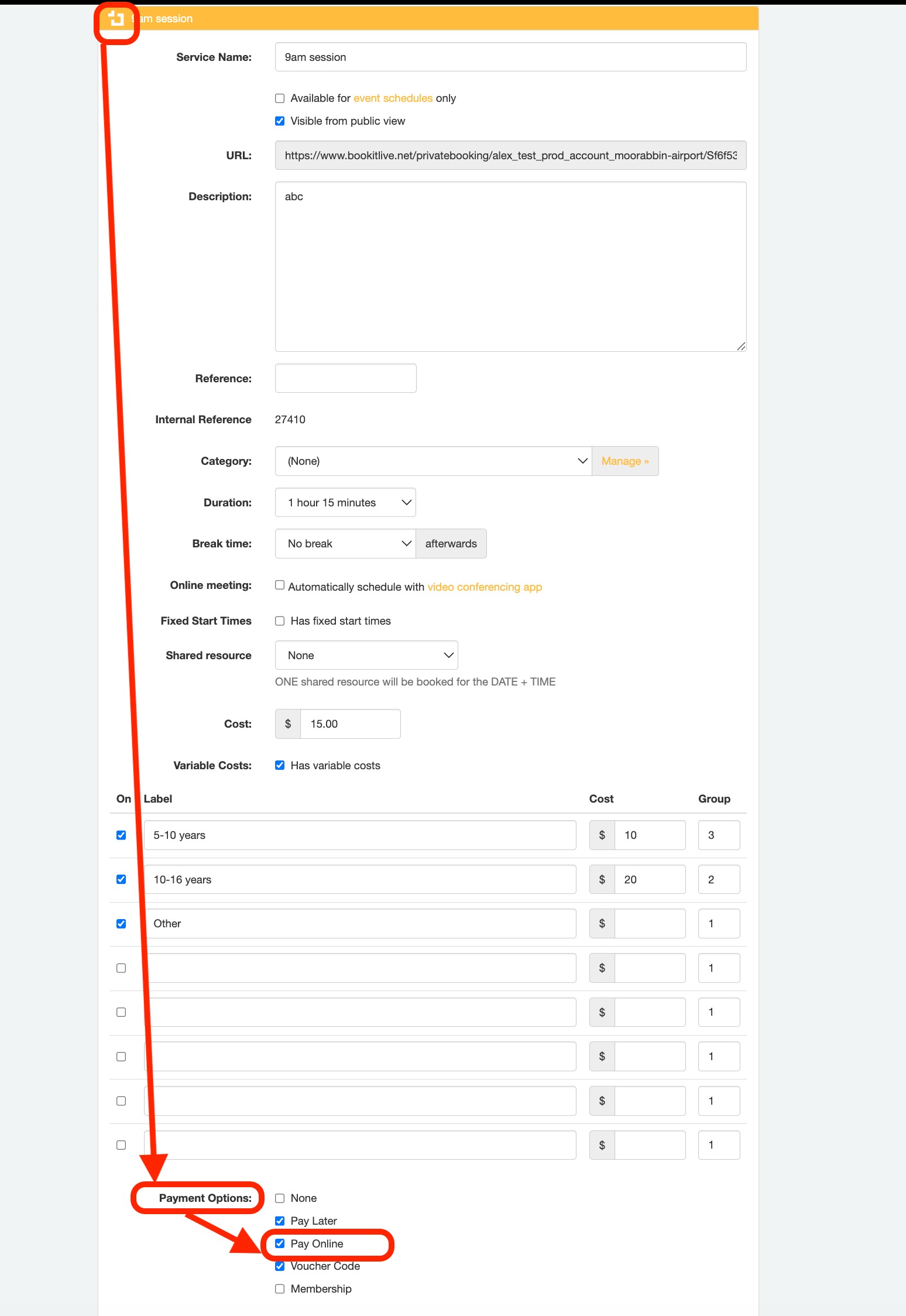
- Open the Service details for the Service of interest by clicking on the BookItLive icon next to the Service name
- Tick the Service Payment option "Pay Online"
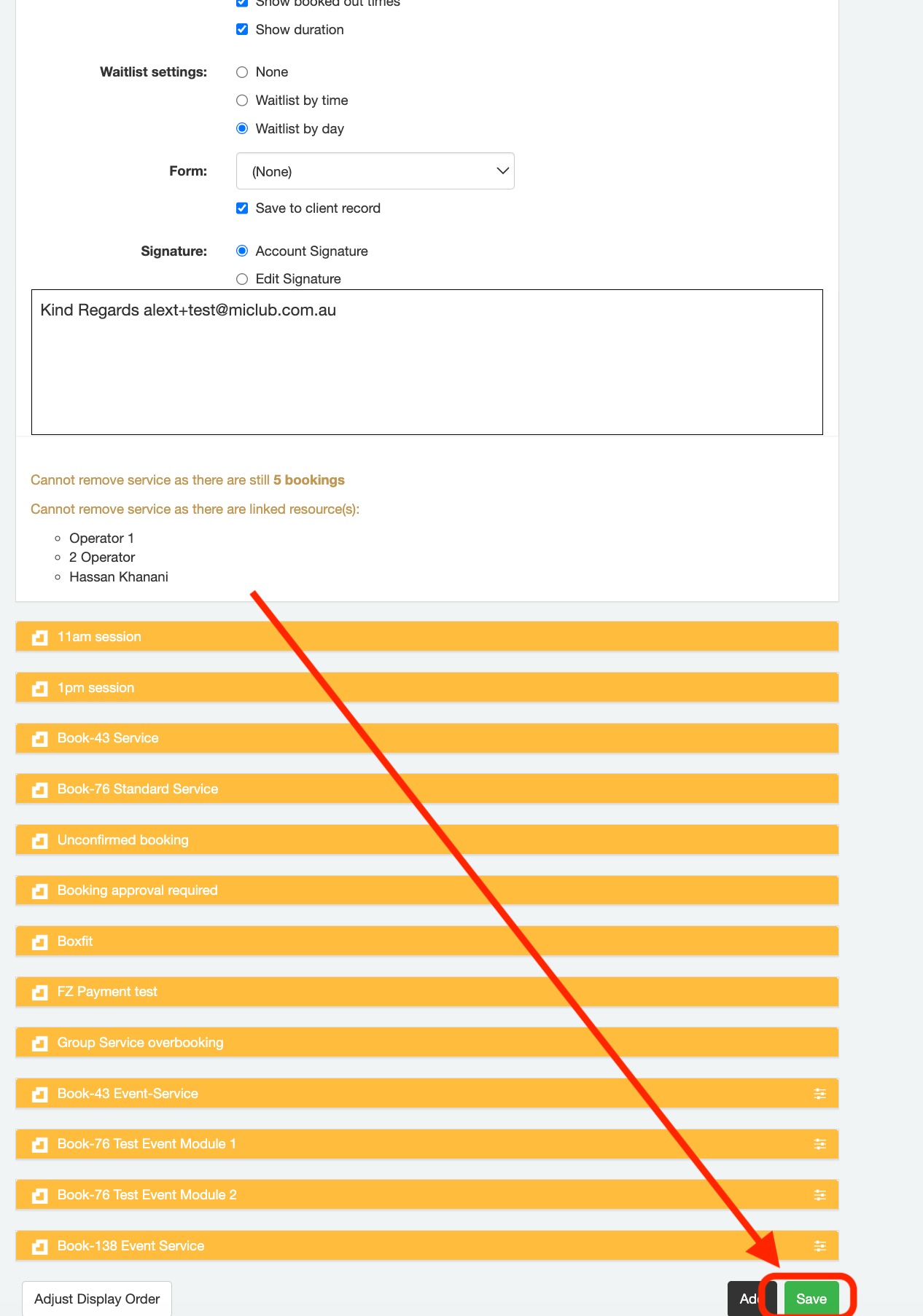
- Click the "Save" button to confirm your Service details selections.
- End.