NOTE: SecurePay has been acquired by FatZebra. References to SecurePay below at the time of authoring may no longer be valid or accurate at the time of future reading and may be replaced with information found in a FatZebra payment account instead.
You can accept online payments in BookItLive using the SecurePay payment gateway. If you don't yet have a SecurePay Merchant account, you can sign up for one here.
In order to have access to select the PayPal payment gateway in your BookItLive application, you will need a Premium Plan for your BookItLive account. Regular Plan BookItLive subscribers will only have access to the default BookItPay payment gateway in their BookItLive business account.
Accessing the Online Payments Settings in BookItLive requires the account to have proceeded beyond the introductory 14-day trial period. Any business accounts that are still currently within their introductory trial period will not be able to access the Online Payments options.
If you wish to expedite access to the Online Payments tools in BookItLive in your account's trial period, please contact the BookItLive support team to confirm that you are happy to begin monthly subscription payments for your business account.
Both the business owner (administrator) user and any Manager users of the BookItLive business account are able to access the Online Payments page to enable online payments.
To set up payments using SecurePay, follow these steps:
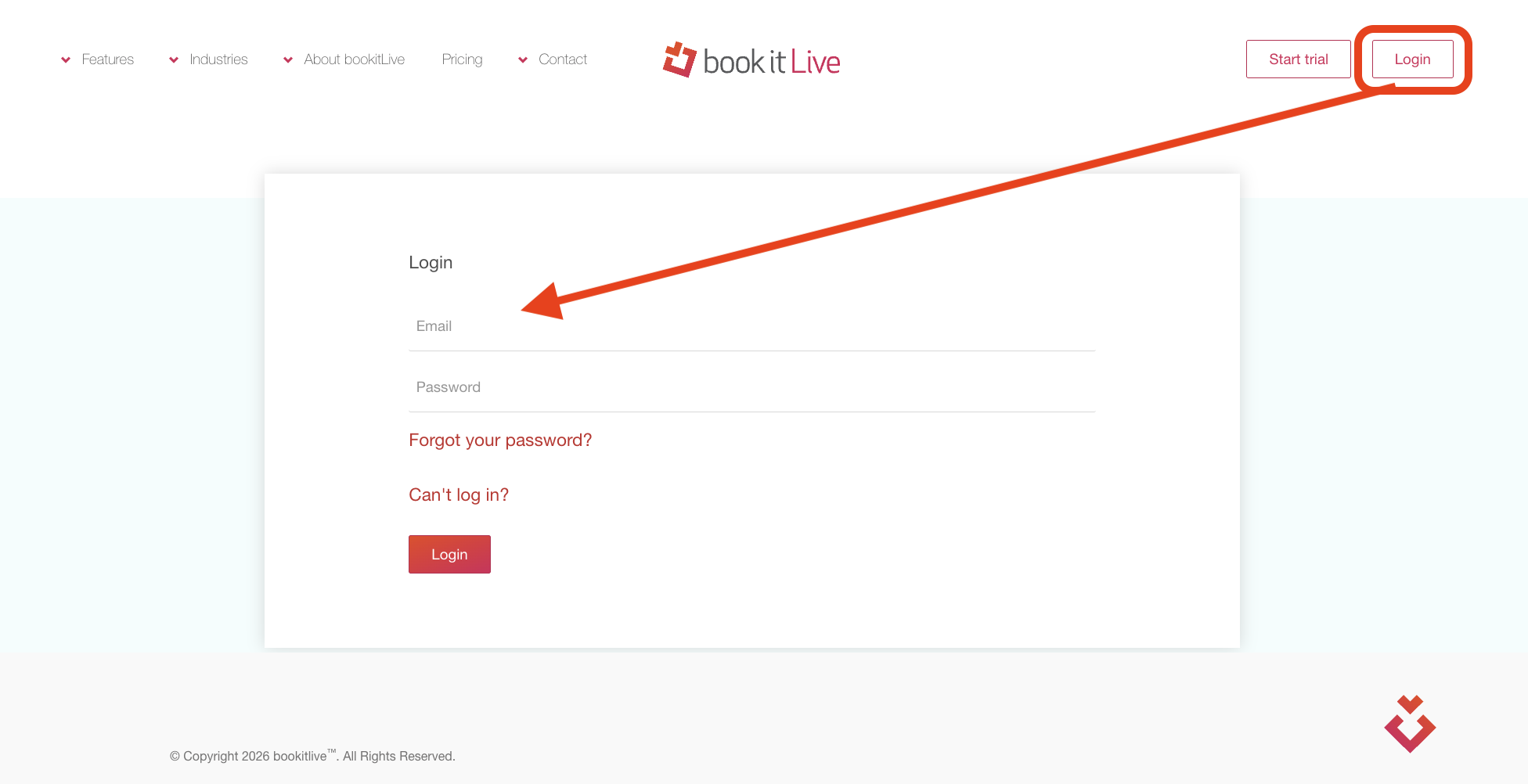
- Log in to BookItLive as the Business Owner (administrator) or Manager user.
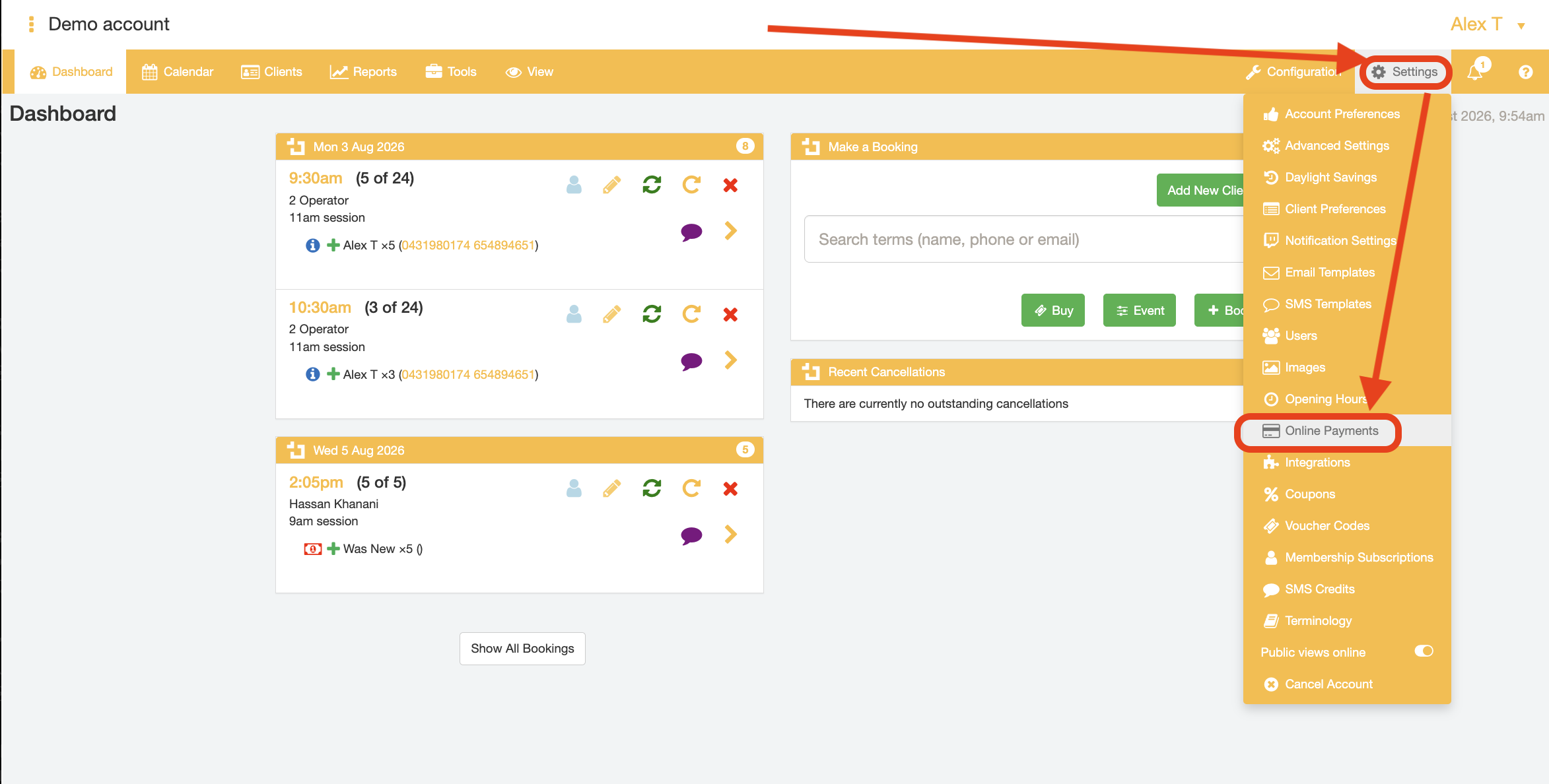
- Open the "Settings" tab and select the "Online Payments" option from the menu
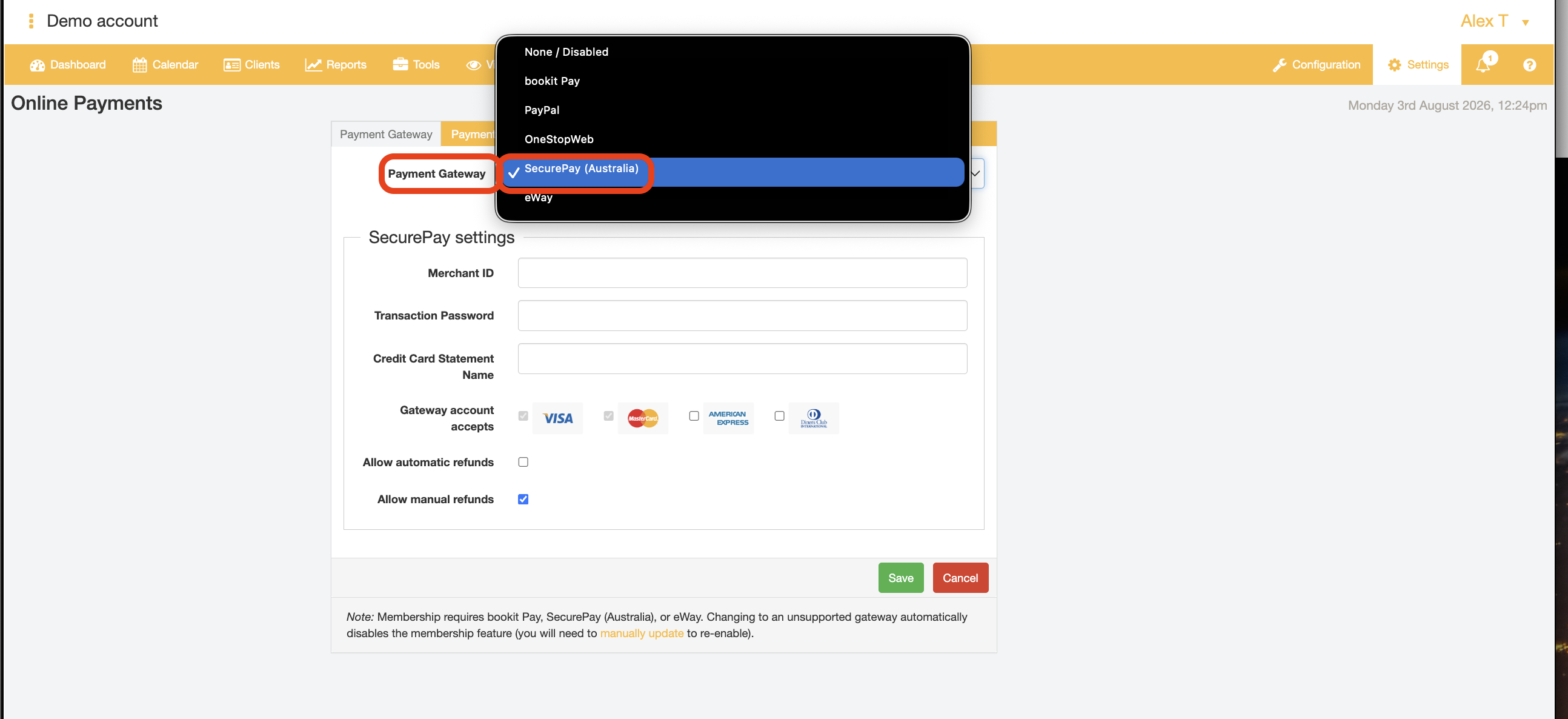
From the Payment Options page:
- Select "SecurePay" from the payment gateway dropdown field
Selection of the "SecurePay" payment gateway will then display additional input fields to complete setup of the payment gateway for your BookItLive account.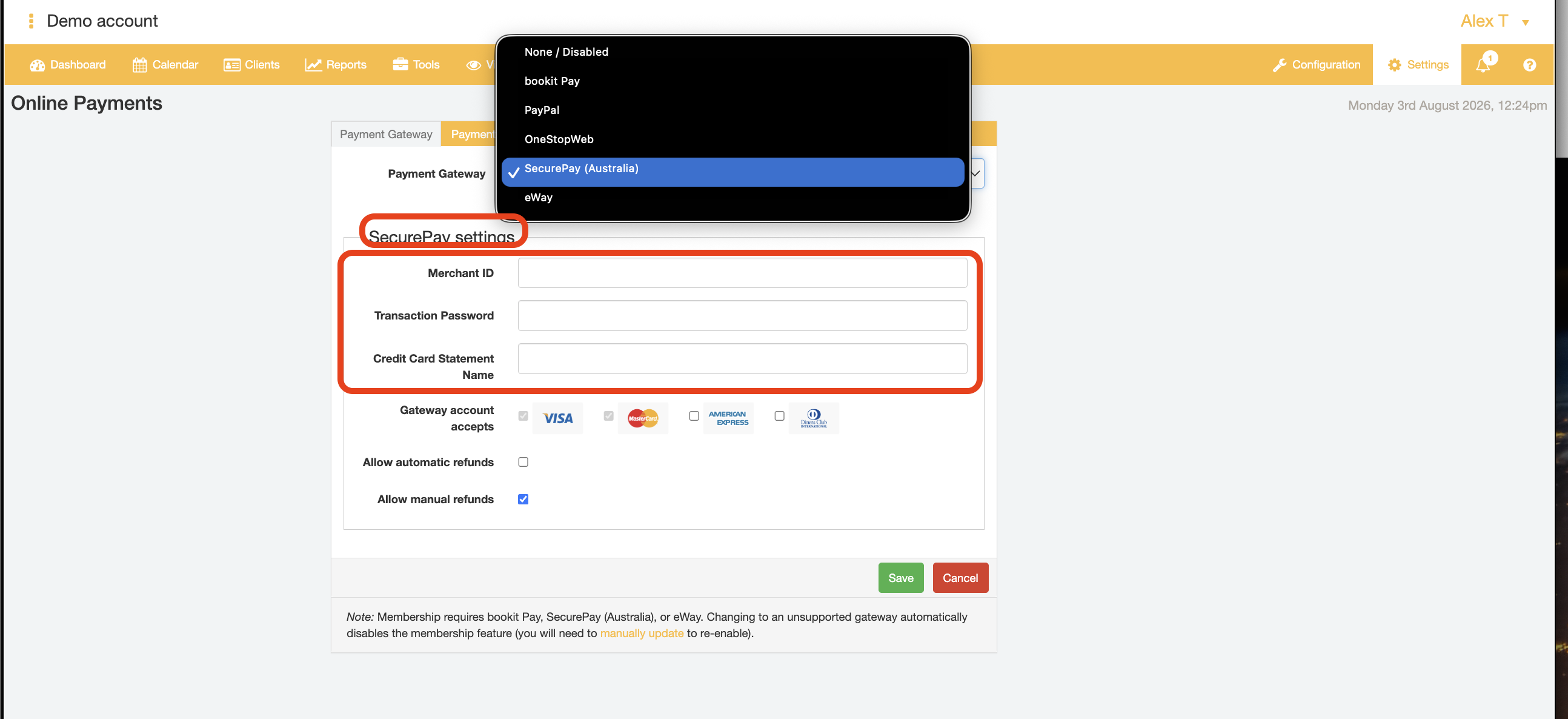
- Enter the SecurePayMerchant ID. Your SecurePayMerchant ID should be given to you by SecurePay in the SecurePay Welcome Pack email upon SecurePay account creation.
Note: SecurePay has now been acquired by FatZebra. The SecurePay Merchant ID value can be found in your FatZebra payment account under "Account" -> "Overview" -> "Username". The Merchant ID is typically 3 alphabet characters, followed by 4 numeric characters.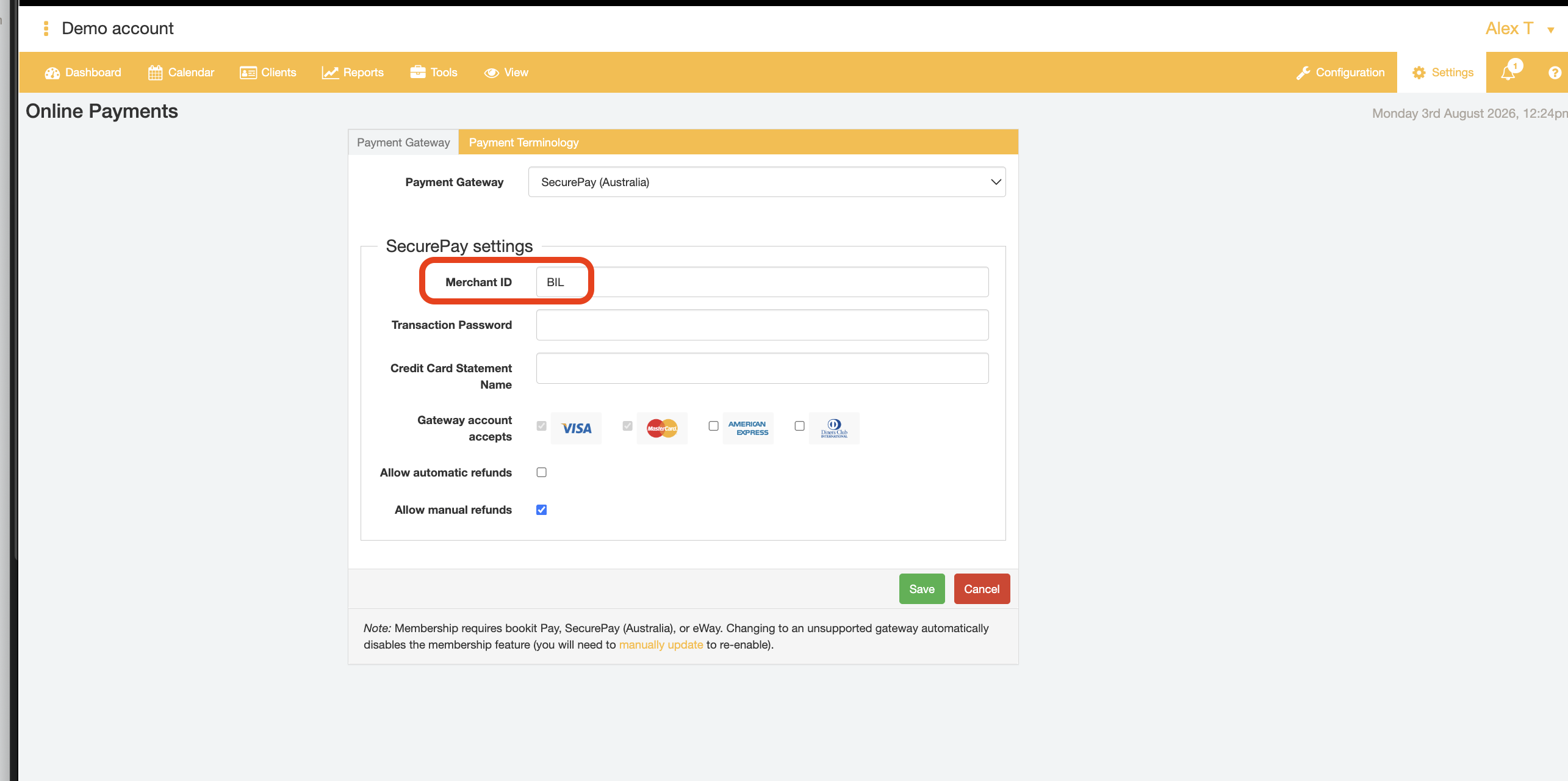
- Enter the SecurePay Transaction Password.Your SecurePayTransaction Password should be given to you by SecurePay in the SecurePay Welcome Pack email upon SecurePay account creation.
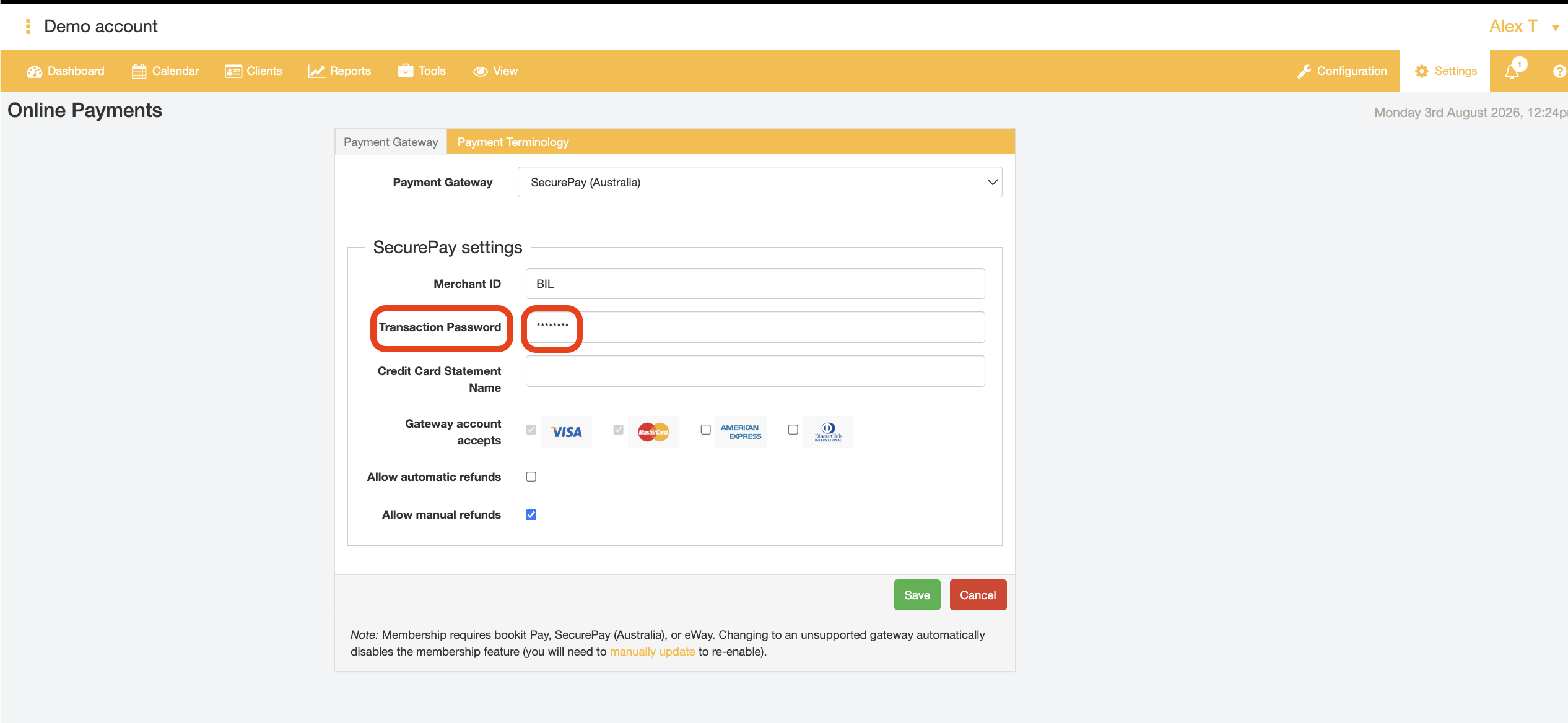
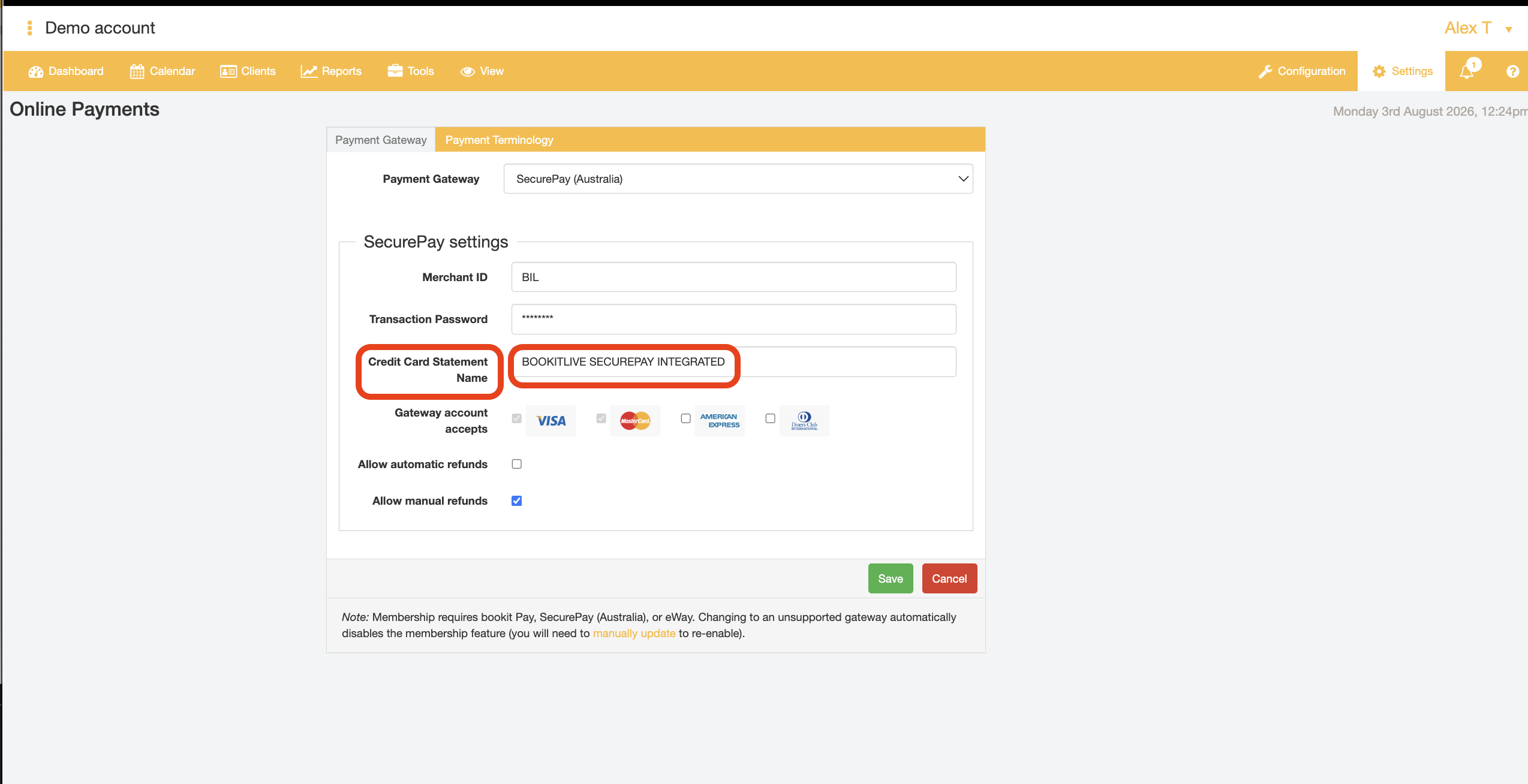
Note: SecurePay has now been acquired by FatZebra. The SecurePay transaction password can be found in your FatZebra payment account under "Account" -> "Overview" -> "Shared Secret". - Enter the vendor name that will appear on the card statement in the credit card statement name when a payment is taken via BookItLive.

- If desired, enable any additional card types that you would like to be allowed for online payments in BookItLive's bookings and purchases pages
The SecurePay payment gateway allows for both American Express and Diners Club cards to be additionally used to make payments.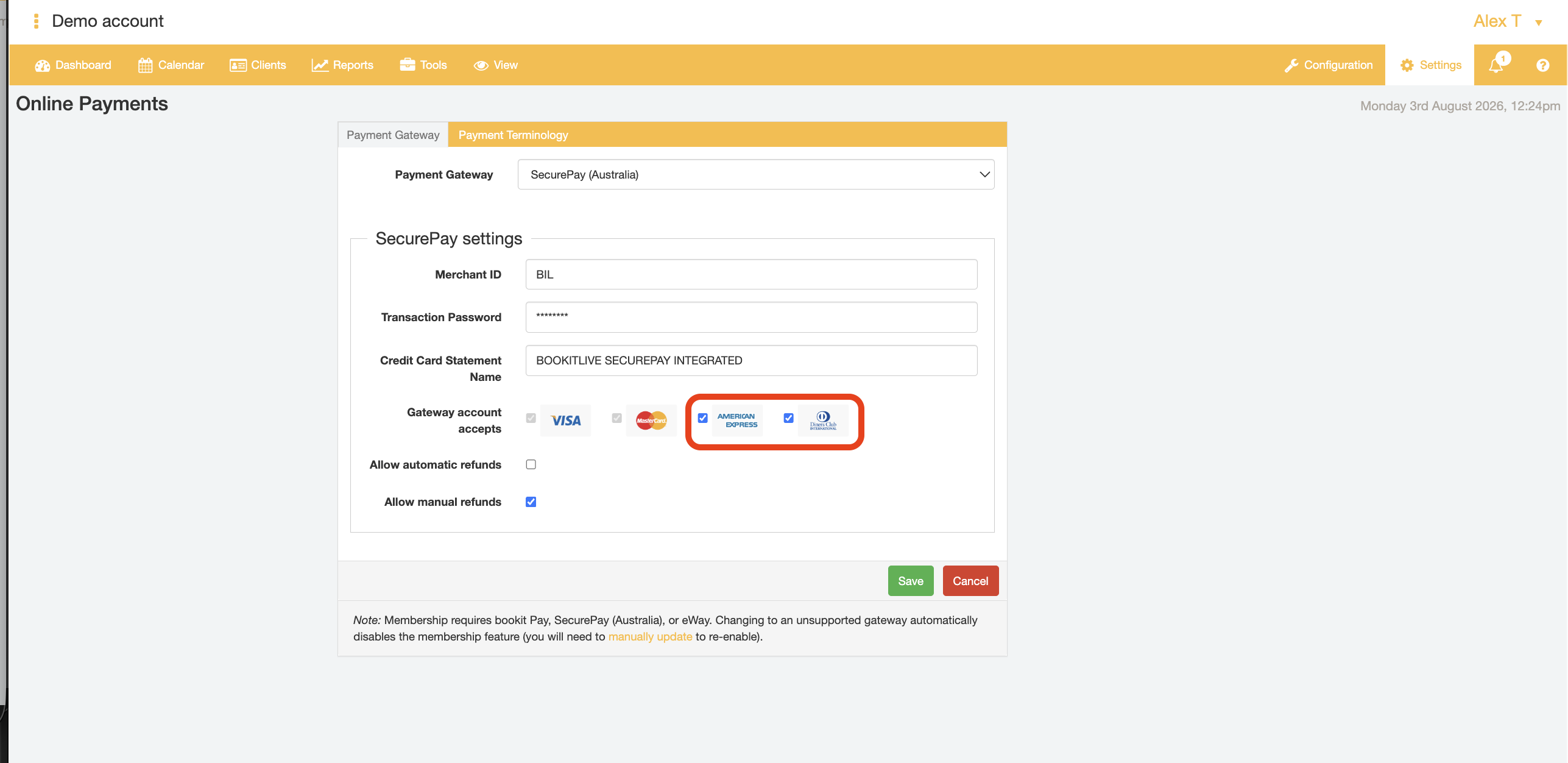
- If desired, enable automatic refunds and/or manual refunds.
Automatic refunds will immediately process a payment refund for any cancelled bookings, in line with the booking cancellation rules that have been configured for your business account.
Manual refunds will not perform a refund transaction for a booking when the booking is cancelled. Instead, the business user must track down the booking of interest from the "Clients" tab of their BookItLive business account and manually enter the refund amount to be processed for the booking cancellation.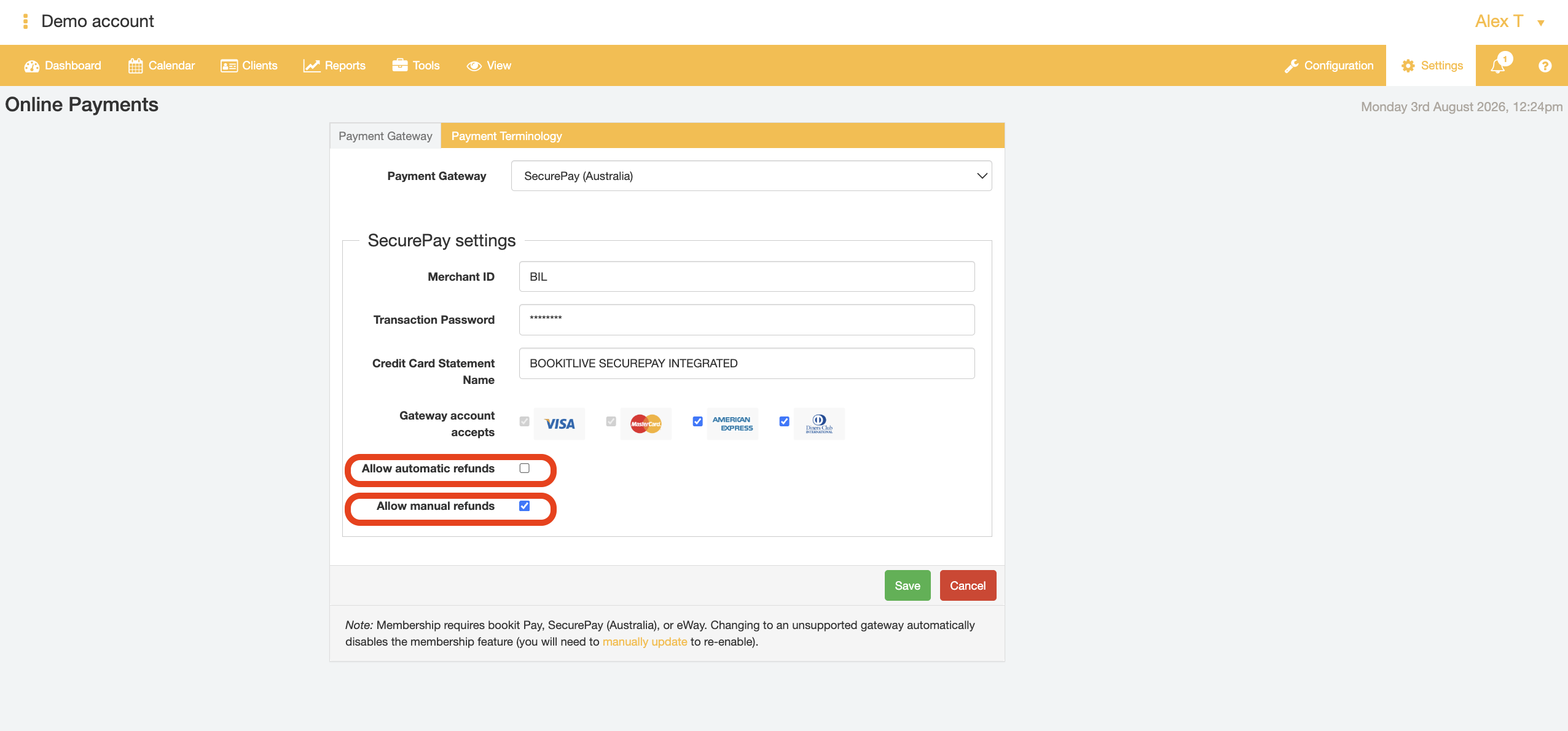
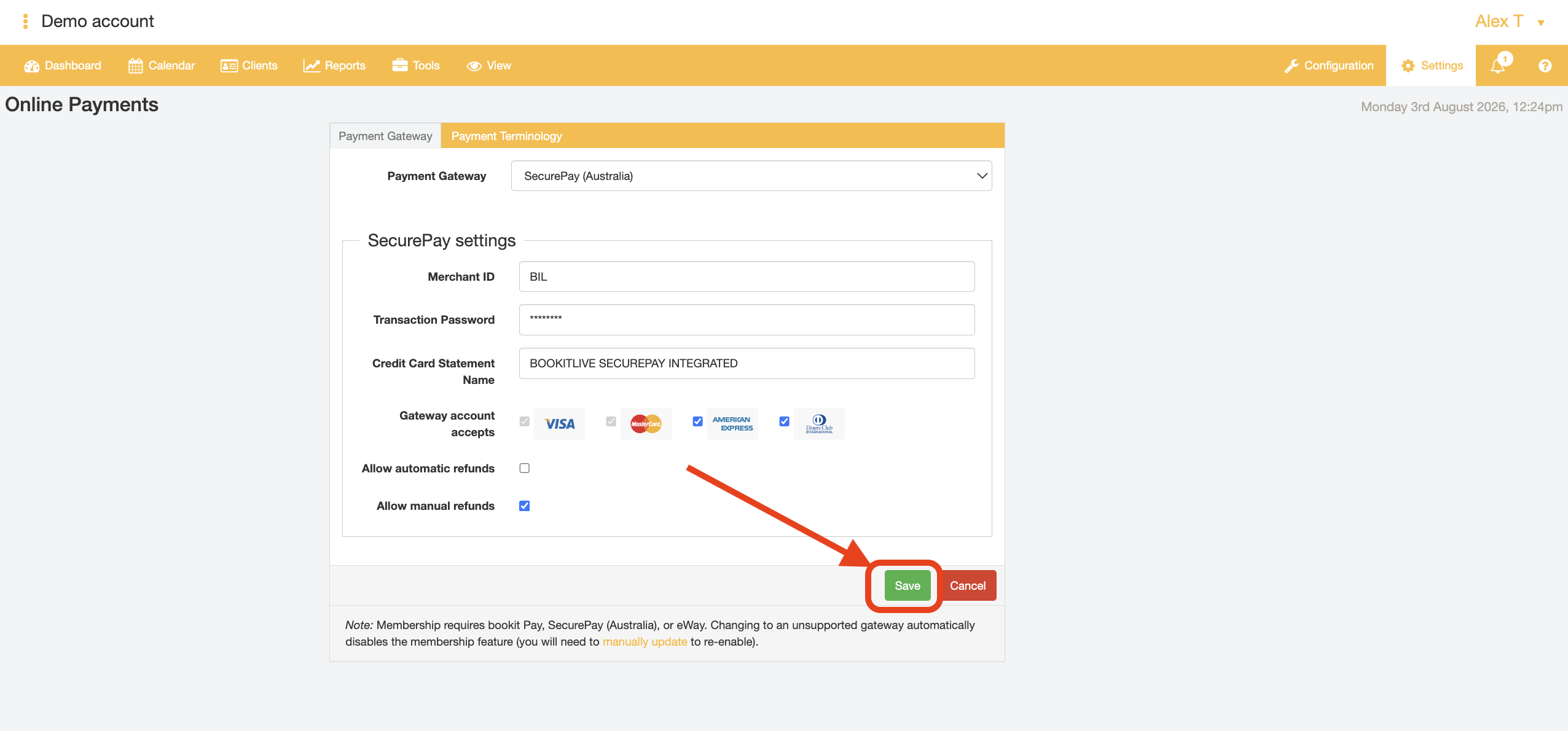
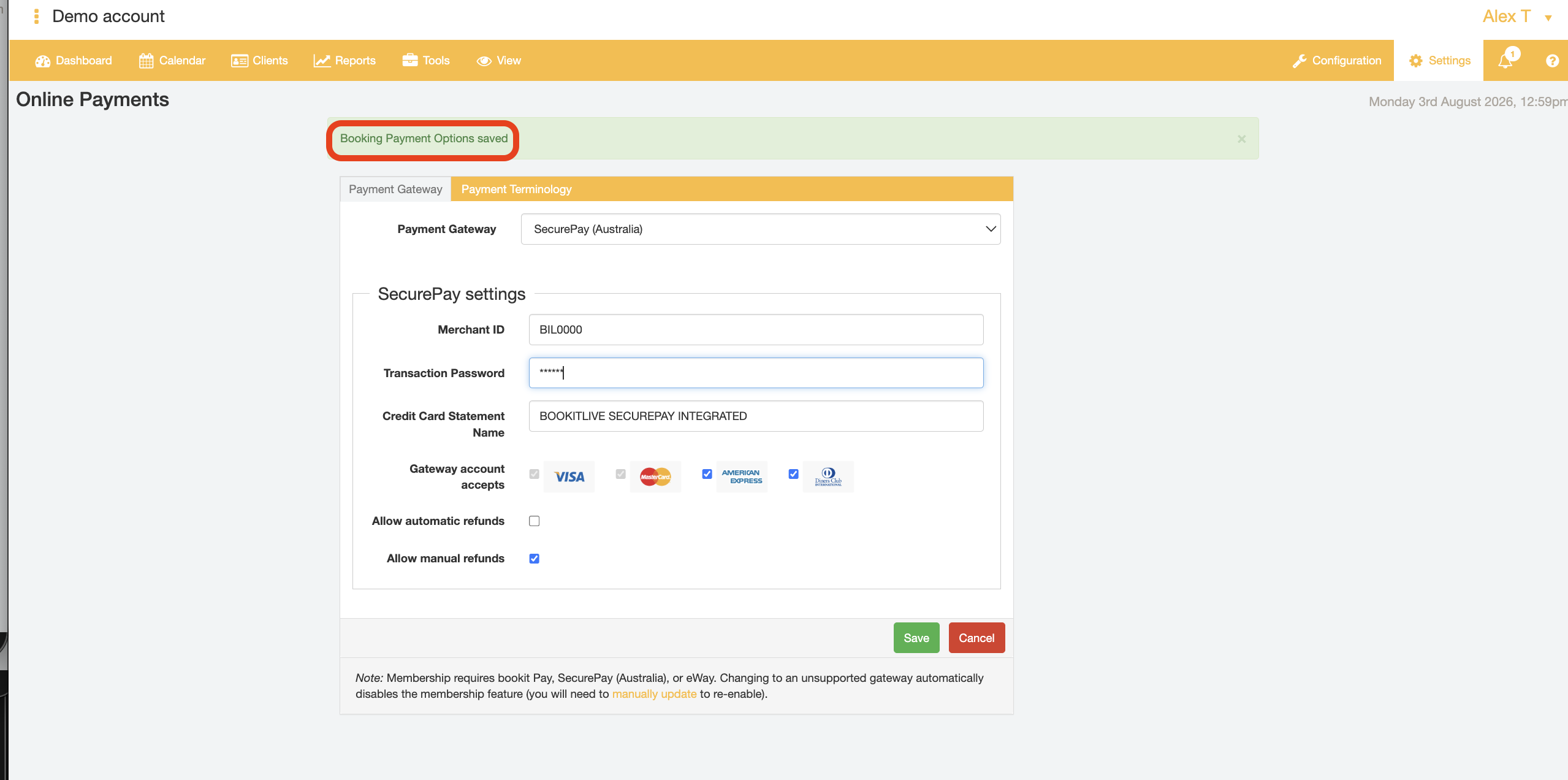
- Click Save to confirm the details provided.
- End.
Configuring a Service to take online (card) payment
BookItLive allows you to select and set the Services that require (card) payments to be taken in order for the Service booking to be completed/finalised. This means you can have your Services set to take payments and other Services that do not require payment can be omitted from requiring (card) payment details to be provided altogether.
- Log in to BookItLive as the Business Owner (administrator) or Manager user.
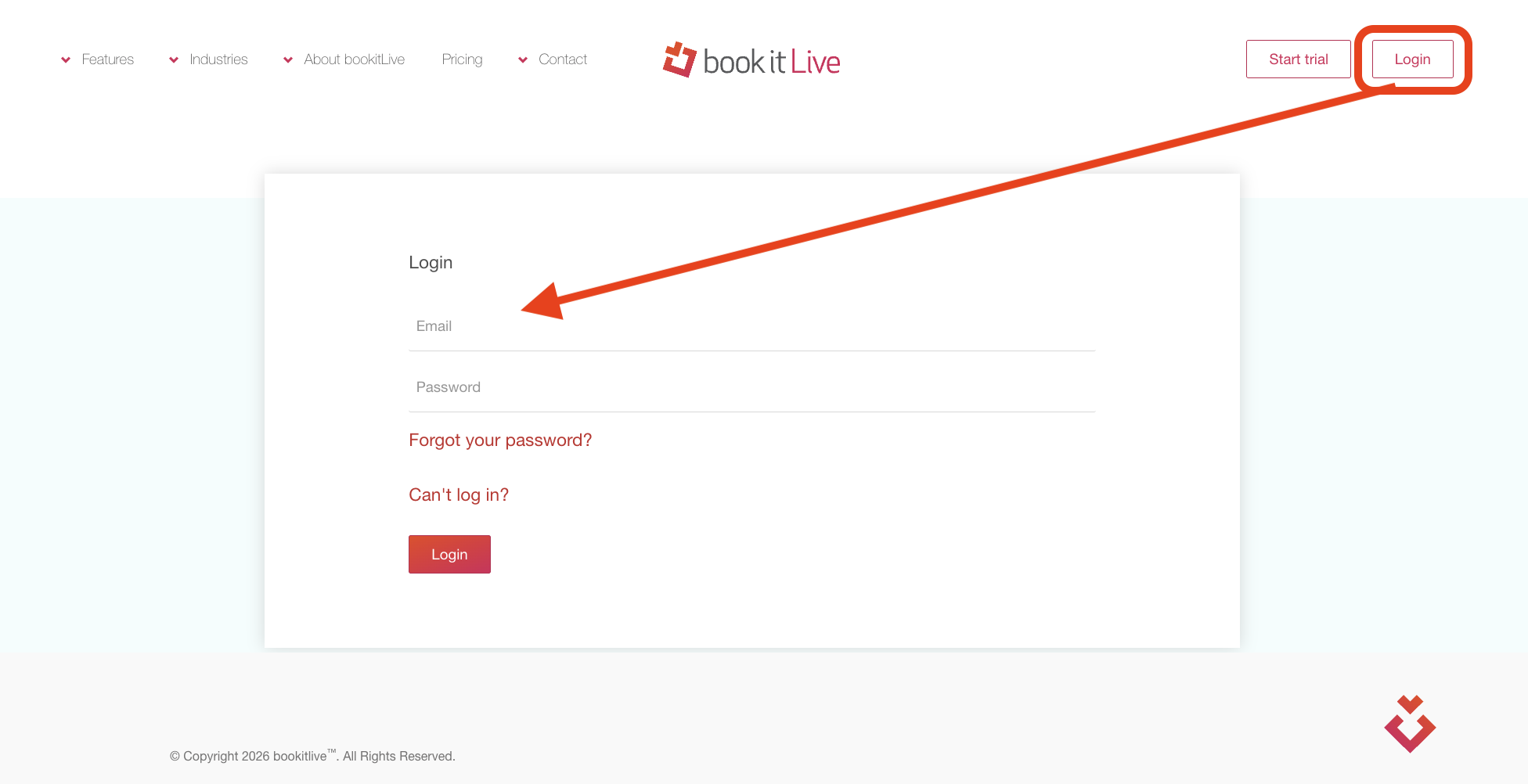
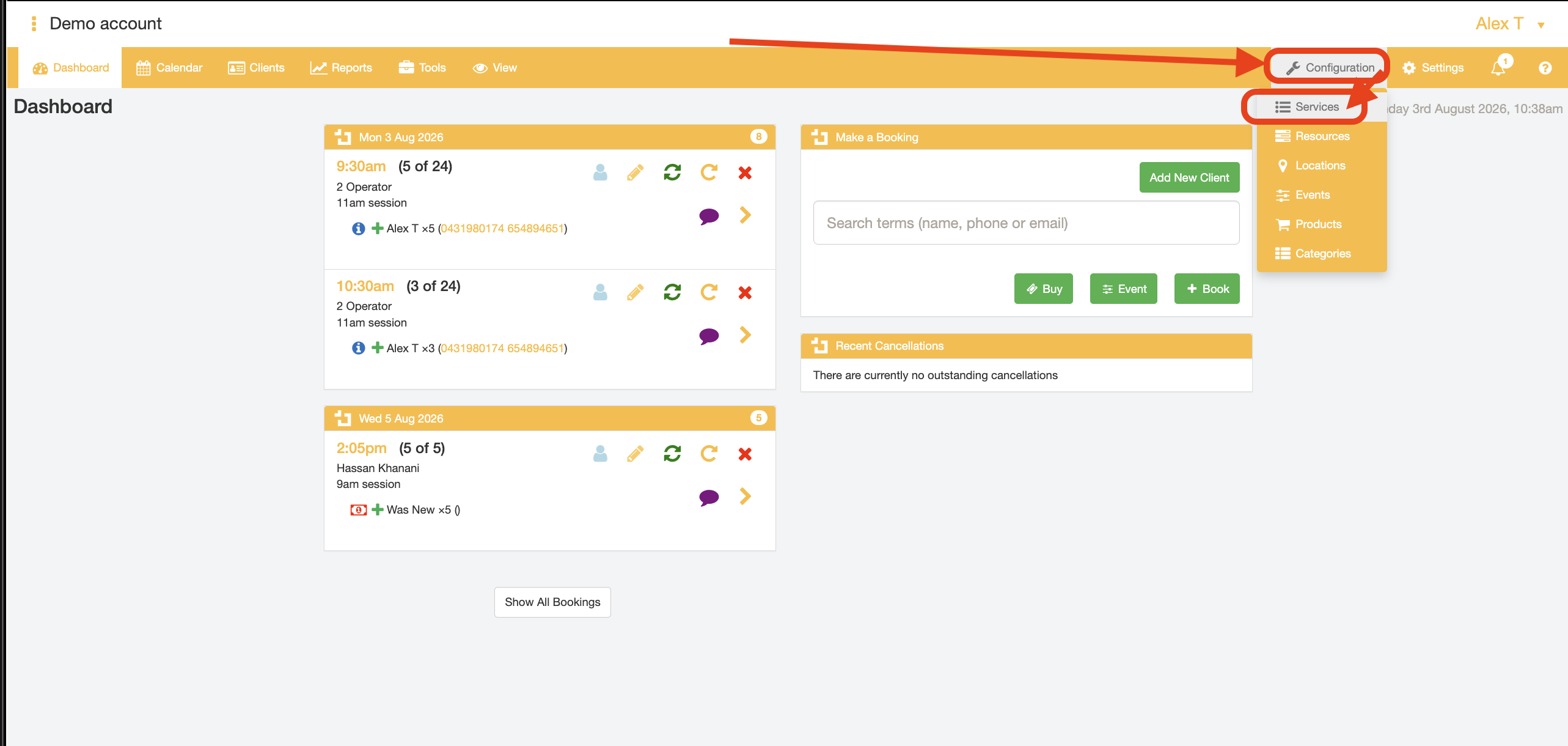
- Open the "Configuration" tab and select the "Services & Resources" menu option
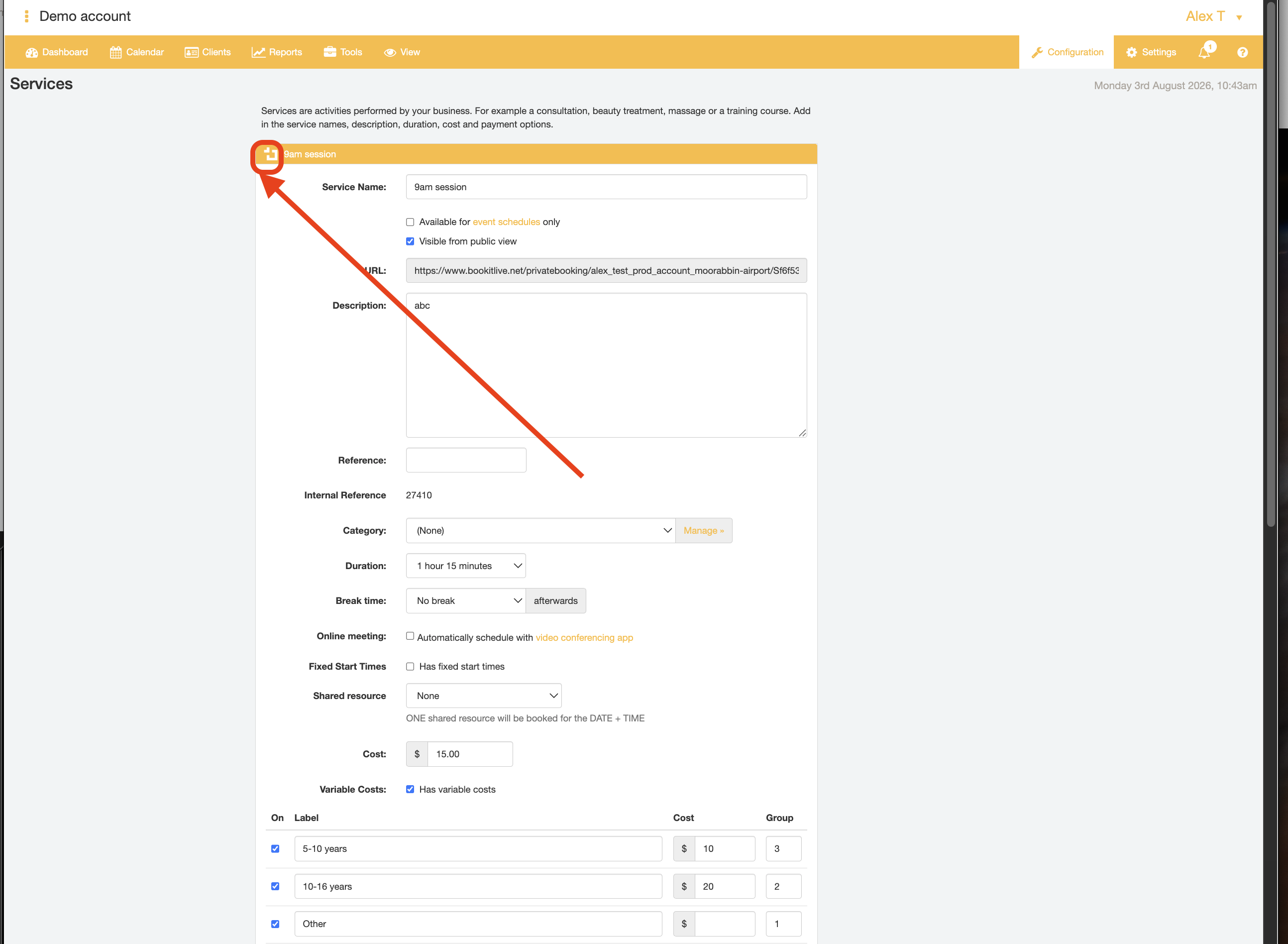
- Open the Service details for the Service of interest by clicking on the BookItLive icon next to the Service name.
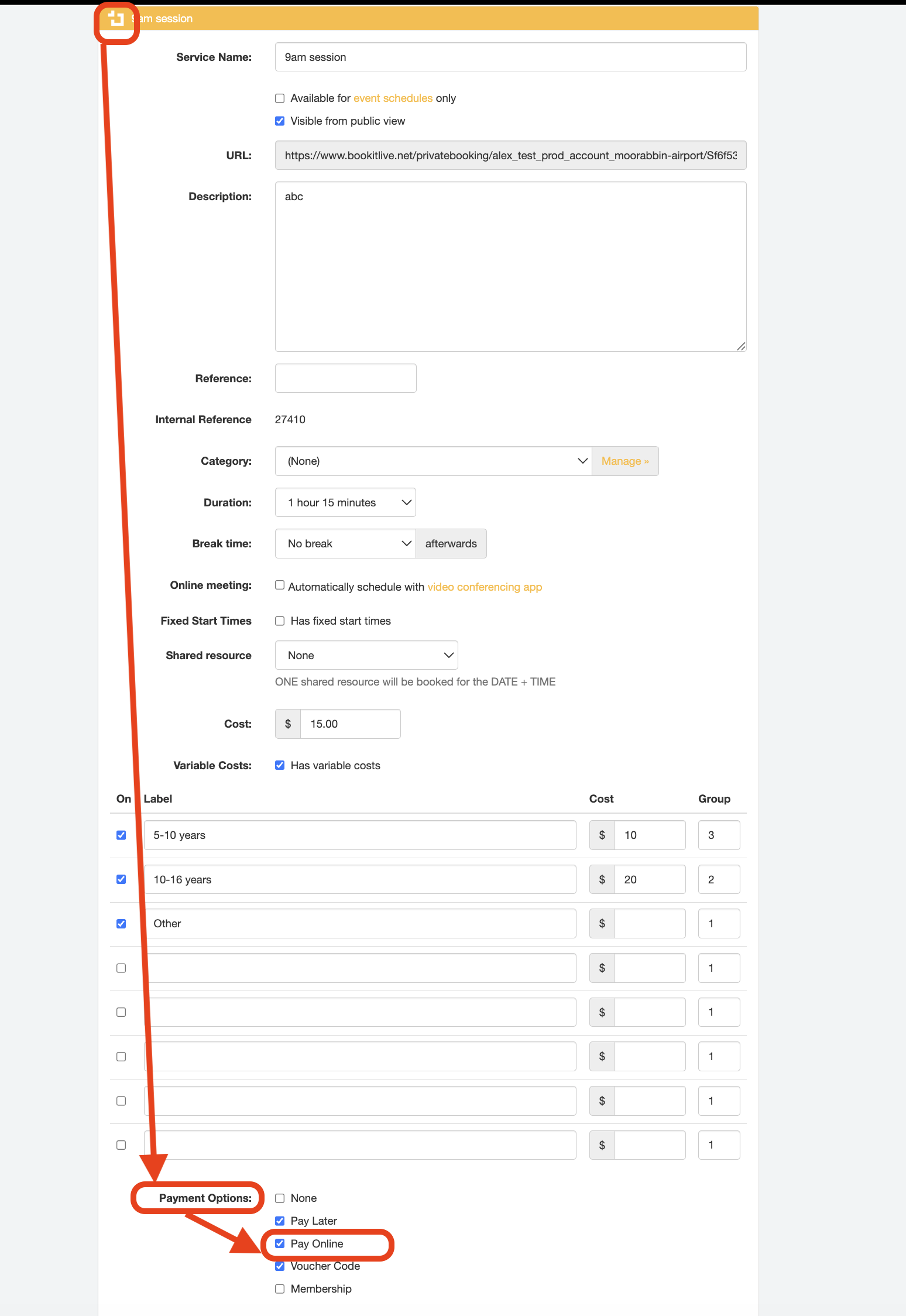
- Tick the Service Payment option "Pay Online"
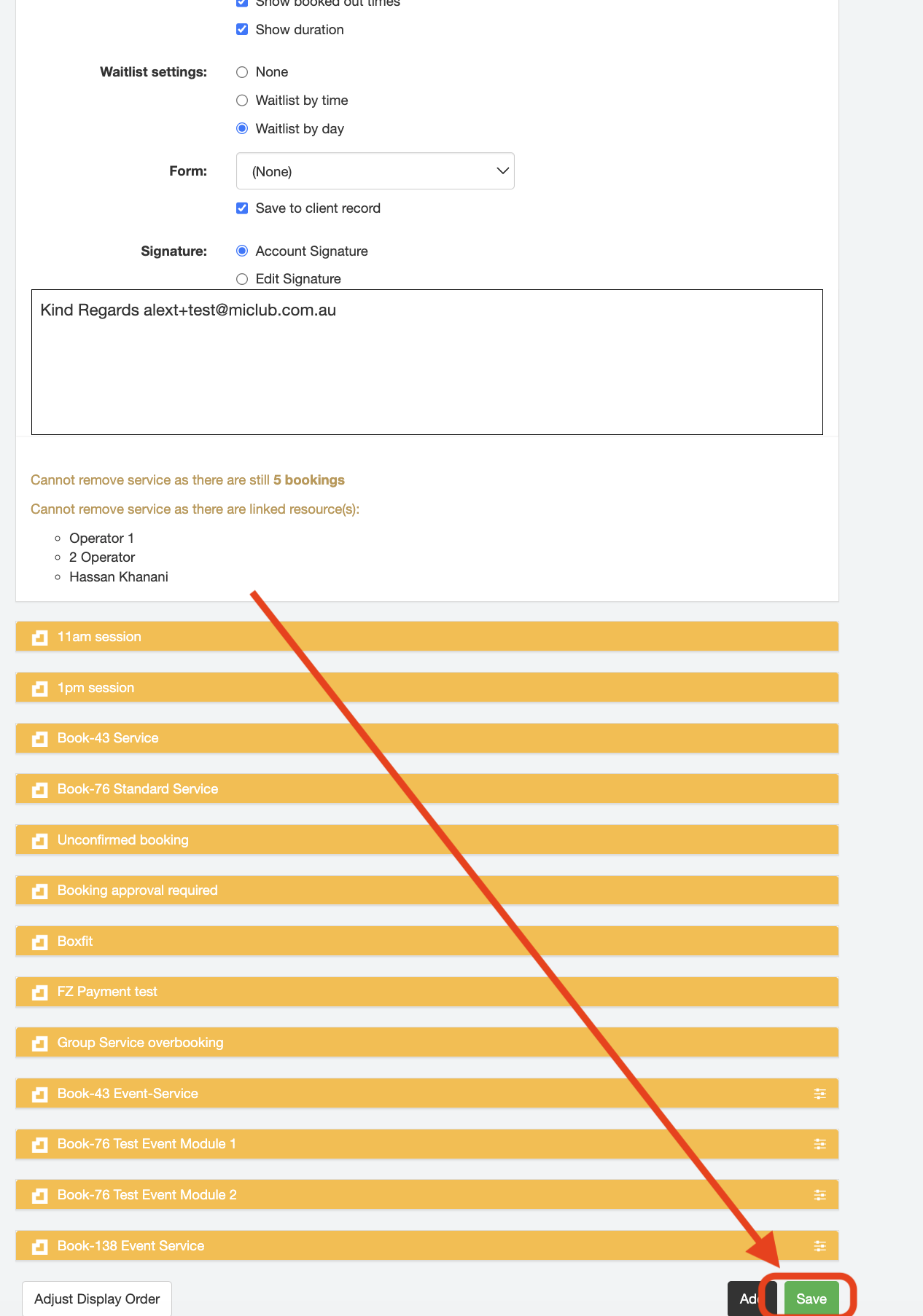
- Click the "Save" button t confirm Service selections.
- End.
Was this article helpful?
That’s Great!
Thank you for your feedback
Sorry! We couldn't be helpful
Thank you for your feedback
Feedback sent
We appreciate your effort and will try to fix the article