The Reseller Booking Reports can be used to view both future and historical booking data within a selected date range across multiple accounts. This report lists all booking details including cancelled bookings.
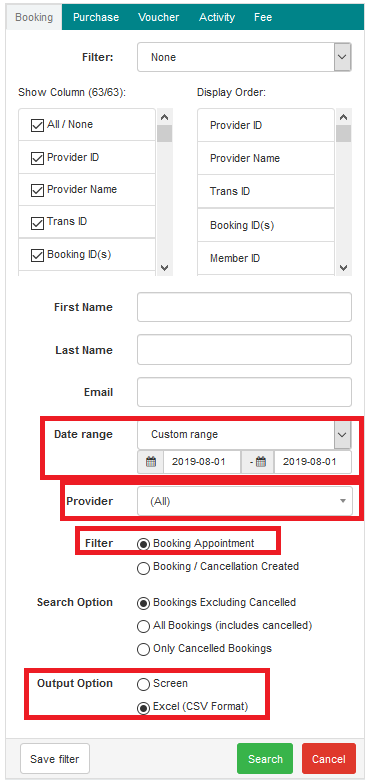
Creating a Booking Report by Booking Appointment date
- Select the Reports tab
- Select the Booking tab
- Select a date range for the report, use custom range to set a start and end date for the report. Using a end date into the future will include bookings yet to be completed
- Select a Provider or All for all Providers
- Select the Filter Booking Appointment
- Select an output option, use screen to display on the screen or Excel (CSV Format) to create a file to use in Excel
- Select Search
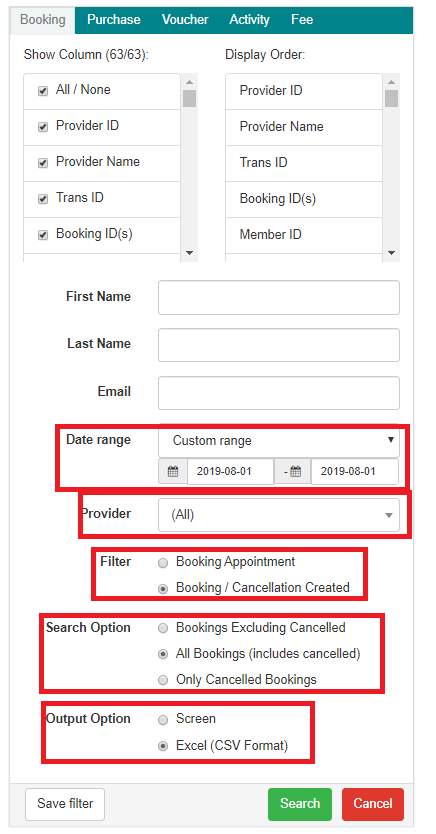
Creating a Booking Report by Booking / Cancellation Created date
- Select the Reports tab
- Select the Booking tab
- Select a date range for the report, use custom range to set a start and end date for the report. Using a end date into the future will include bookings yet to be completed
- Select a Provider or All for all Providers
- Select the Filter Booking / Cancellation Created
- Select Search Option All Bookings (includes cancelled)
- Select an output option, use screen to display on the screen or Excel (CSV Format) to create a file to use in Excel
- Select Search
Was this article helpful?
That’s Great!
Thank you for your feedback
Sorry! We couldn't be helpful
Thank you for your feedback
Feedback sent
We appreciate your effort and will try to fix the article