Businesses that use a repeating trading hours schedule need the ability block customers from booking staff members or facilities (i.e., "Resources") in the business from being booked on one-off occasions from time to time.
A business may want to mark a Resource as unavailable for bookings for part of a day for several reasons, such as :
- A Resource is not available for a particular time and day due to other commitments, e.g., family or personal commitments
- A Resource may encounter an unexpected personal emergency.
- A facility may require maintenance
Note: If a Resource is not going to be available for a whole day or multiple days use the "Remove Availability" feature in the "Tools" tab instead (see https://support.bookitlive.net/support/solutions/articles/14000163506-remove-day-s-of-staff-facility-booking-availability for more information about removing entire date range(s) of Resource Availability).
Making Resource booking times unavailable
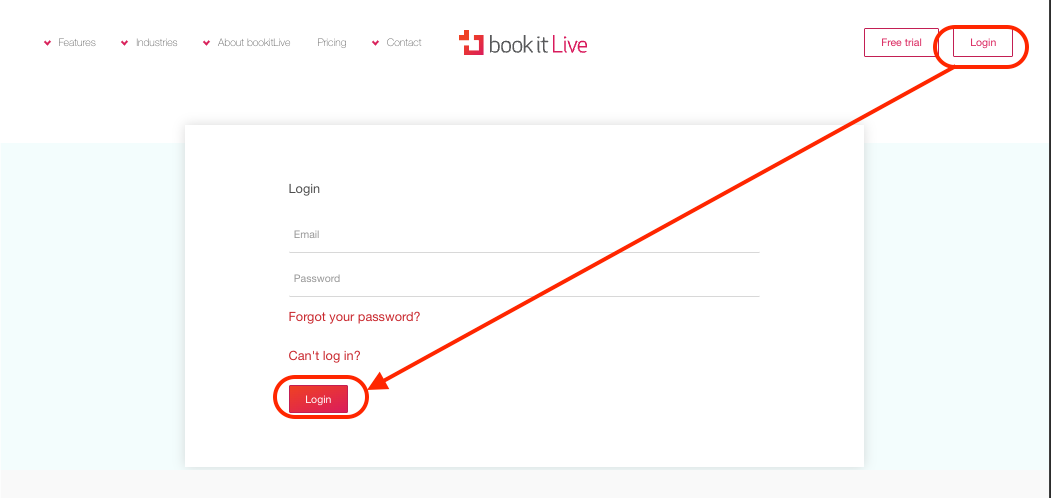
- Login to your BookItLive business account.
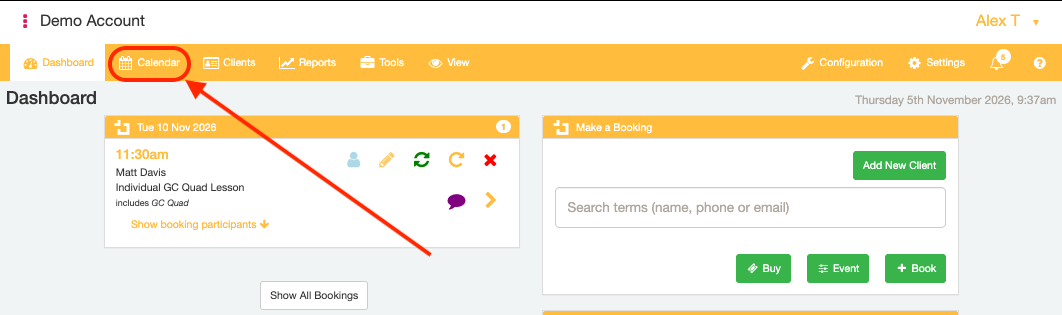
- Select the "Calendar" tab.
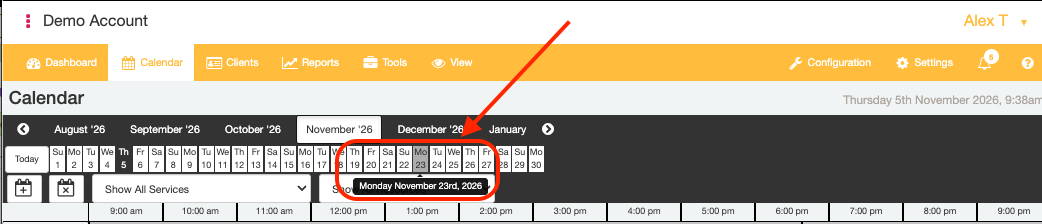
- On the Calendar interface, select the date that you would like to block out booking availability time on.
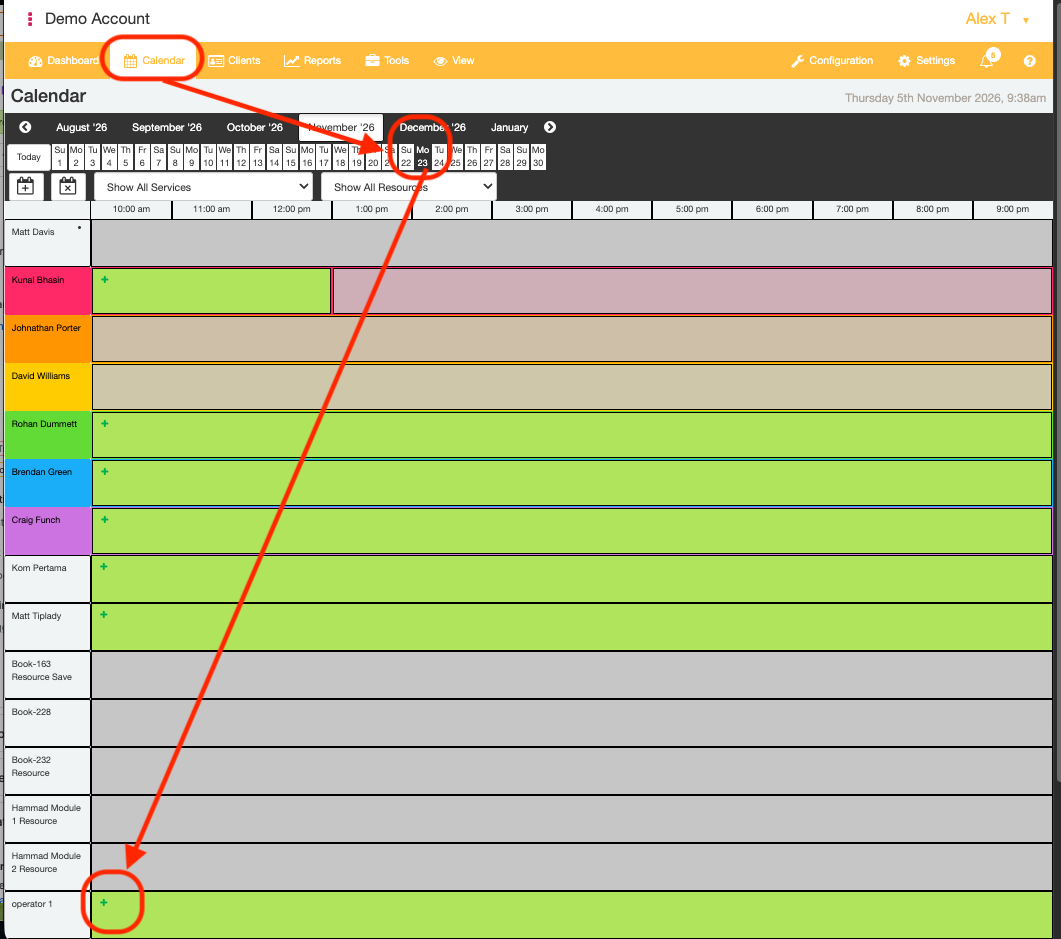
- On the selected Calendar date, click a green-highlighted timeslot belonging to the Resource of interest that you want to make unavailable. A popup will be displayed.
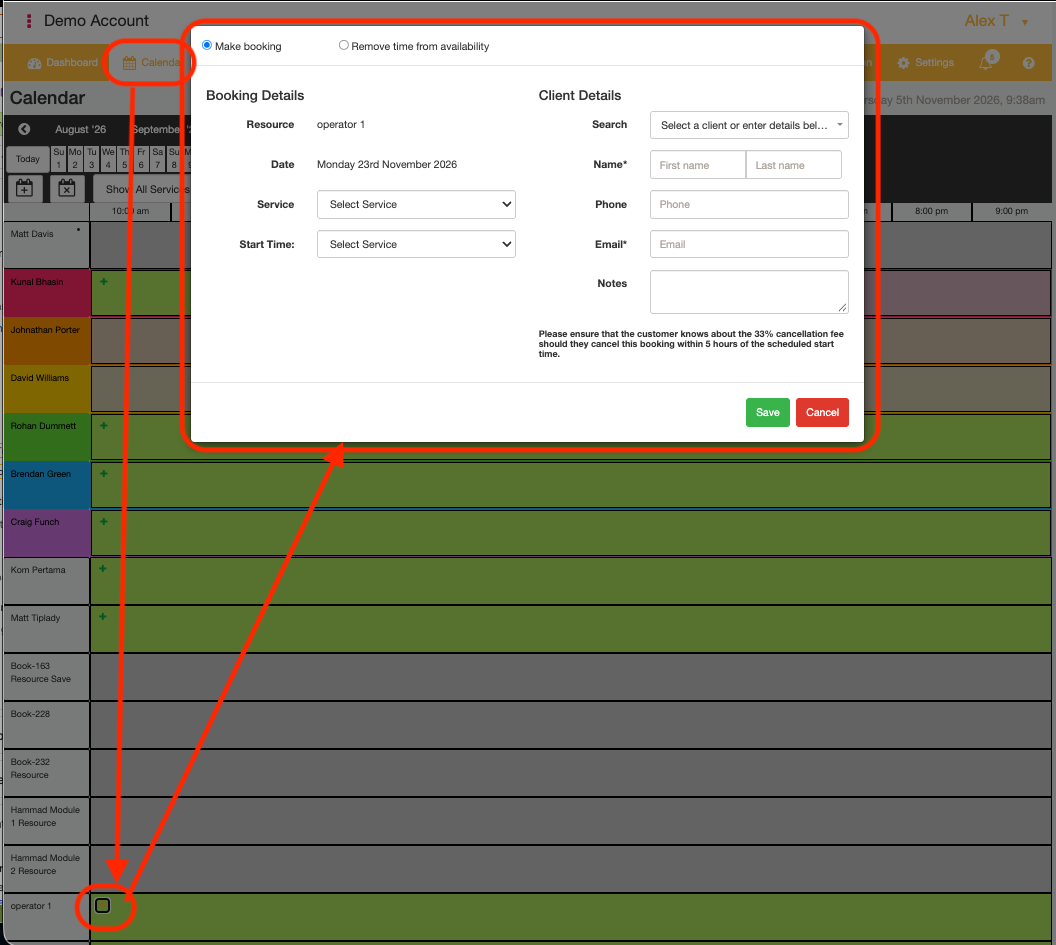
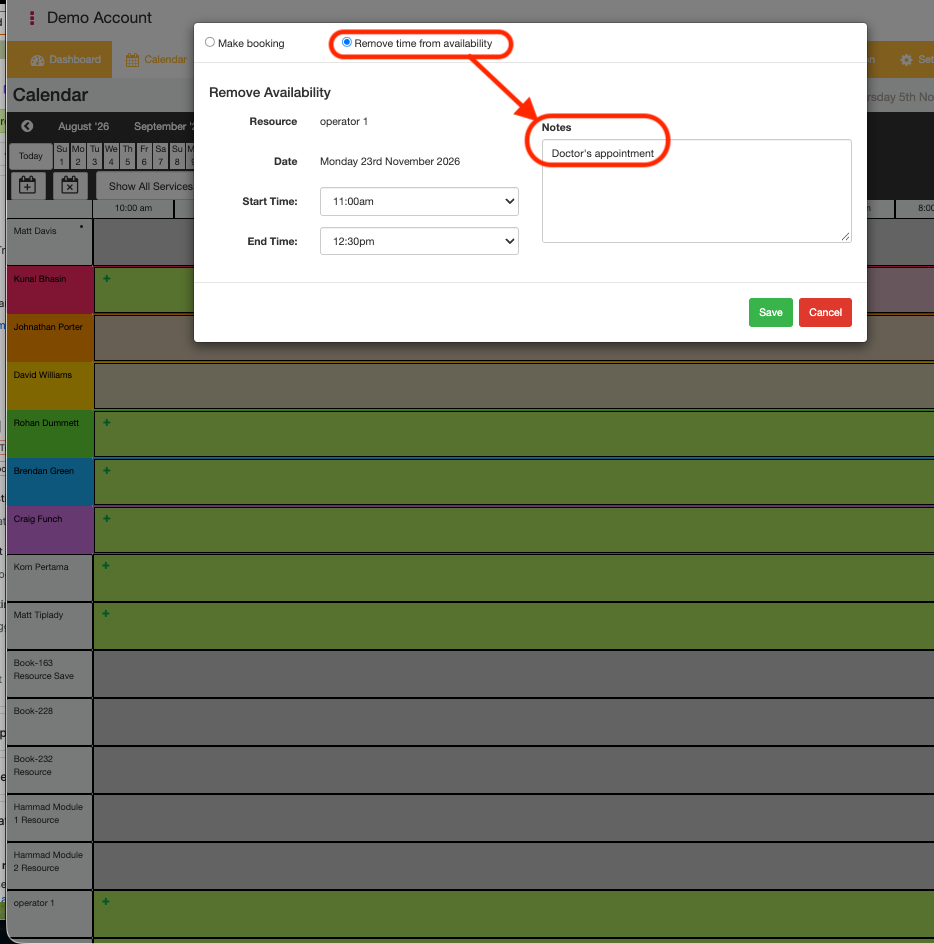
- From the top of the Popup, select the "Remove Time from Availability" radio button.
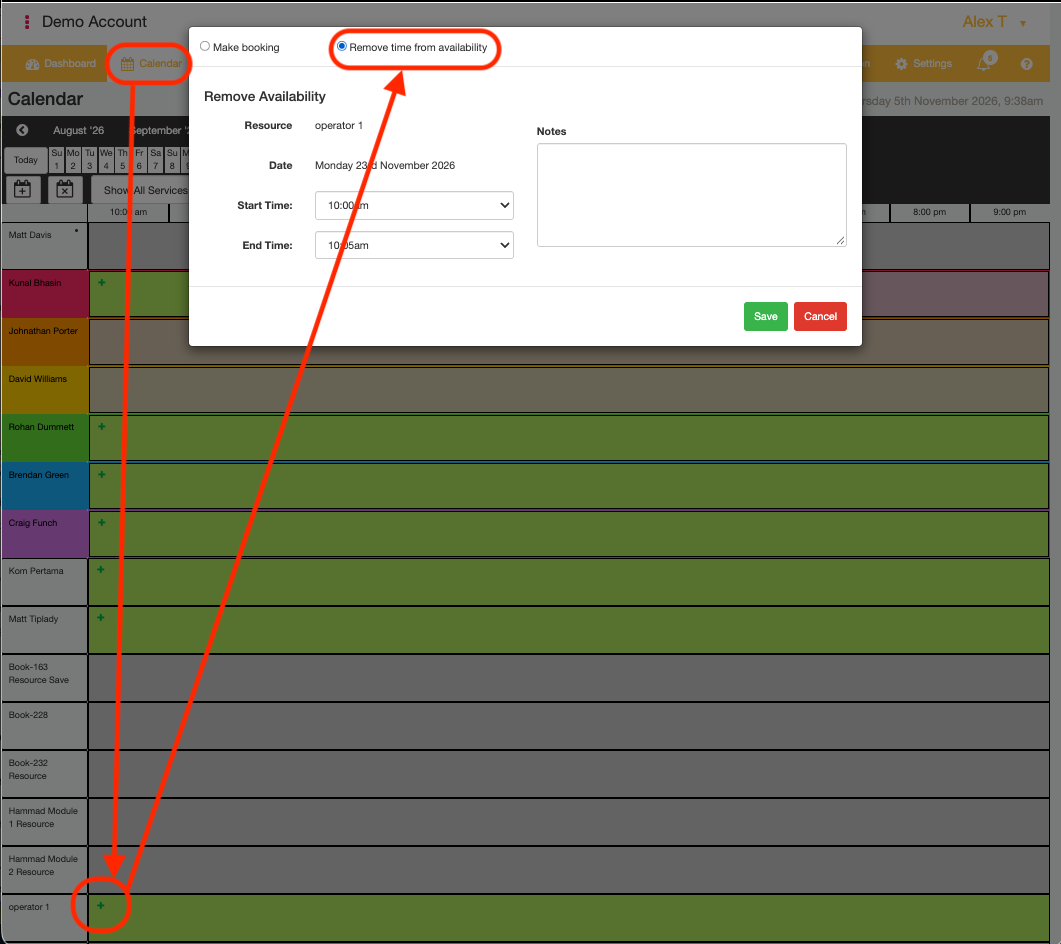
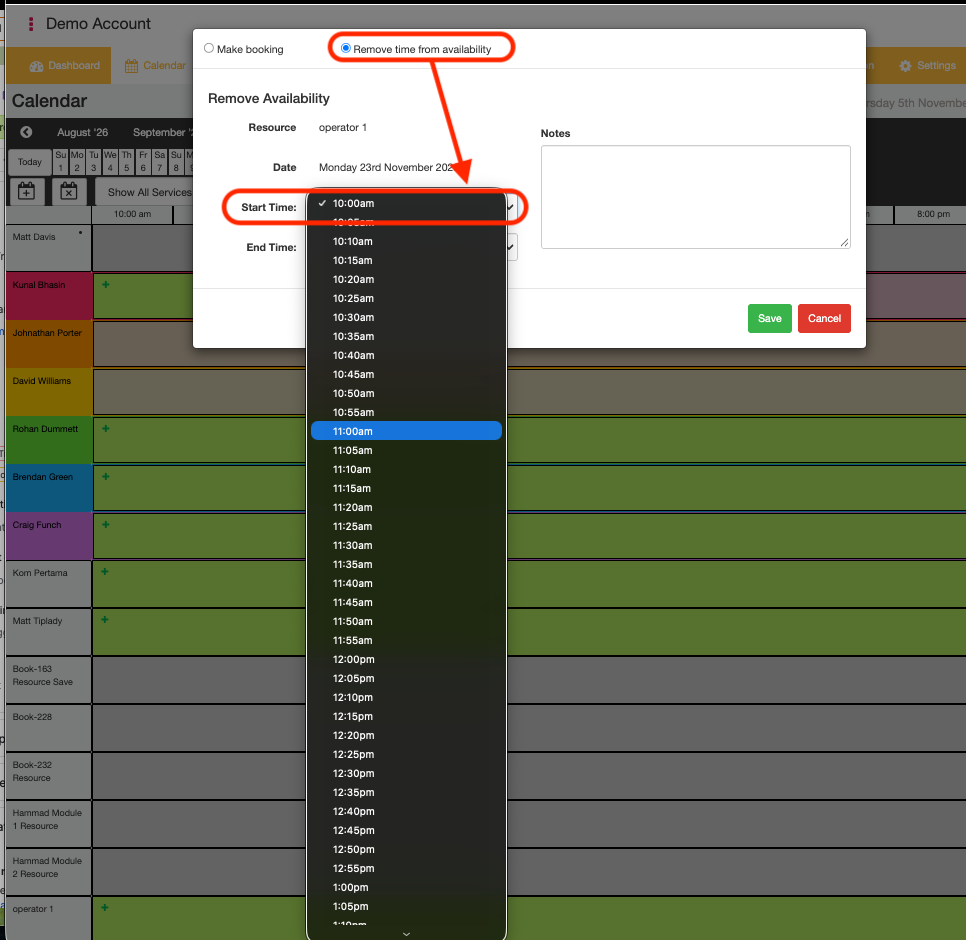
- Set the Start Time that the selected Resource will not be able to be booked for on that date in the "Start Time" dropdown field.
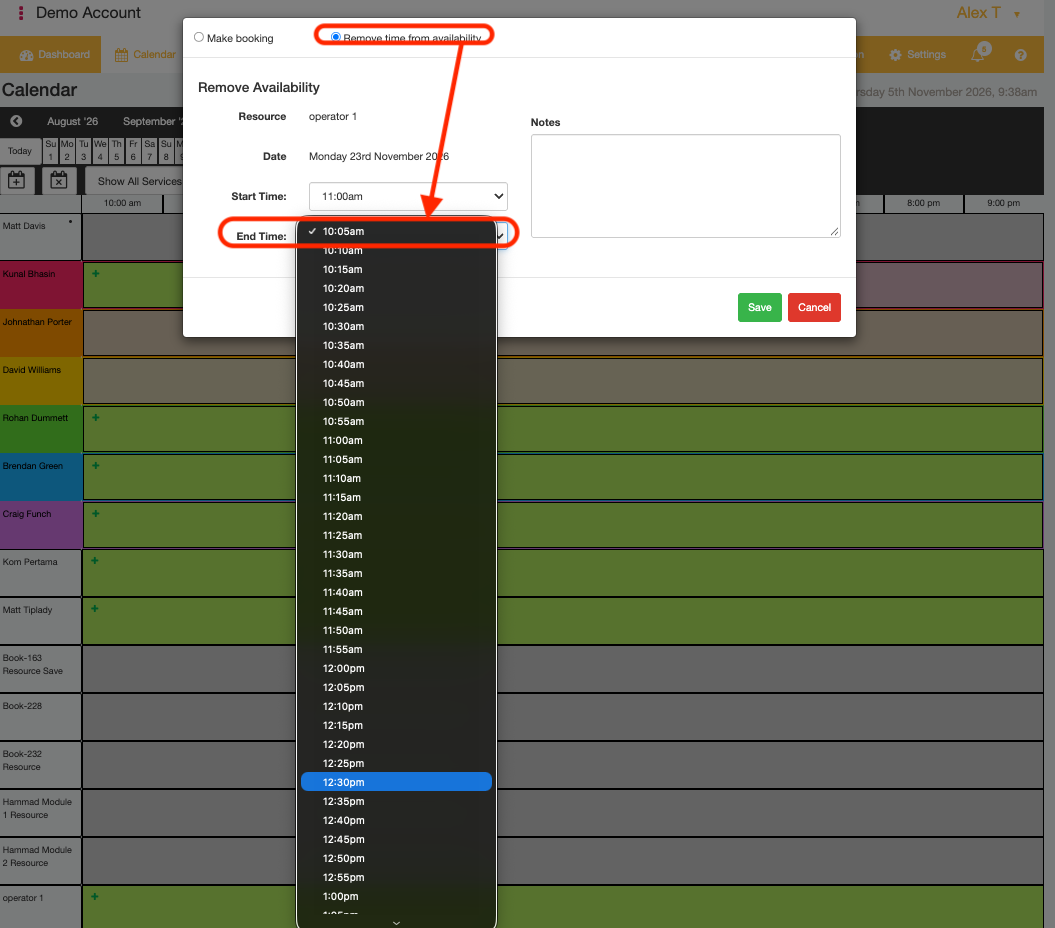
- Set the End Time that the selected Resource will not be able to be booked for on that date in the "End Time" dropdown field.
- If desired, add a note to the Booking in the "Notes" text box. Notes can describe what the reason for the Unavailable Booking Time is.
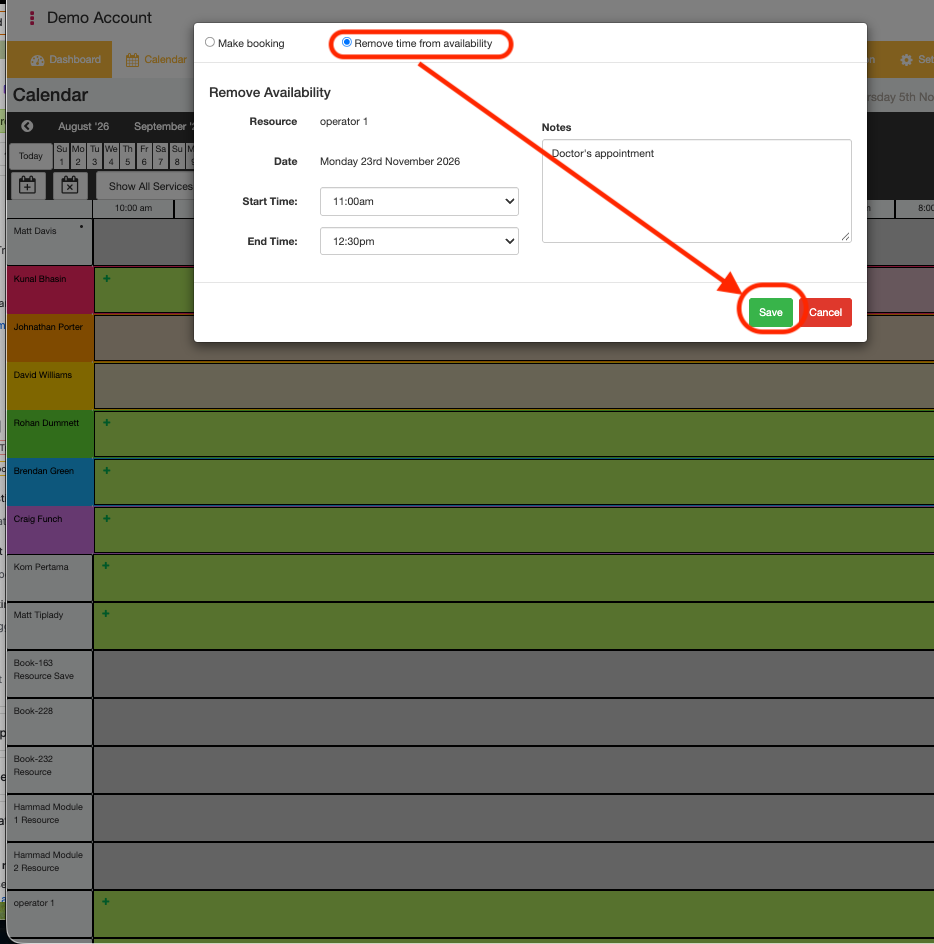
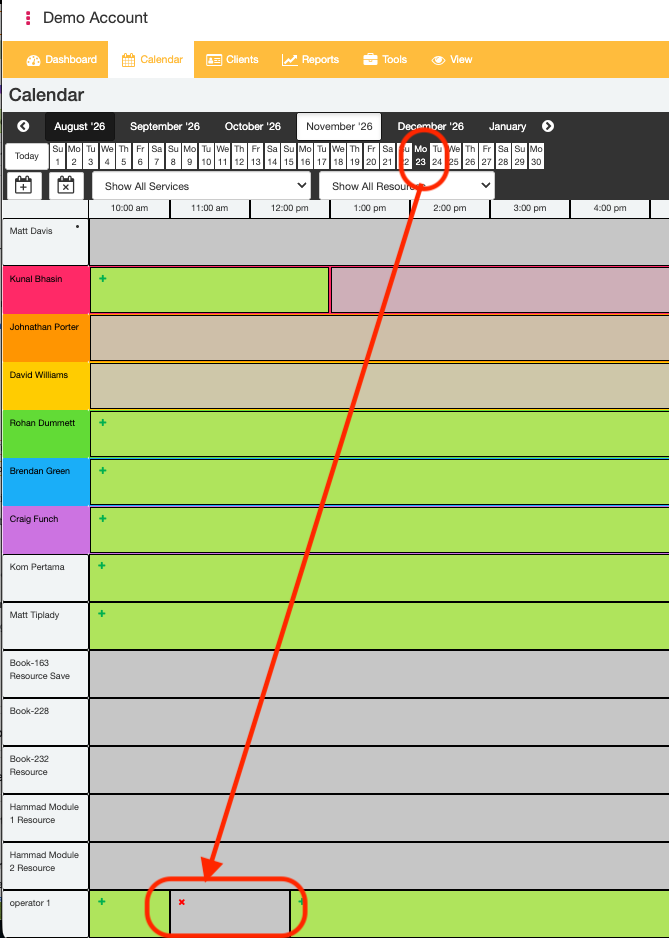
- Click the "Save" button to confirm the Resource's Unavailable Times on the selected Date. If successful, you should see a grey-highlighted timeslot at the between the specified "Start Time" and "End Time" values.
- End.
Viewing all Resource Unavailable Times
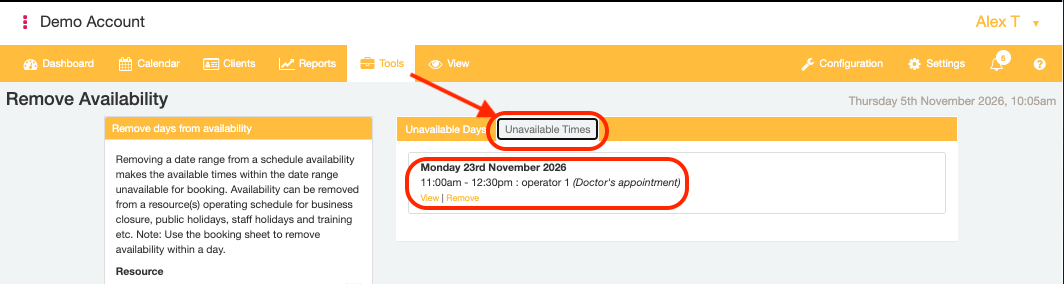
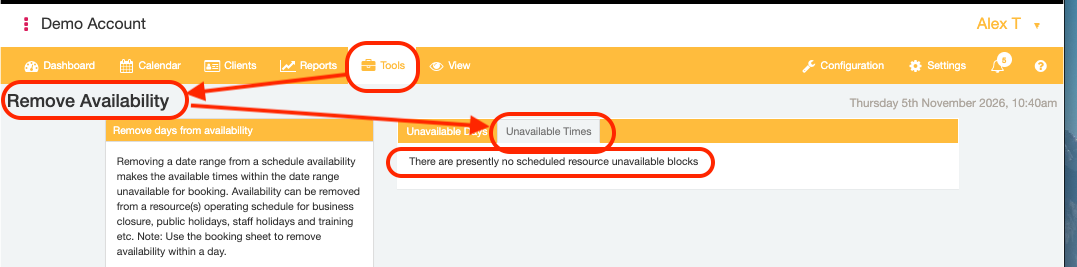
The "Tools" tab "Remove Availability" page lists all future Times that each Resource is not available.
- Open the "Tools" tab and select the "Remove Availability" menu option.
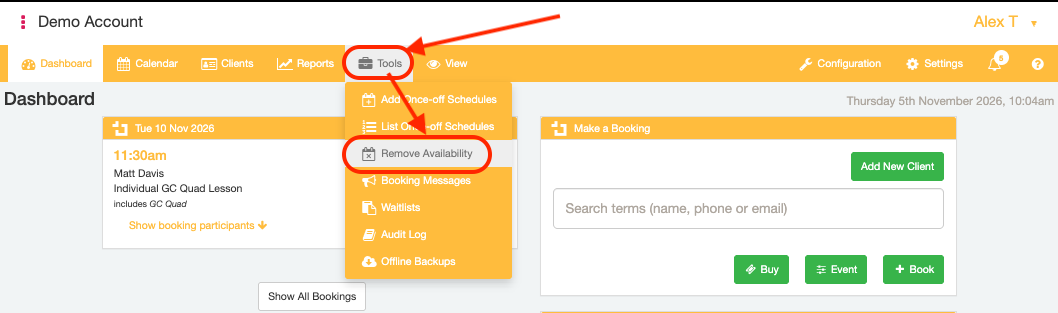
- Select the "Unavailable Times" tab to see a list of times that Resources are Unavailable.
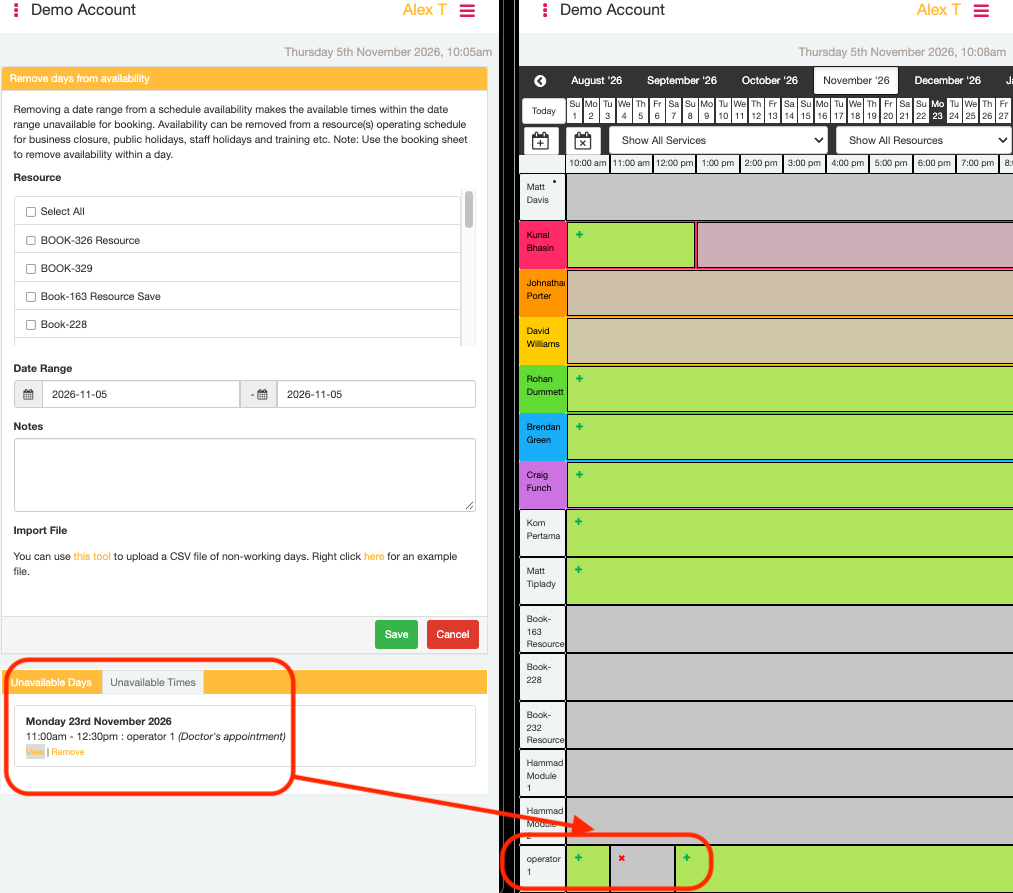
- Use the "View" link to open the selected Unavailable Time from the Calendar page.
- End.
Removing Resource Unavailable Times
Resource Unavailable Times can be removed from two different places in the BookItLive site
From Calendar tab
- Select the "Calendar" tab.
- Open the Date of the Calendar interface to the date on which an Unavailable Time has been set.
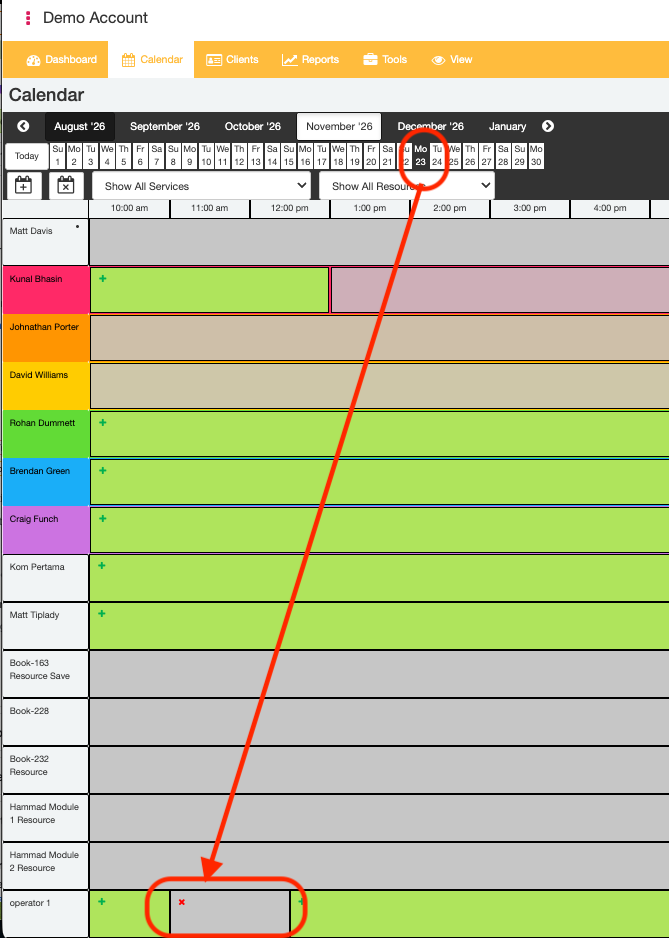
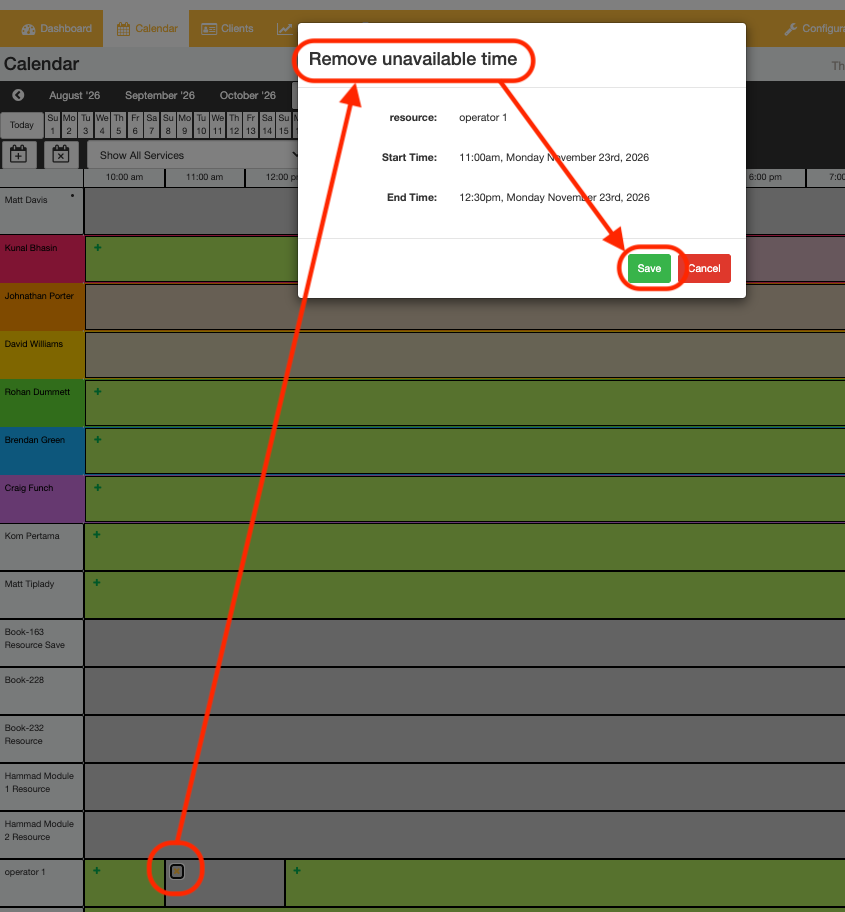
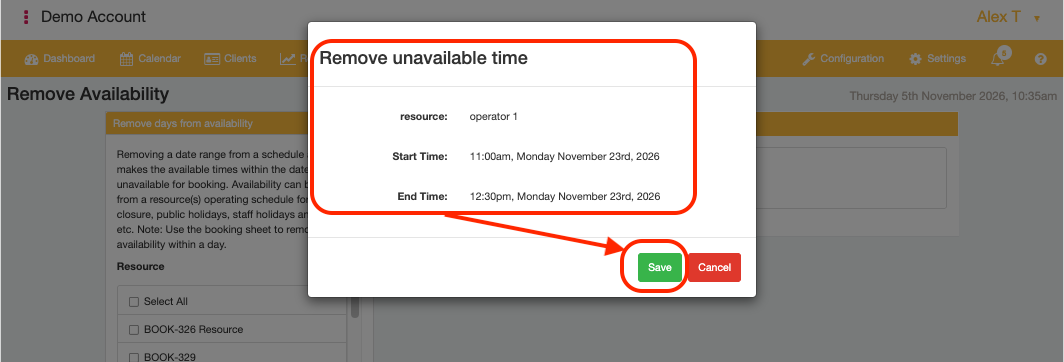
- Locate the Unavailable Time for the Resource of interest and click the "X" button on the grey-highlighted unavailable time. A "Remove Unavailable TIme" pop up window will appear.
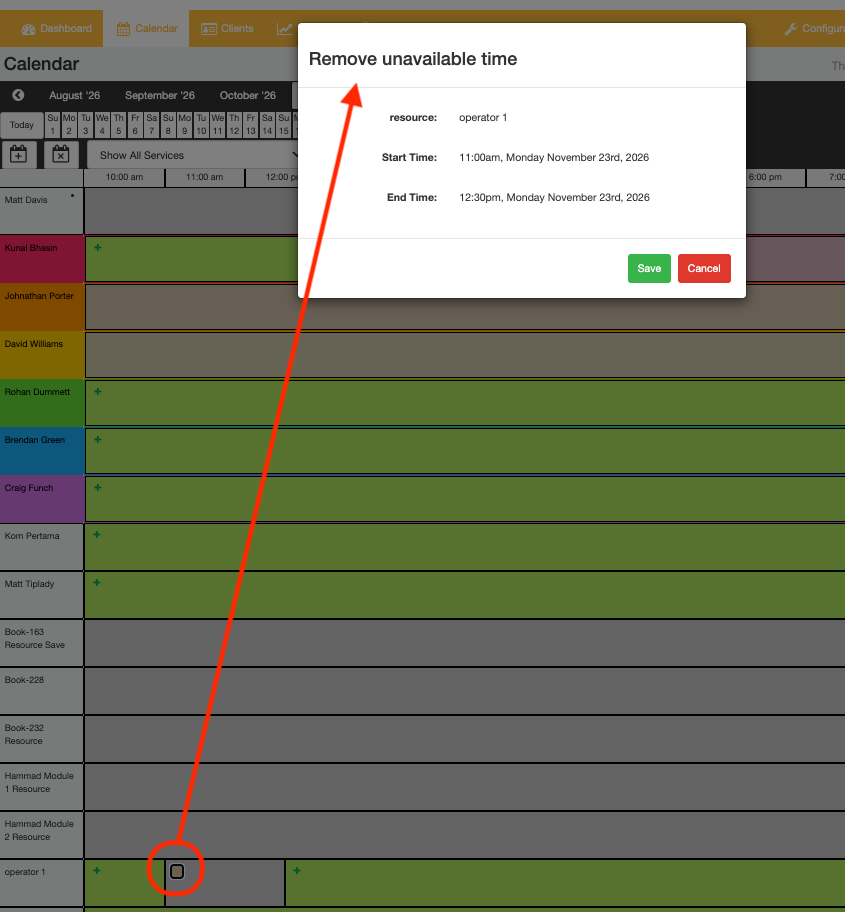
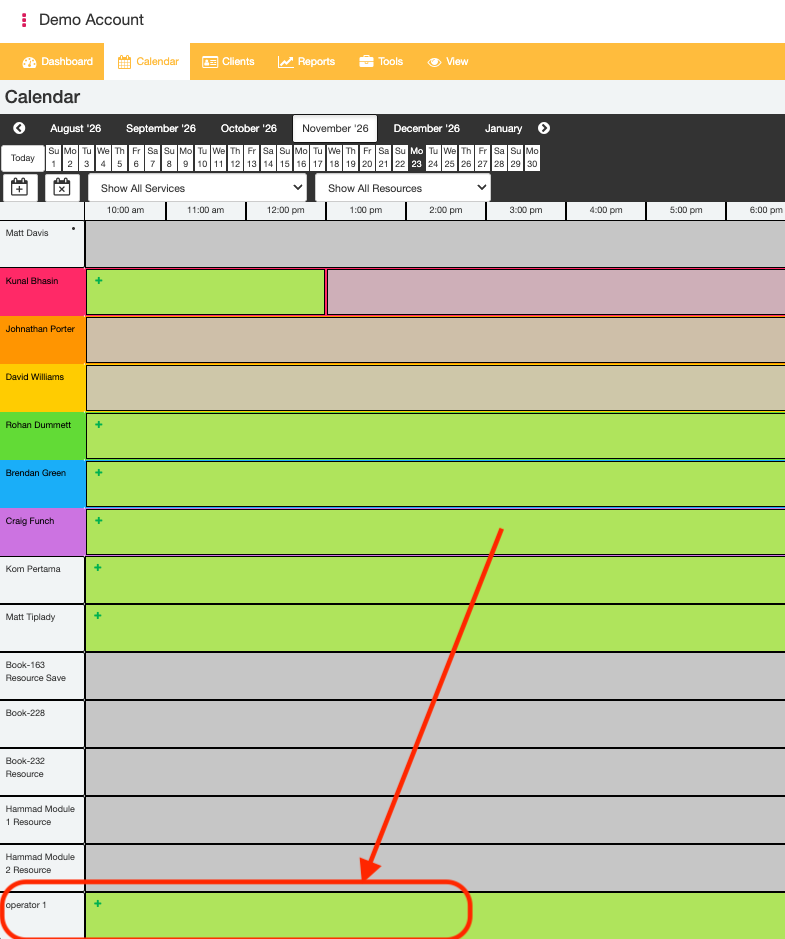
- Click the "Save" button to confirm that you would like to delete the selected Resource's Unavailable Time. If successful, the Unavailable Time should no longer display on the Calendar page (i.e., the grey-highlighted timeslot should be replaced with a green-highlighted timeslot at the previous Unavailable Time).
- End.
From Remove Availability page
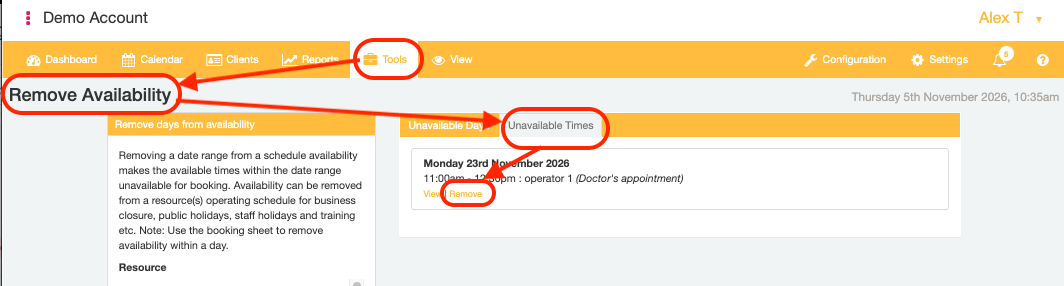
- Open the "Tools" tab and select the "Remove Availability" menu option.
- Select the "Unavailable Times" tab to see a list of times that Resources are Unavailable.
- Use the "Remove" link to delete the selected Unavailable Time from the Calendar page. A "Remove Unavailable Time" pop up window will appear.
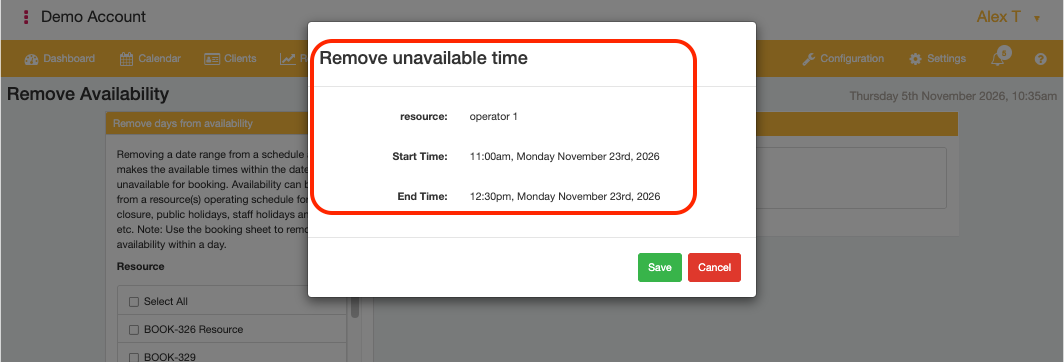
- Click the "Save" button to confirm that you would like to delete the selected Resource's Unavailable Time. If successful, the Unavailable Time should no longer display on the "Unavailabile Times" tab in the "Remove Availability" page.
- End.
Was this article helpful?
That’s Great!
Thank you for your feedback
Sorry! We couldn't be helpful
Thank you for your feedback
Feedback sent
We appreciate your effort and will try to fix the article