A Business that uses a repeating schedule needs the ability to define a day or date range when their resources are Unavailable or the business is closed. This may apply for businesses that have limited or no operating capacity during important cultural times of the year (e.g., Lunar New Year, Ramadan, Diwali, etc.) or have do not trade on public holidays (e.g., Labour Days, Bank Holidays, New Years Day, etc.).
You may wish to block out booking availability for your business' staff or facility company-wide or for a specific staff member/facility (i.e., a "Resource") only.
Note: Removing Availability does not remove any existing Bookings that may have been made during the specified Resource Unavailable Time before the Unavailable Time was set. In the event where an booking unavailability has been removed for a Resource and this unavailability overlaps with a booking that has already been confirmed, it is your responsibility as the Service Provider to inform your customer(s) and modify/cancel existing Bookings to ensure there is no scheduling conflict.
BookItLive recommends you check your Calendar or Remove Availability pages before setting any new Resource booking unavailable periods before confirming when that Resource will not be unavailable to ensure there are not schedule conflicts.
Making Day(s) Unavailable
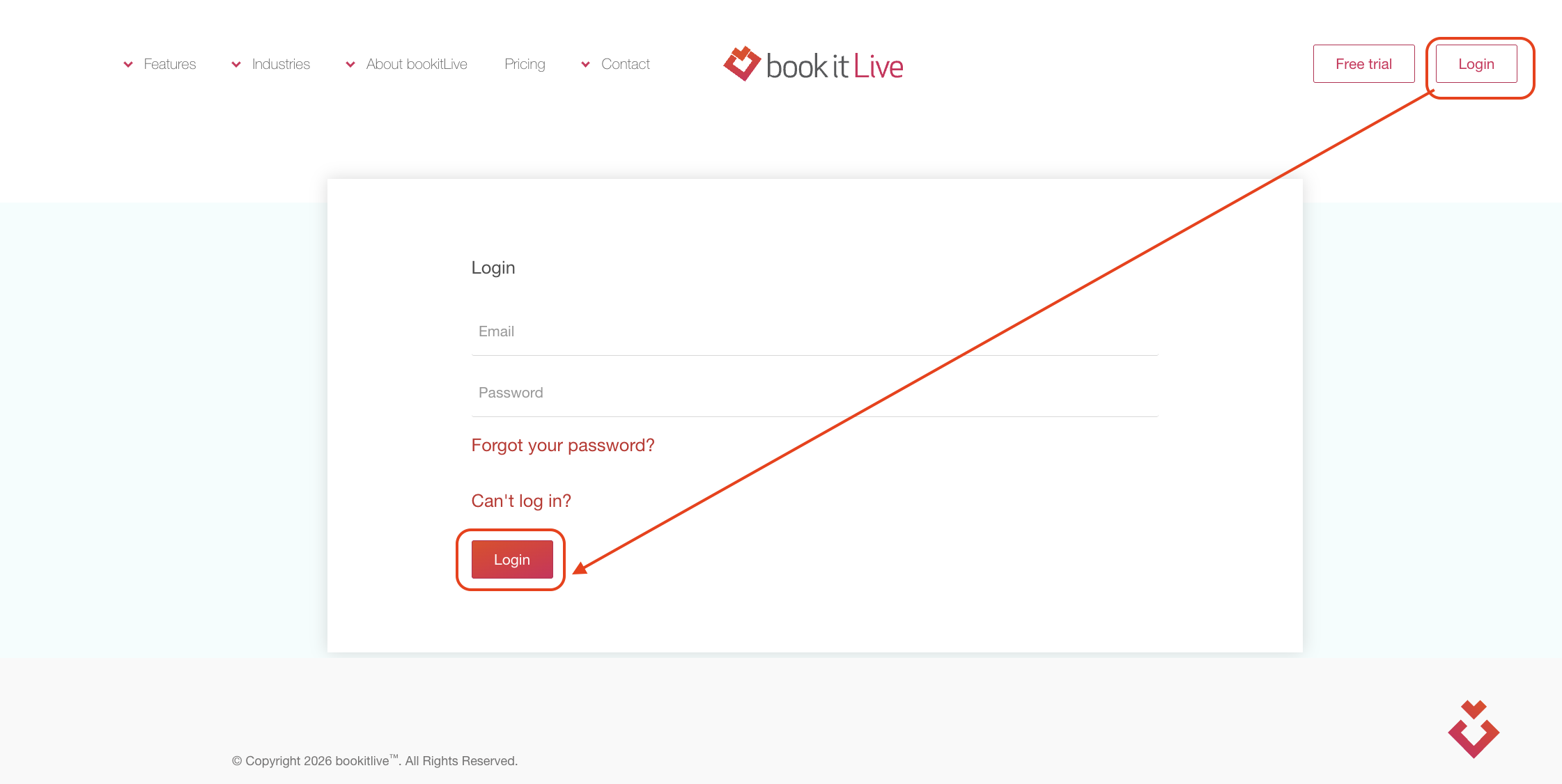
- Login into your business' BookItLive account
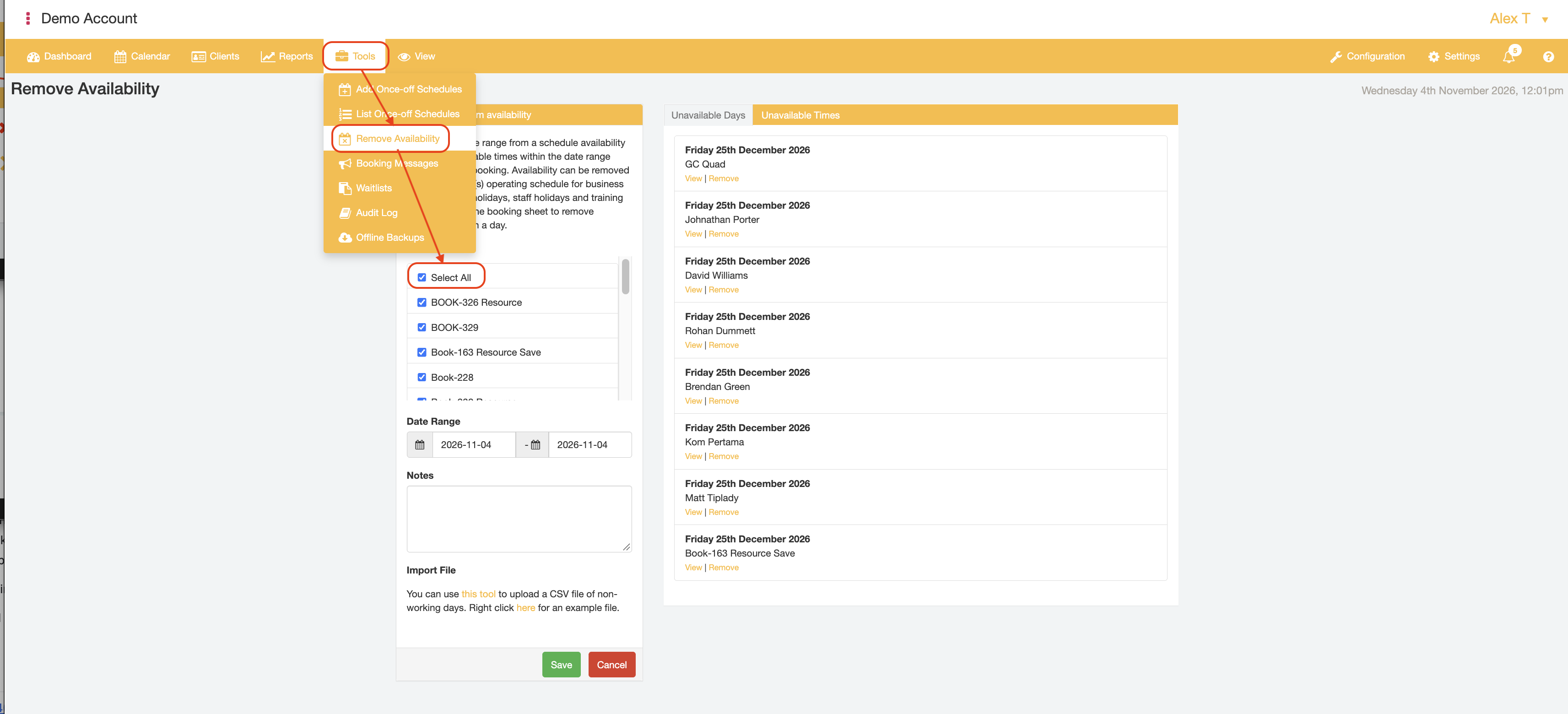
- Open the "Tools" tab and select the "Remove availability" menu option.

- Select All Resources or the specific Resource(s) that will be Unavailable from the "Resource" field.
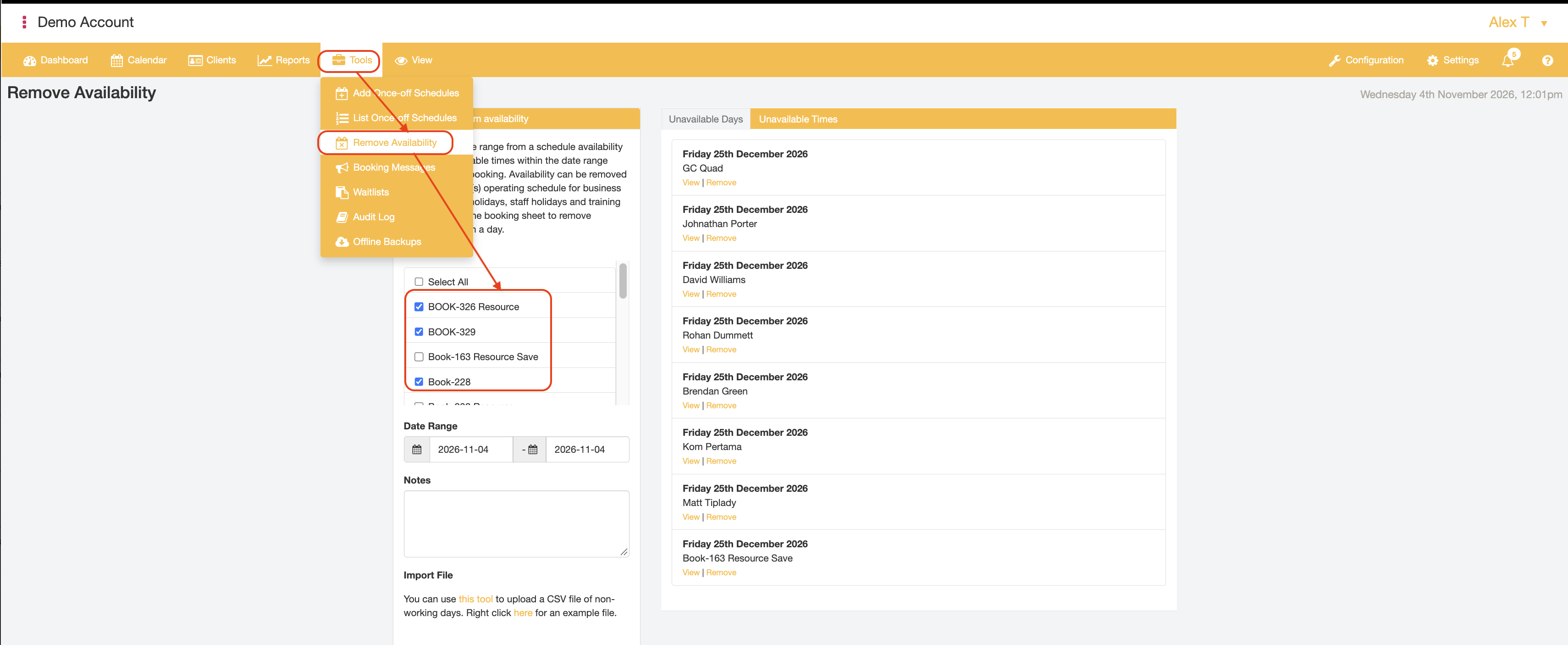
- NOTE: If you are logging in as a Staff Member user, you will only have the ability to select any company staff/facility (i.e., "Resource") records that your staff member account has been given visibility to)=.
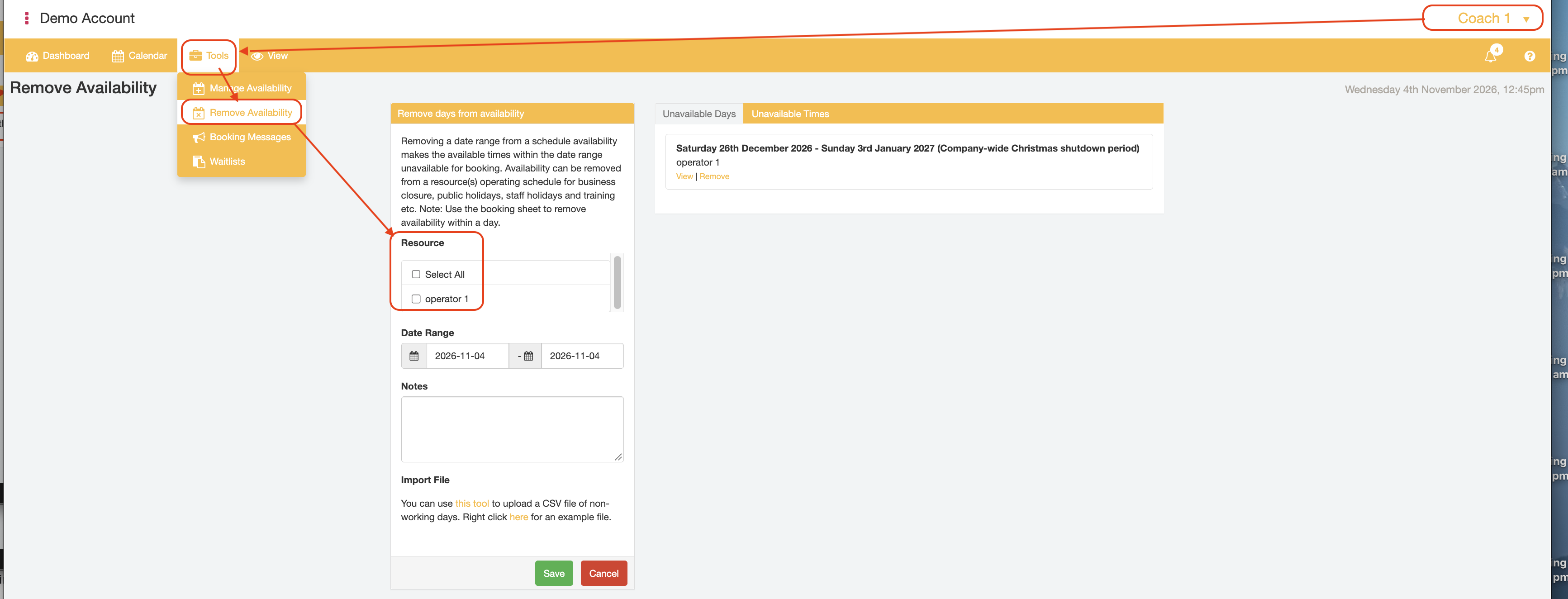
- NOTE: If you are logging in as a Staff Member user, you will only have the ability to select any company staff/facility (i.e., "Resource") records that your staff member account has been given visibility to)=.
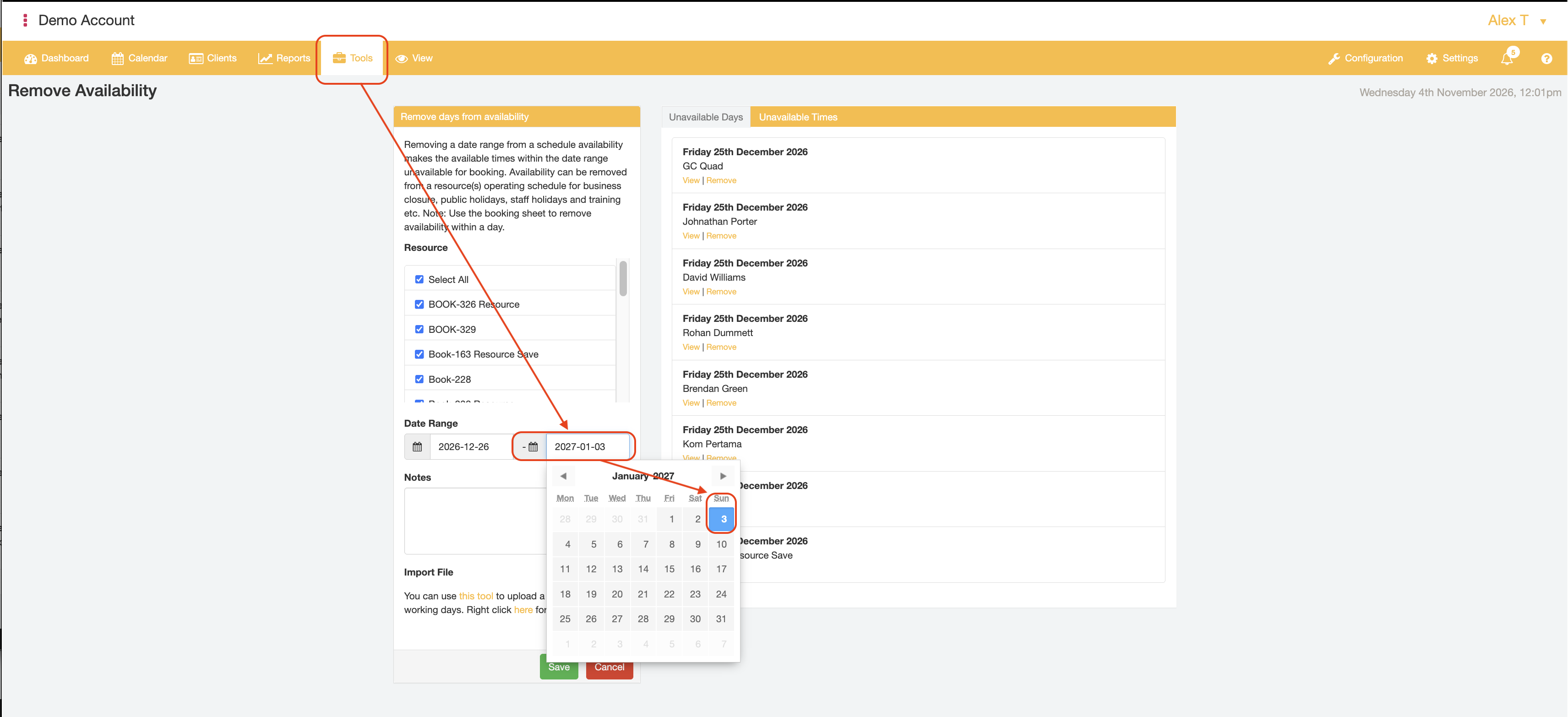
- Select a Start Date and End Date when the Resource(s) will not be available to be booked by your customers from the "Date Range" field.
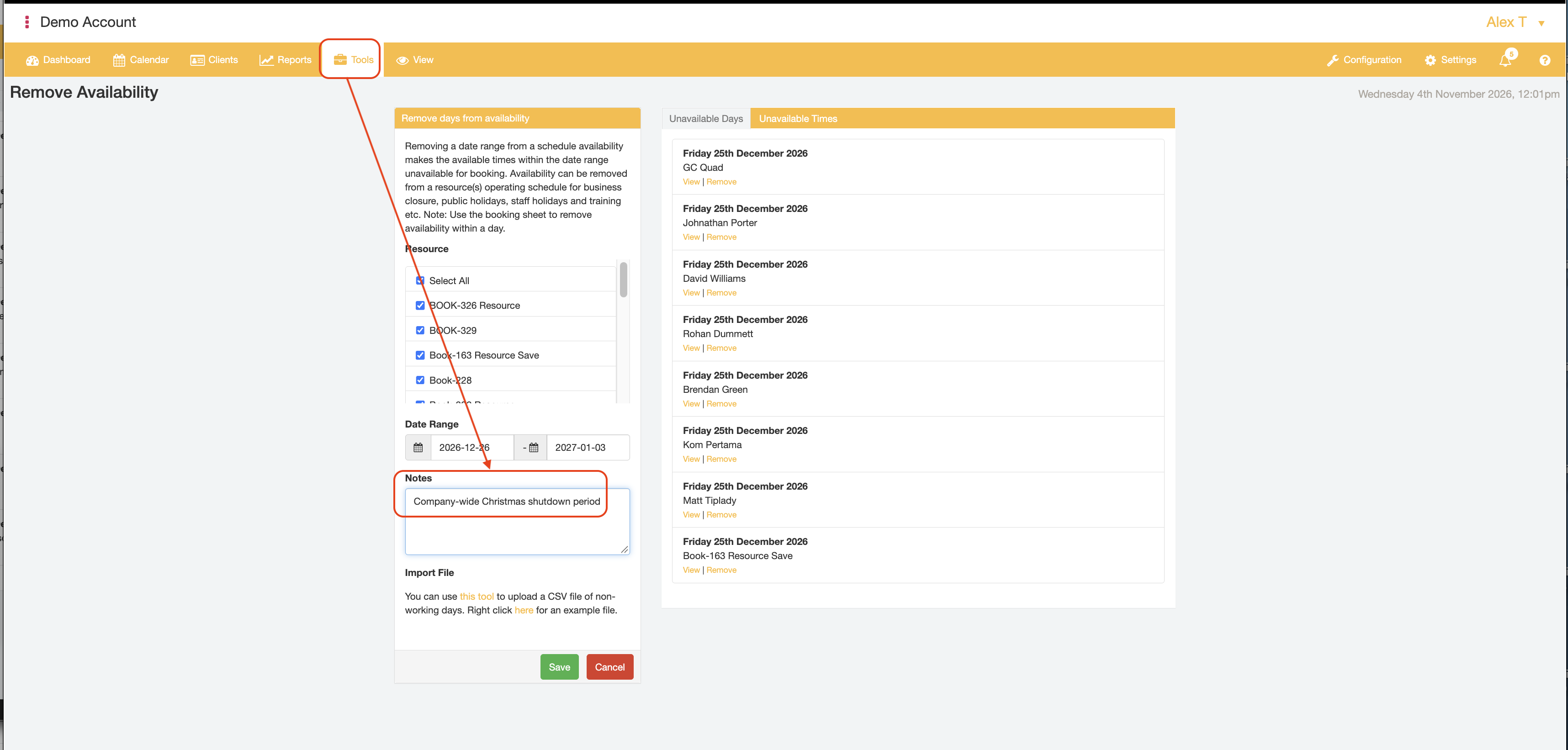
- If you wish to, add any notes to explain what the Unavailable Day(s) is/are for in the "Notes" field.
- Click the "Save" button to confirm the Resource(s) and their days on which they will not be able to be booked.
If successfully confirmed, the Resource and specified blocked booking dates will appear under the "Unavailable Days" tab list on the right panel of the "Remove Availability" page.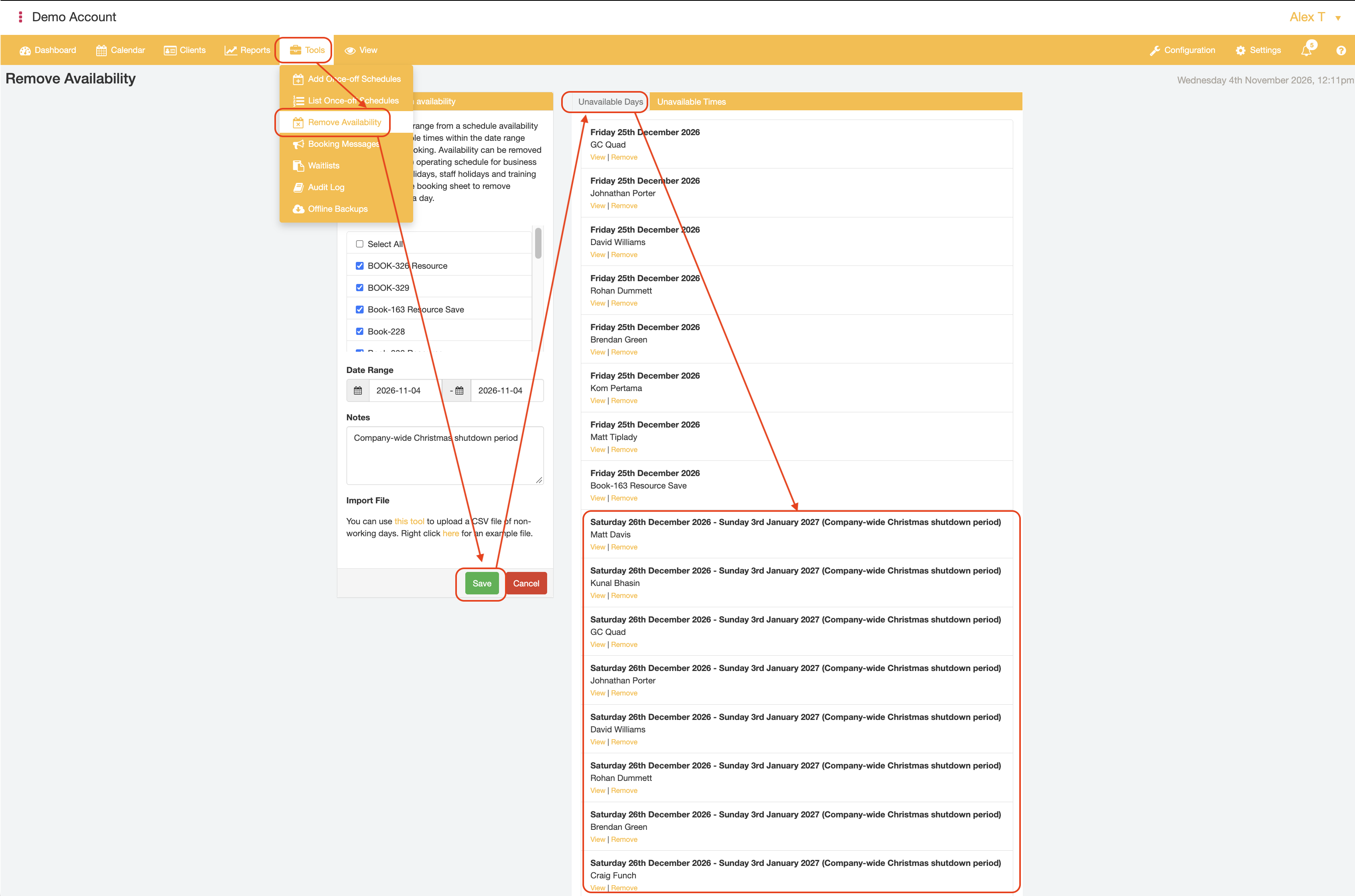
- End.
Removing Unavailable Days
The Remove Availability page lists any days that a Resource or Resources are scheduled to be Unavailable. If you want to retrospectively undo any date (range) of unavailability for a Resource (staff or company facility), you can cancel the unavailability of that Resource for the given date (range)
- Open the "Tools" tab and select the "Remove availability" menu option.
- For any existing dates of Resource unavailability, click the "Remove" link to remove the day(s) from being Unavailable for the selected Resource.
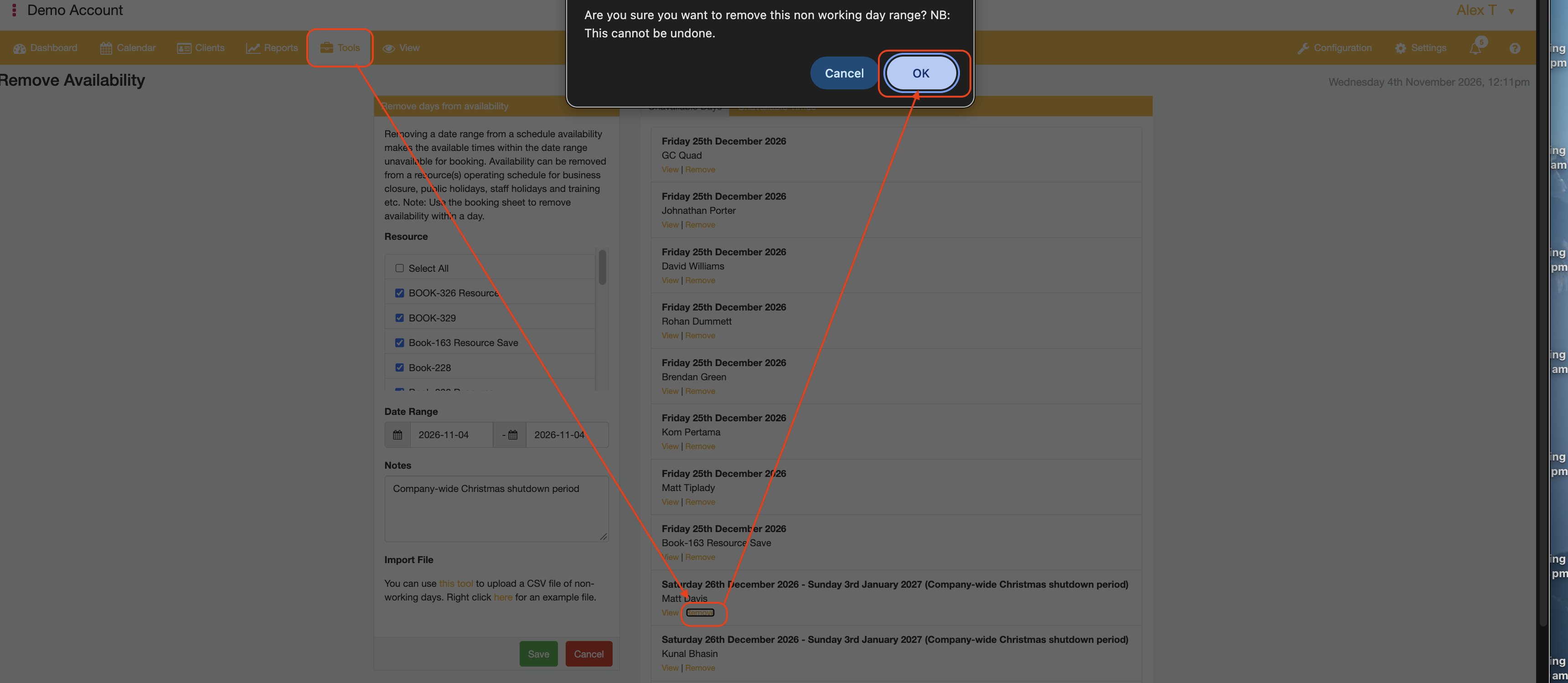
- Click the "OK" button in the browser pop up message to confirm that you want to remove the selected Resource's unavailability.
If successfully removed, the Resource's unavailability record will no longer by listed in the "Remove Availability" page following removal confirmation.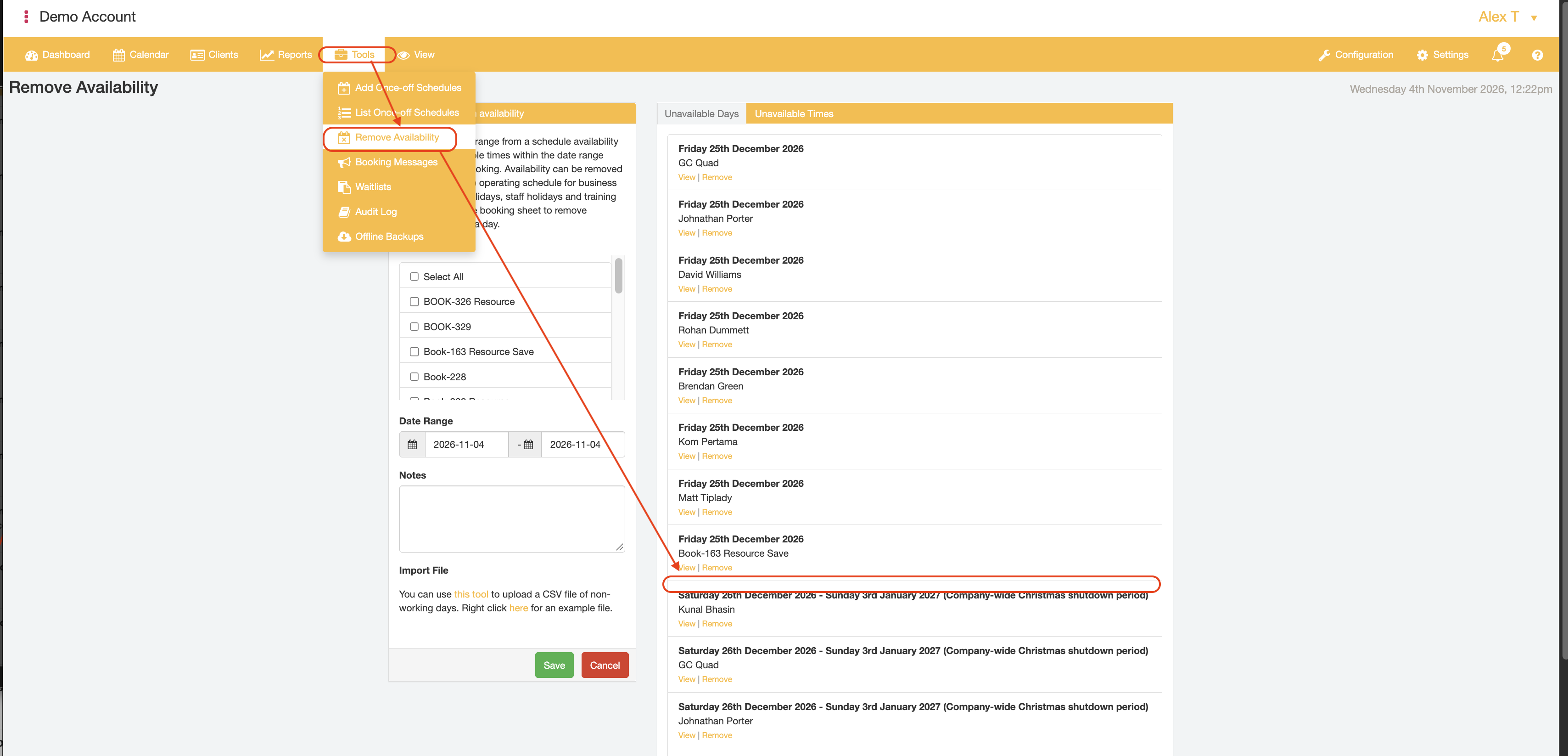
- End.
Removing unavailable times
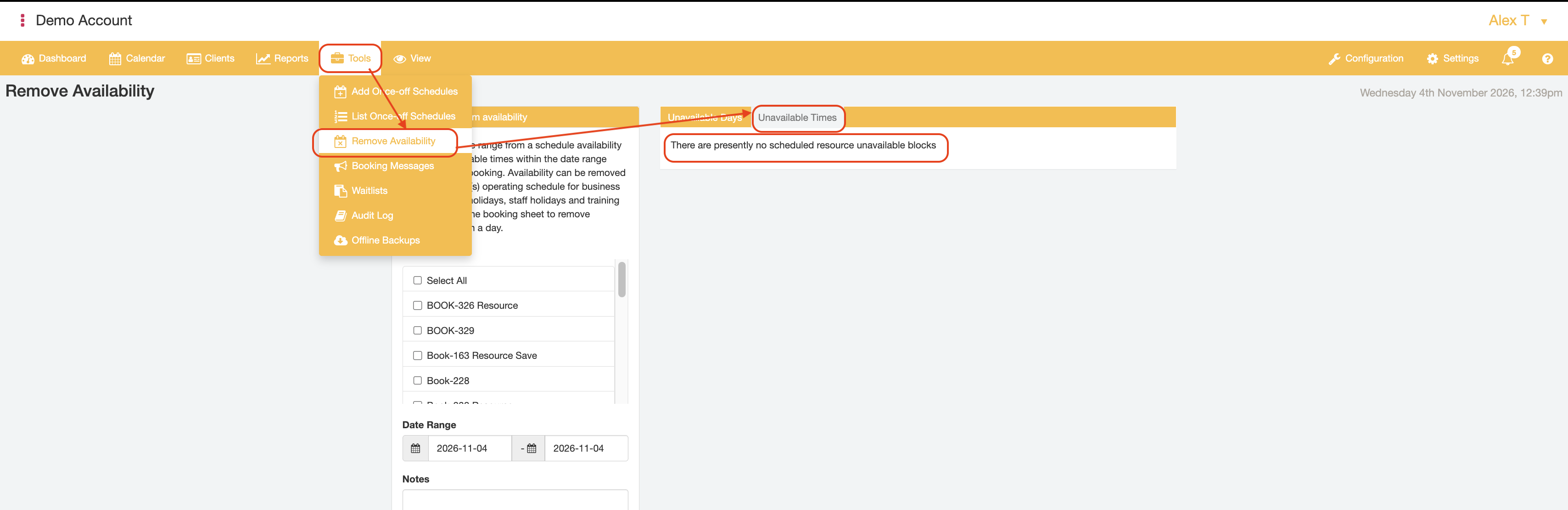
The Remove Availability page also lists any times that are not available, which have been set up from the Calendar page in BookItLive (see https://support.bookitlive.net/support/solutions/articles/14000163493-remove-times-from-being-available for more information about creating Unavailable Times).
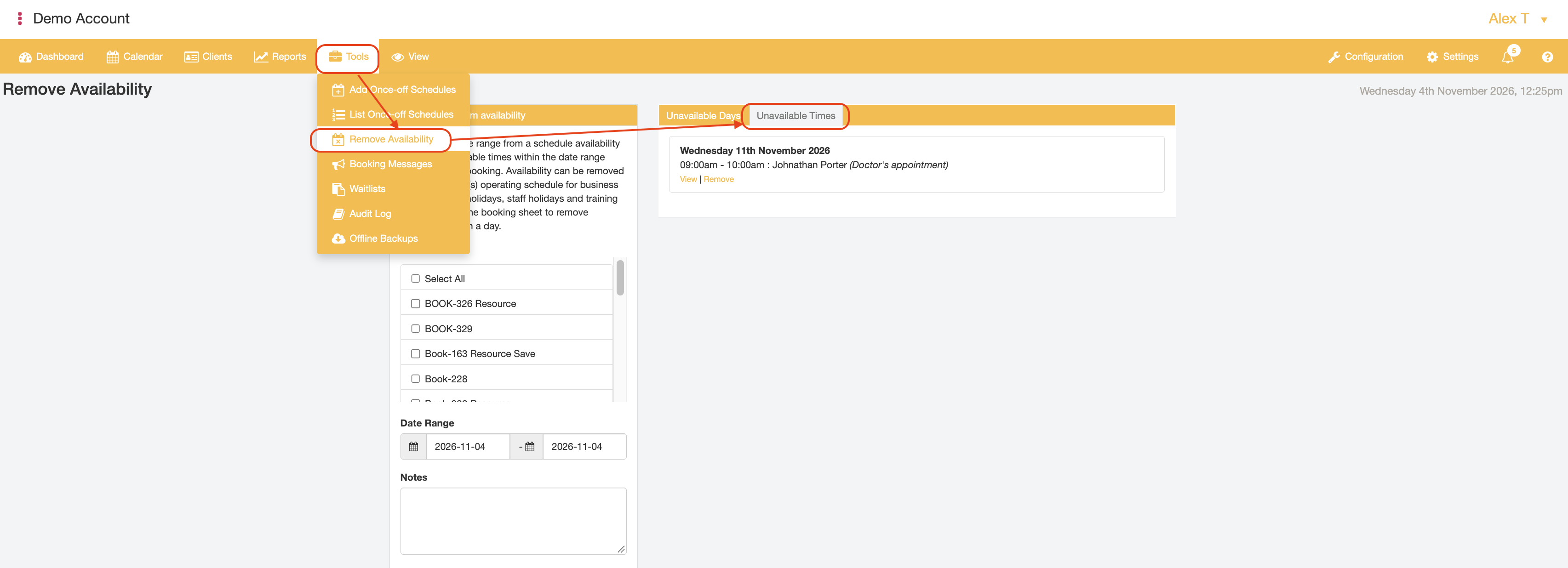
- Open the "Tools" tab and select the "Remove availability" menu option.
- Click the "Unavailable Times" tab on the "Remove Availability" page to see a list of times that Resources are Unavailable.
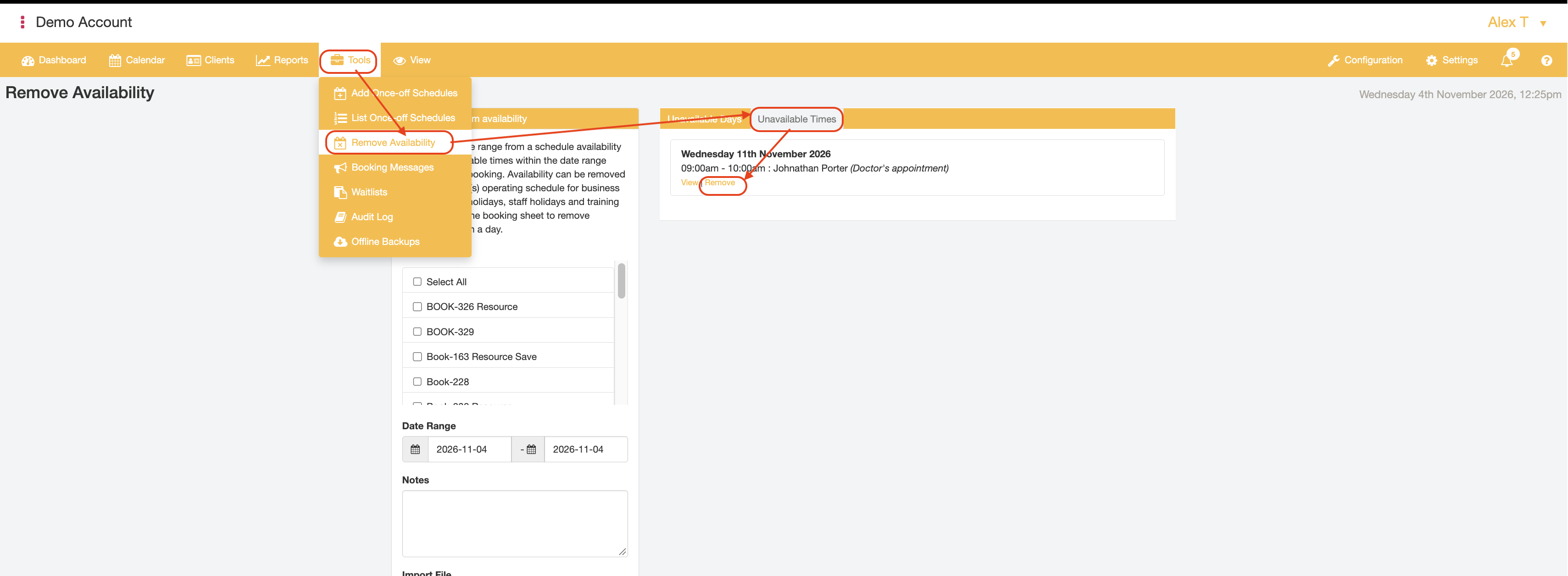
- Use the Remove link to remove the time from being Unavailable for the selected Resource.
- Click the "Save" button in the resulting "Remove Unavailable Time" pop up window to confirm that the selected Unavailable Time should be deleted.
If successfully removed, the Unavailable Time record should no longer display on the "Remove Availability" page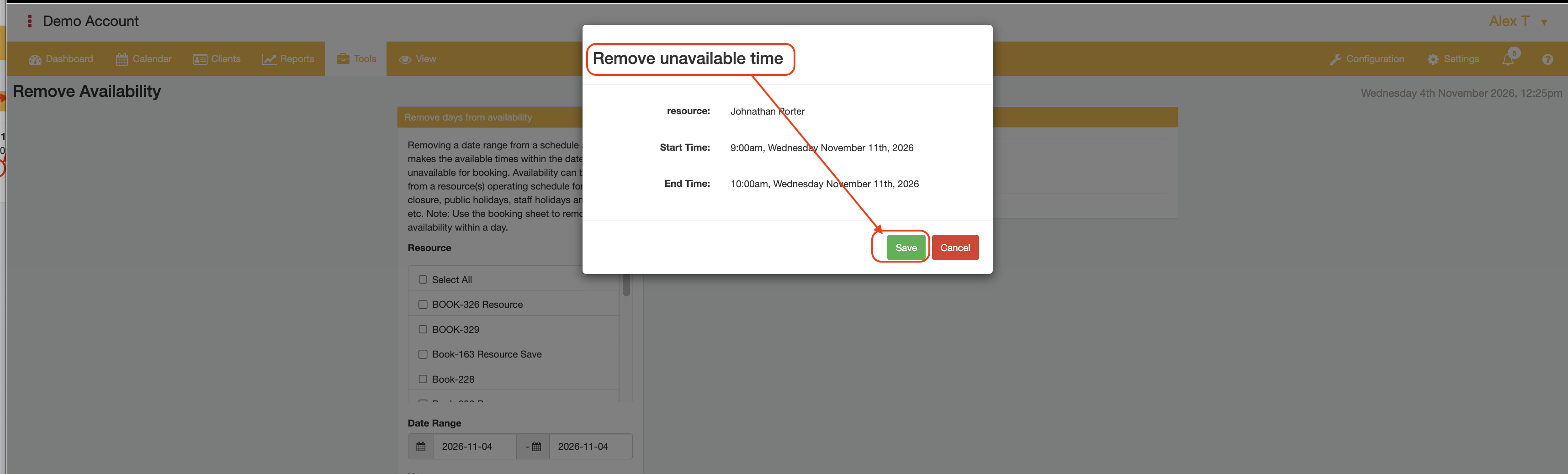
- End.
Was this article helpful?
That’s Great!
Thank you for your feedback
Sorry! We couldn't be helpful
Thank you for your feedback
Feedback sent
We appreciate your effort and will try to fix the article