Each Event needs to have its own Service and therefore Resource assigned to it.
The Service details from the Configuration tab controls the number of participants, the total Event cost and Event duration and other Event class/session details.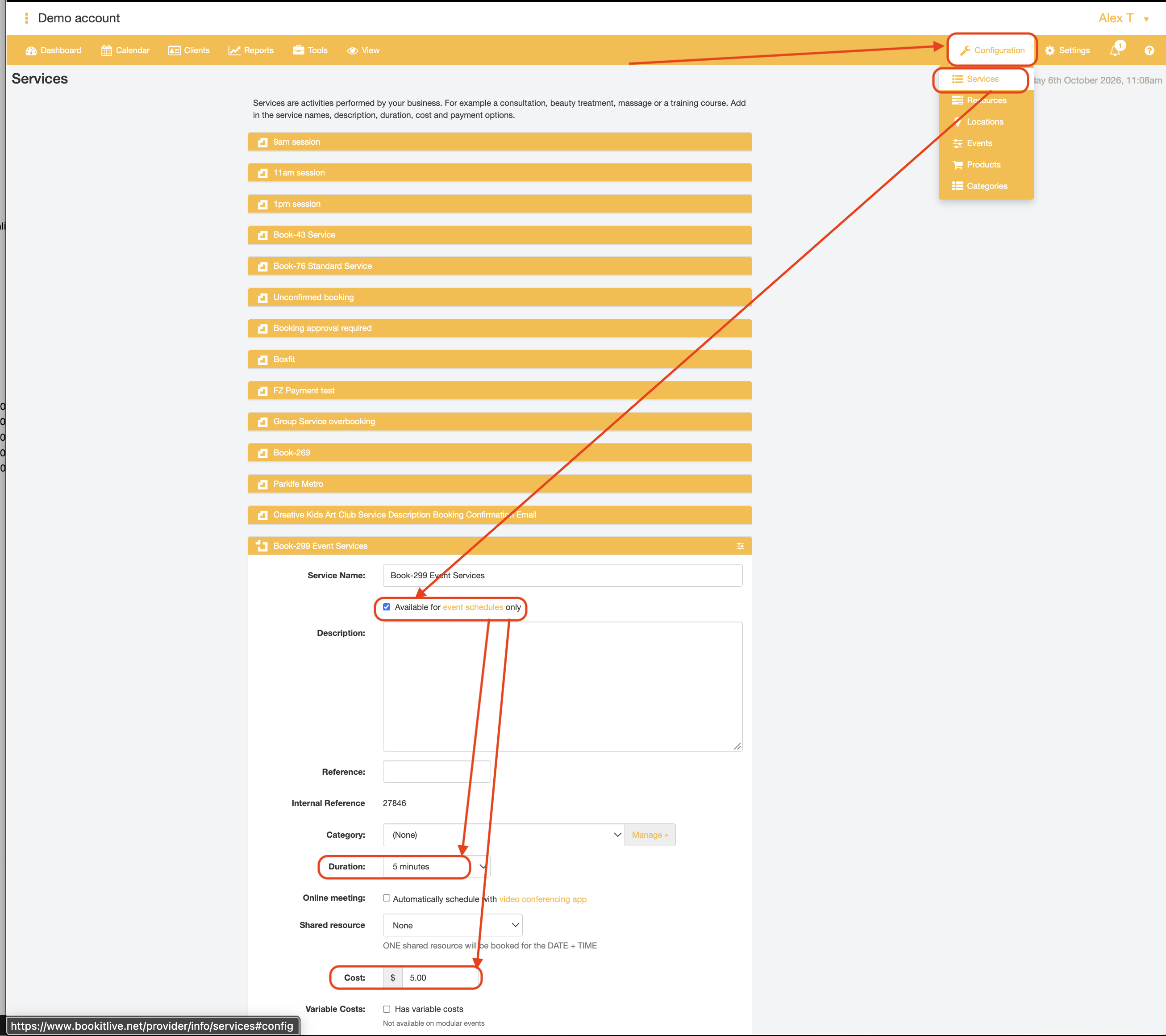
The Resource is then linked to that Event-specific Service so the Event can be delivered to customers. The Schedule (date and time) of the Event will dependent upon on the Resource not having an existing booking for another Service at the desired Event run time. When setting up the Event Schedule, BookItLive will perform a check to ensure that the Resource does not have a conflicting booking already made at the desired Event Schedule date and time.
For example if your business offers the following Events with the following once-off schedules, each event would have its own Service and own Resource linked to the Service.
Event | Event Schedule | Number of participants | Duration |
Career Expo | Monday October 31 2024 8:00am
| 200 | 8 hours |
Free Consultation at Internet Conference | Tuesday 8th November 2024 9:00am - 12:00pm
| 1 | 15 minutes |
Starting a new business workshop | Thursday 1st December 2024 8:00am
| 30 | 60 minutes |
Creating Events in BookItLive involves significant Configuration work, but will make creation of future Events for the same Event simpler. Event Creation from scratch can be broken up into the following 4-5 parts. Parts 1-3 require the most input by the user, but only need to be performed one time if done correctly.
Part 1 - Enable Events in your BookItLive Account
- Login as the BookItLive Business Owner or Manager user
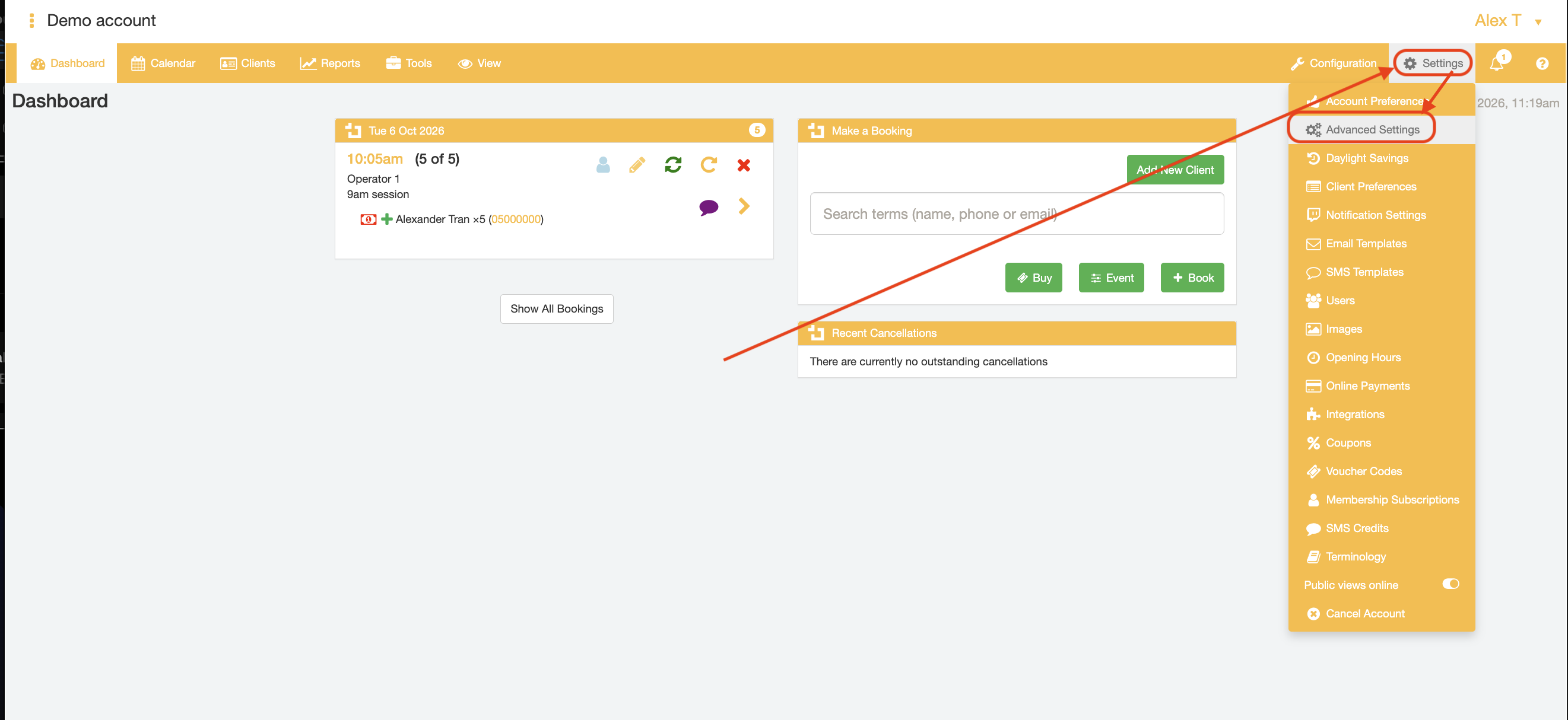
- Hover over the "Settings" tab and select the "Advanced Settings" menu option
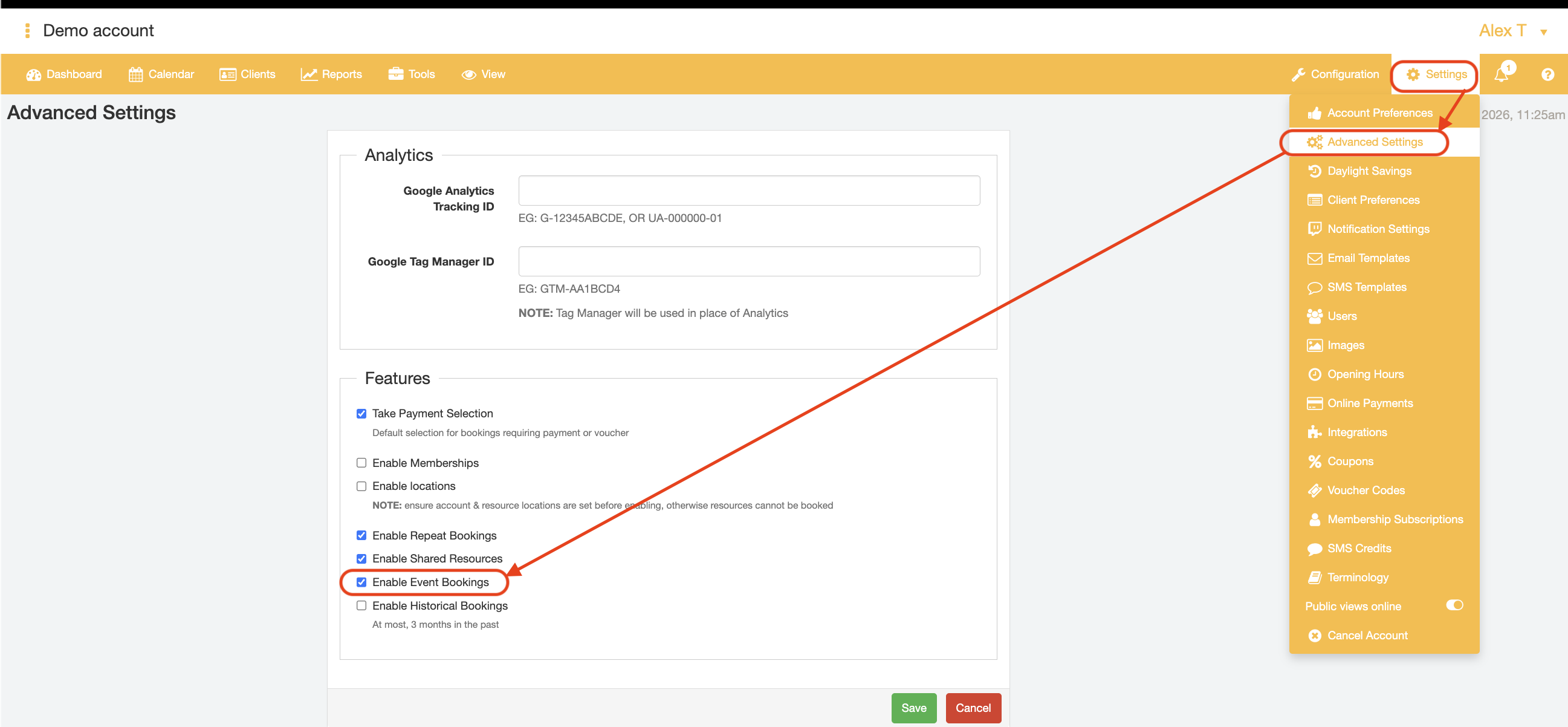
- Tick the "Enable Event Bookings" checkbox
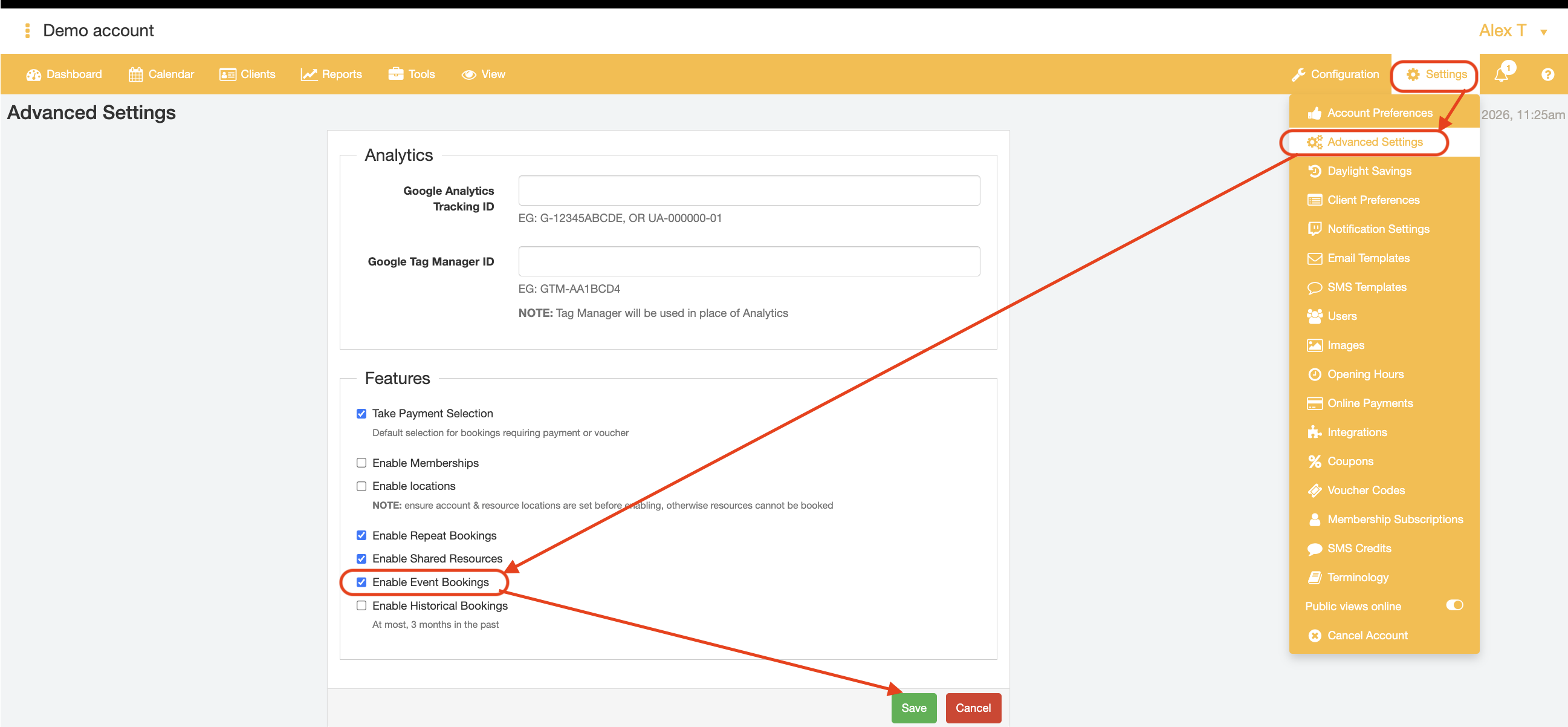
- Click the "Save" button.
Part 2 - Create a Service for the Event
- Hover over the "Configuration" tab and select the "Services" menu option
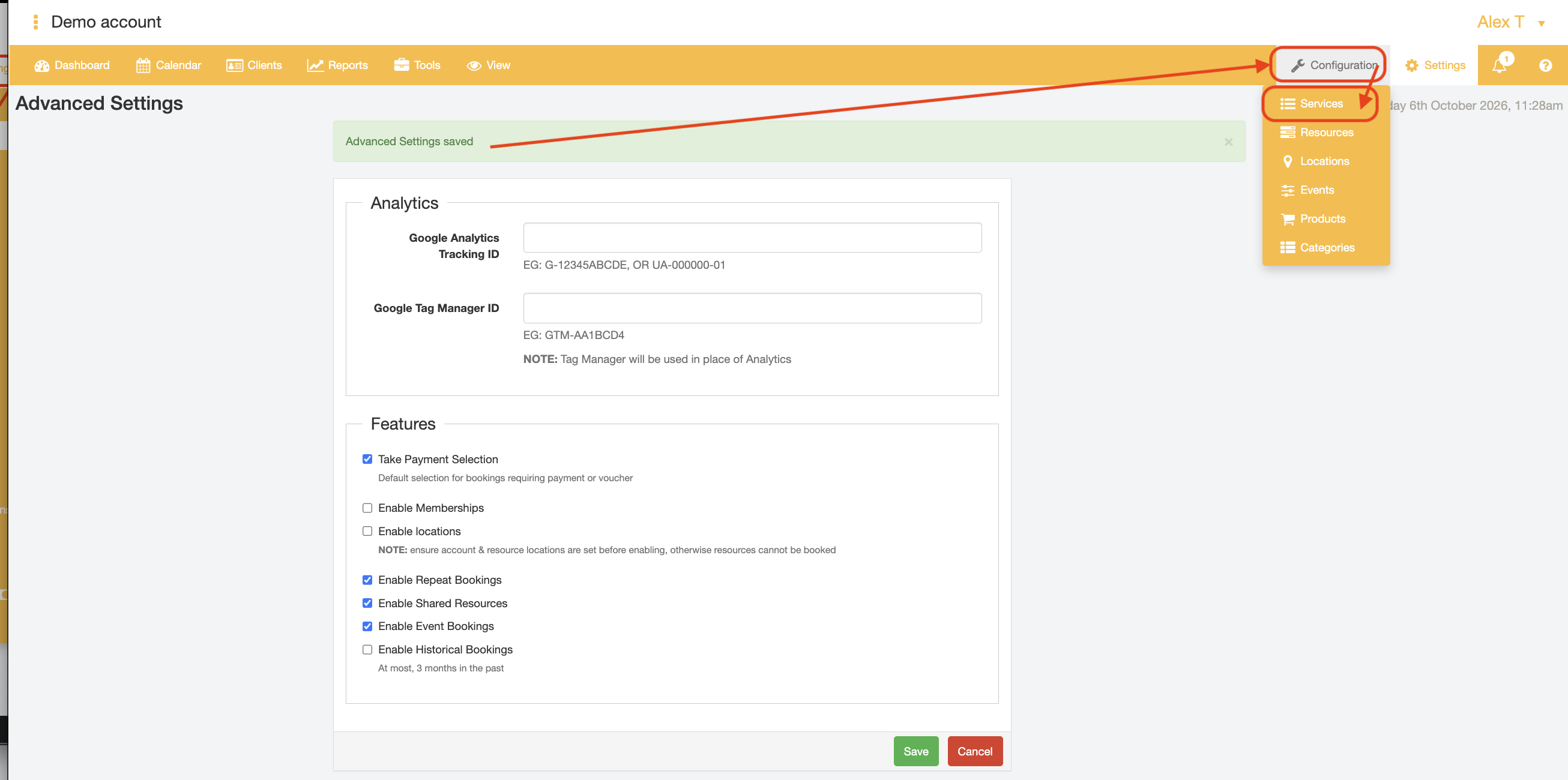
- Click the "Add" button to create a new Service record
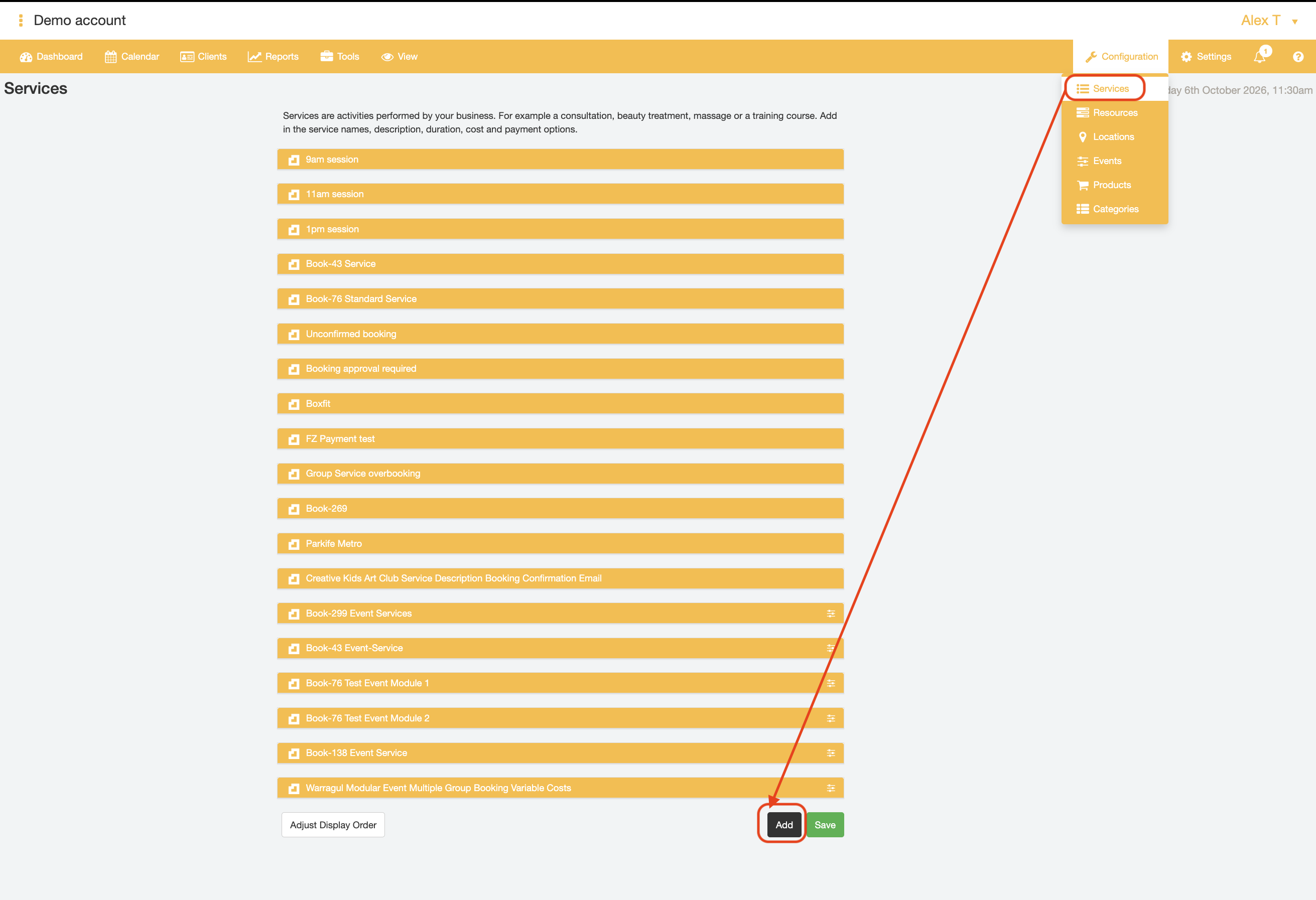
- Enter the Event Service Name into the "Service Name" field, e.g., "Starting a new business workshop".
TIP: it is useful to name the Event Service with the same name that the Event itself will be called for a one-off ("single") Event, or a component of that Event for Events where there are multiple class that make up the Event (i.e., "modular" Events).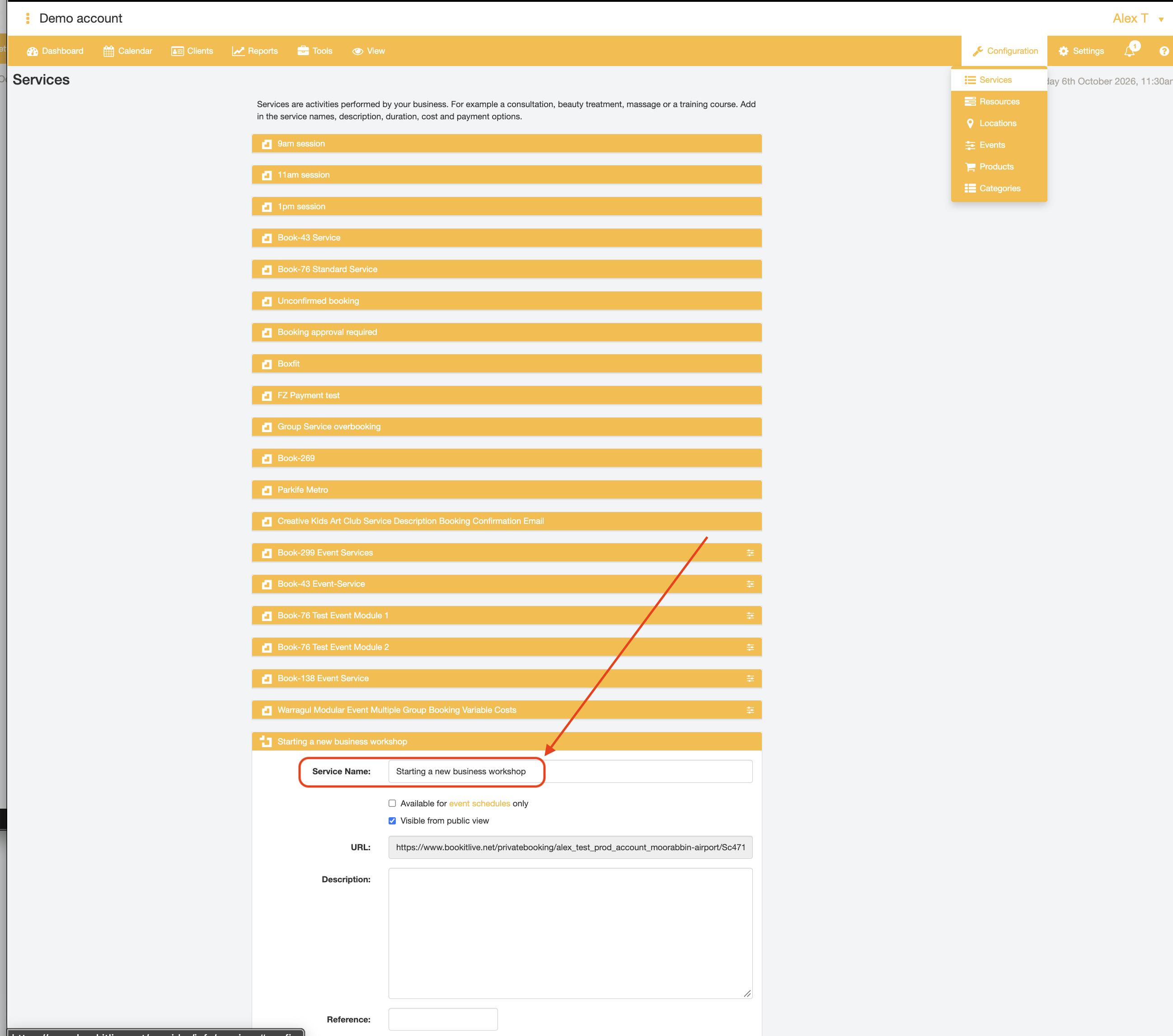
- Tick the "Available for event schedules only" checkbox beneath the "Service Name" field
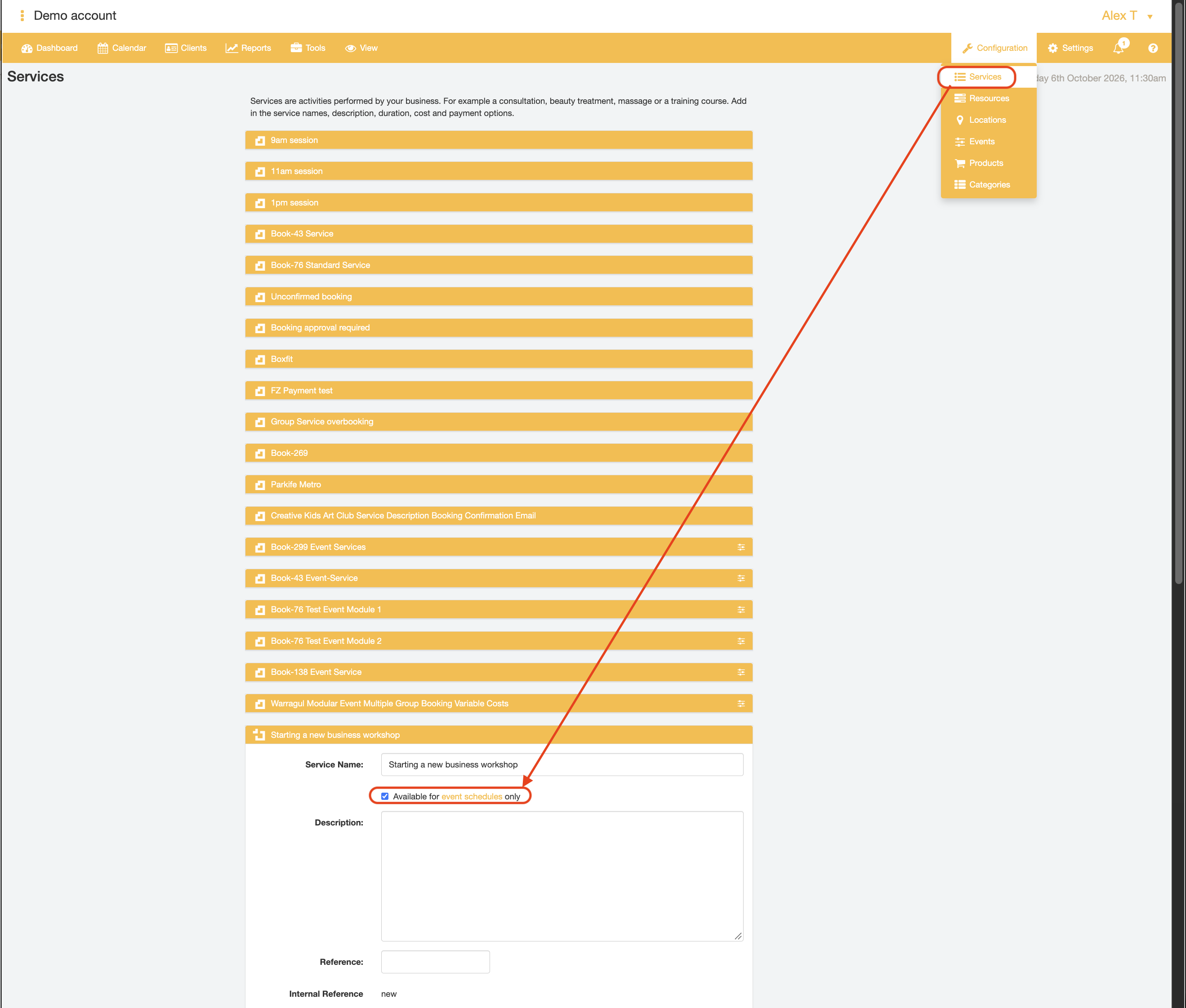
- Set the runtime of the Event Service in the "Duration" dropdown field, e.g., 60 minutes
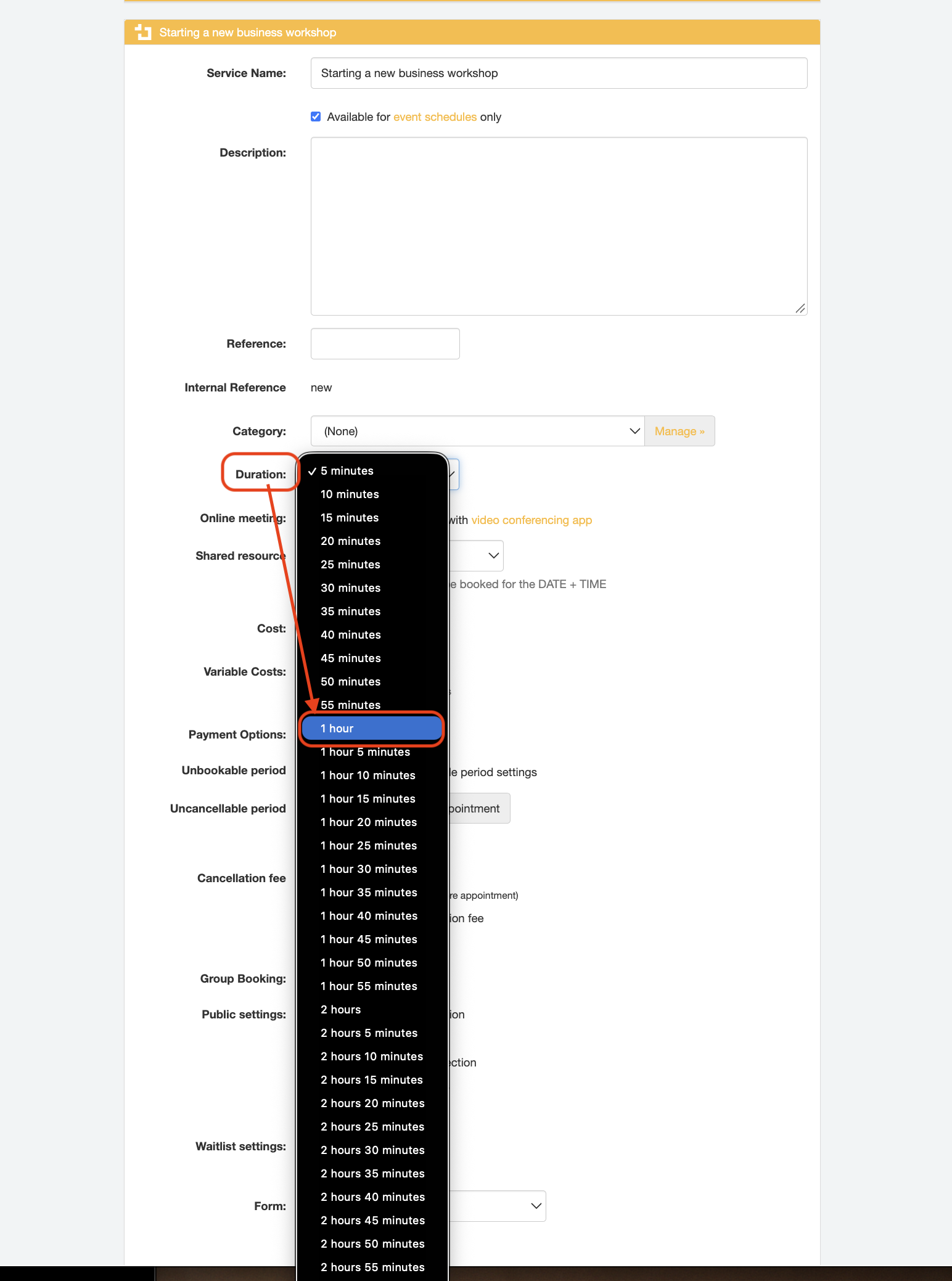
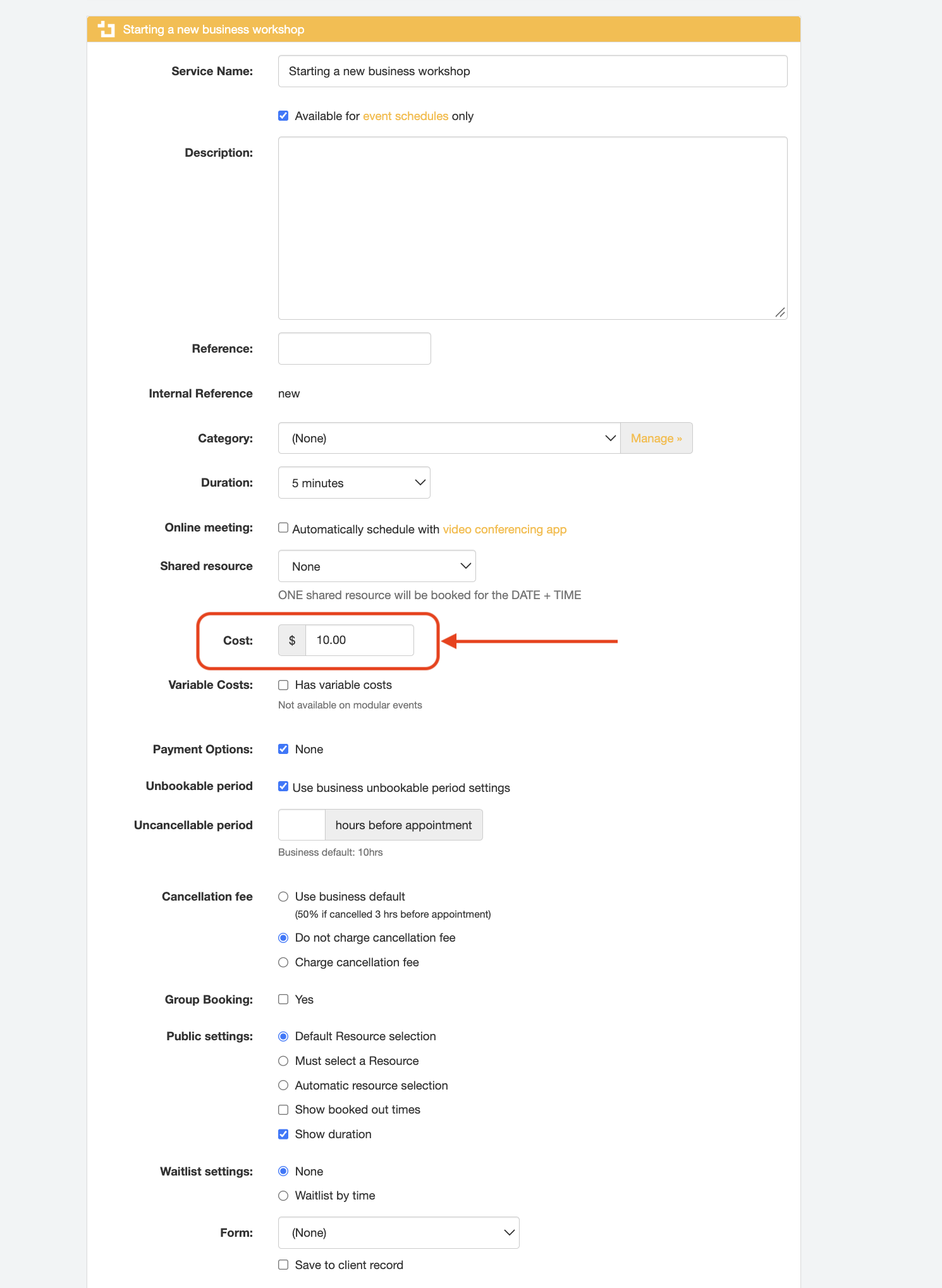
- Enter the price of the Event in the "Cost" field, if applicable. The "Cost" is the booking price of one participant for the Event.
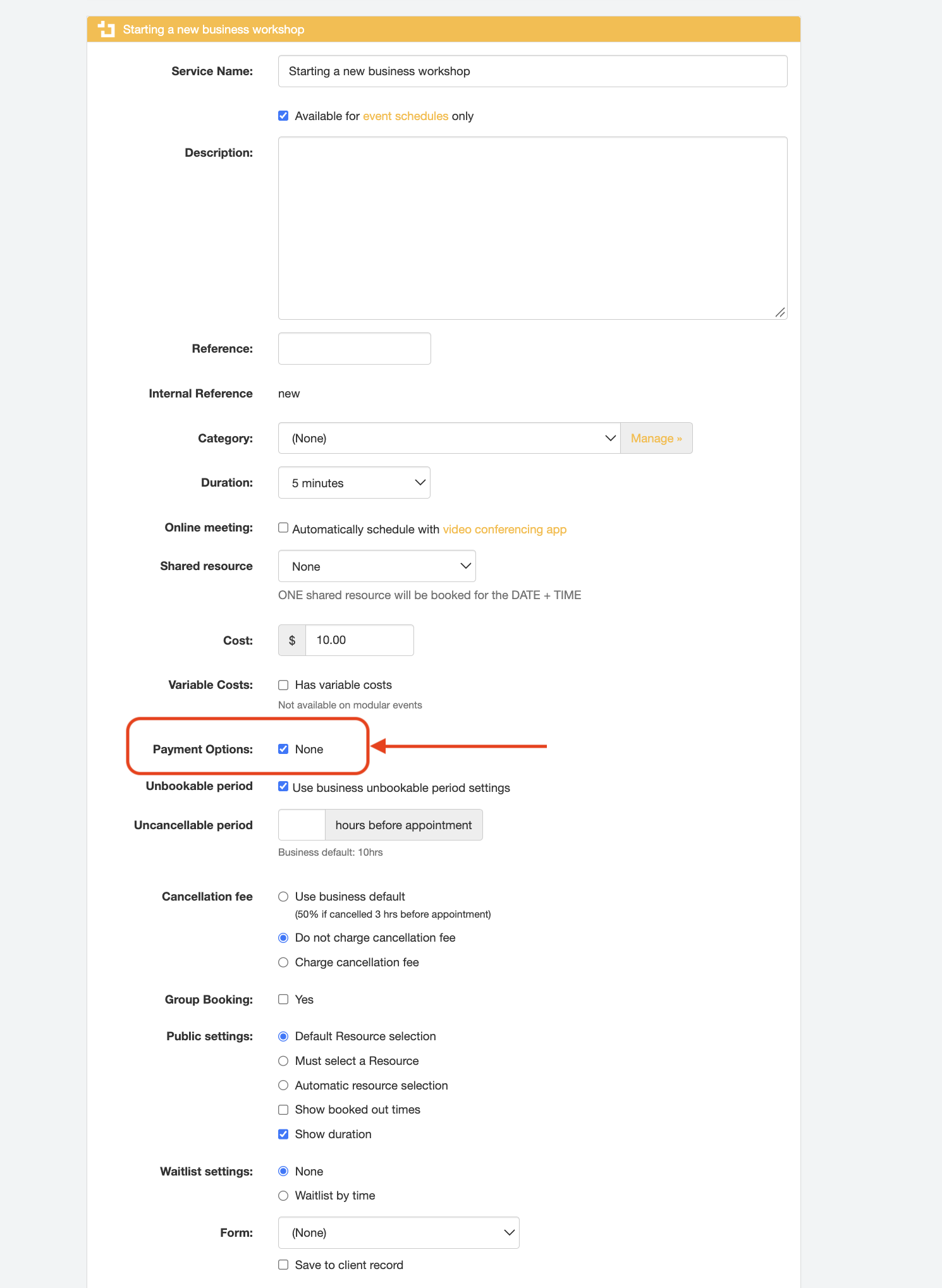
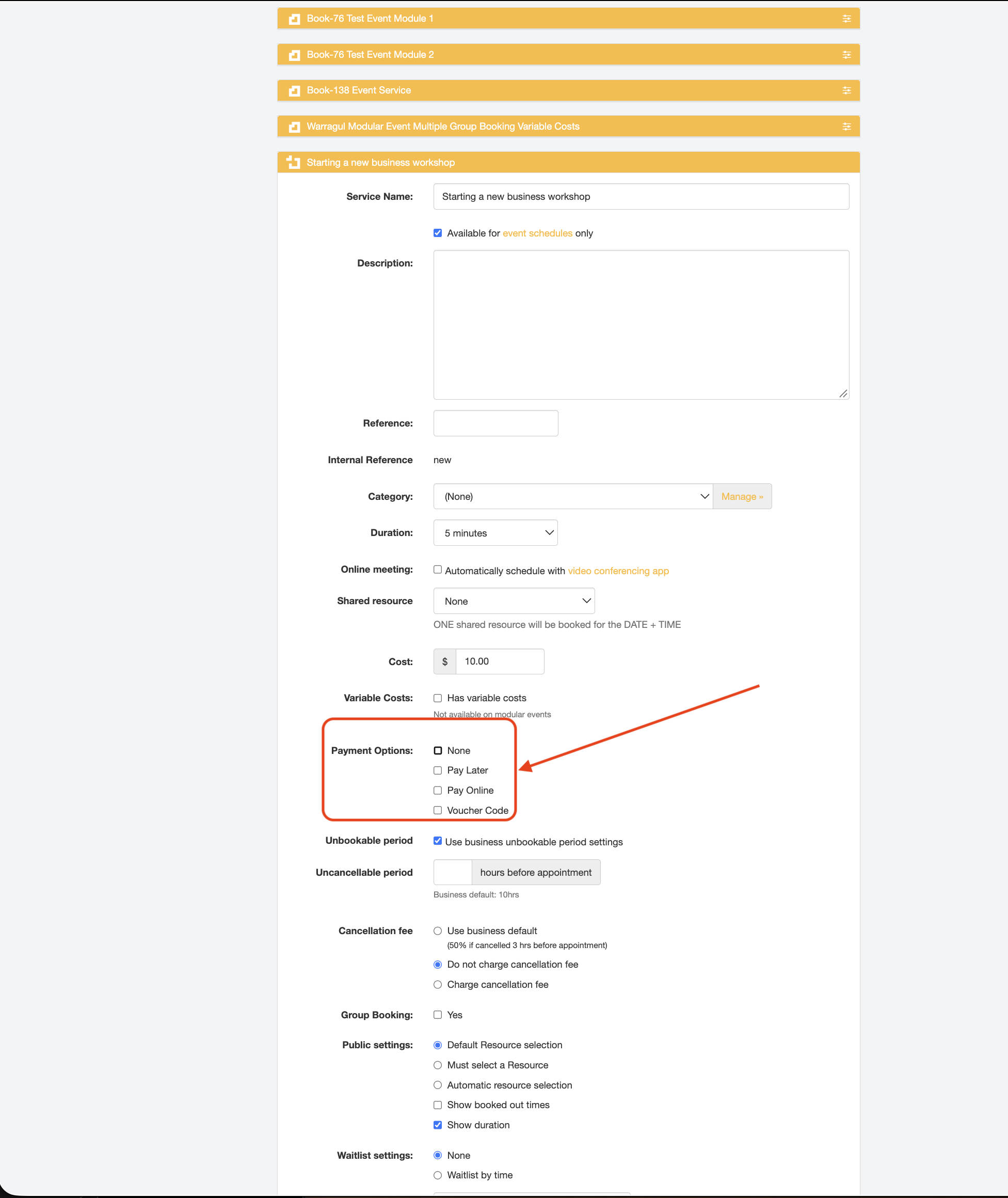
- If applicable, untick the "None" checkbox in the "Payment Options" field and tick the relevant payment option checkbox(es) that subsequently appear.
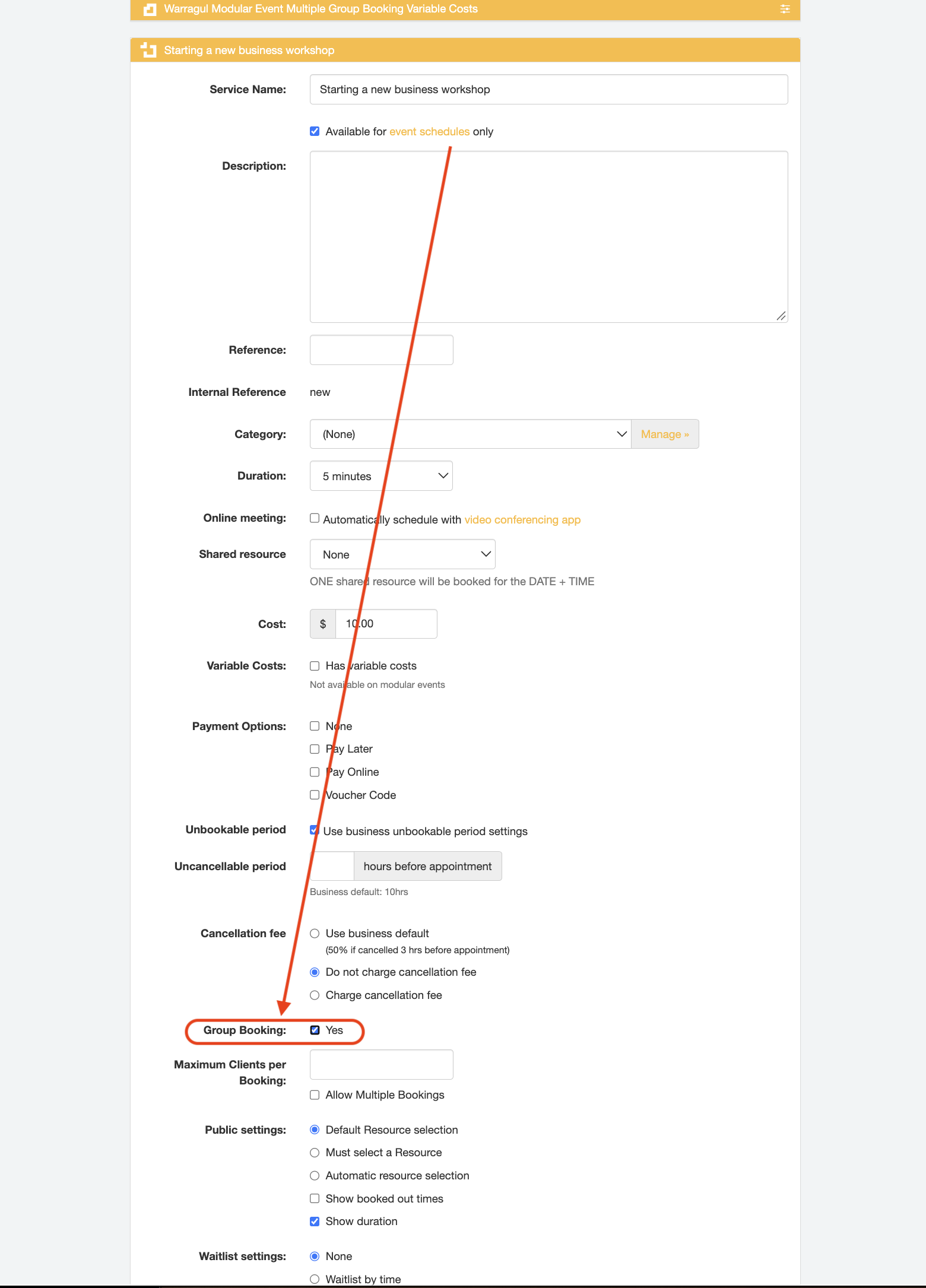
- To make the Event Service a group session, tick the "Yes" checkbox in the "Group Booking" field
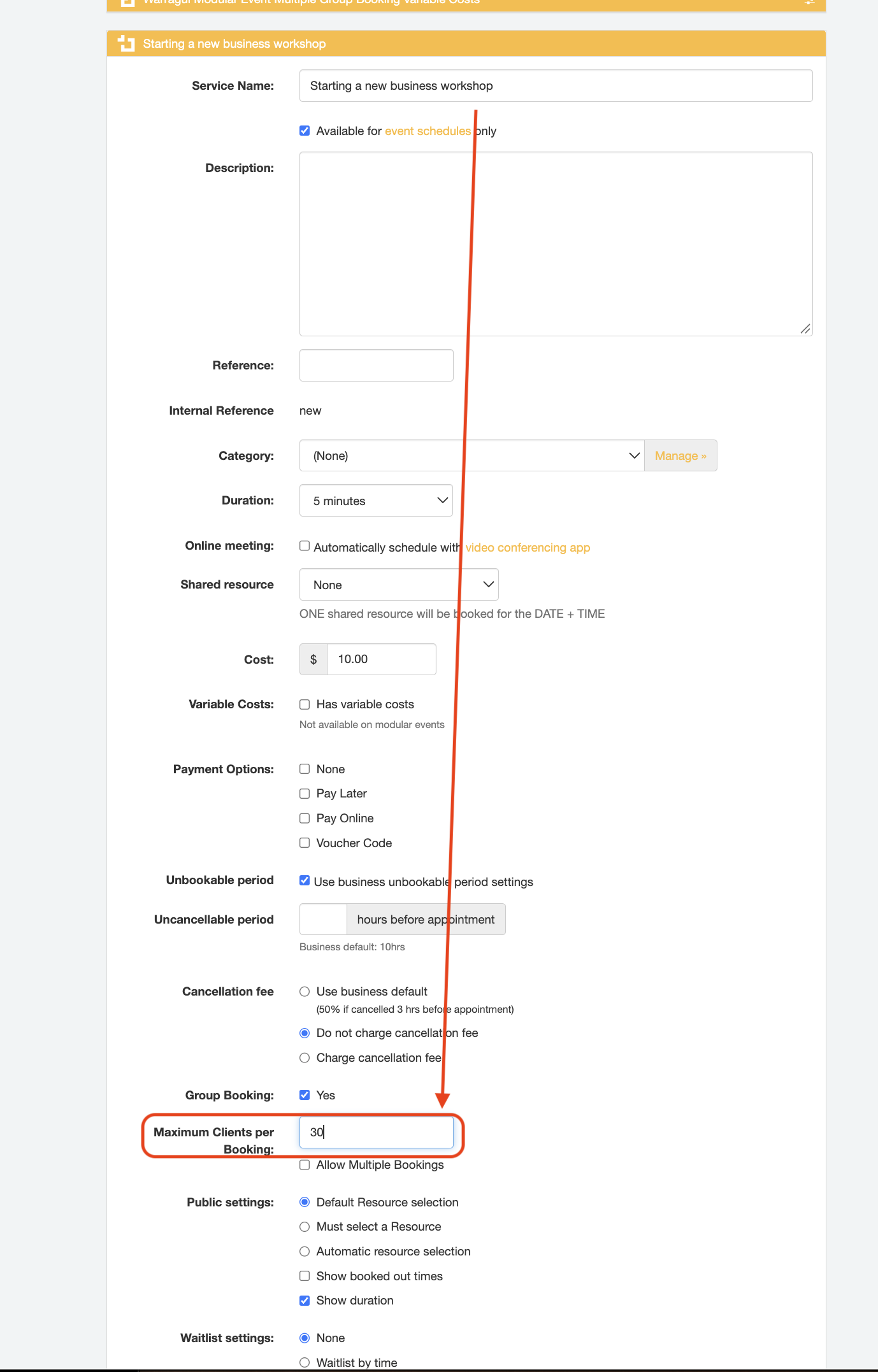
- In the "Maximum Clients per Booking" field, enter the maximum number of participants for the Event, e.g. 30 participants.
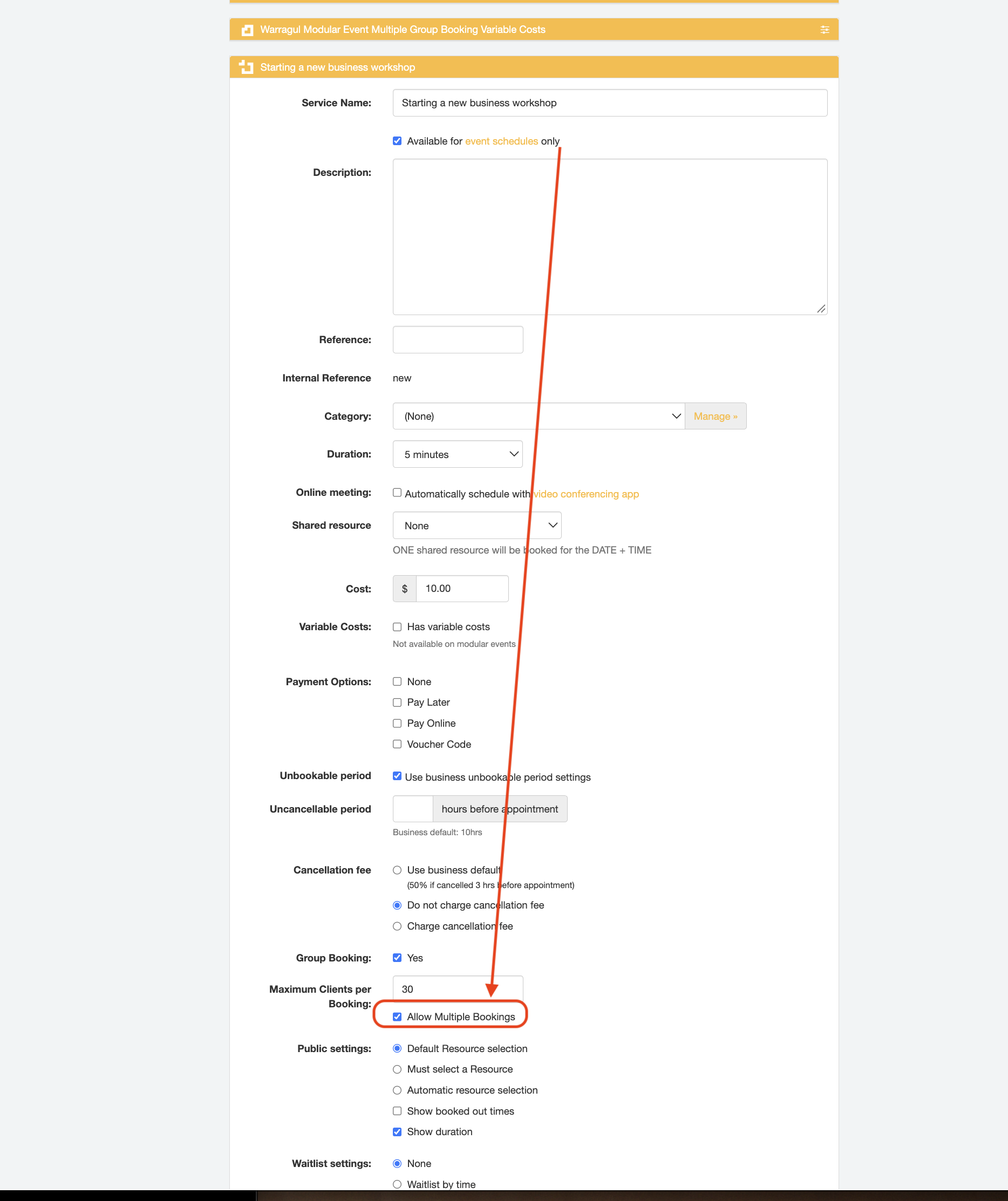
- If one booking customer can make bookings on behalf of multiple people for the Event, tick the "Allow Multiple Bookings" checkbox
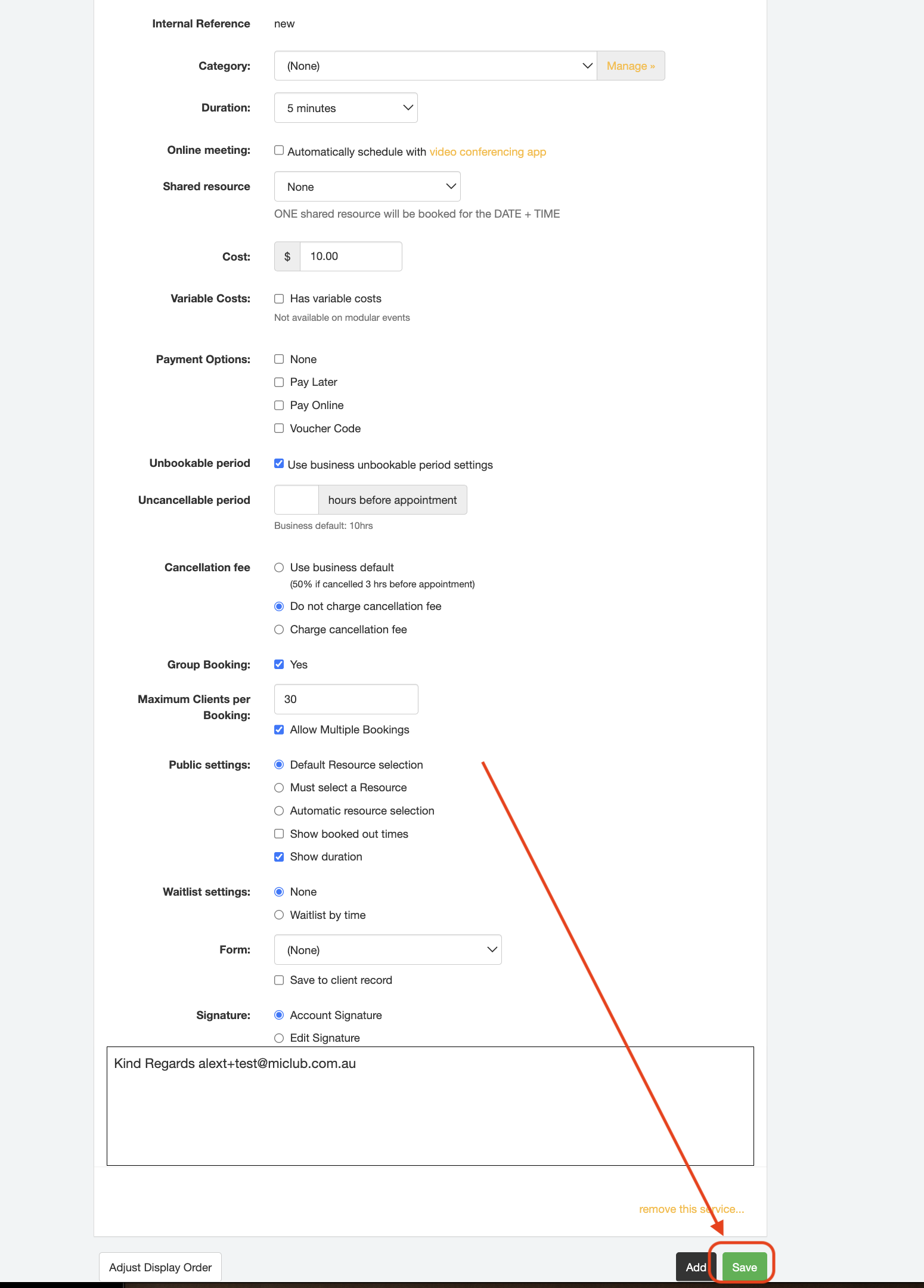
- Click the "Save" button to confirm the Service details.
Part 3 - Create a resource for the event schedule
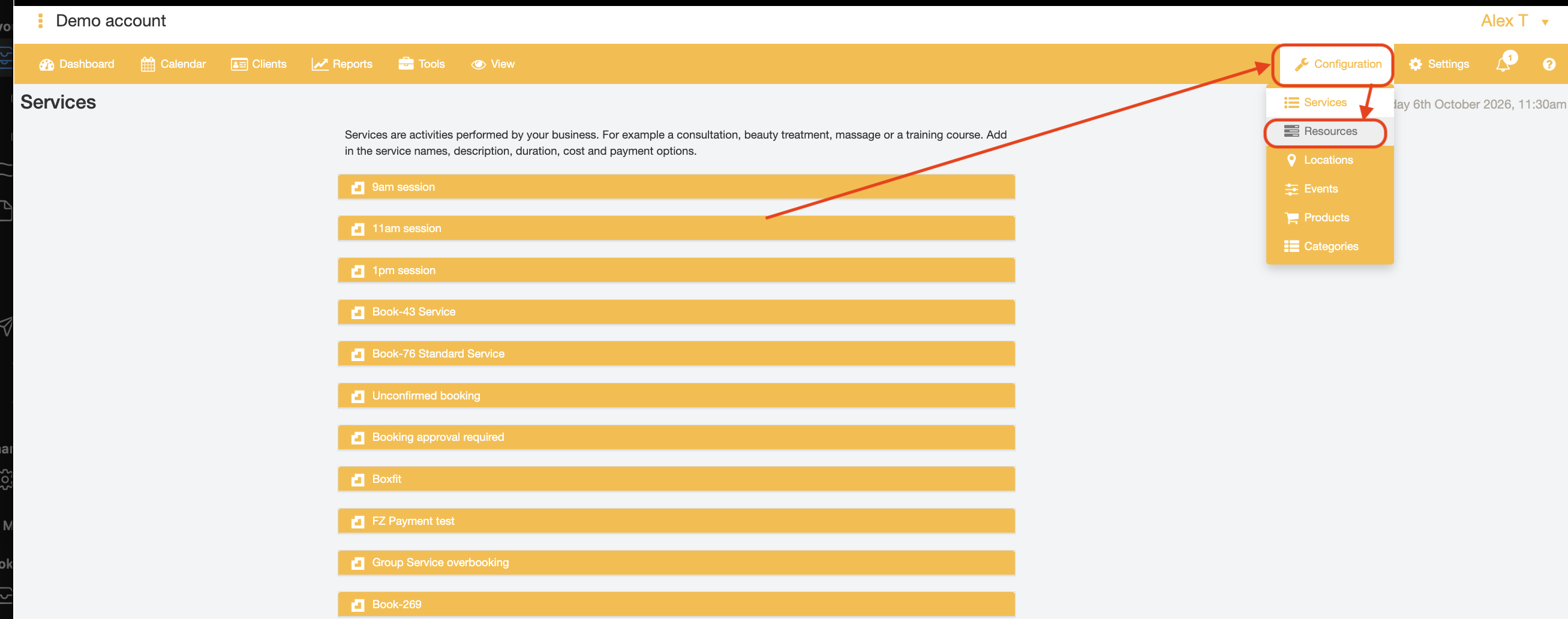
- Hover over the "Configuration" tab and select the "Resource" menu option
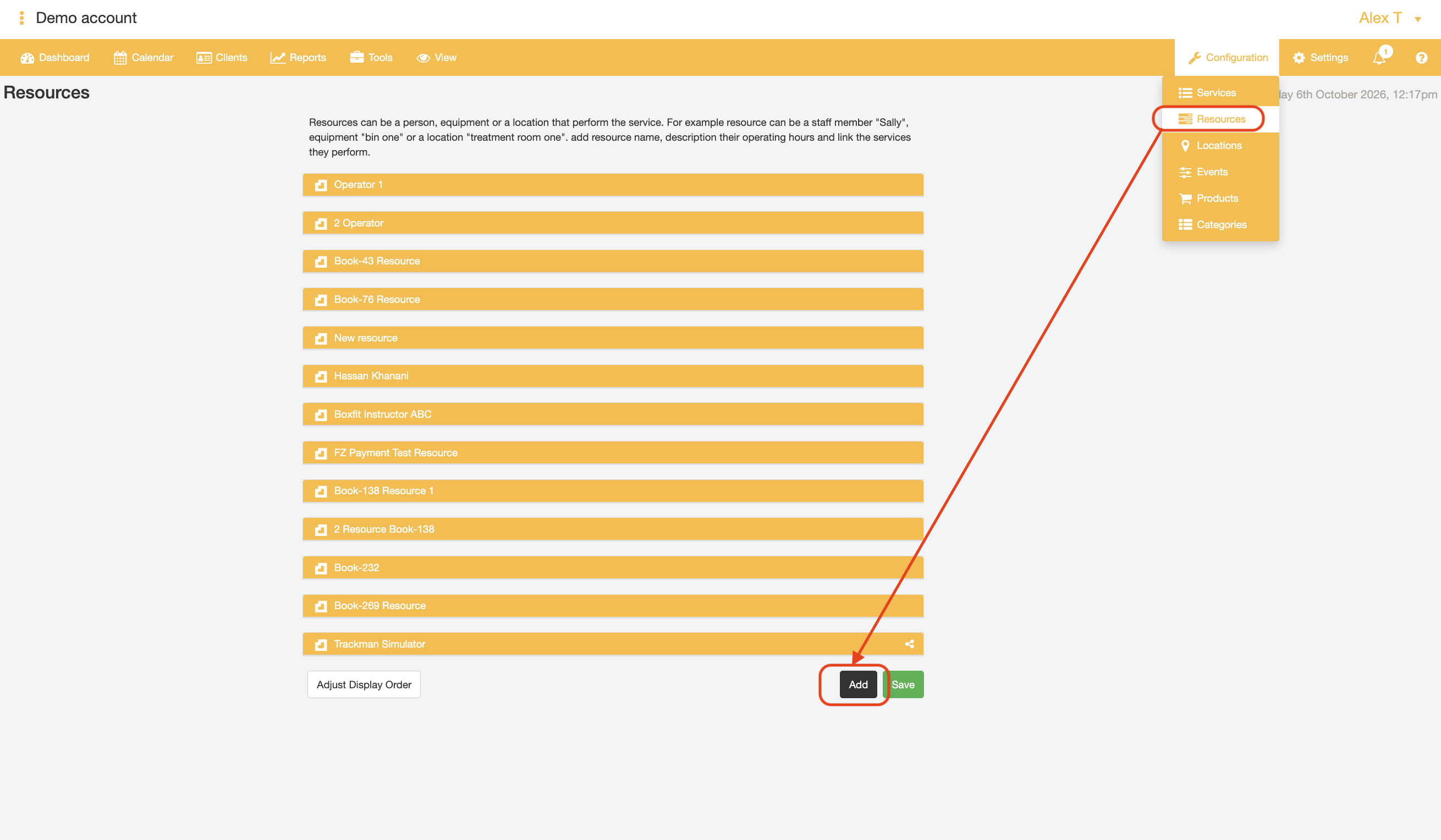
- Go to the bottom of the Resources page and click the "Add" button to create a new Resource.
- Enter the Resource's name in the "Resource Name" field.
TIP: As this will be the Resource for the Event, it can helpful to name the new Resource using a similar name to the service name (e.g., "Starting a new business workshop Presenter").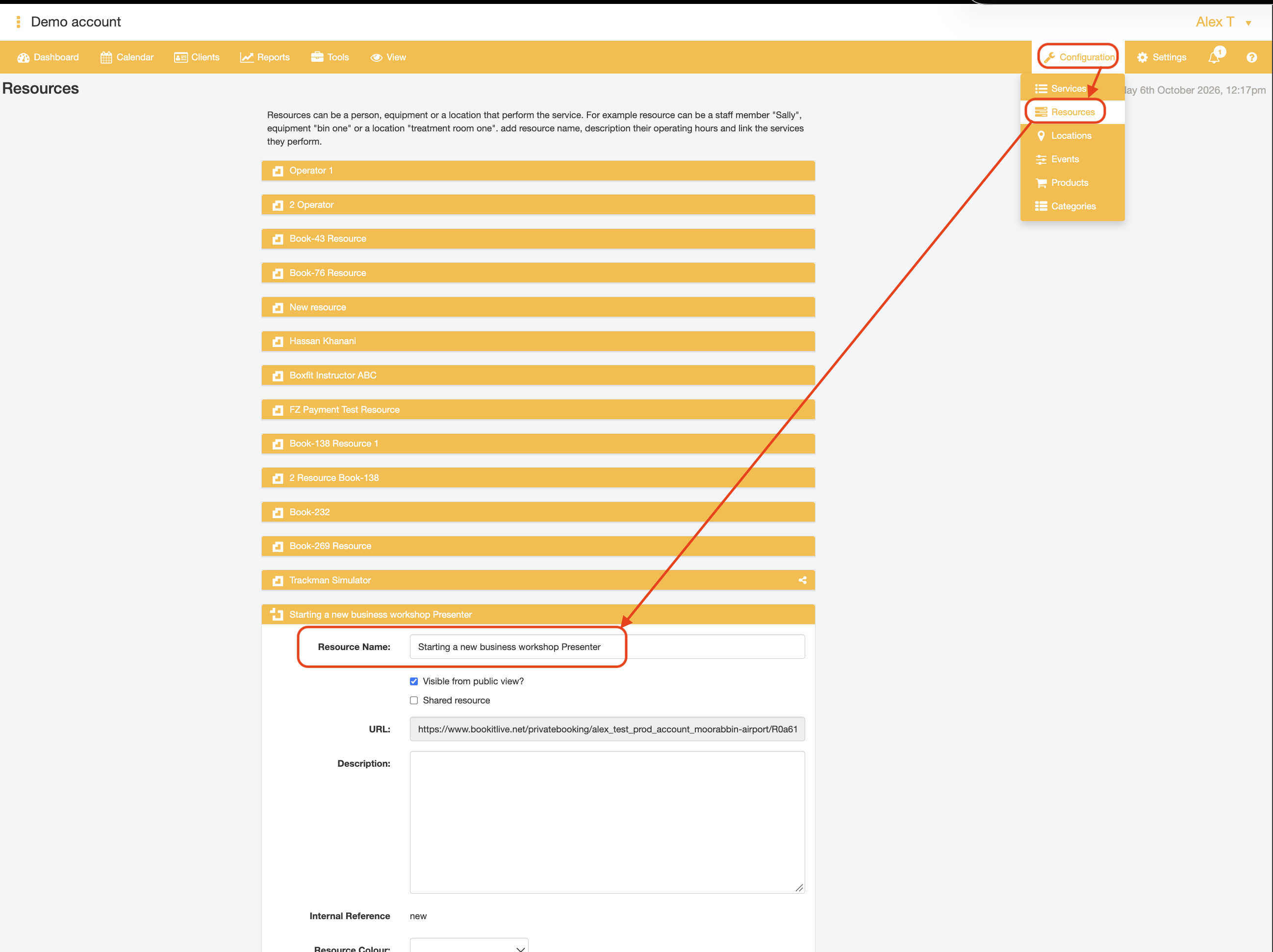
- Link the new Resource to the "Starting a new business workshop" Service by ticking the Service name checkbox under the "Linked Event Services" field
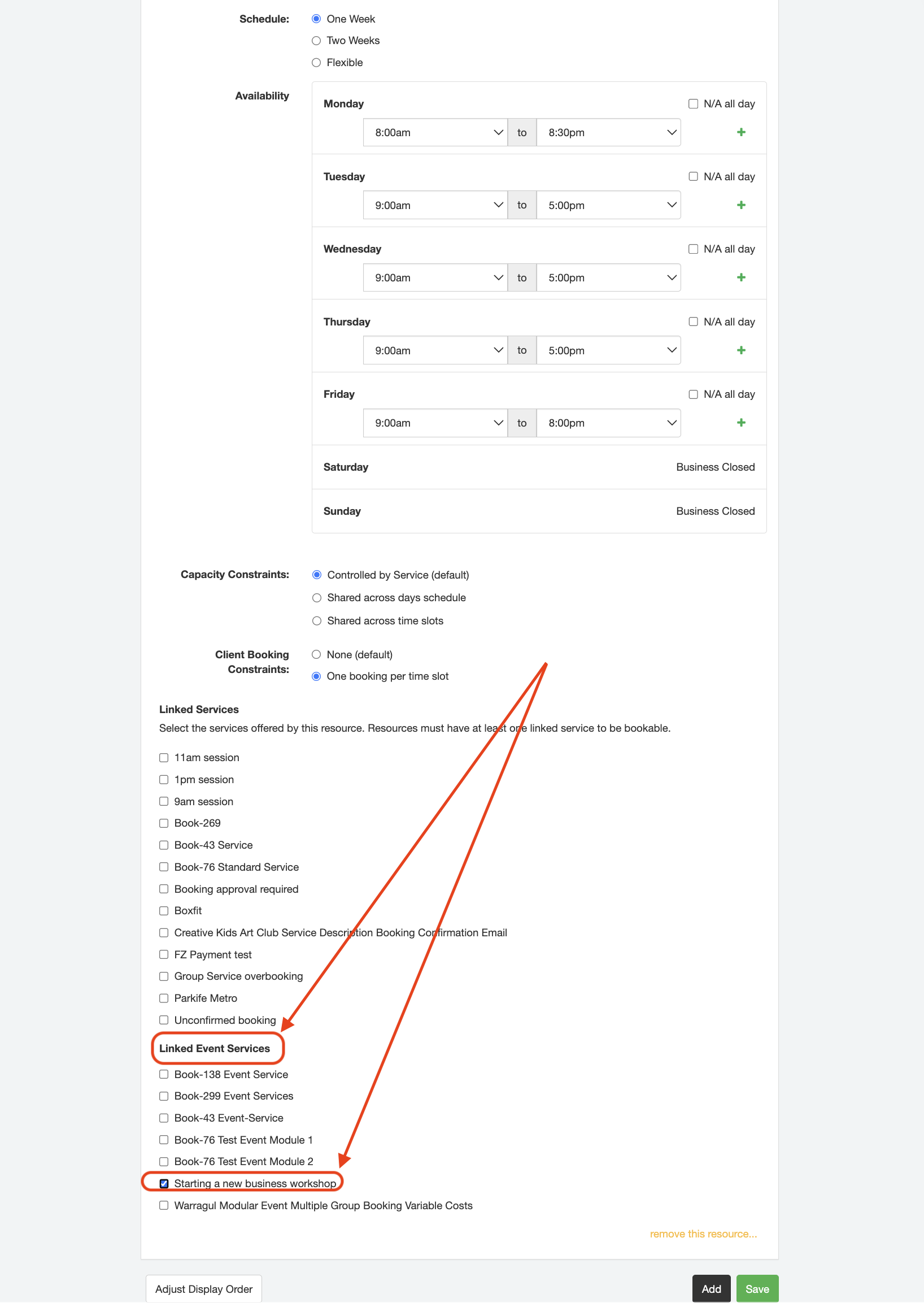
- Click the "Save" button to confirm the Resource details.
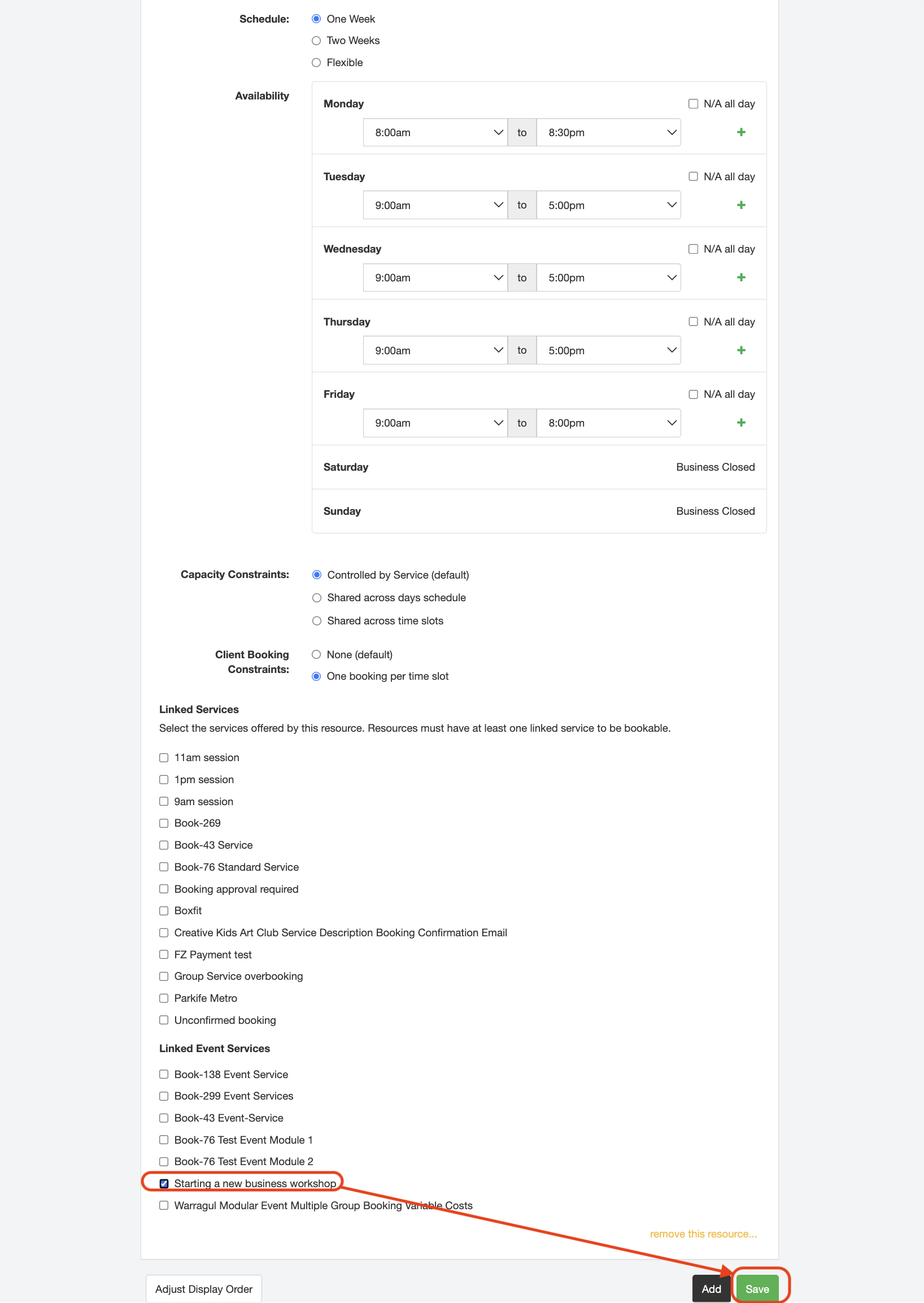
Note: The above steps only need to be completed once per Event.
Part 4 - How to create the Event using Configuration Events
After completing the above Event prerequisites in Parts 1-3, an Event can be created from the Events page
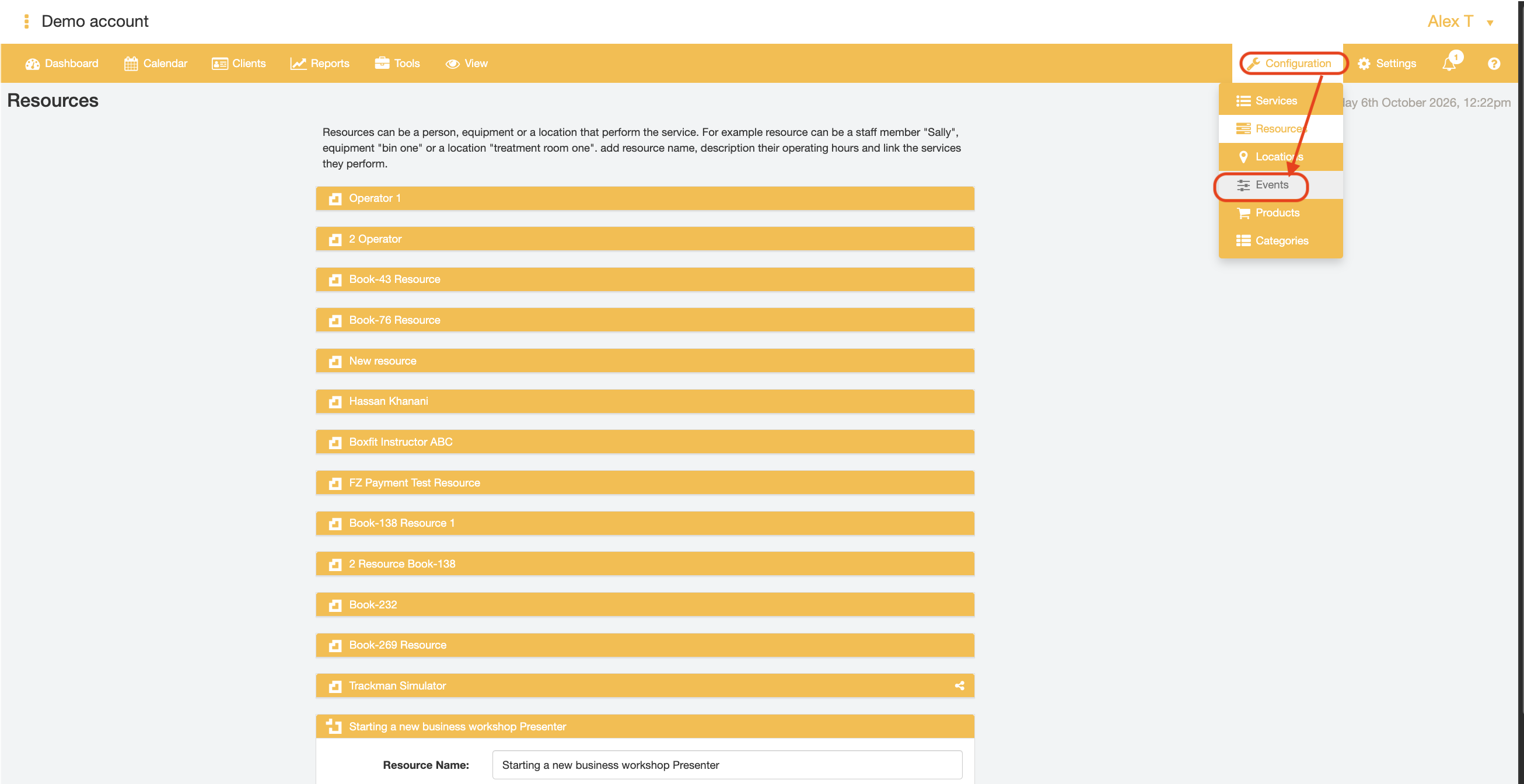
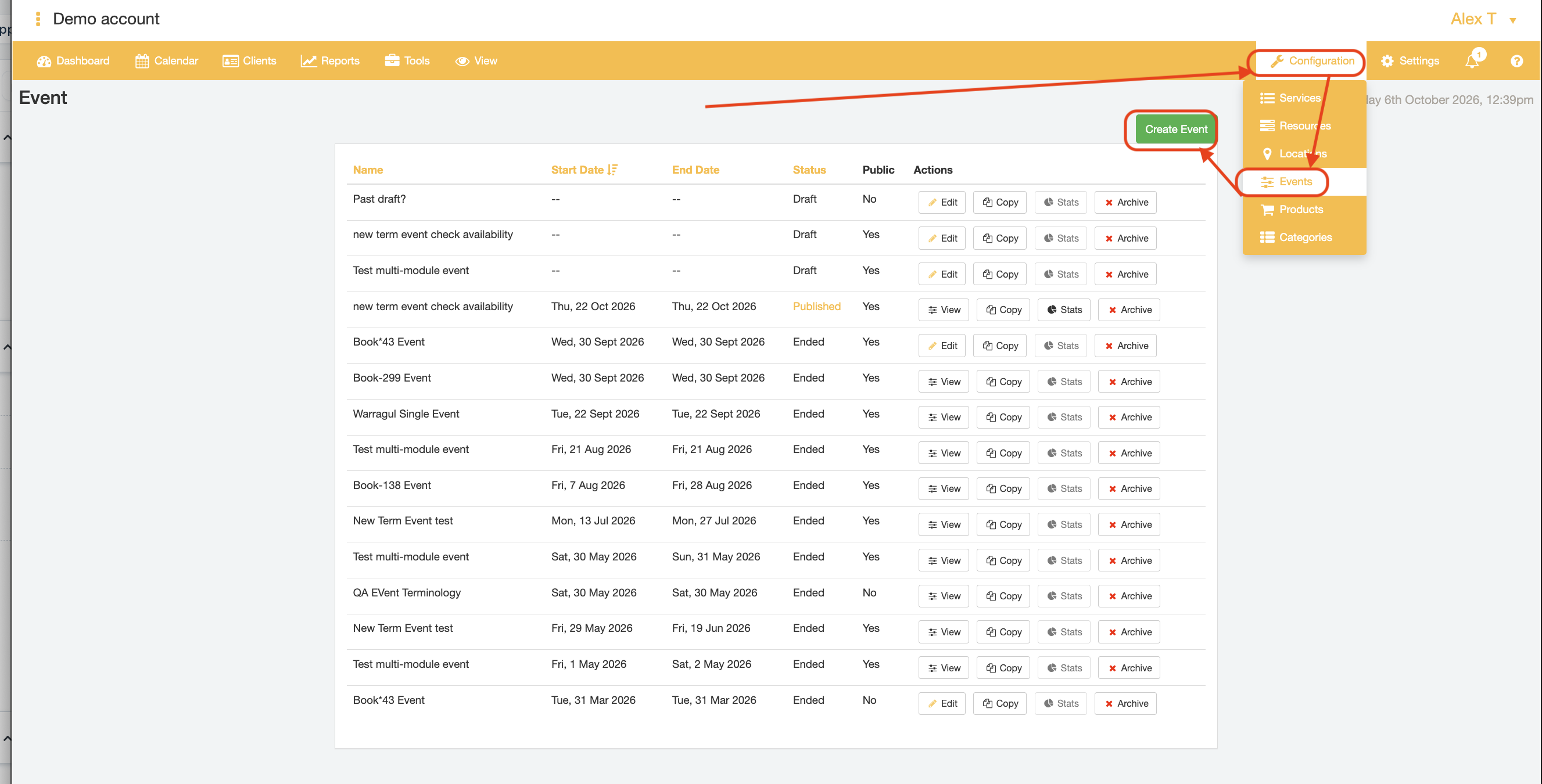
- Open the "Configuration" tab and select the "Events" menu option.
- Click the "Create Event" button.
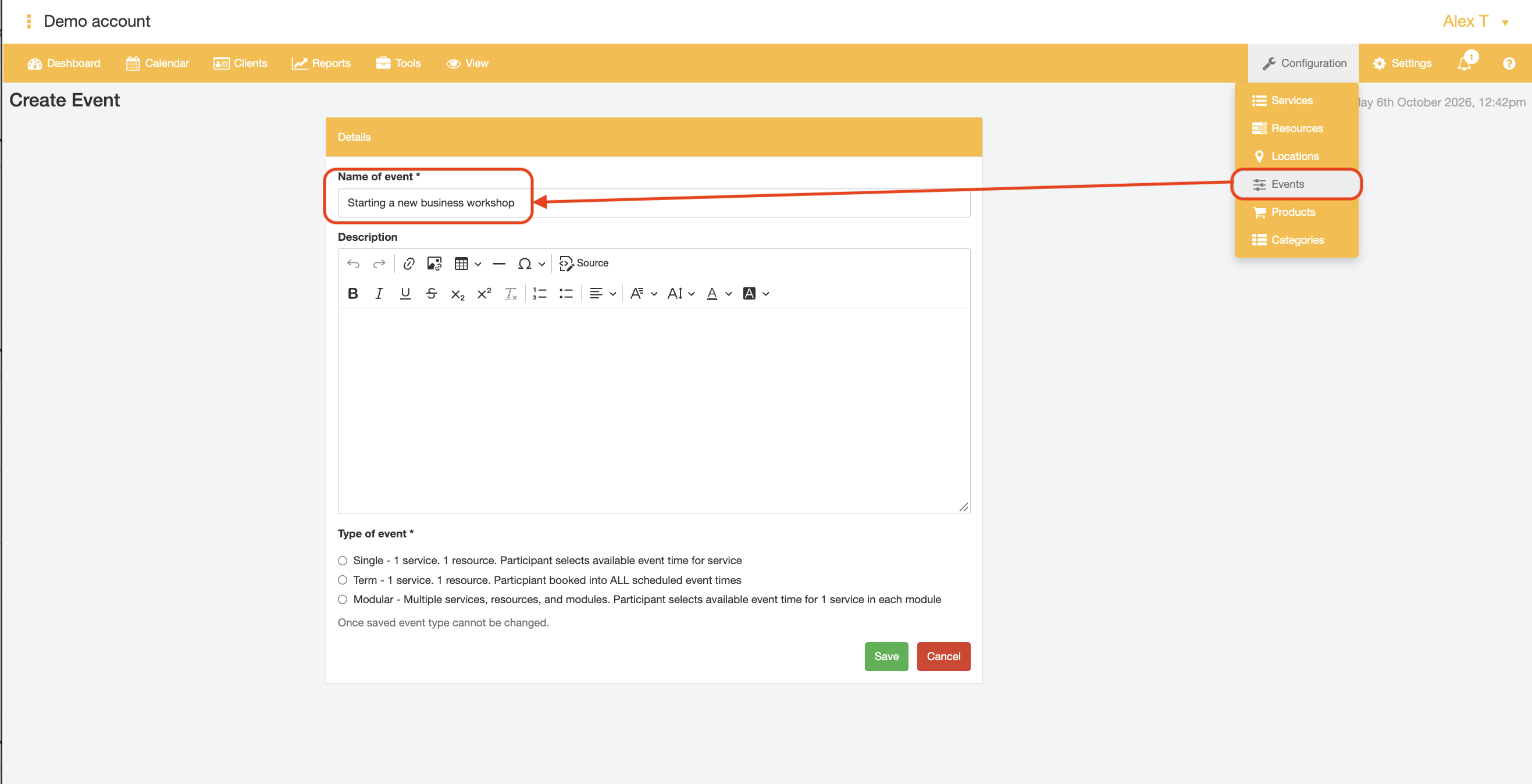
- Enter the desired Event Name in the "Name of event" field. This is the Event name that customers will see on the Mini Website page when booking themselves in.
- If desired, enter some more detailed information about the Event in the "Description" field
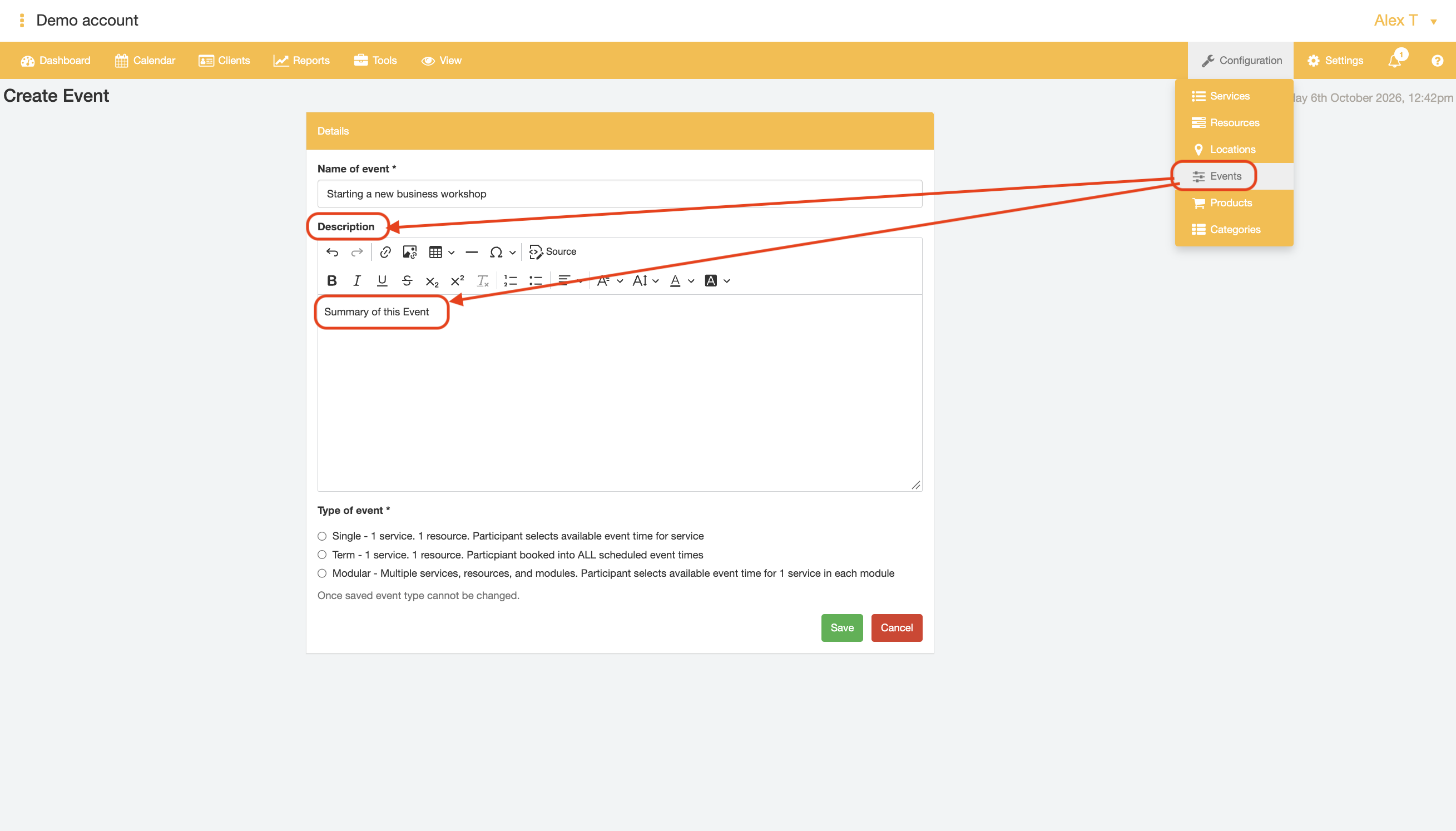
- Select Type of event from the available radio button options
- Single = Event composed of a single Service conducted on a single date and time delivered by one Resource.
- Term = Event composed of a single Service conducted over multiple dates and times in series delivered by one Resource.
- Modular = Event composed of potentially multiple Services conducted on a variety of dates and times delivered by potentially multiple Resources.
Note: once the Event type is confirmed, it cannot be changed later on.
For this example of the "Starting a new business workshop", we will assume that the workshop is a one-off Event only conducted by one Resource at only one date and time -> the "Single" Event Type is the most suitable option here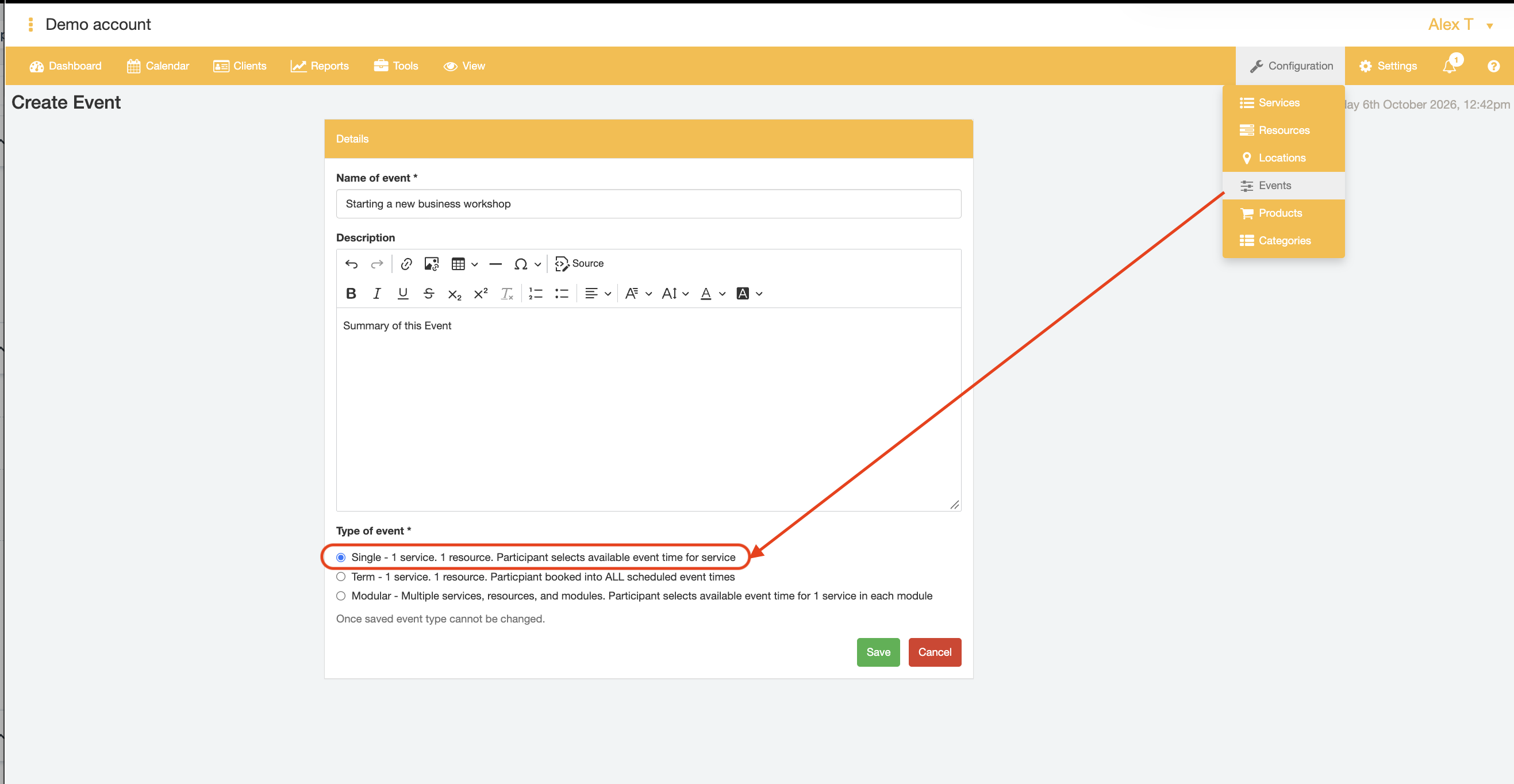
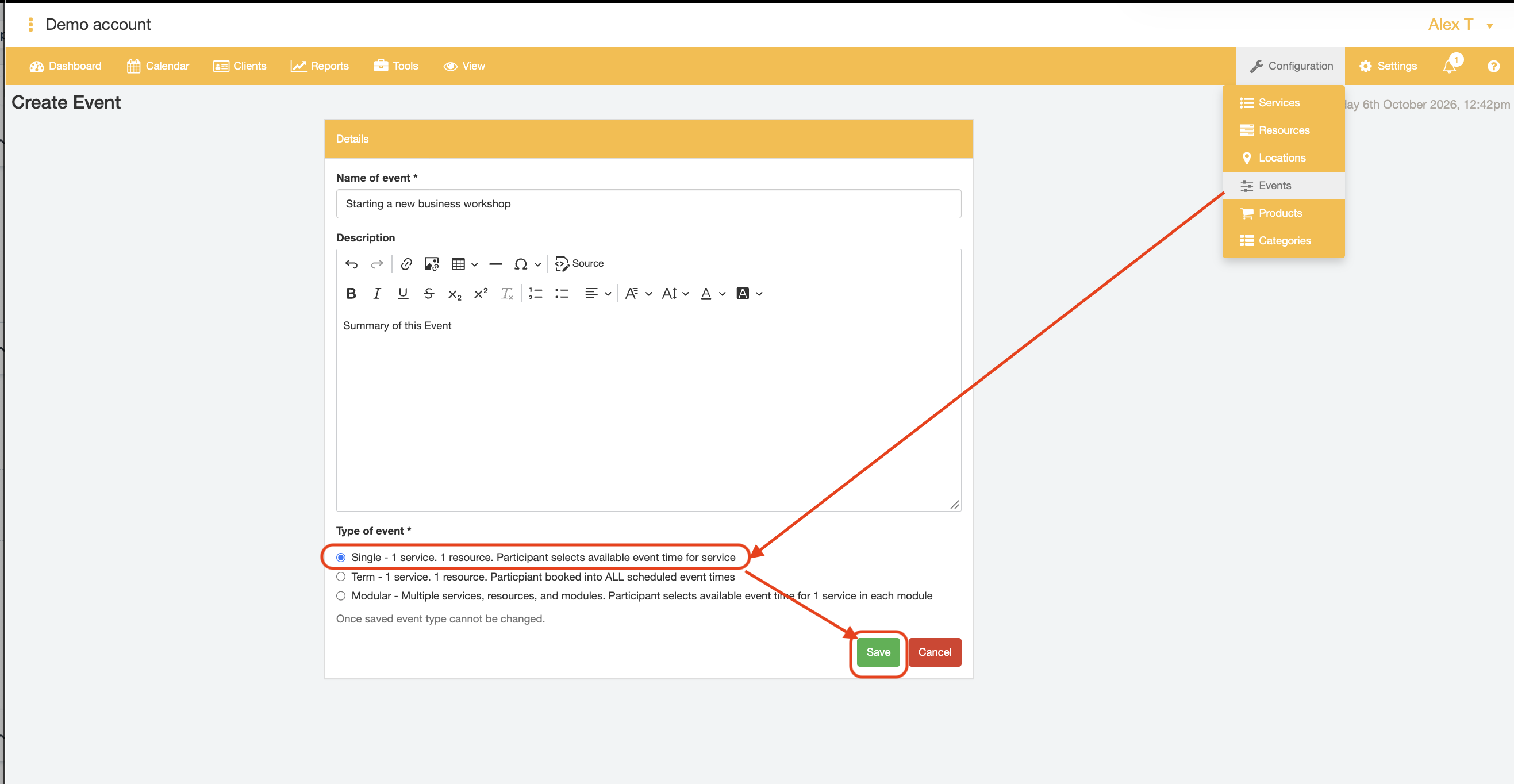
- Click the "Save" button to confirm the Event Name and Type details.
- By default, the newly-created Event will open on the "Details" tab.
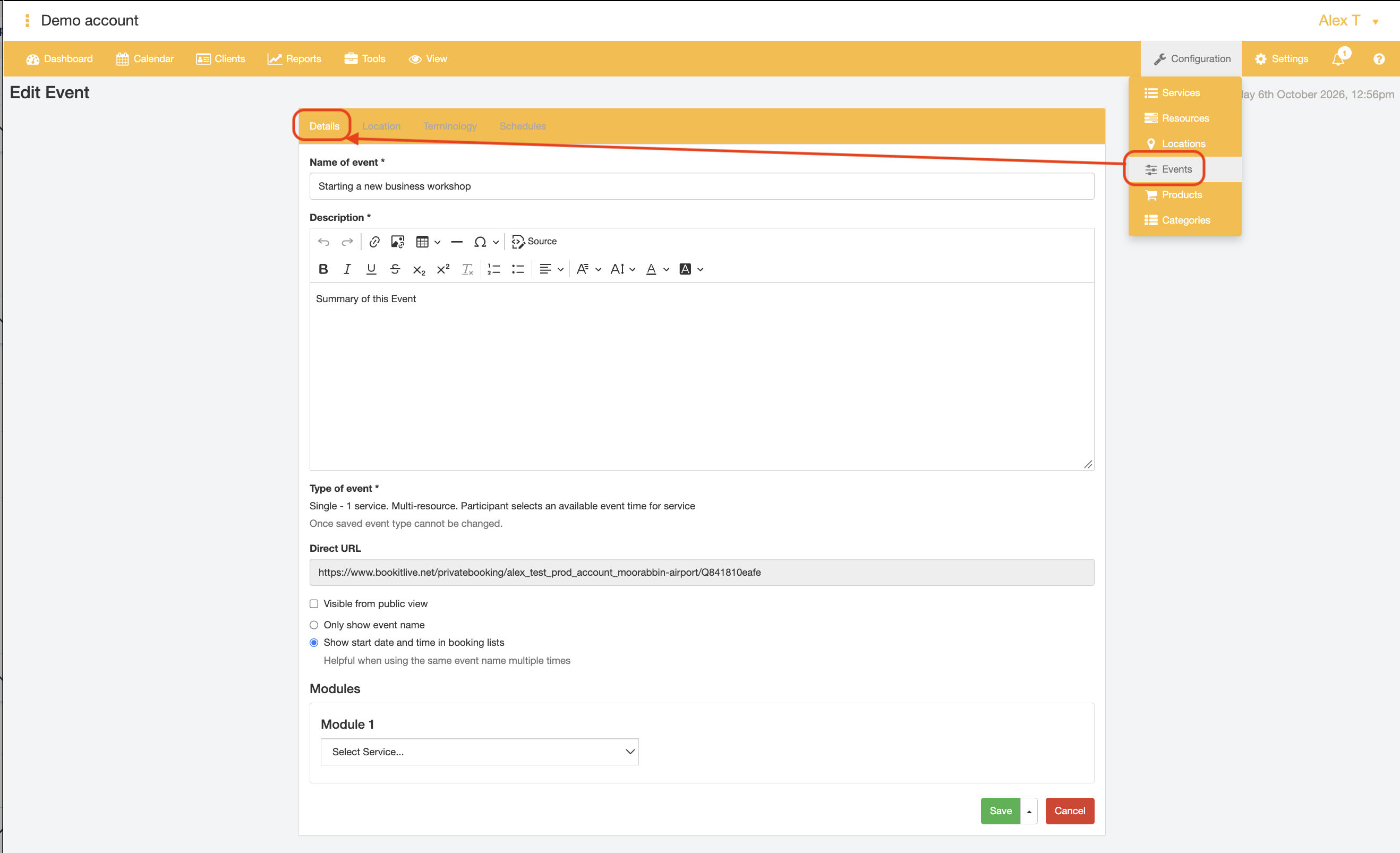
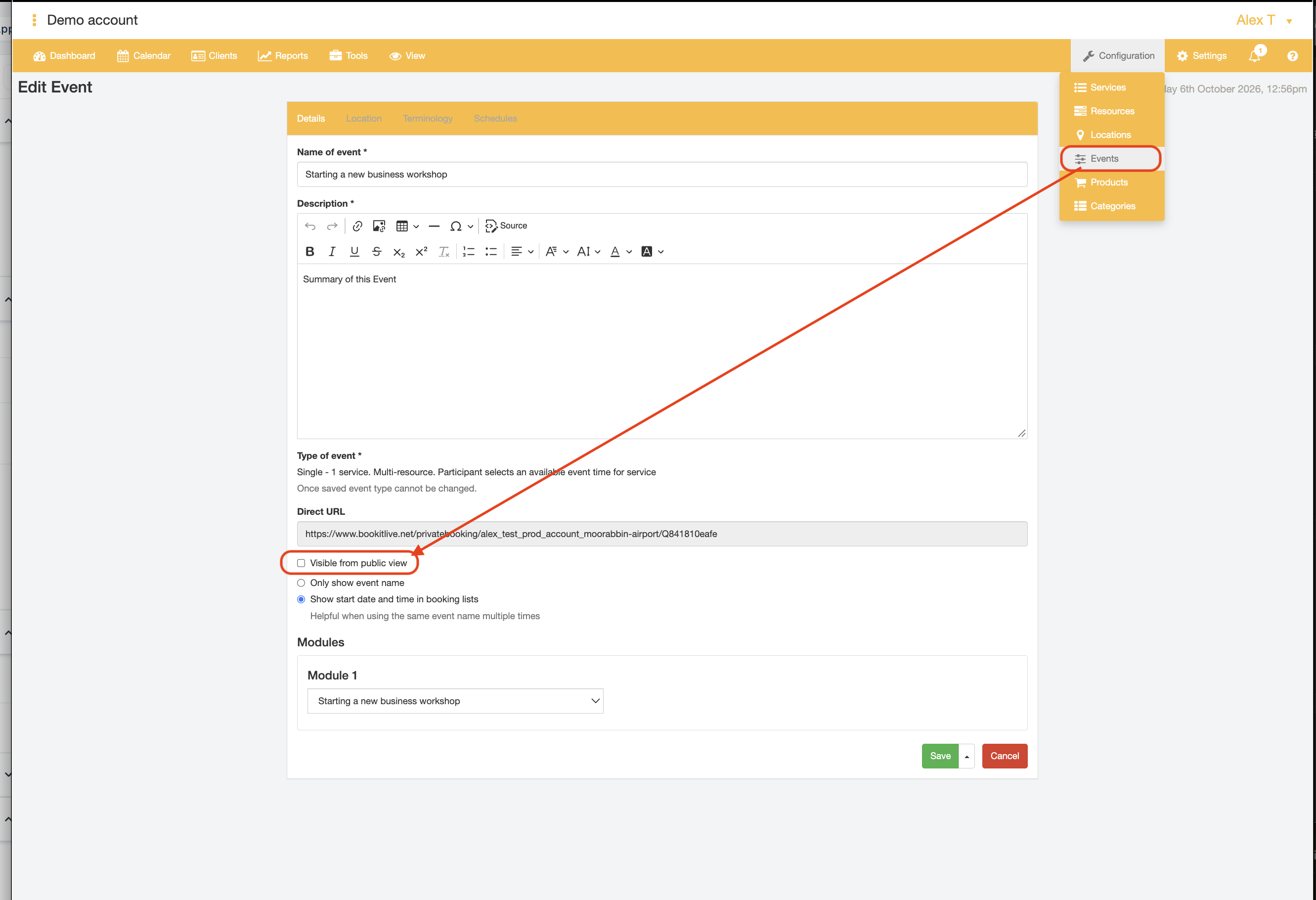
- To make your Event visible on your BookItLive Mini Website, tick the "Visible from Public View" checkbox; otherwise keep this checkbox unticked if you wish to privately deliver the Event.
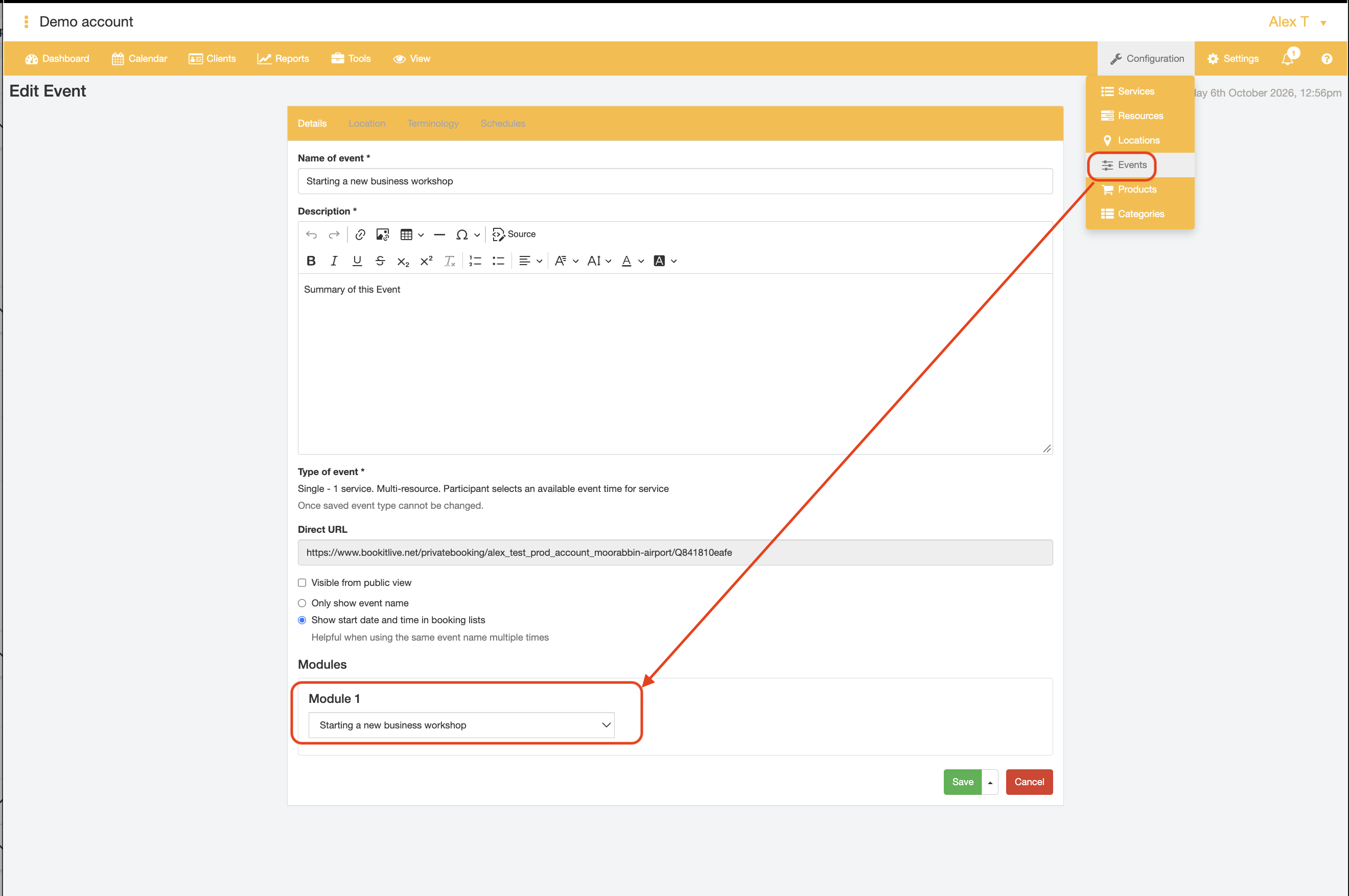
- In the "Module 1" dropdown field, select the Event Service that the Event is composed of.
The Service options that are present in the"Module" dropdown are those that have been marked "Available for Event Schedules Only" in Part 2, Step 4.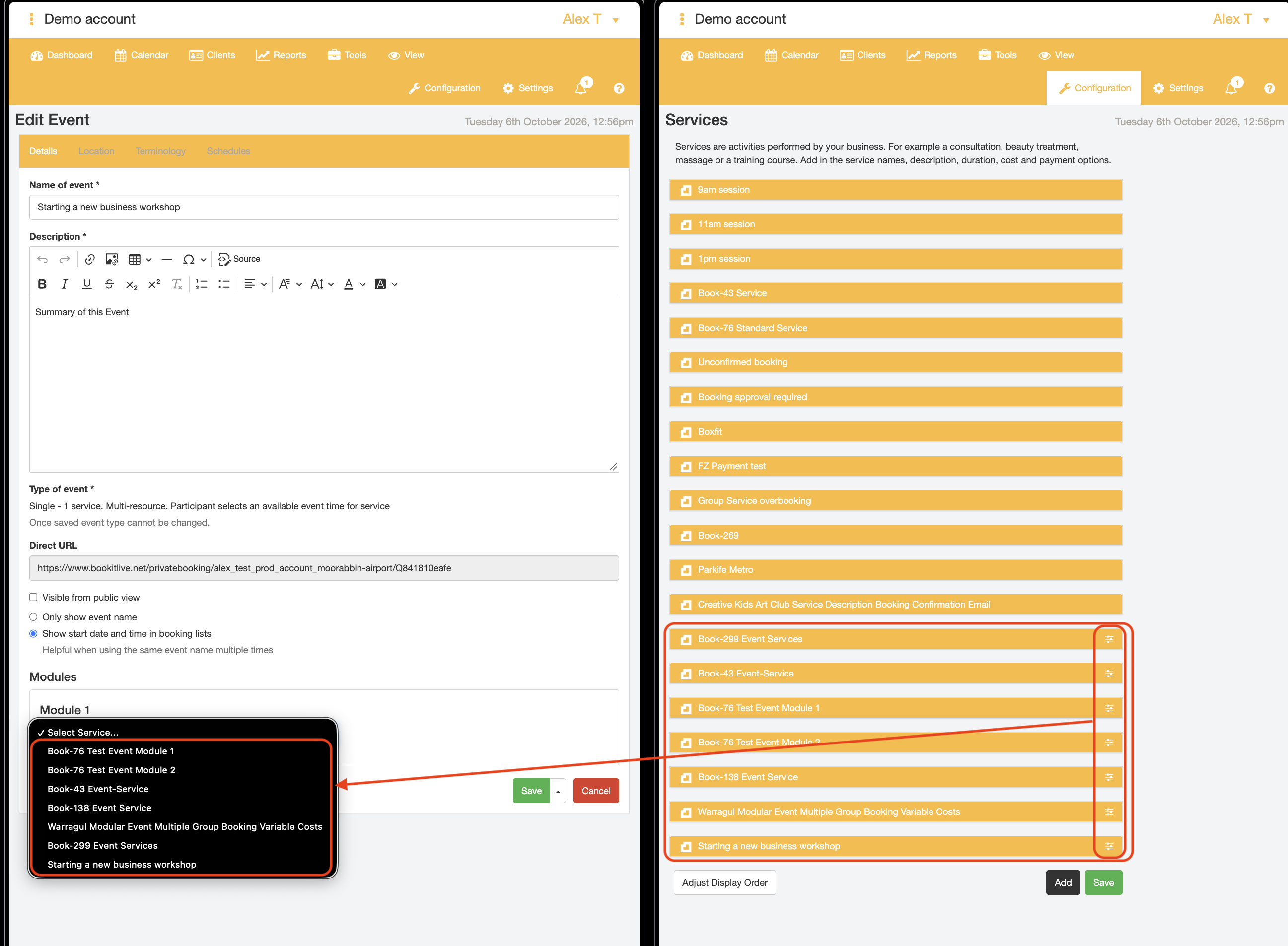
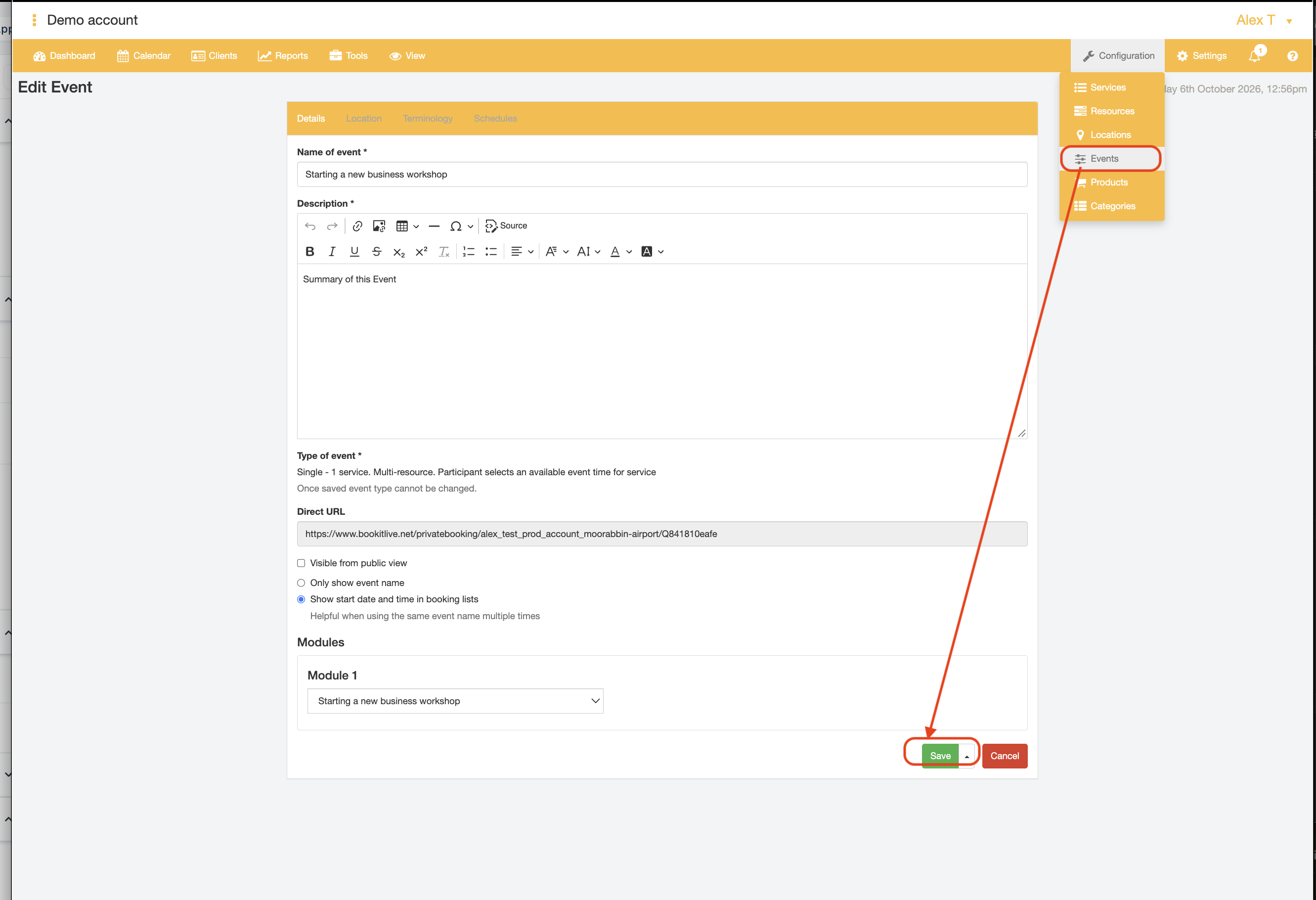
- Click the "Save" button to confirm the Event Module Details.
- If desired, add more information about the Event Venue or Location by clicking the Event "Location" tab.
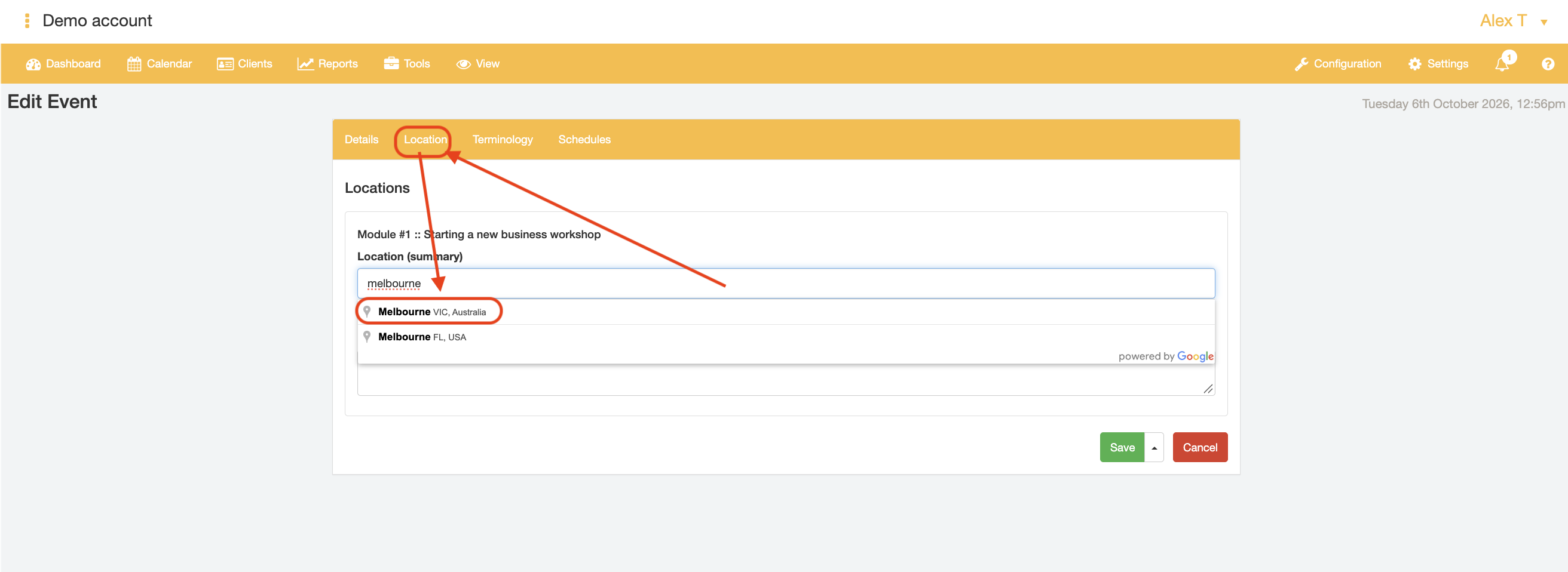
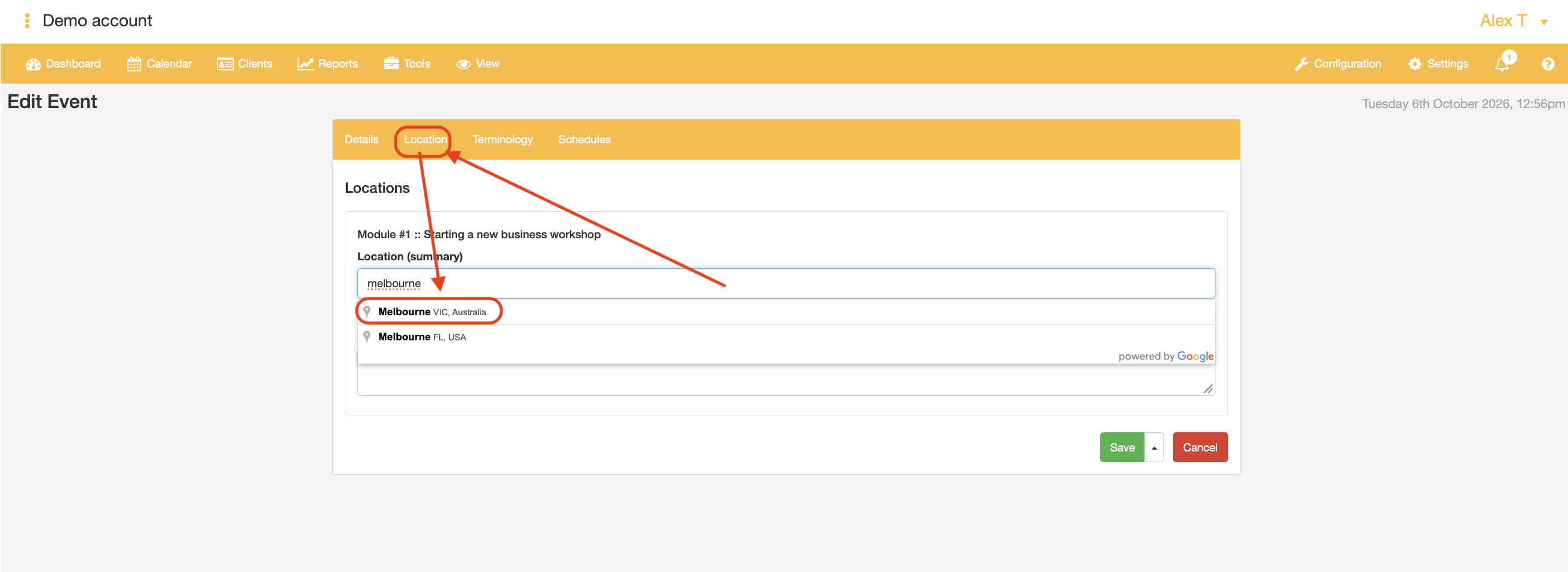
- Enter the city or exact street address into the "Location (summary)" field, e.g., Melbourne VIC 3000
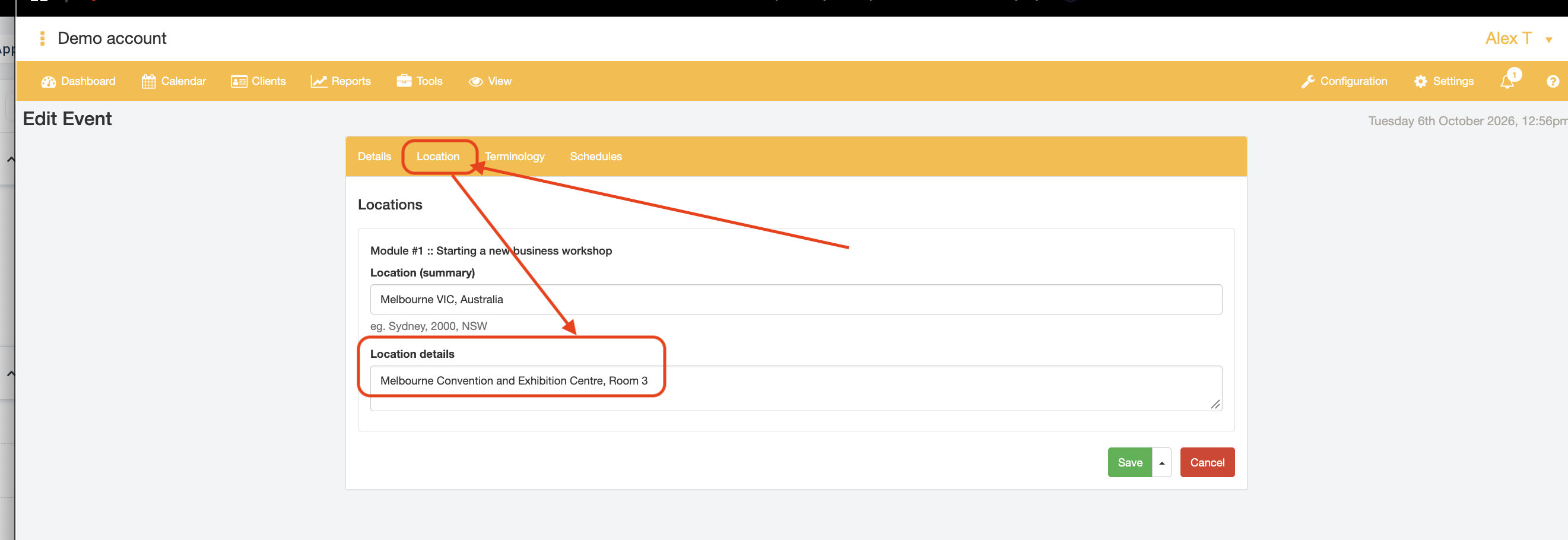
- Add more details about the precise location in the "Location details" field
- Repeat the above steps if the event is modular and has different location details for each module
- Repeat the above steps if the event is modular and has different location details for each module
- Enter the city or exact street address into the "Location (summary)" field, e.g., Melbourne VIC 3000
- Click the "Save" in the Event Locations tab to confirm the updated Event Location details.
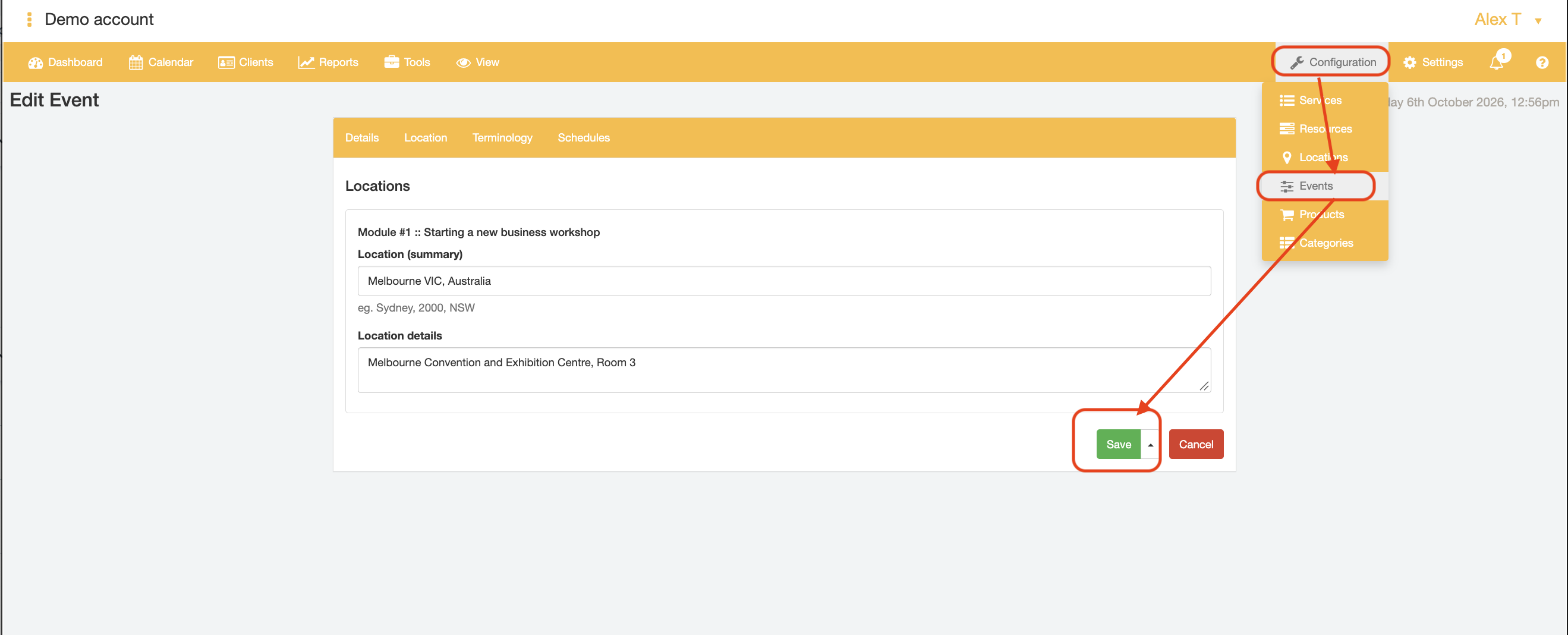
- If desired, configure the terminology to match the terminology your Event purpose byclicking the "Terminology" tab.
- Each input field will display the input as a substitute for the standard wording used for the Event, e.g., you could replace the word "Service" with "Workshop" that appears on the Event booking page for this particular Event.
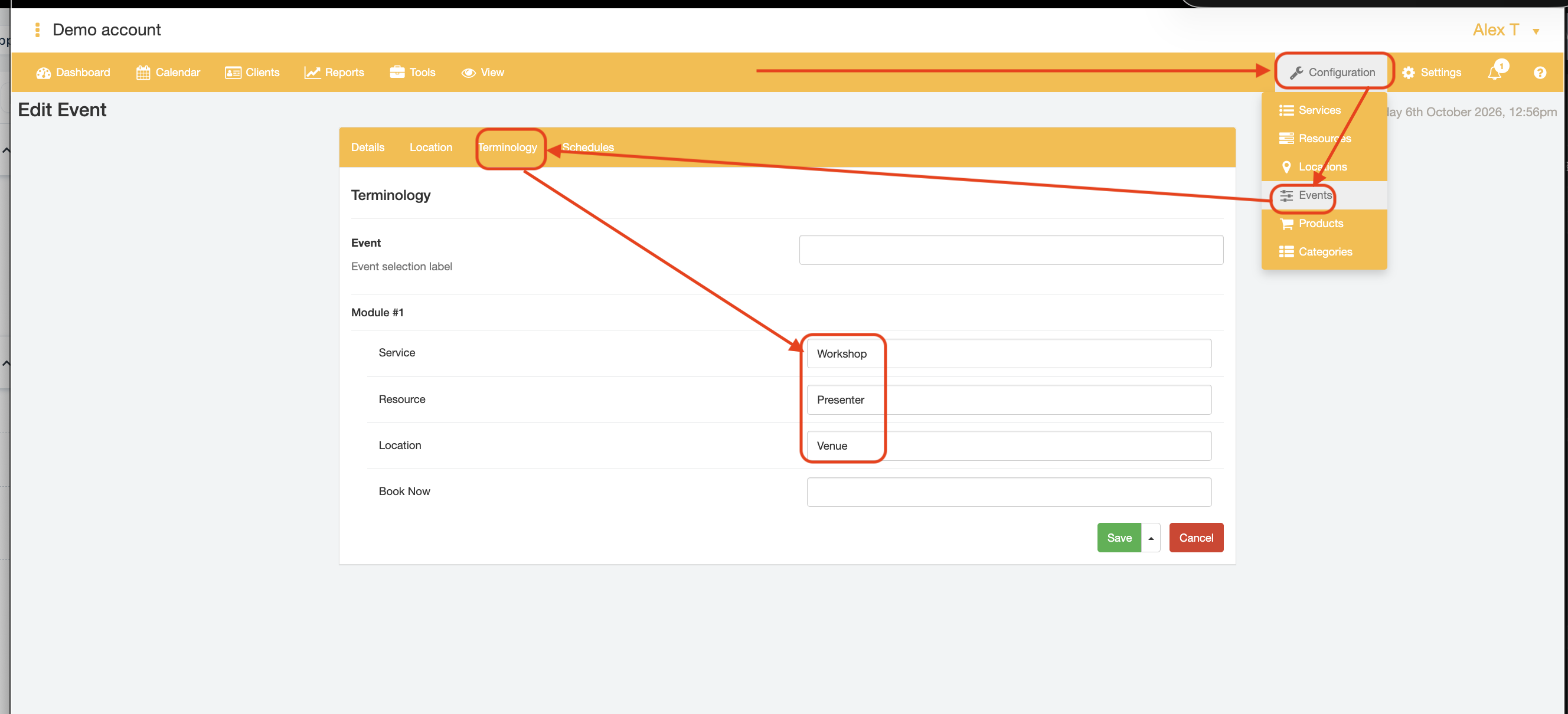
- Each input field will display the input as a substitute for the standard wording used for the Event, e.g., you could replace the word "Service" with "Workshop" that appears on the Event booking page for this particular Event.
- Click the "Save" in the Event Terminology tab to confirm the updated Event Terminology inputs.
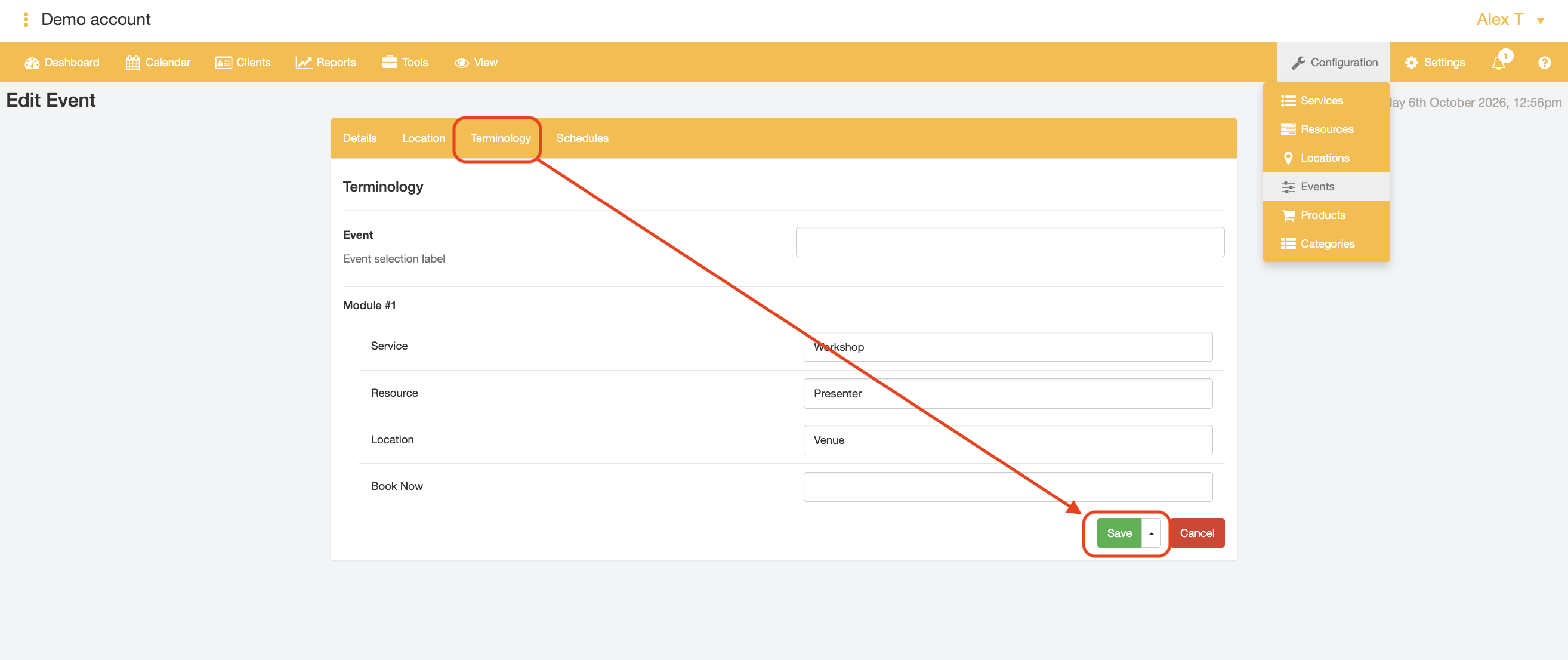
- Click the "Schedules" tab.
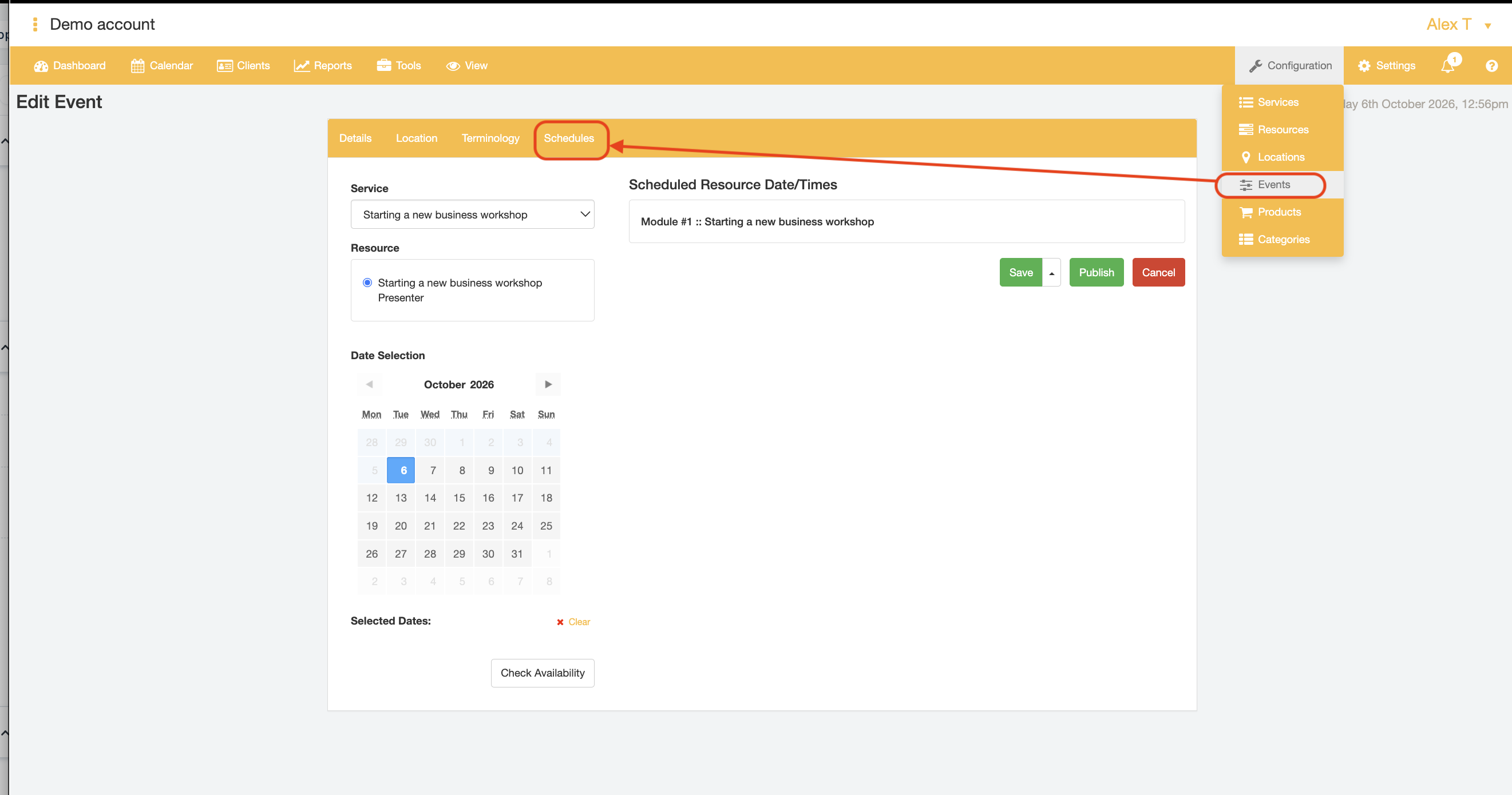
- If required, select the Service that you wish to set a date and time to be delivered at from the "Service" dropdown field.
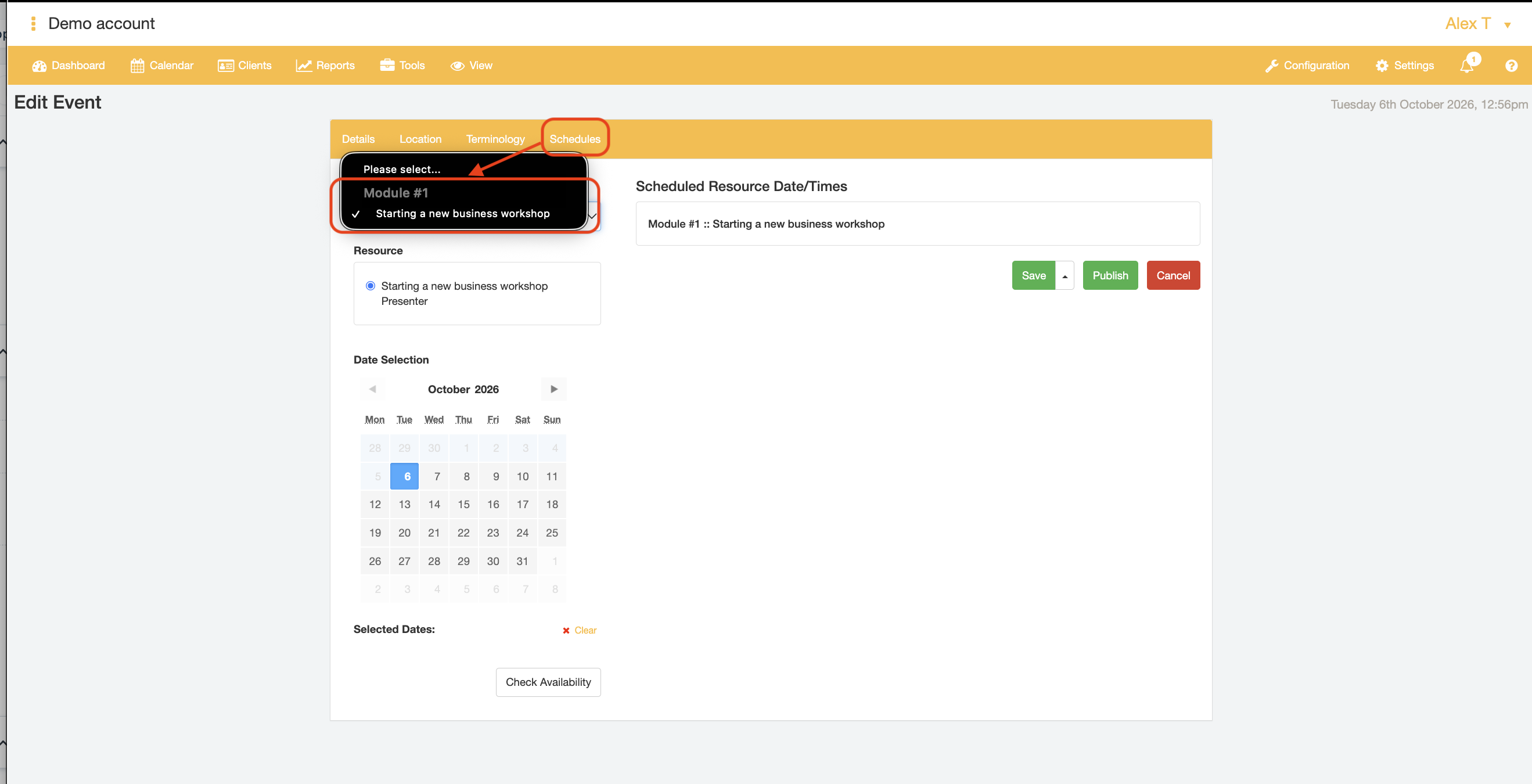
- If required, select the radio button for the Resource that you wish to deliver the "Service" at the desired date and time from the "Resource" field.
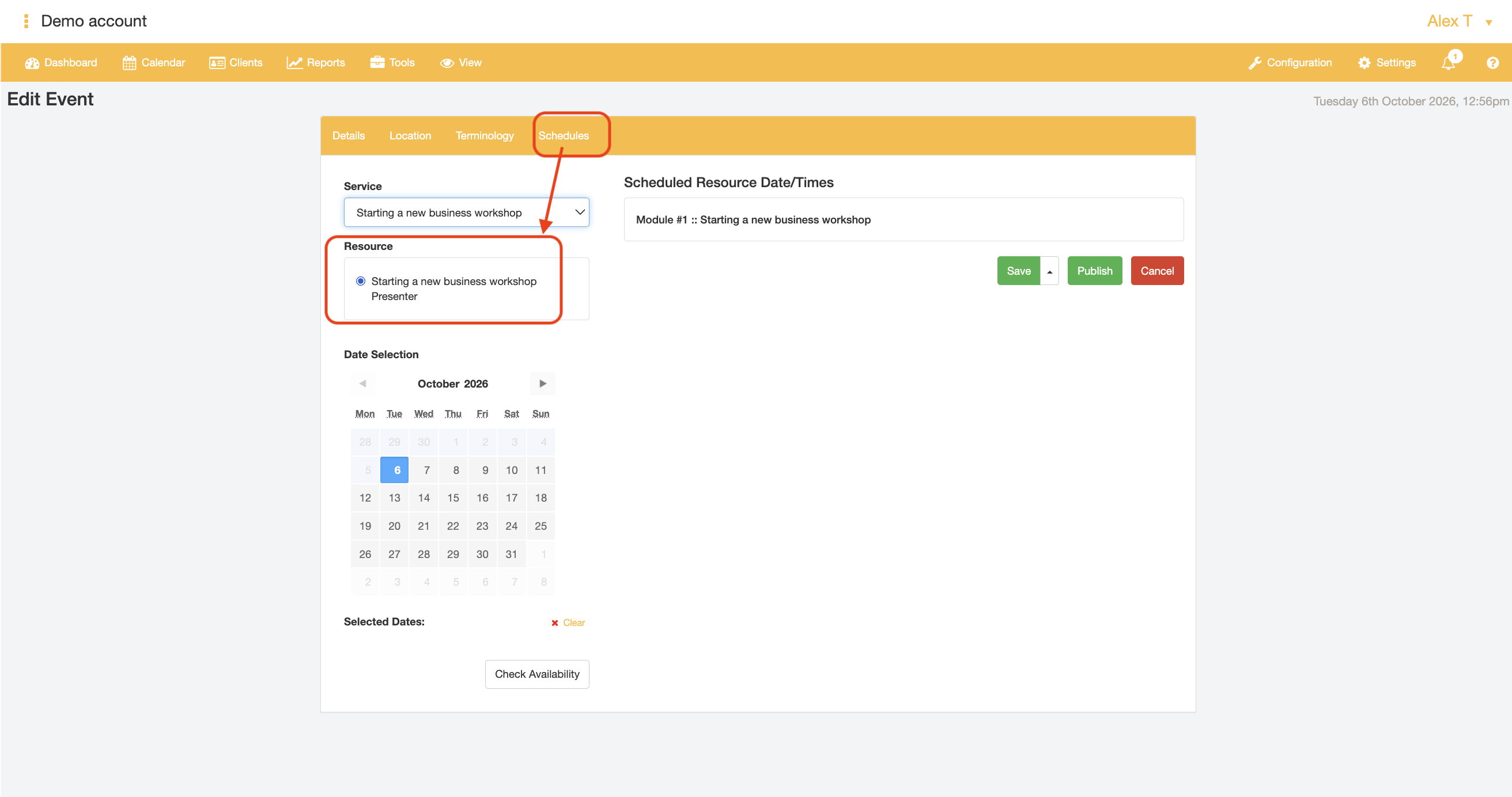
- Using the Date Picker tool in the "Date Selection" field, select the date on which you intend to deliver the Event and click the "Check Availability" button.
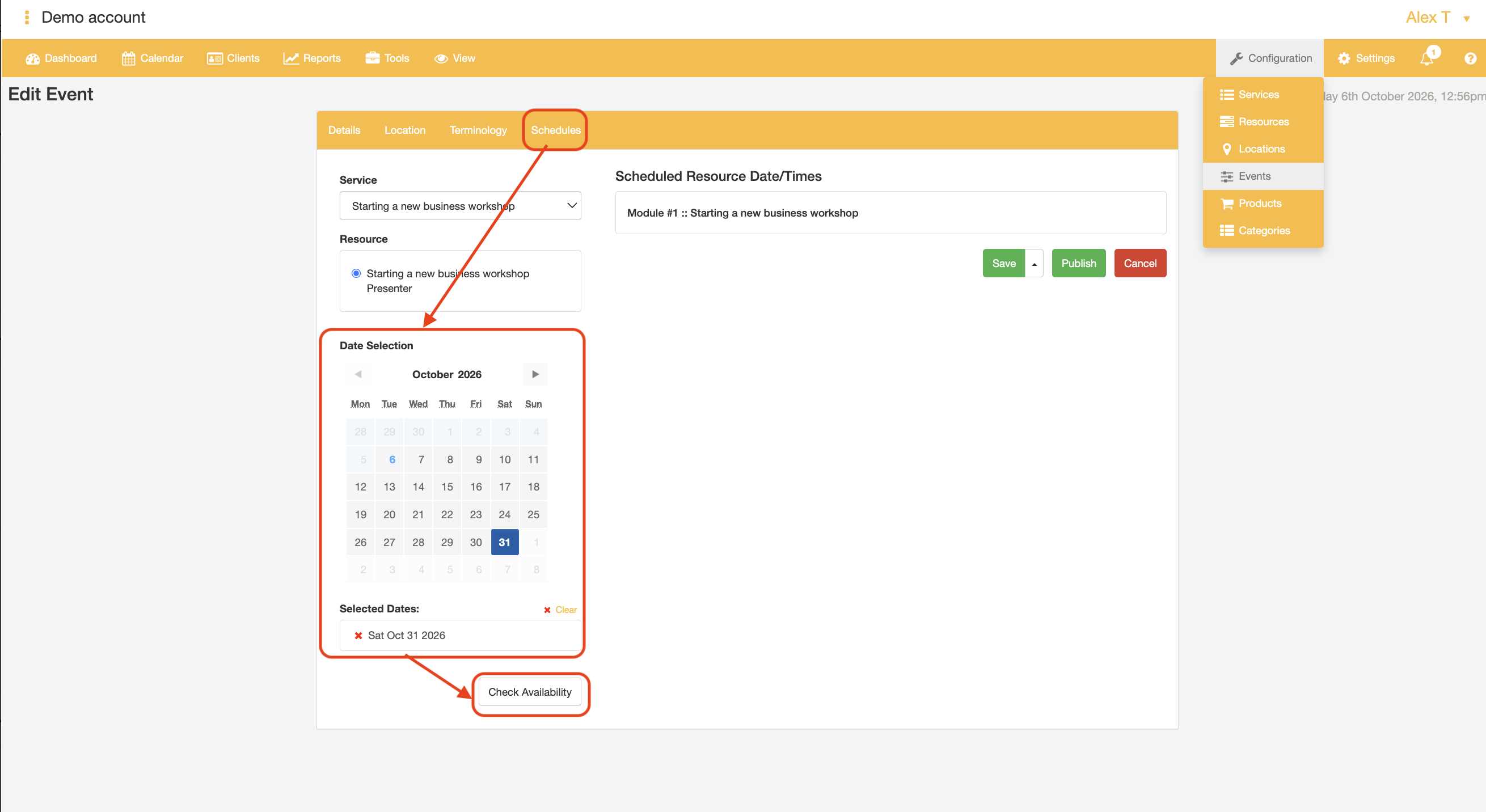
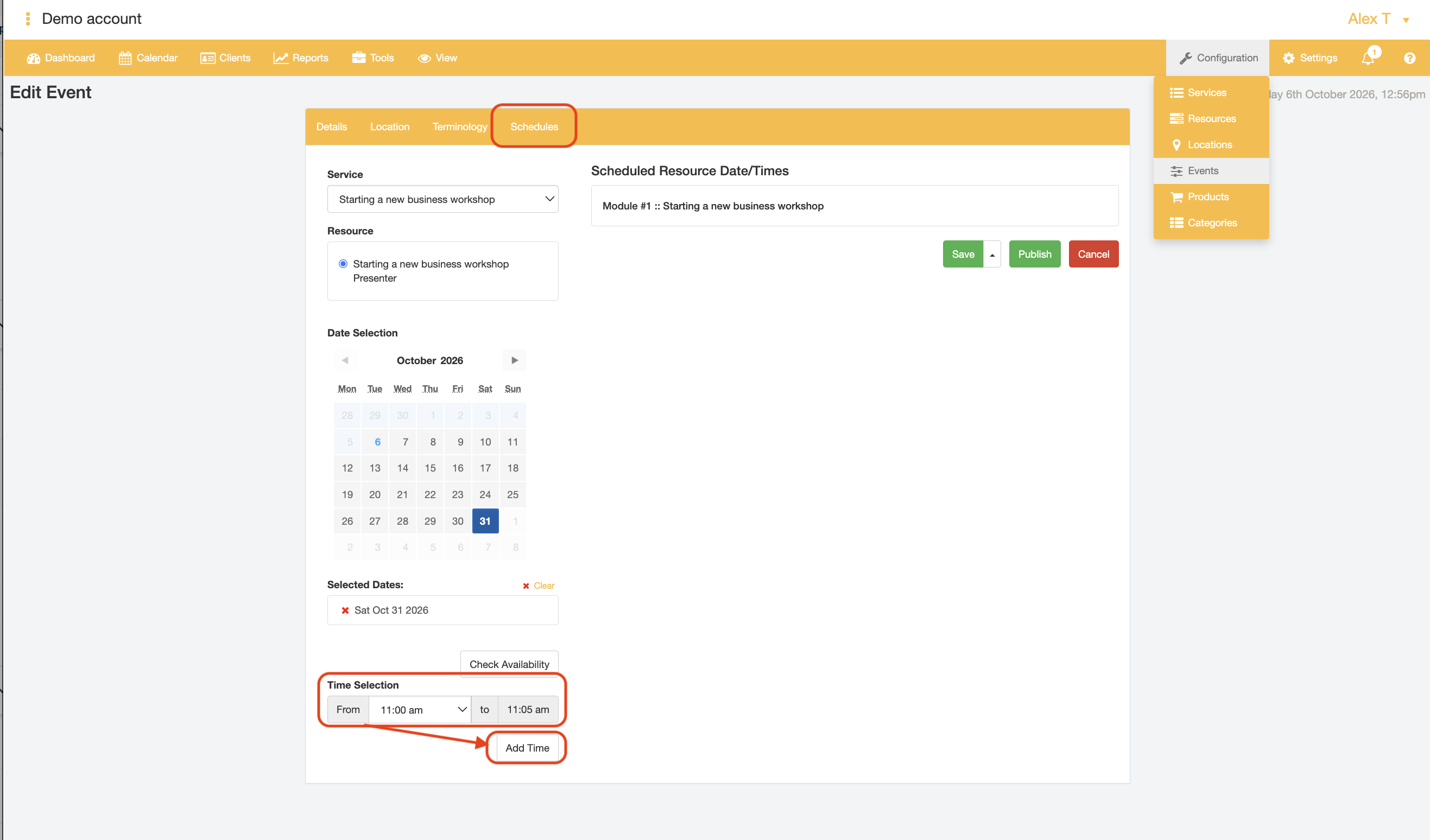
- From the "Time Selection" field, set the Start Time from the "From" dropdown field and click "Add Time".
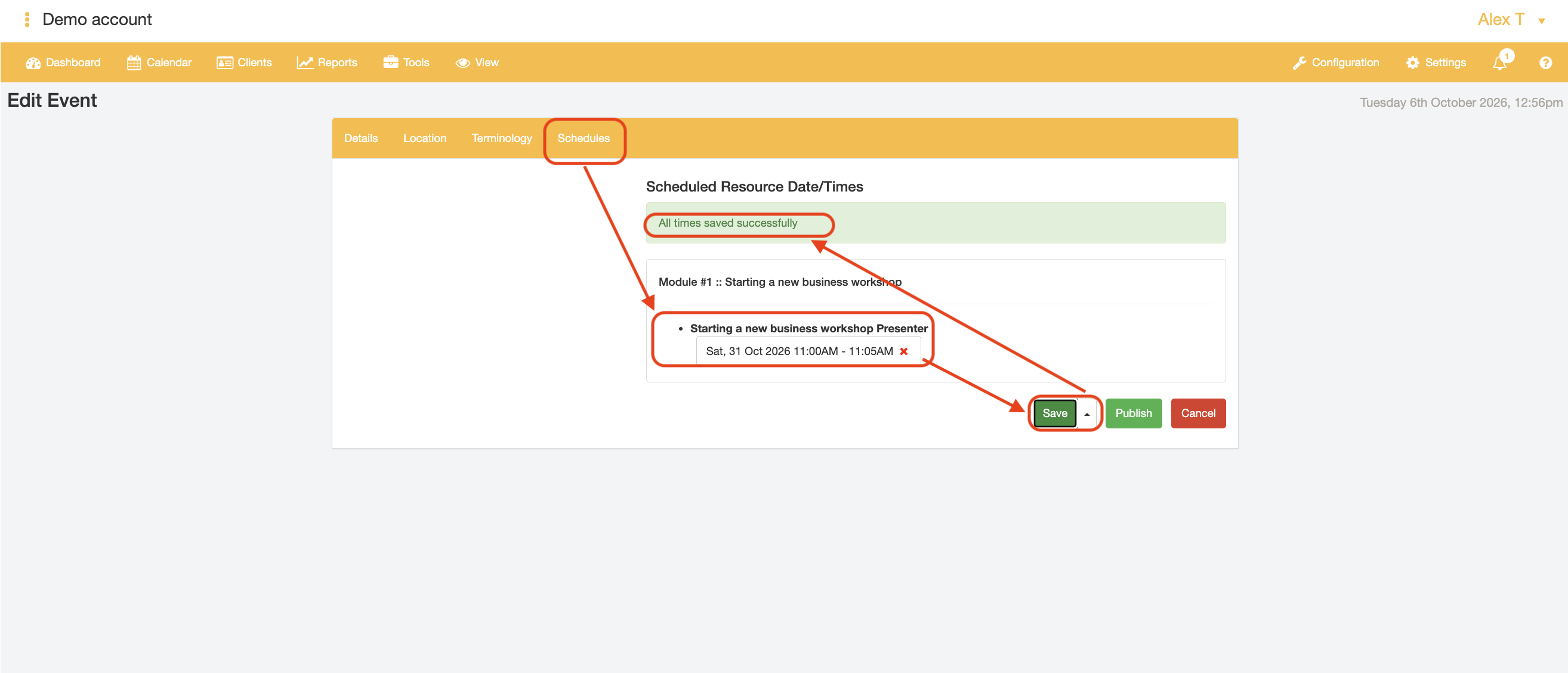
- Click the "Save" button to confirm the Event Schedules Date and Time. If the specified date and time does not conflict with another booking already made for that Resource, the page will display the success message "All times saved successfully".
- When you are ready to accept booking for the Event, select the Publish button. The "Publish" button will change to display "Revert to Draft" if publishing has been completed successfully.
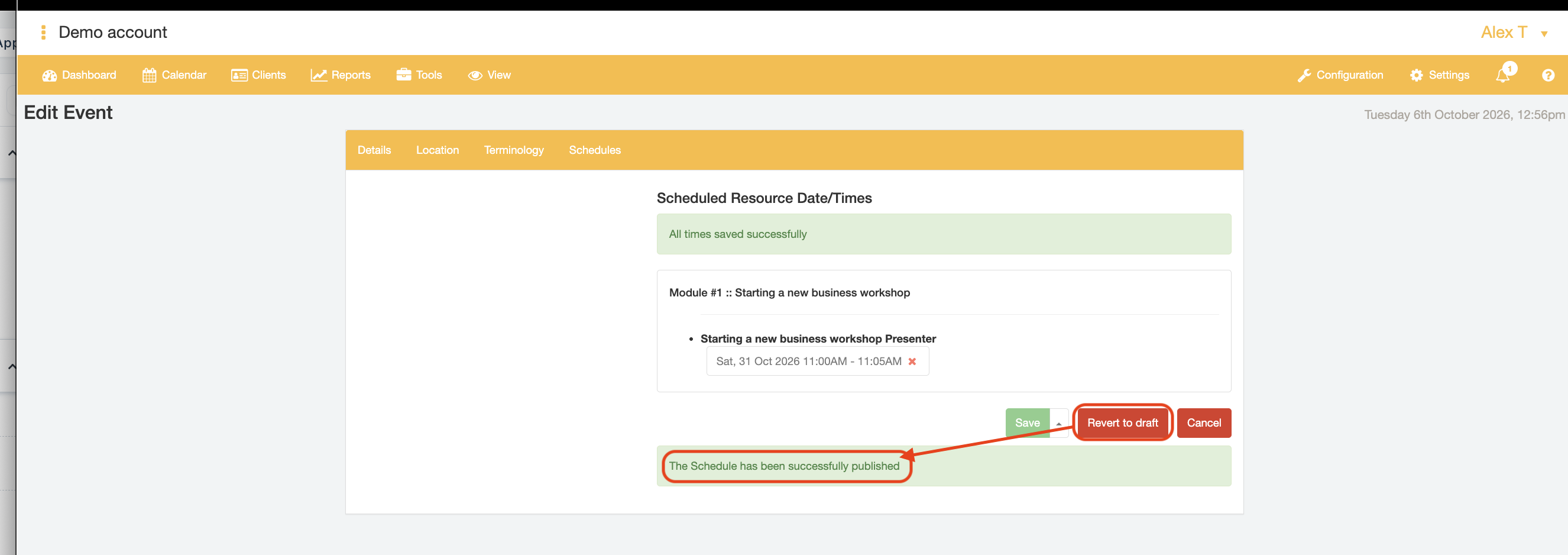
- End.
Duplicating Events
The advantage of using Events for limited time Services is that an existing Event can be easily copied to create a new duplicate Event to be scheduled for a different date and time.
When copying an existing Event, all details are copied except for the Source Event's Schedules tab information. Once copied, the Event can be edited and existing details updated for the new Event. Once new Event schedules have been added, the new Event can be published making it available for bookings using the same process described from Part 4, step 15 onwards.
- Open the "Configuration" tab and select the "Events" menu option.
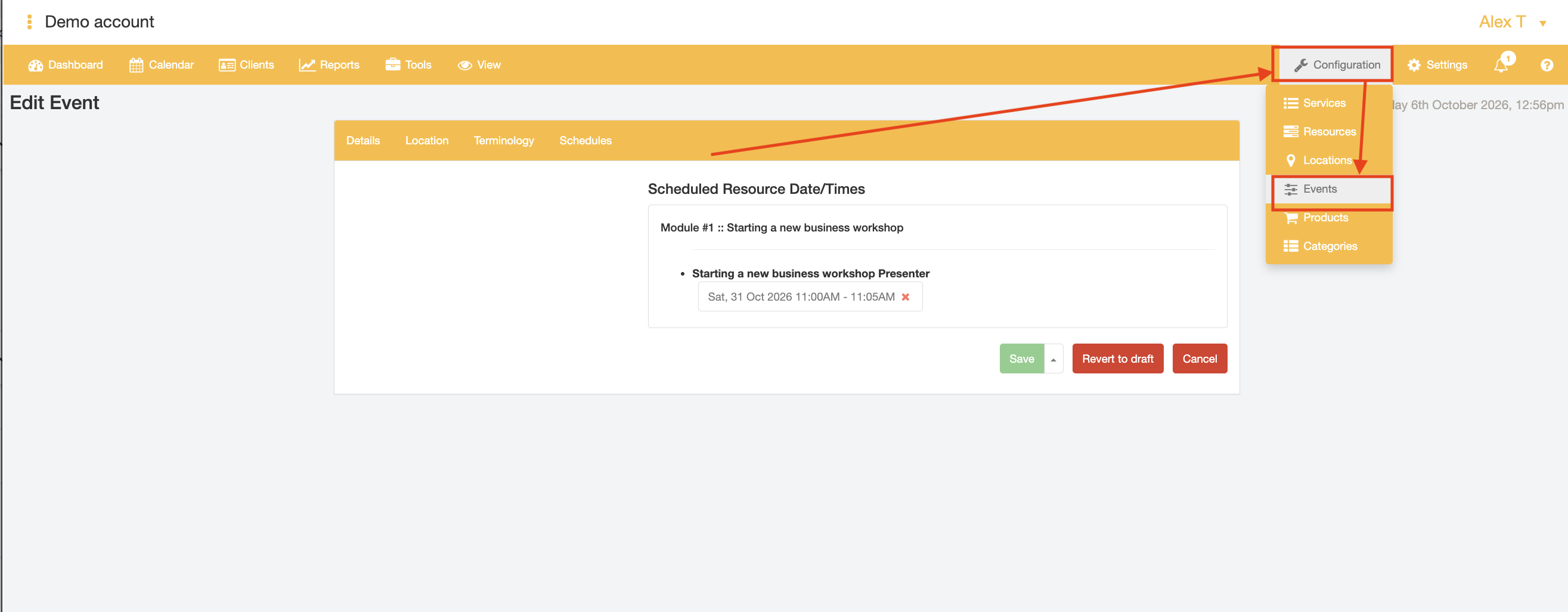
- Find the Event to copy and click the "Copy" button. Click "OK" on the resulting browser pop up message.
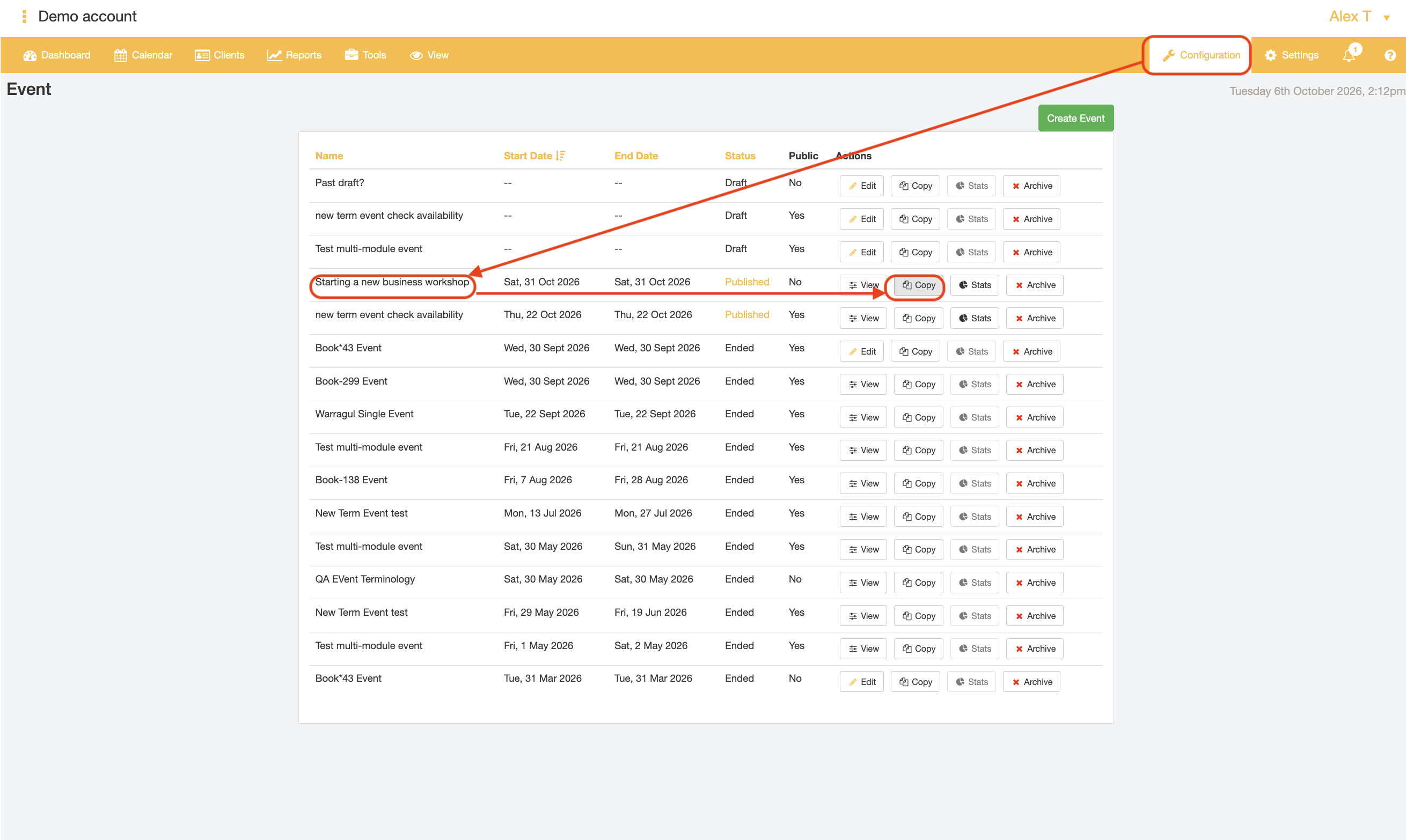
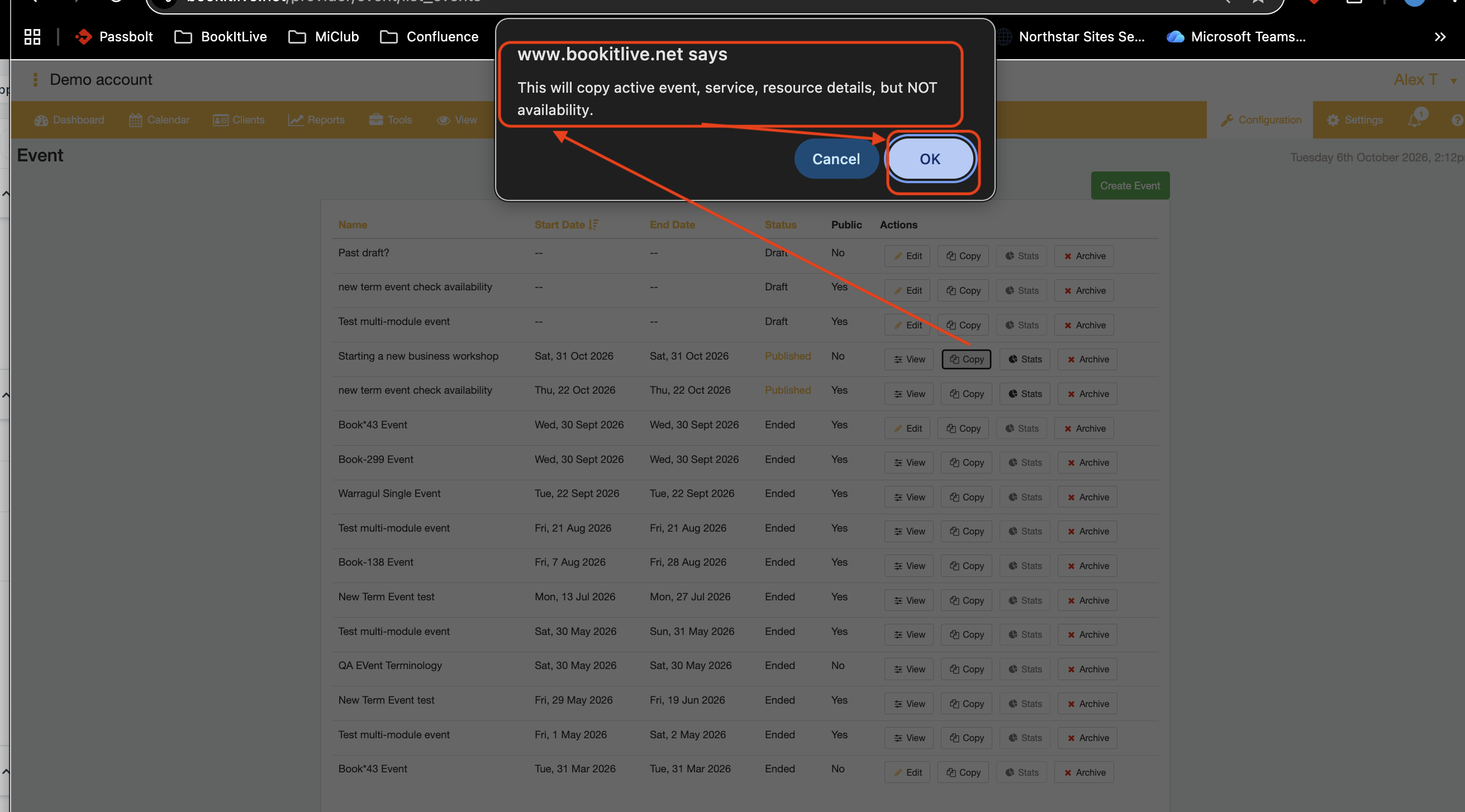 A new Event with the same Event name is created and set to "Draft" Status with no Start or End Dates.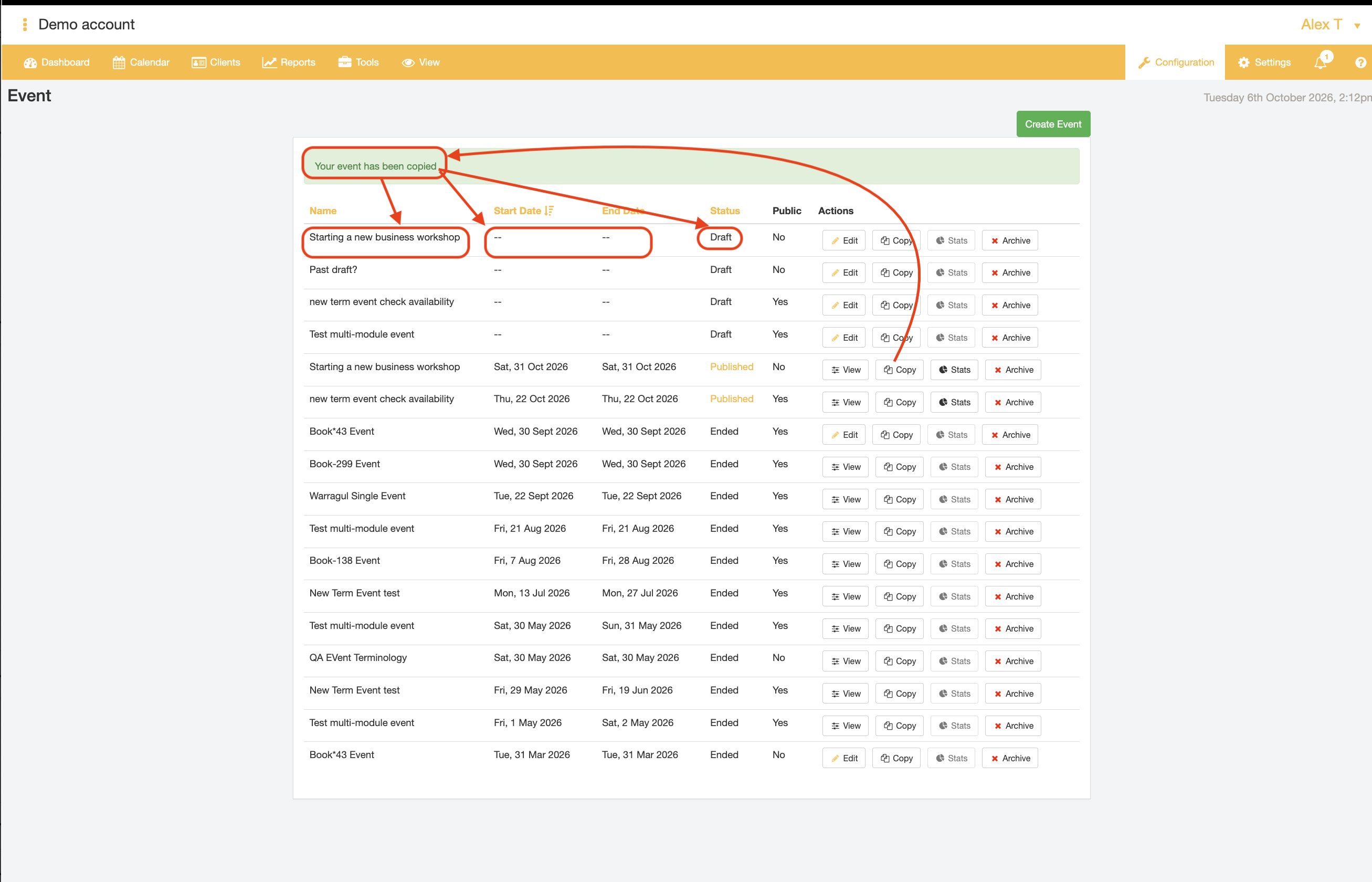
- Click the "Edit" button for the new copied Event record.
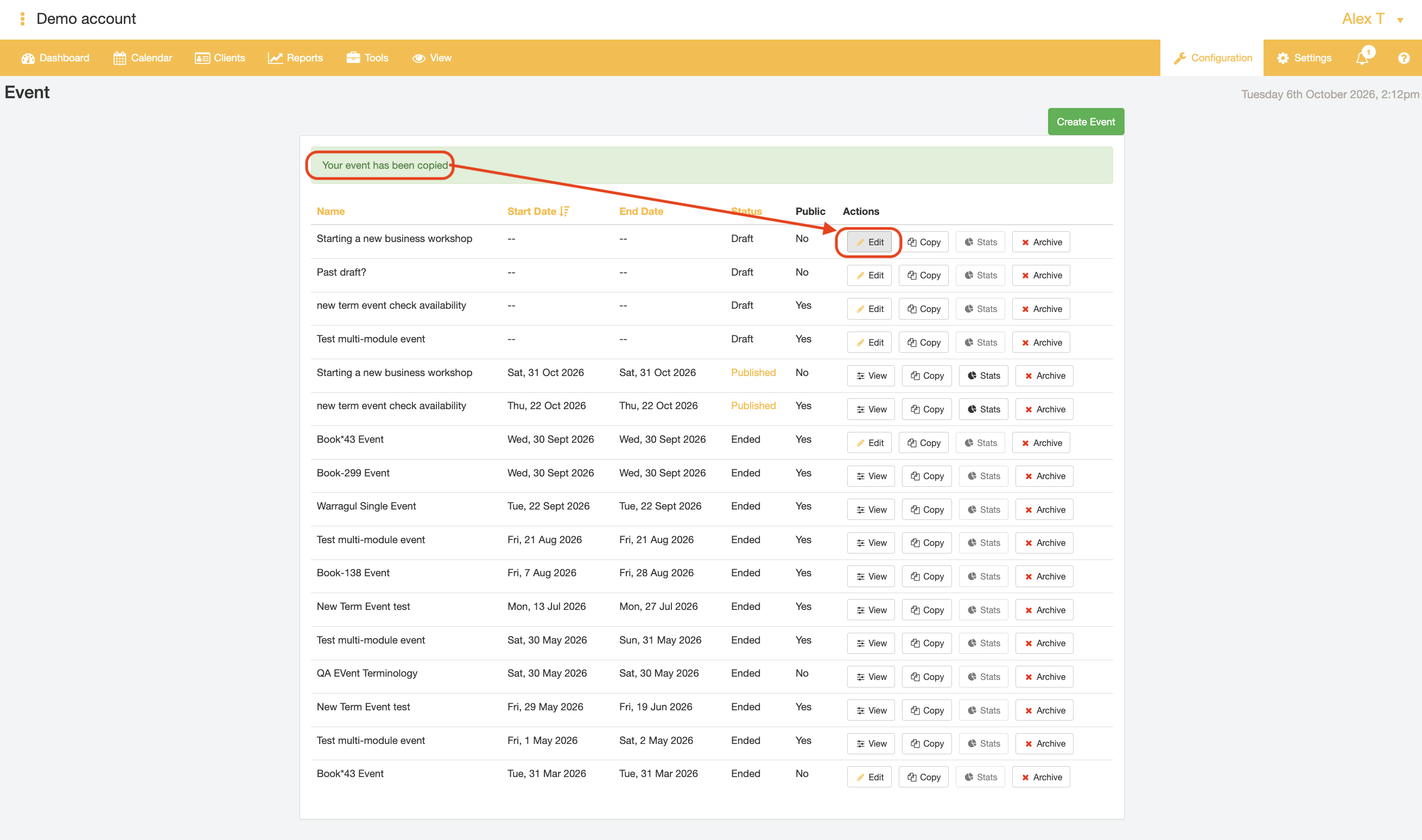
- Make any changes you need to the Event Details, Locations, and Terminology, as previously done in the Source Event record (Part 4, steps 7-14).
- Using the Schedule tab add new Schedules for the new Event, as done in Part 4, steps 15 onwards.
- Click the "Save" button to confirm the Event Schedules Date and Time. If the specified date and time does not conflict with another booking already made for that Resource, the page will display the success message "All times saved successfully".
- When you are ready to accept booking for the Event, select the Publish button. The "Publish" button will change to display "Revert to Draft" if publishing has been completed successfully.
- End.
Was this article helpful?
That’s Great!
Thank you for your feedback
Sorry! We couldn't be helpful
Thank you for your feedback
Feedback sent
We appreciate your effort and will try to fix the article