bookitlive automatically generates direct links (URL) for all your Services, Resources, and Products. The links can be used on your website, Facebook page, or email marketing campaigns to direct a client to book or purchase a specific Service or Product.
The direct link URL is displayed on the Configuration page for each Service, Resource, or Product.
Finding the Direct Link for a Service
- Login to bookitlive
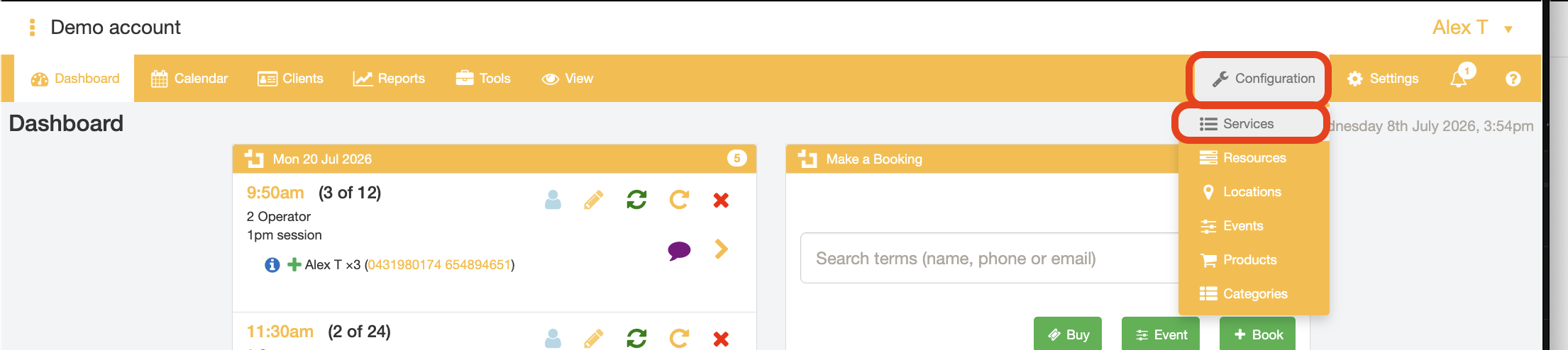
- Select the "Configuration" tab and select the "Services" option.
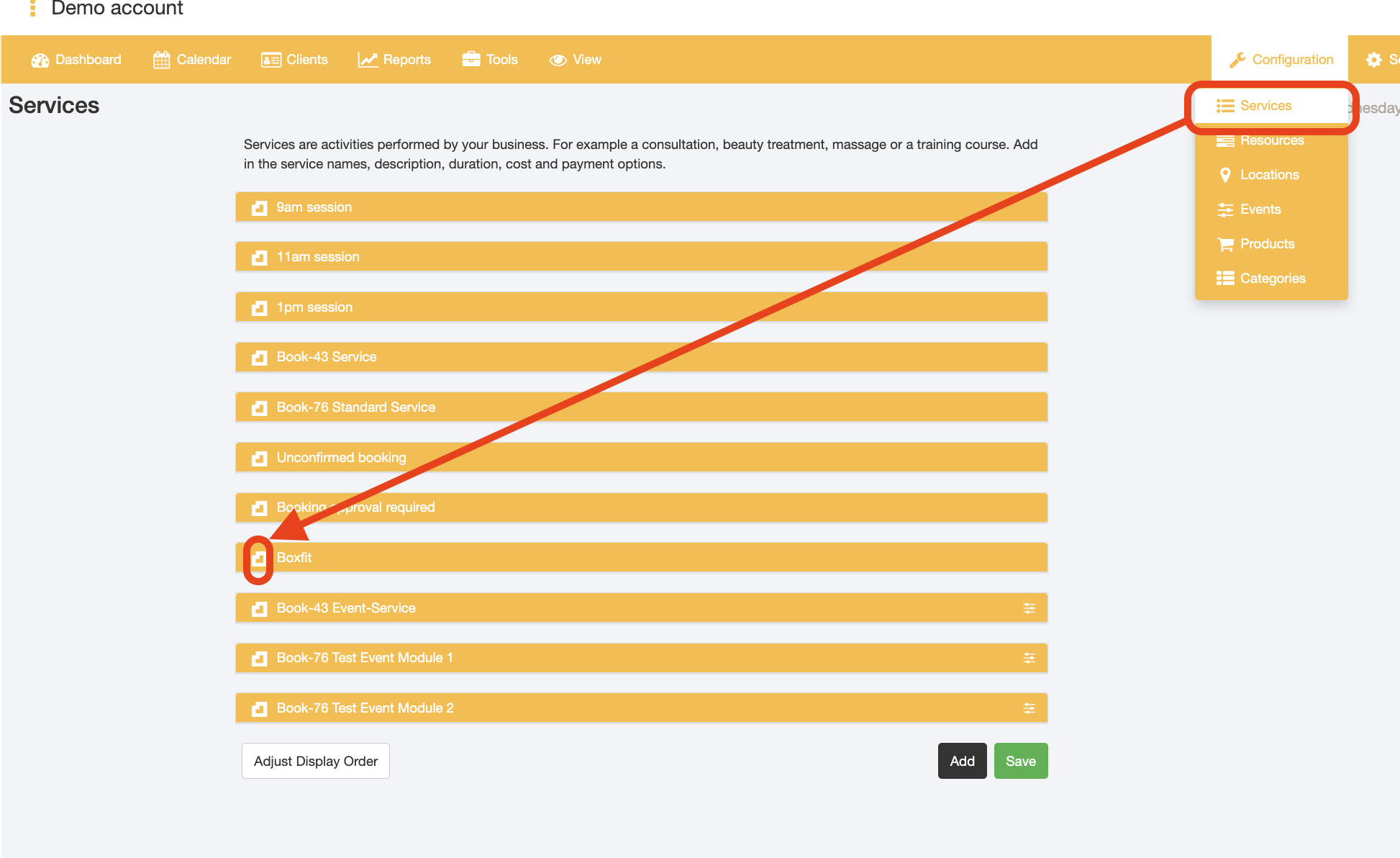
- Open the details of the Service you want find the Direct Link URL for by selecting the BookItLive icon next to the Service name
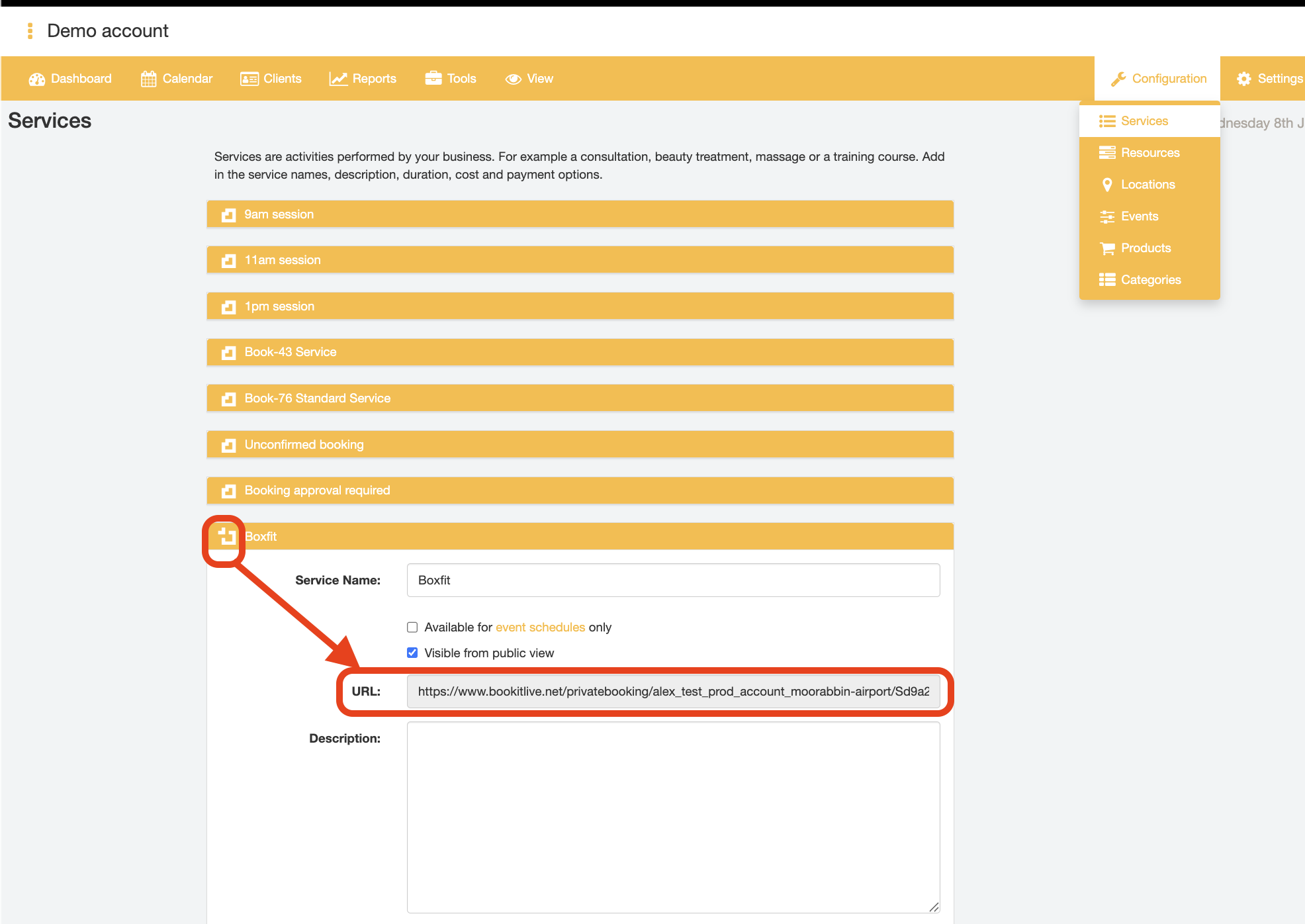
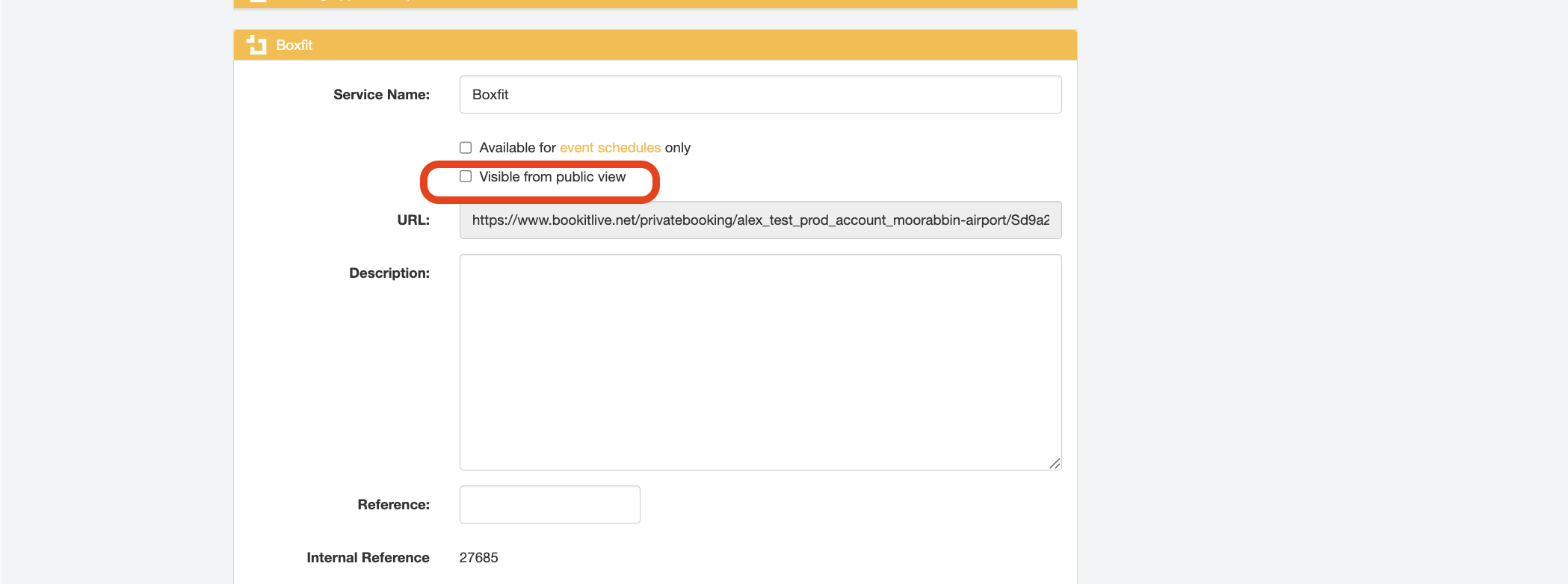
- The Direct link to the Service is displayed in the "URL" field.
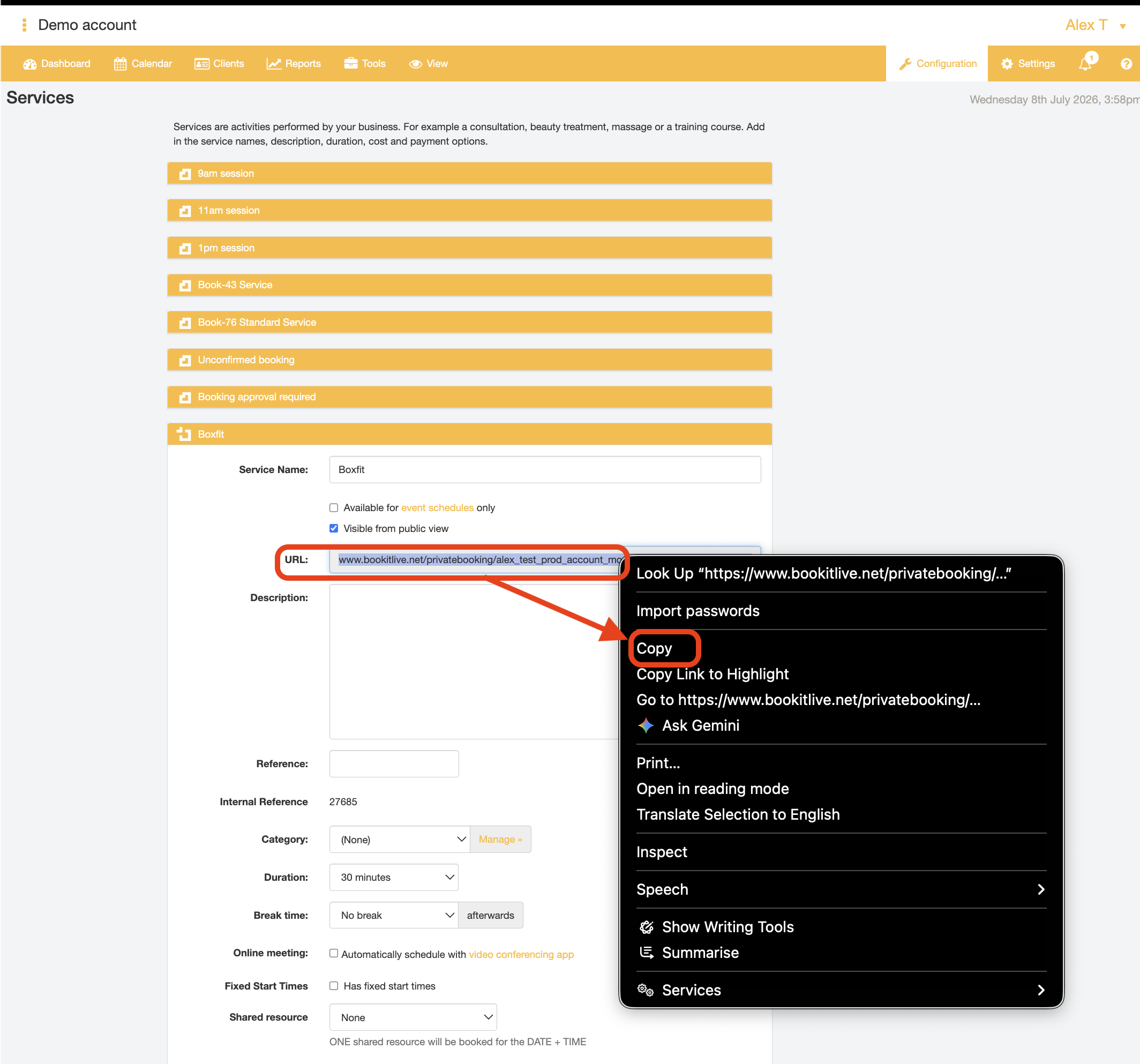
- Copy the Direct Link and use it for your website, Facebook page, or email marketing campaign.
- End.
The URL is the direct link to book this Service only. This direct link can also be used as a private booking link when the Service is not visible to the public (i.e., when the "Visible from the public view" checkbox is de-selected in that Service's details).
Finding the Direct Link for a Resource
- Login to bookitlive
- Select the "Configuration" tab and select the "Resources" option
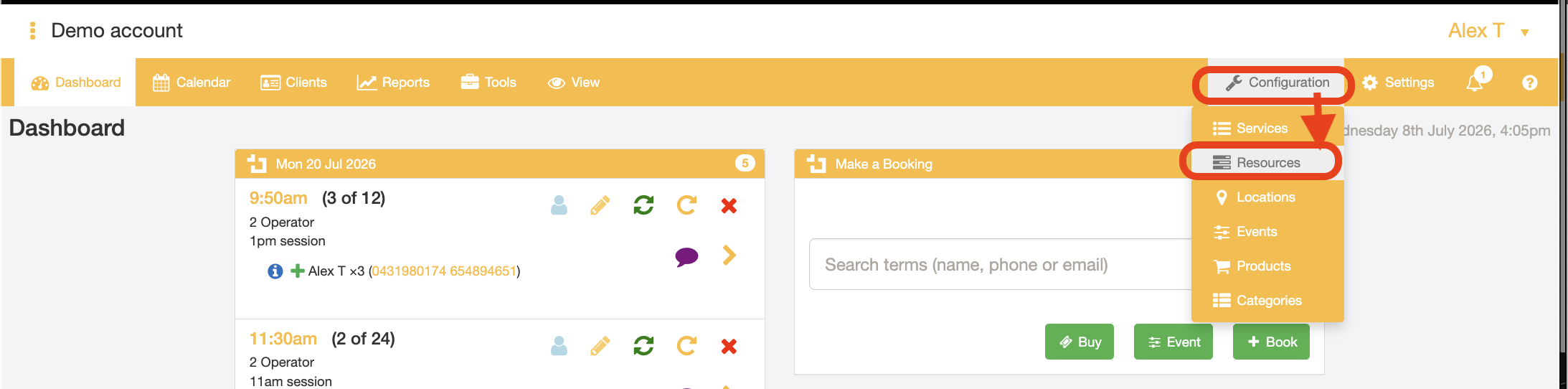
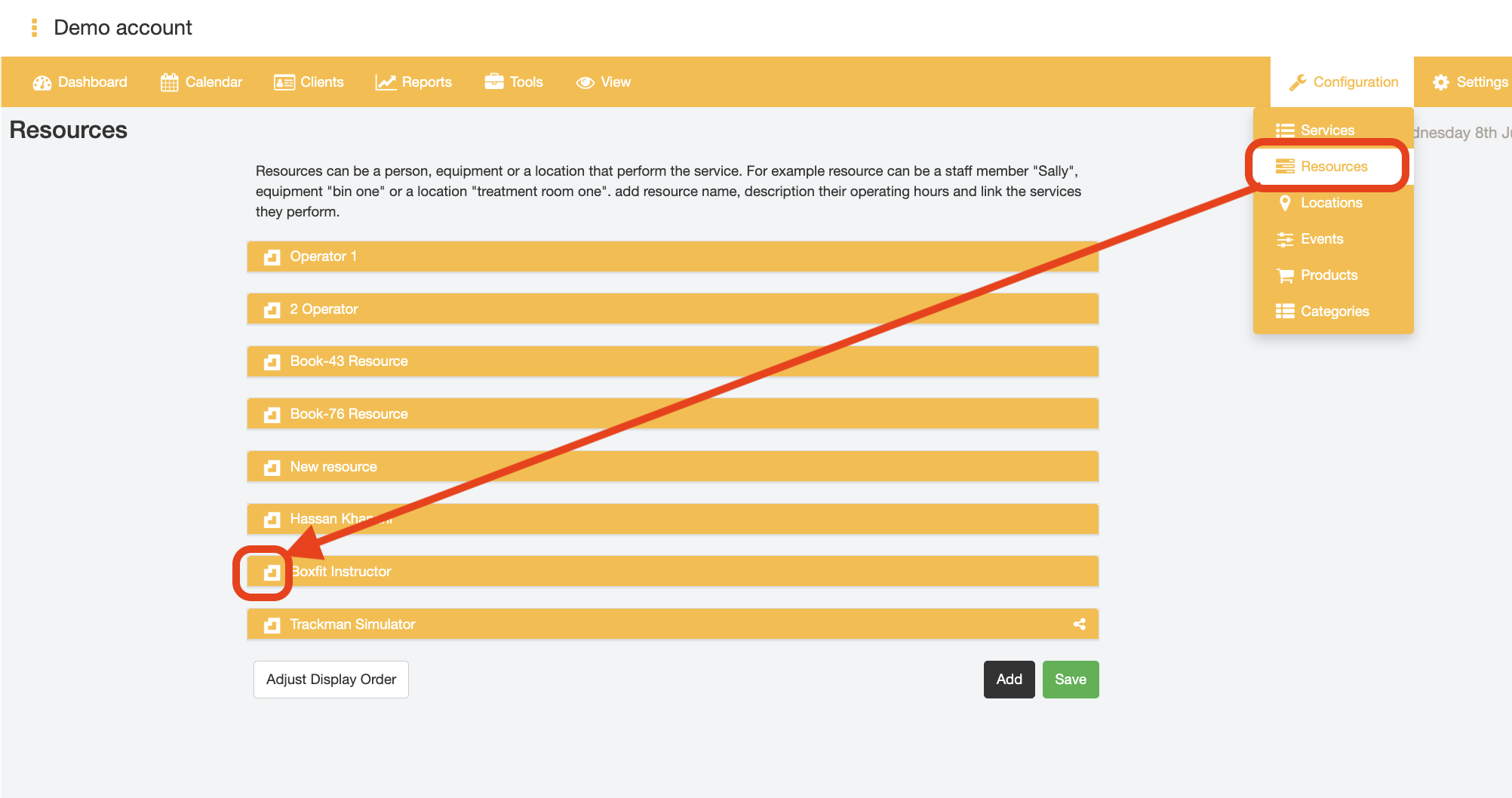
- Open the details of the Resource you want find the Direct Link URL for by selecting the BookItLive icon next to the Resource name
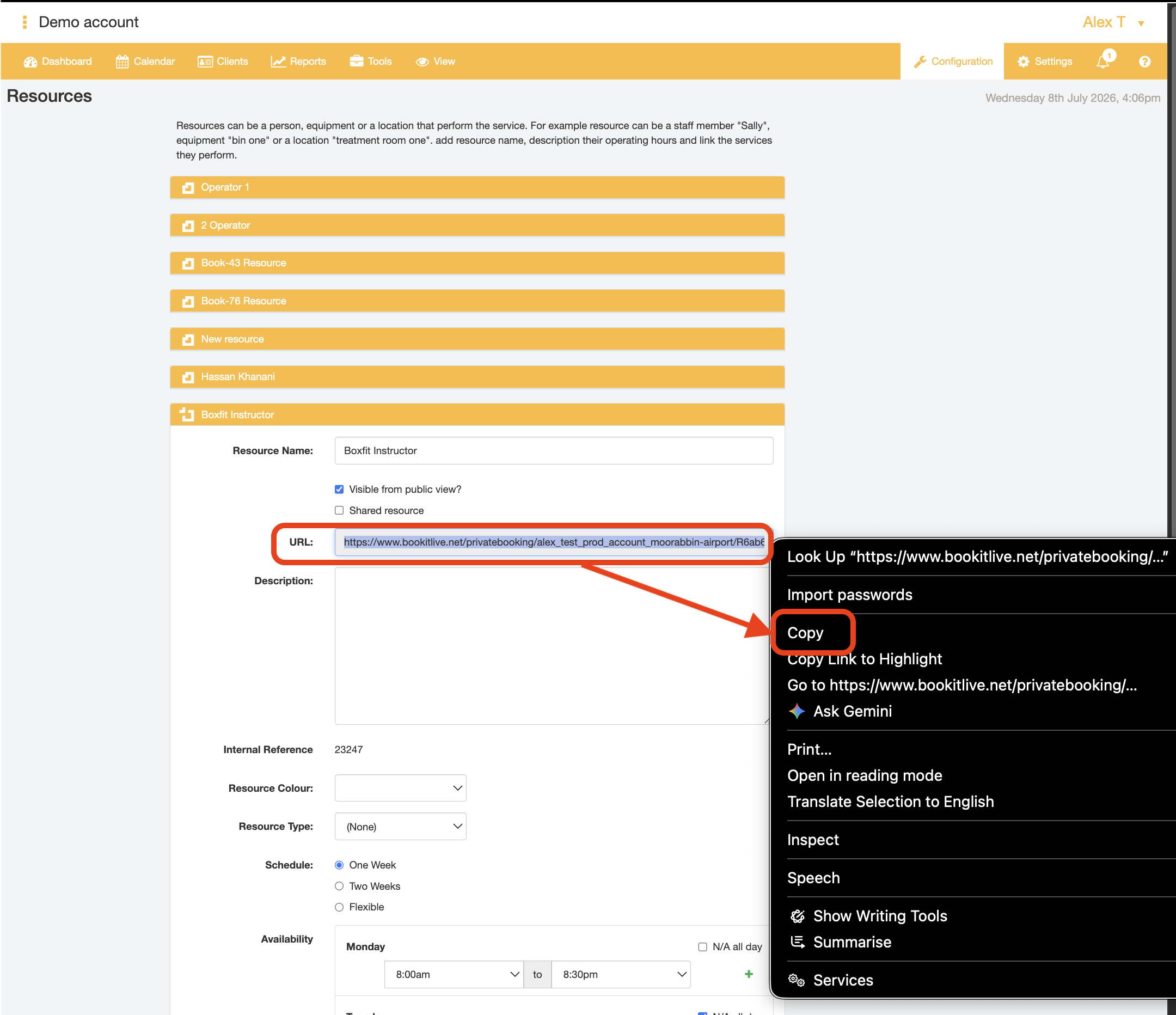
- The Direct link to the Resource is displayed in the "URL" field
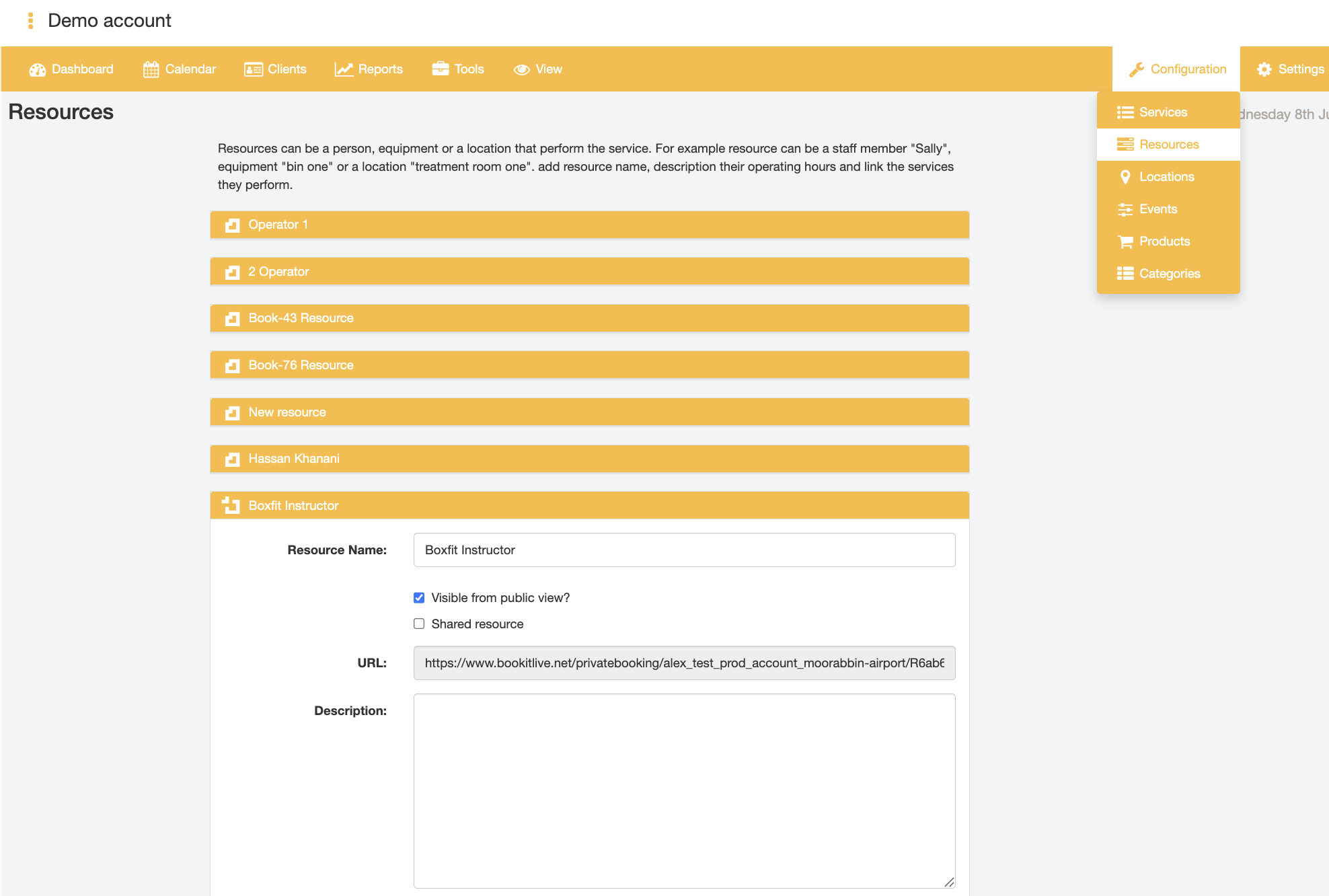
- Copy the Direct Link and use it for your website, Facebook page or email marketing campaign
- End.
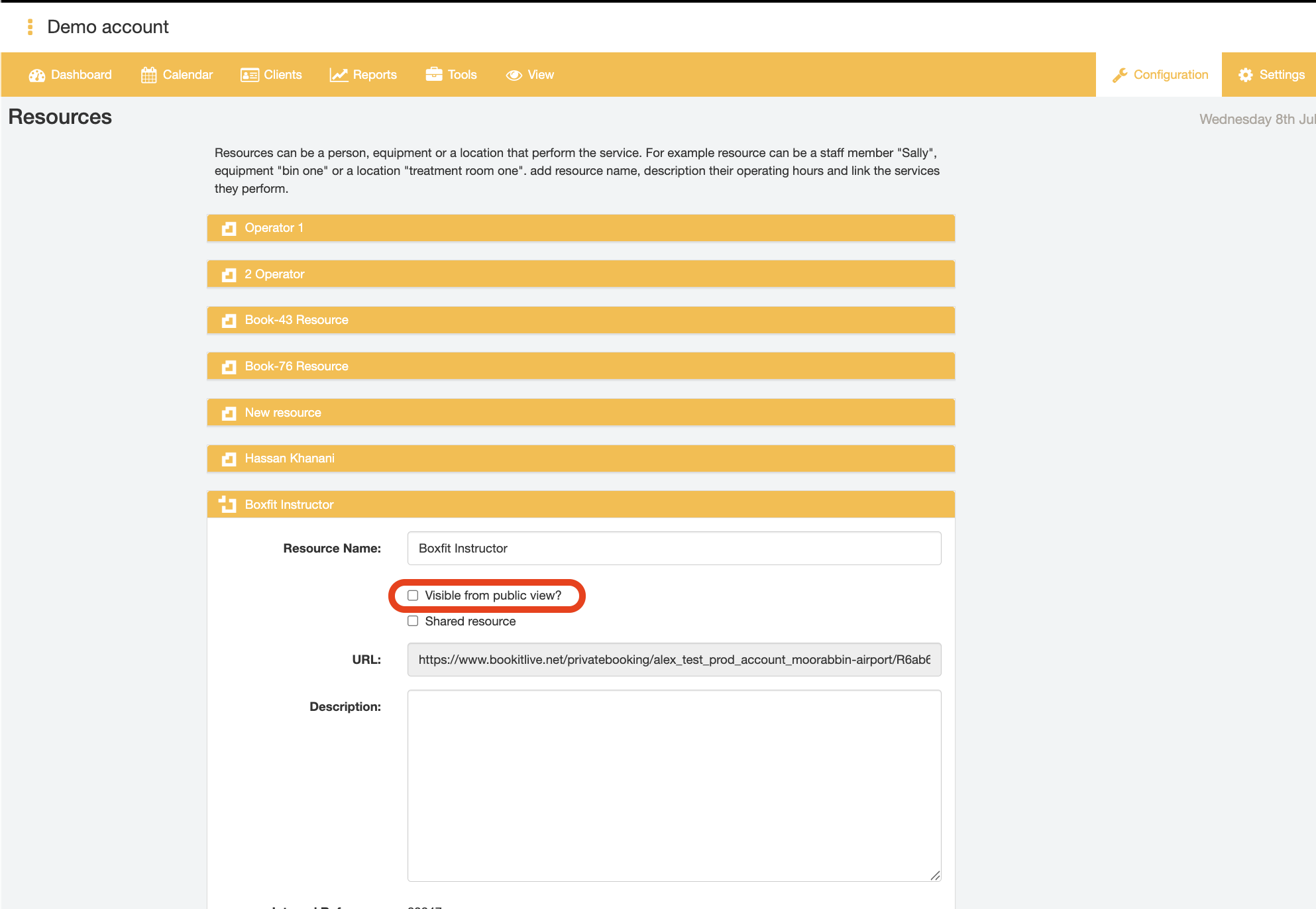
The URL is the direct link to book this Resource and their linked Services only. This direct link can also be used as a private booking link when the Resource is not visible to the public (i.e., when the "Visible from the public view" checkbox is de-selected in that Resource's details).
Finding the Direct Link for a Product
- Login to bookitlive
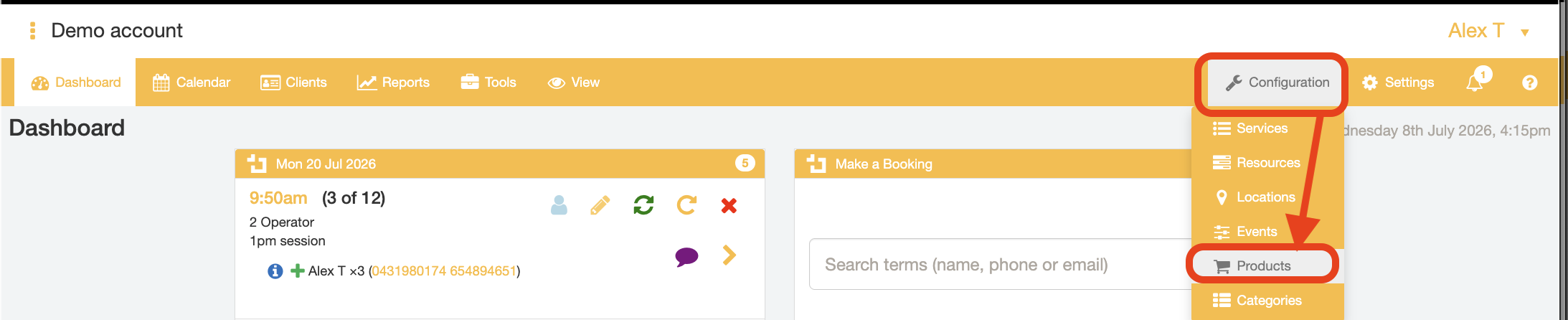
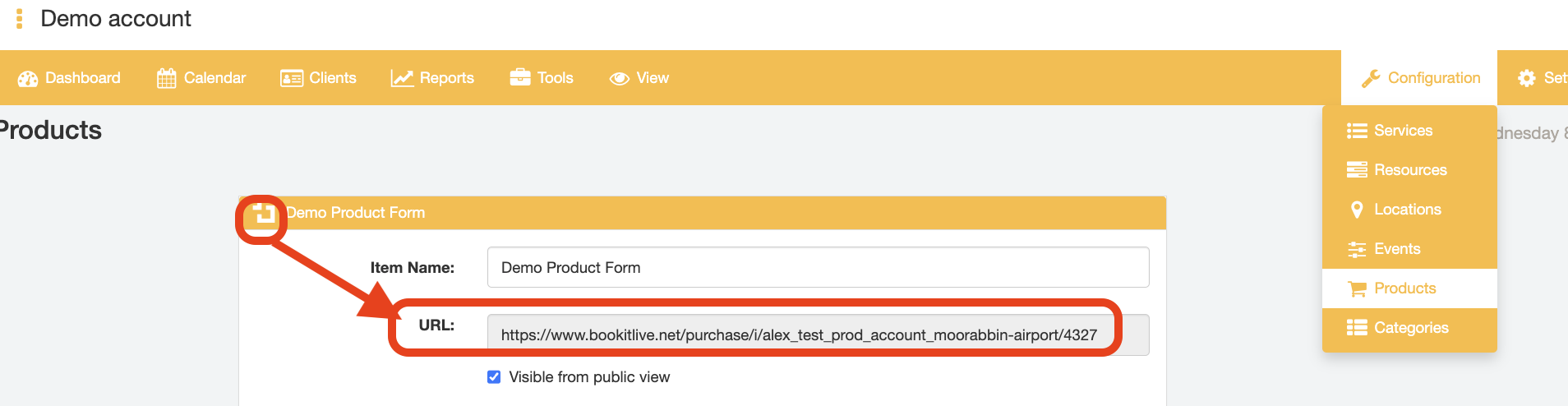
- Select the "Configuration" tab and select the "Products" option
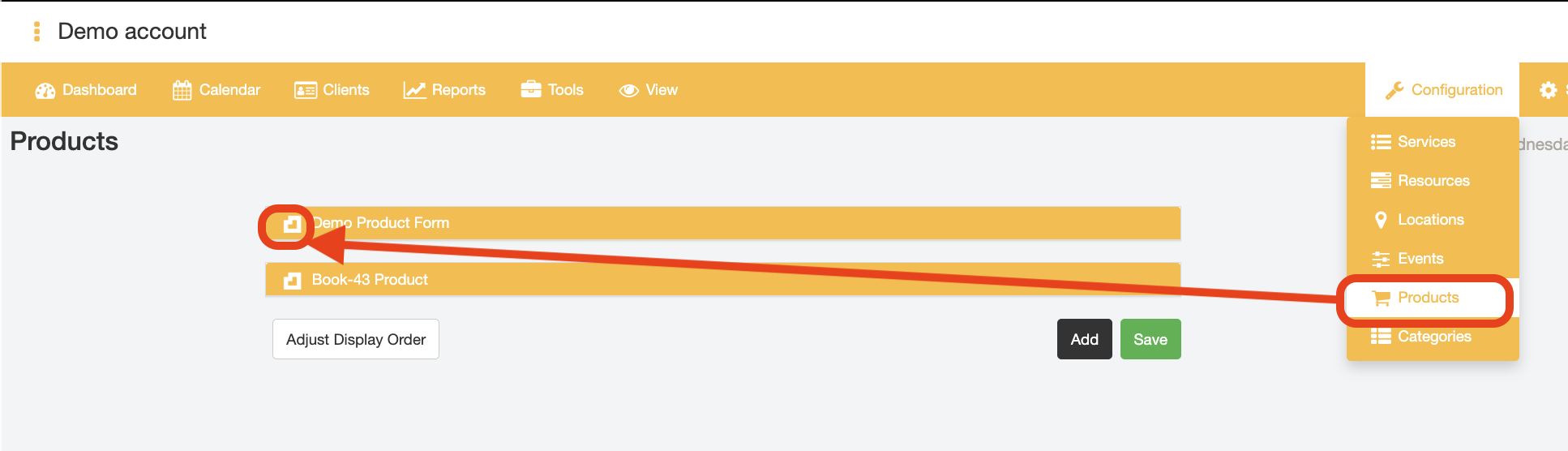
- Open the details of the Product you want find the Direct Link URL for by selecting the BookItLive icon next to the Product name
- The Direct link to the Product is displayed in the "URL" field
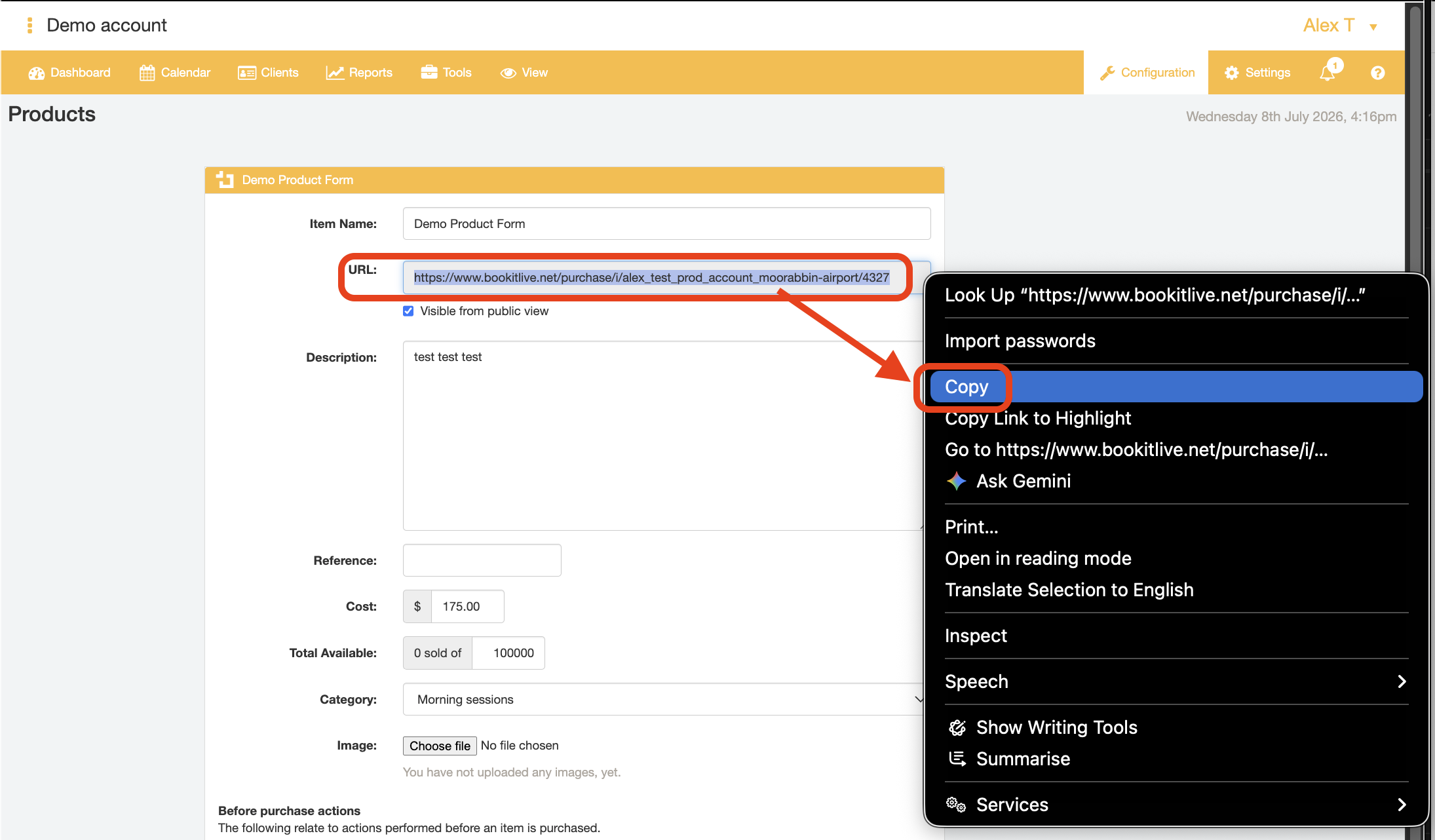
- Copy the Direct Link and use it for your website, Facebook page, or email marketing campaign.
- End.
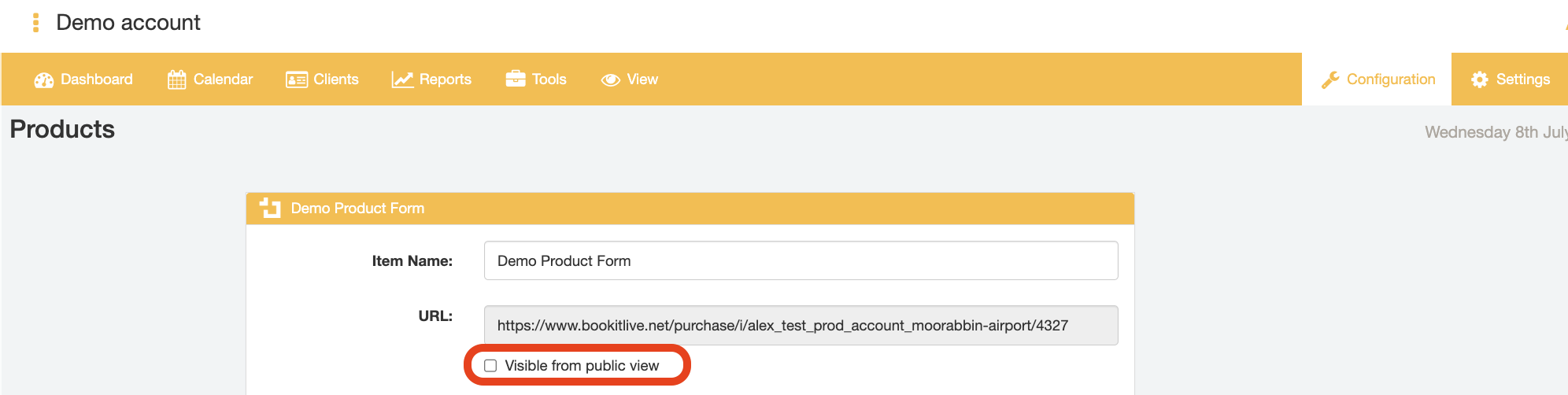
The URL is the direct link to purchase this Product only. This direct link can also be used as a private booking link when the Product is not visible to the public (i.e., when the "Visible from the public view" checkbox is de-selected in that Product's details).
Finding the Direct Link for an Event
- Login to bookitlive
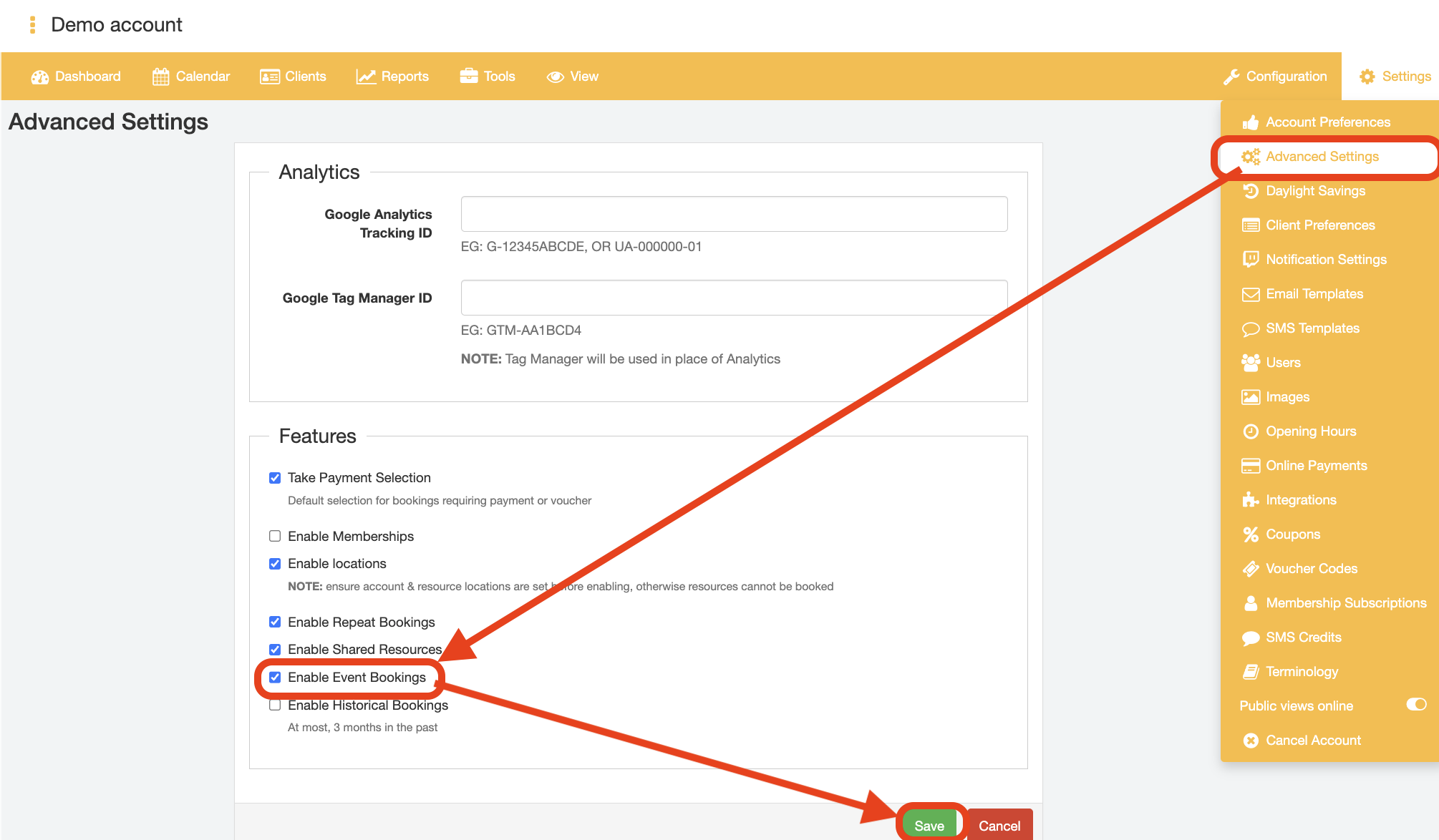
- Select the "Settings" tab and select the "Advanced Settings" option.
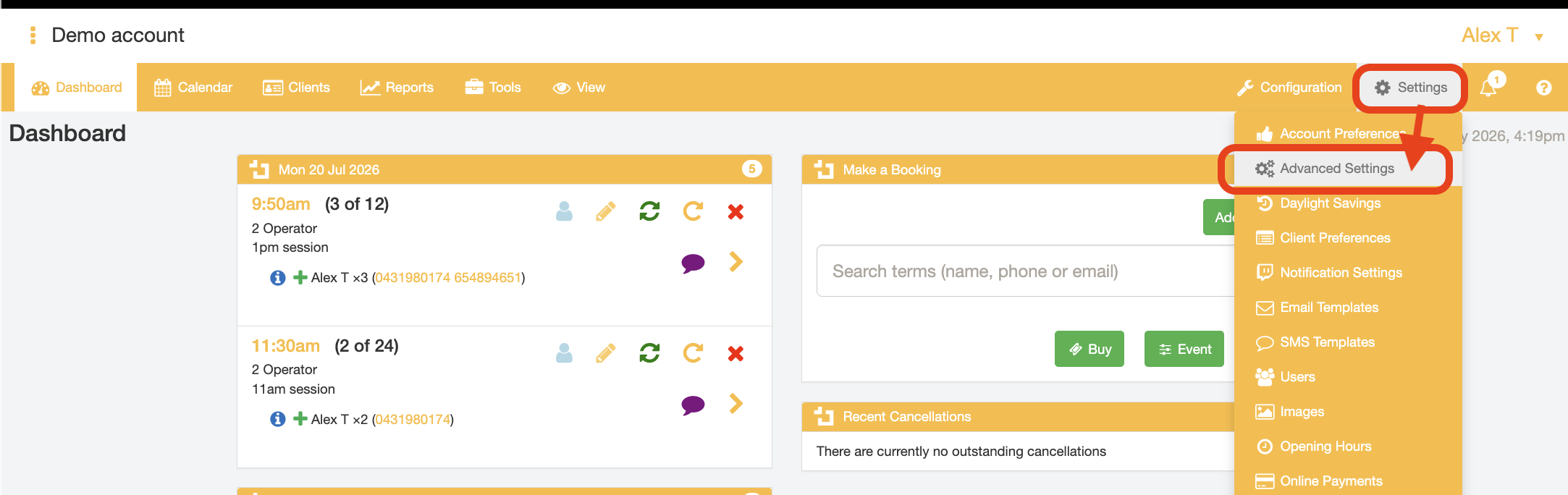
- Tick the "Enable Event Bookings" checkbox.
- Submit the Settings changes by clicking the "Save" button at the bottom of the page.
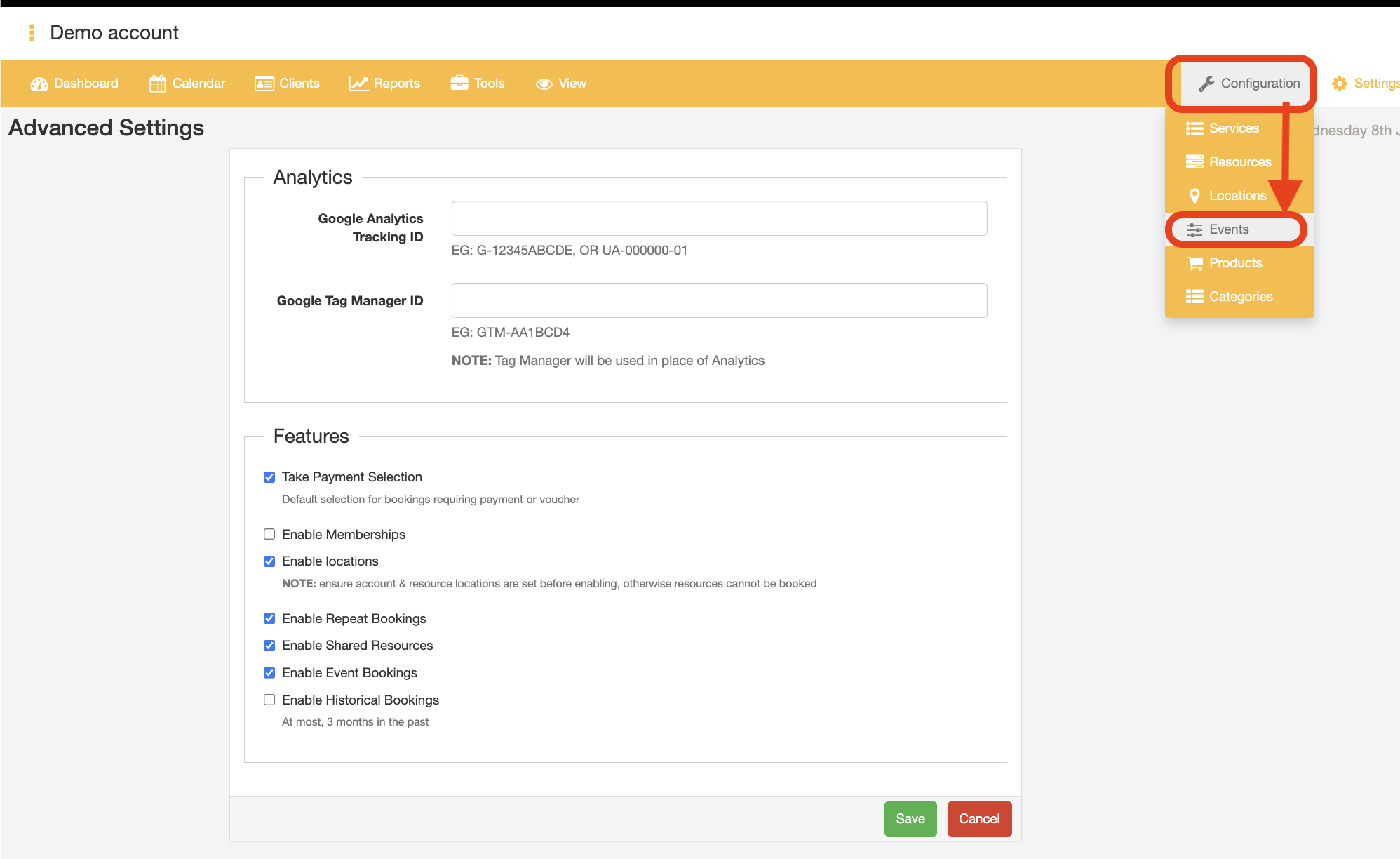
- Select the "Configuration" tab and select the "Events" option
- Open the details of the Event you want find the Direct Link URL for by selecting the "Edit" or "View" button next to the Event name.
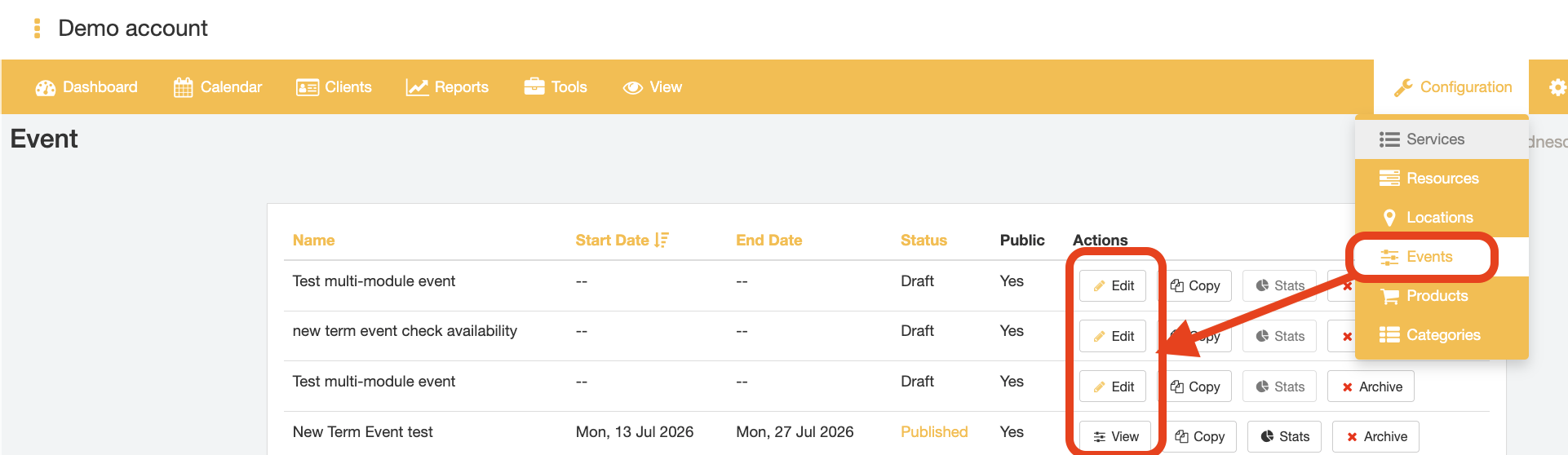
- Events that have not yet been published will show the "Edit" button
- Events that have been published will show the "View" button
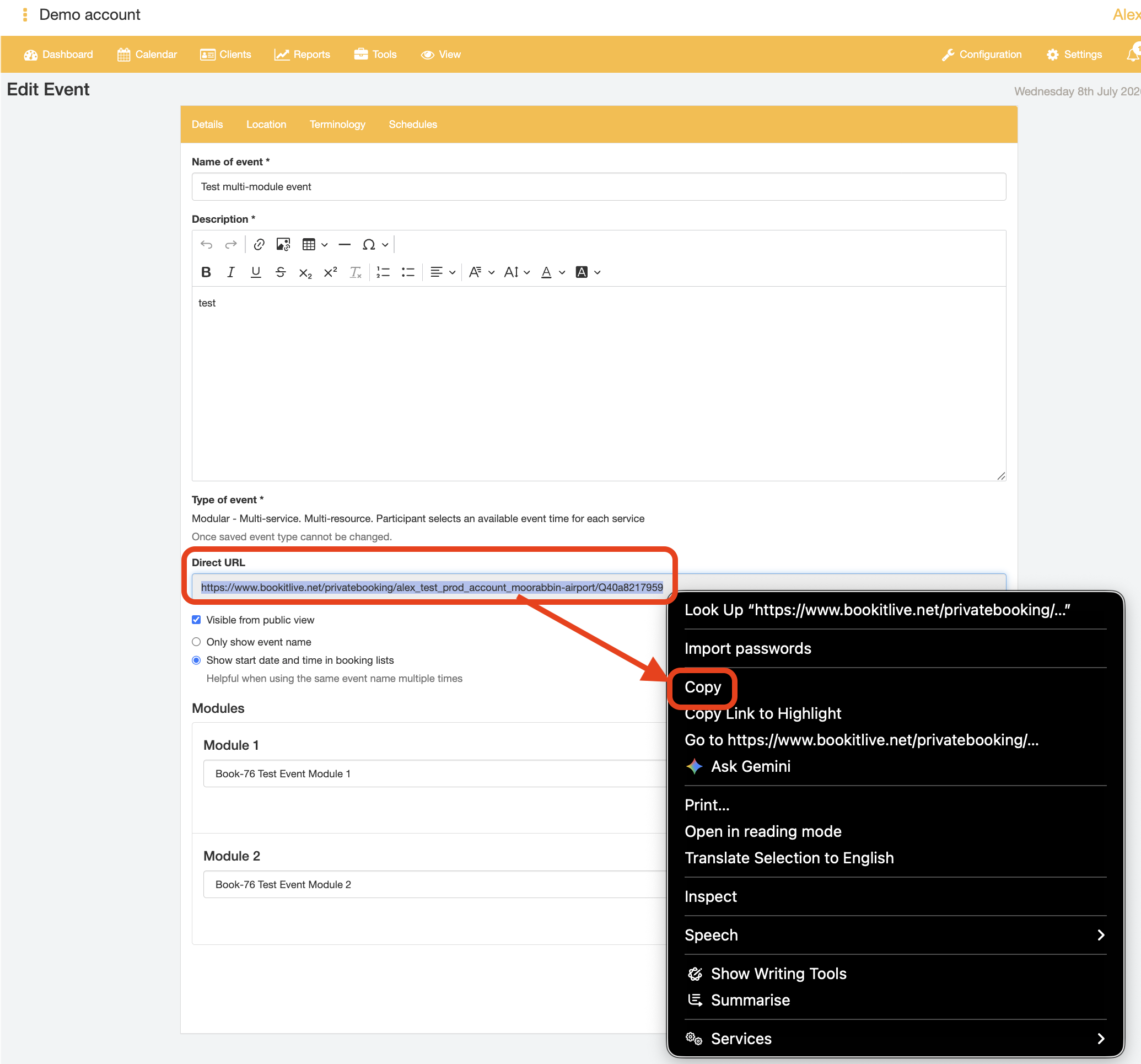
- The Direct link to the Event is displayed in the "Direct URL" field
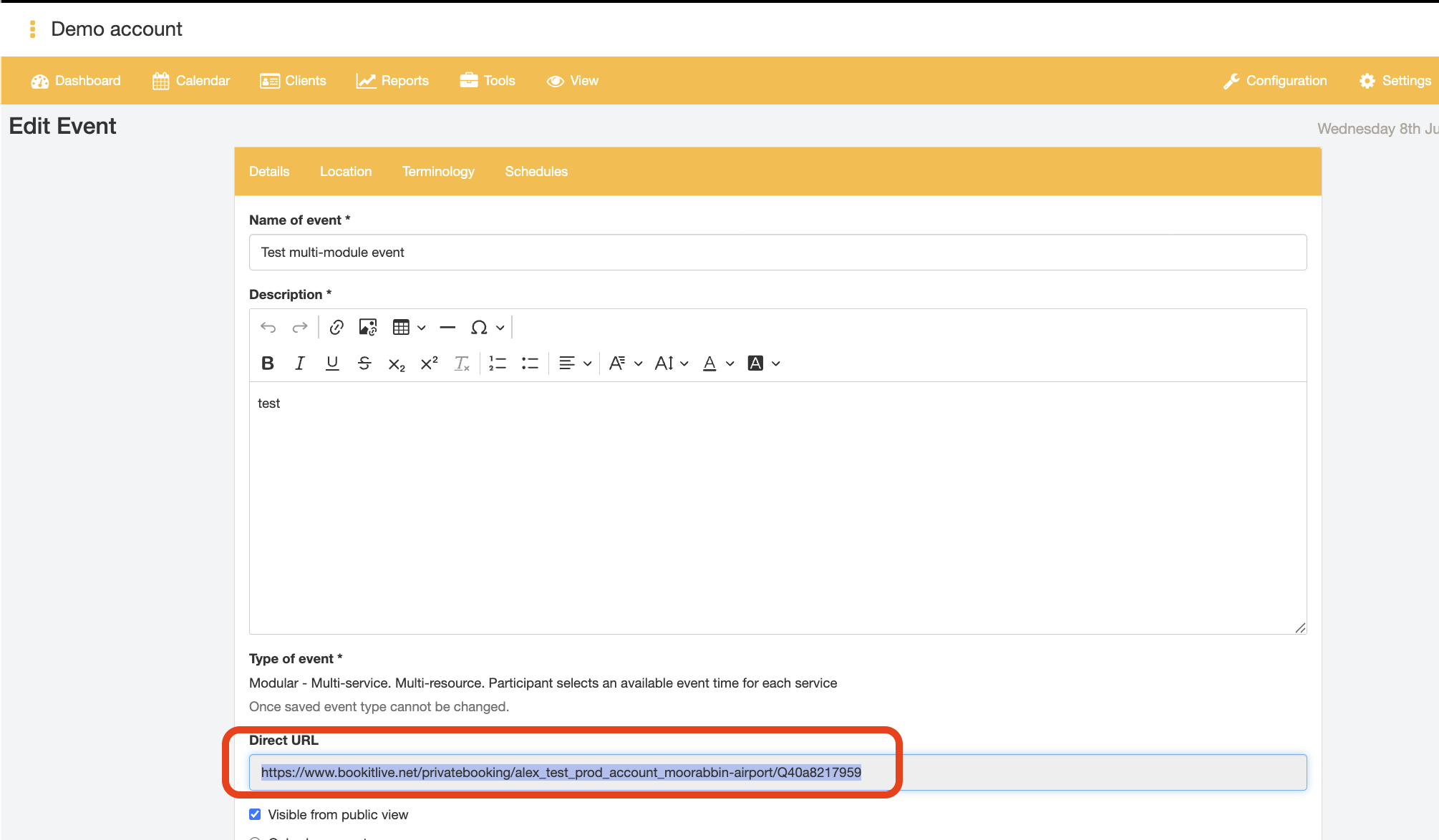
- Copy the Direct Link and use it for your website, Facebook page, or email marketing campaign.
- End.
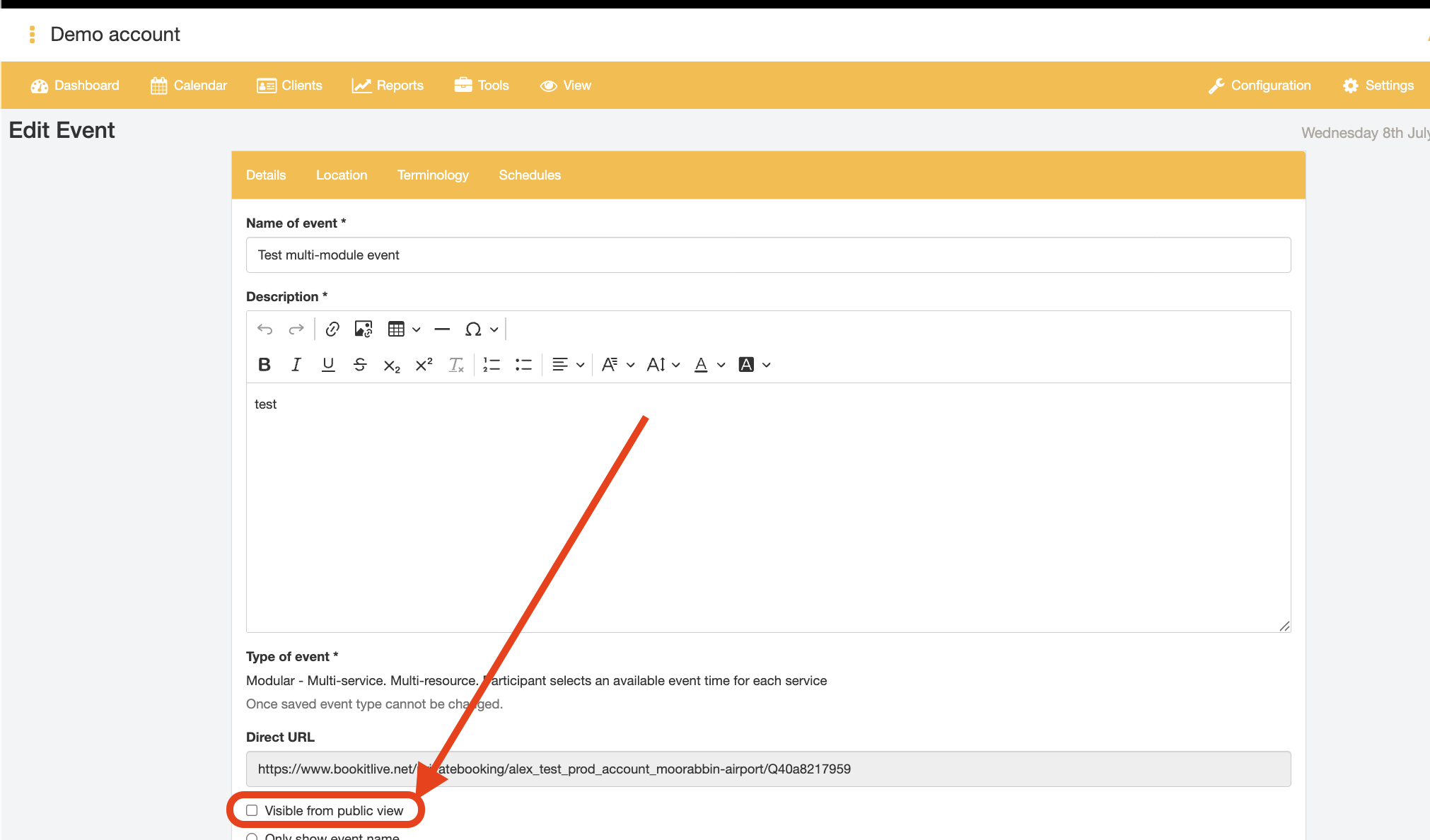
The URL is the direct link to book this Event only. This direct link can also be used as a private booking link when the Event is not visible to the public (i.e., when the "Visible from the public view" checkbox is de-selected in that Event's Edit/View page).
Was this article helpful?
That’s Great!
Thank you for your feedback
Sorry! We couldn't be helpful
Thank you for your feedback
Feedback sent
We appreciate your effort and will try to fix the article