Providing automatic discounts to existing clients is a way to reward loyal customers and provide a reduced price for people who are concession card holders.
Client discounting rules from the "Coupons" Settings page allows for an automatic discount be applied at time of booking or purchase. The discount is automatically applied when the client making a booking or purchase triggers a successful match of the client discount rules that have been set up by the Provider.
Examples of some Client discount rules that can be set up include:
- When a client field matches or partially matches a specific group value captured in the Client Profile
- If a client has made a booking in the last X day/weeks/months or next Y days/weeks/months
- If a client matches multiple conditions like Company A and Postcode B
Creating automatic client discount rules
The discounts are set on the Coupon page.
- Open the "Settings" tab and select the "Coupons" menu option
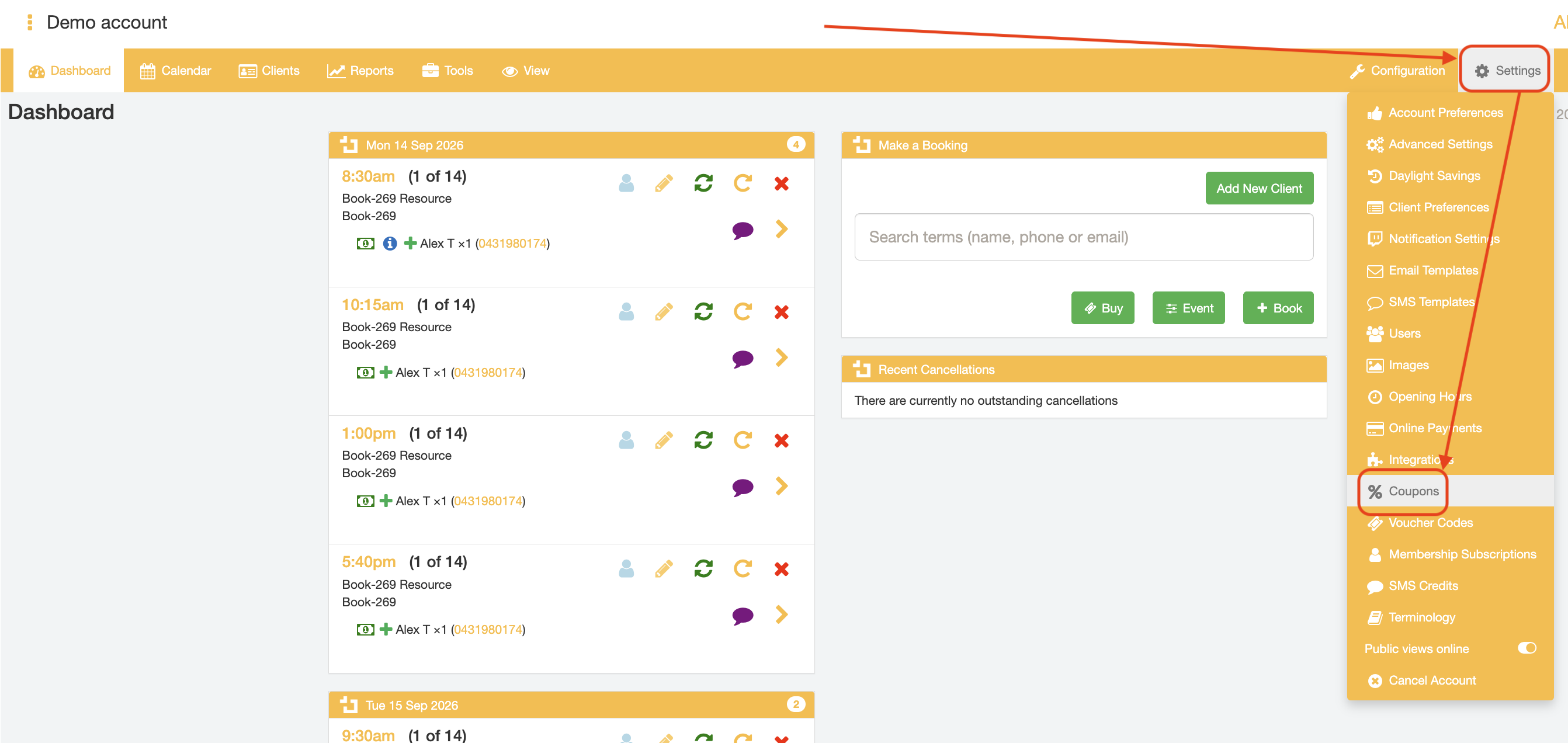
- Enter an internal reference for the discount. This name is simply an internal identifier for Provider users to make the discount rule easier to recognise. It is not a code that customers need to enter during the booking or purchasing process and will not be publicly accessible to customers.
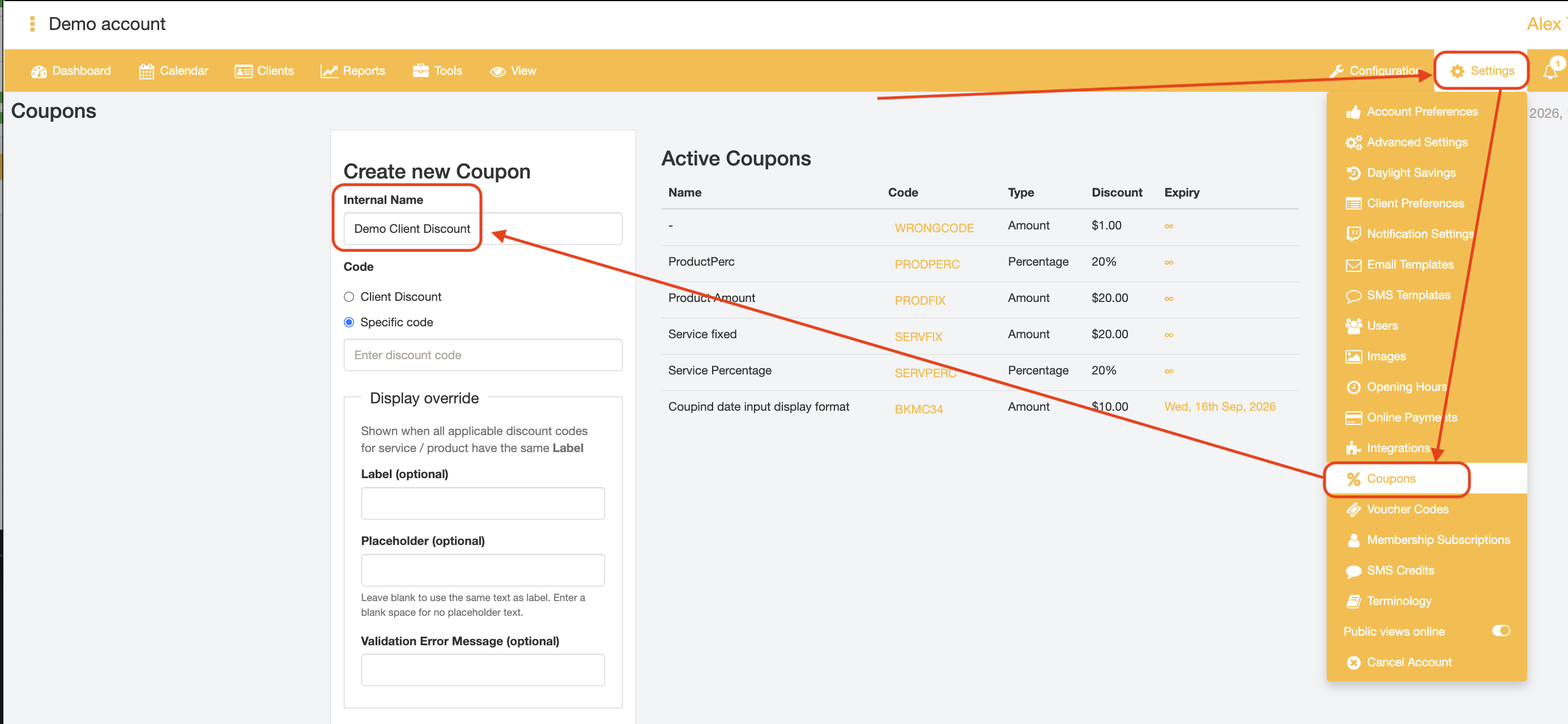
- Select the "Client discount" radio button option in the "Code" field
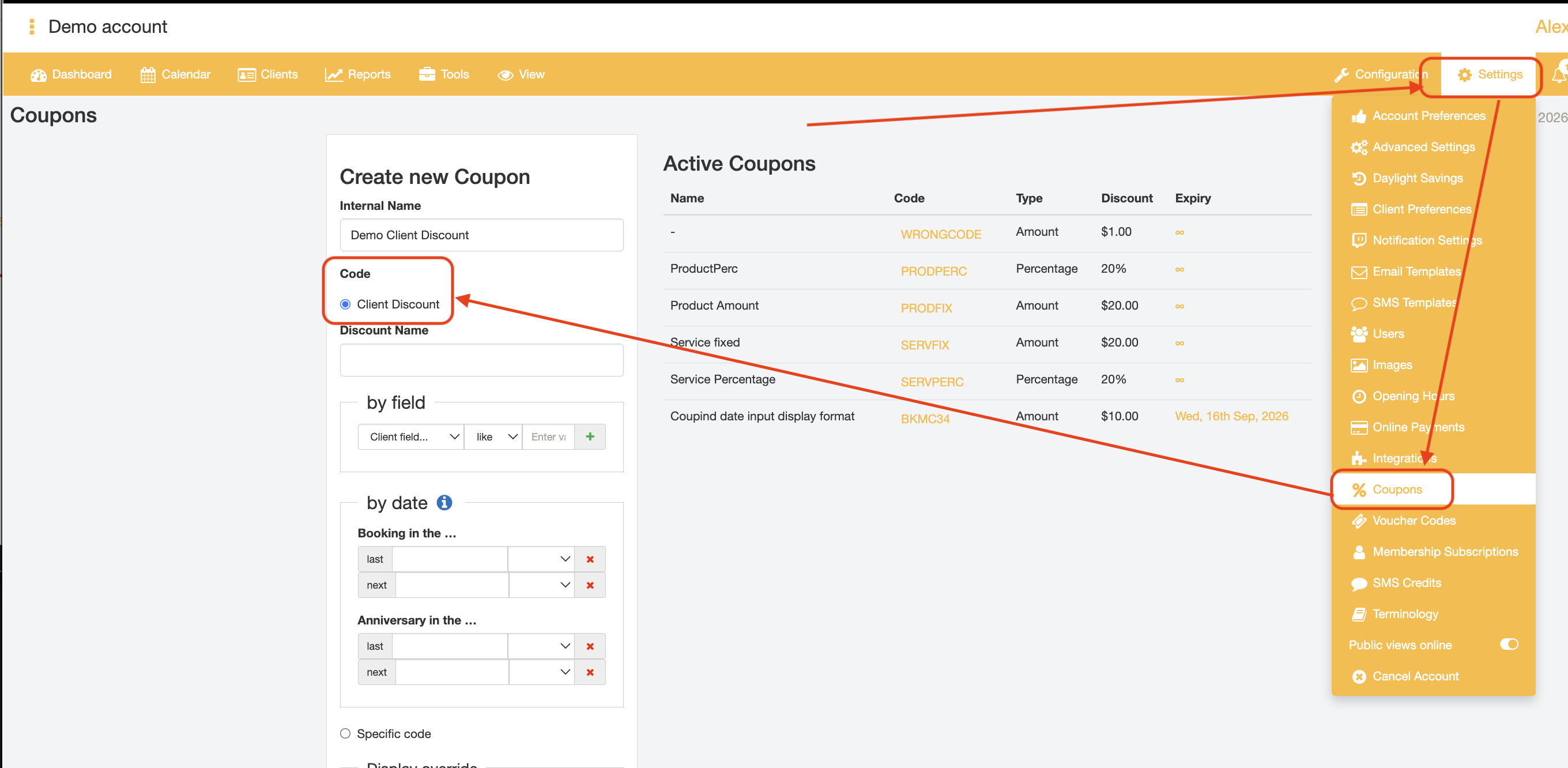
- Enter a discount name. This will appear as the discount ID that has been applied when a client makes a booking or purchase on the Public Booking or Product purchasing page.
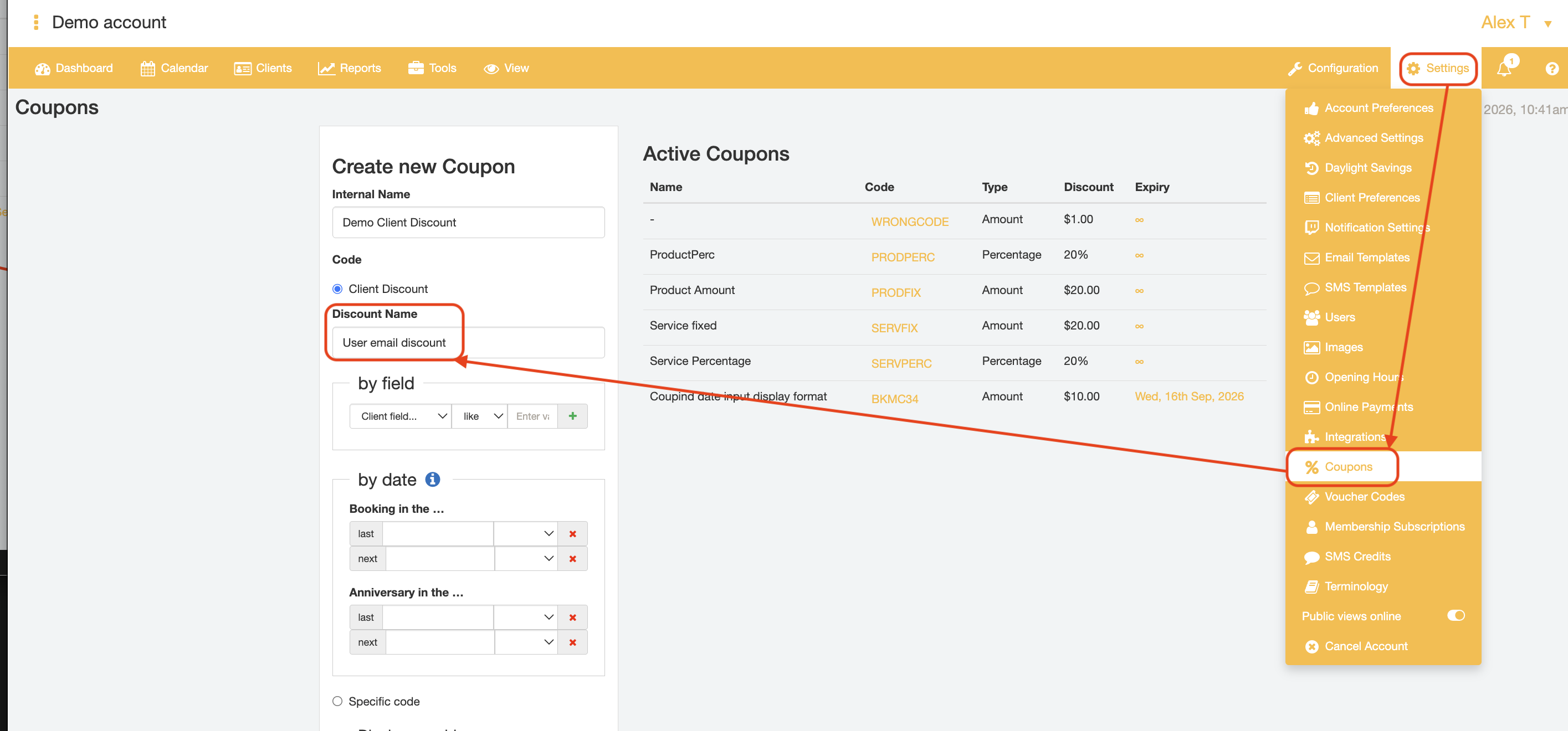
- Set the discount rule that the coupon will be triggered by.
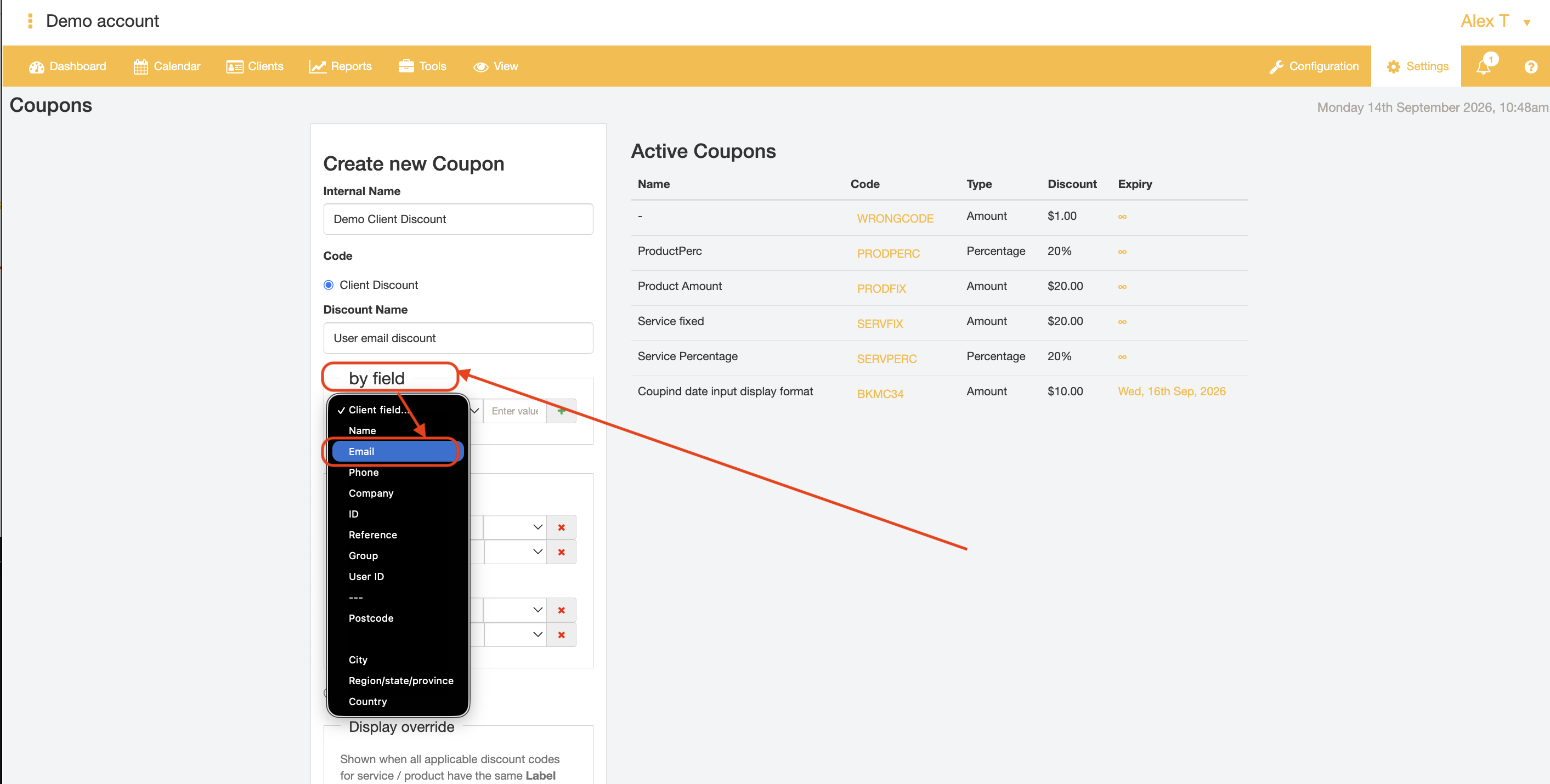
The discount rule can be based on matching name, phone, number, email address, city, postcode, or other Client Profile Data using the "by field" menu.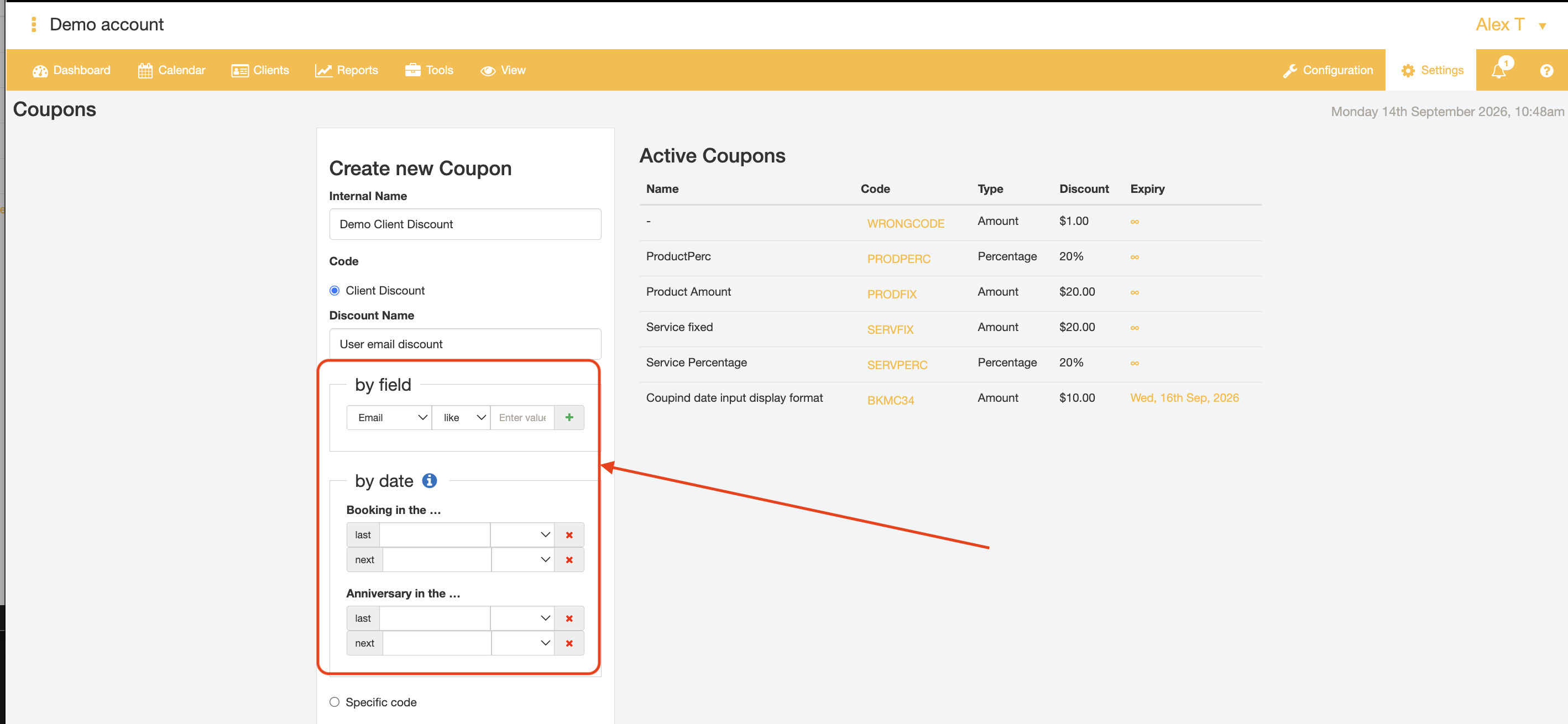
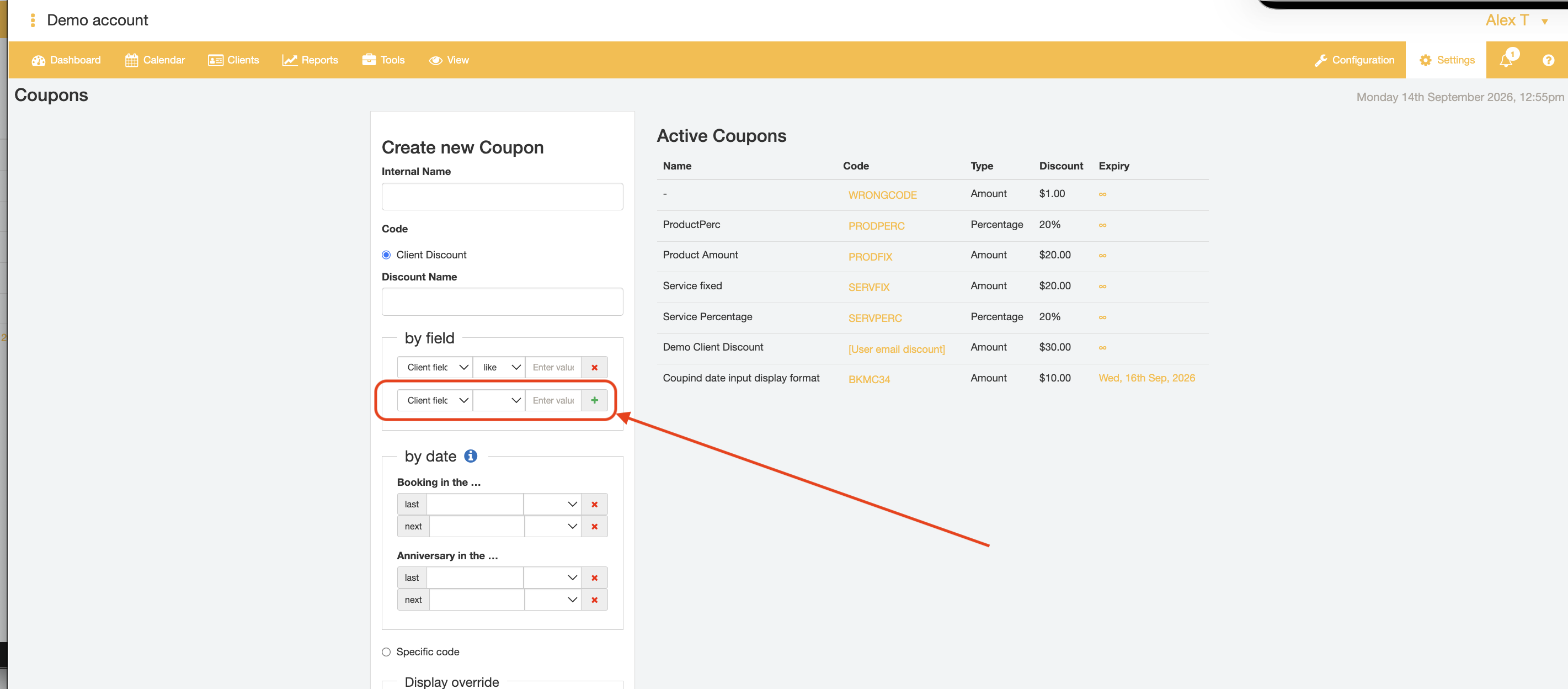
Multiple field conditions/criteria can be set for a single discount rule by clicking the "+" icon next to the initial "by field" field.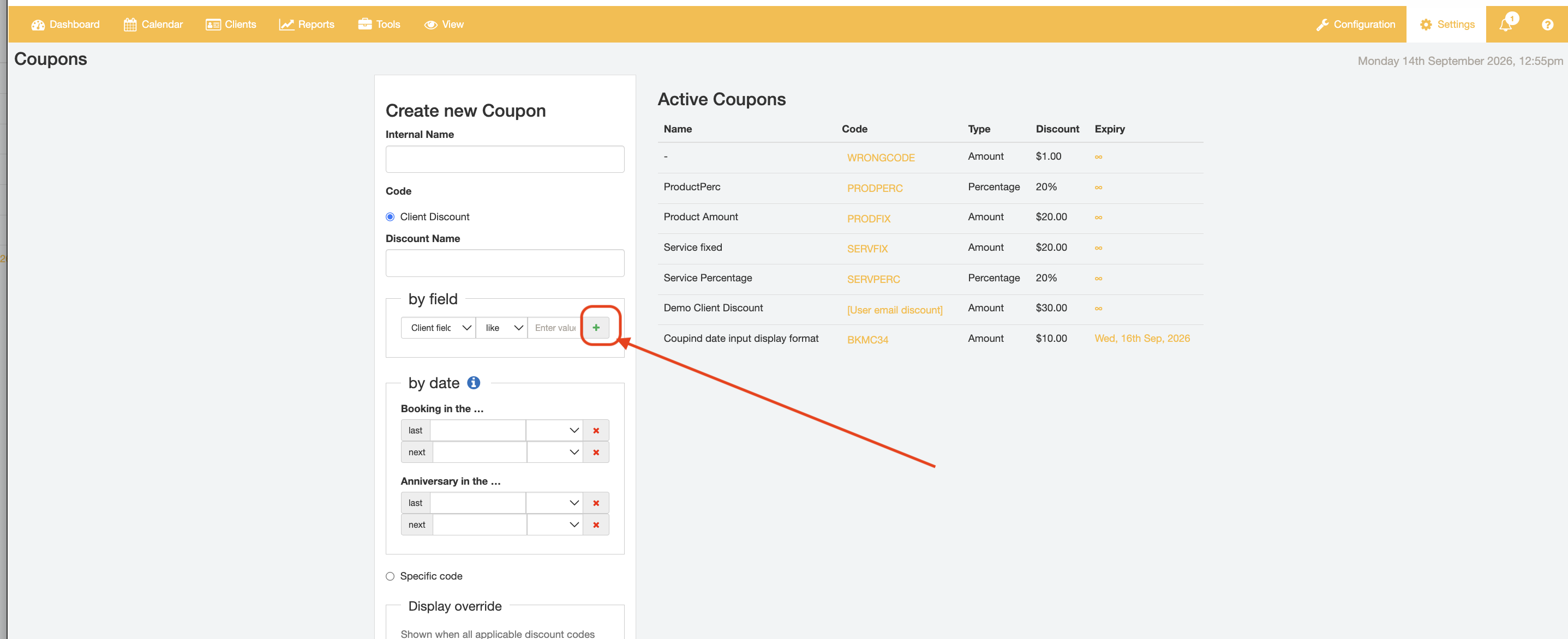
Alternatively, discount rules can be set based on Client booking or profile creation time under the "by date" fields ("Booking in the last..." and "Anniversary in the..." fields).
Dates from the past or future can be set to trigger a Client Discount, e.g., if a Client has a booking scheduled in the next month from the discount rule creation date, the discount will automatically be applied for the next booking made.
The "by field" and "by date" fields can be used in conjunction with one another to create more targeted automatic discount. For example, a discount rule can be set up to trigger an automatic discount for a specific Client name and if that Client has made a booking in the last 6 months to encourage repeat business. To set up this specific discount rule, select "Name", "=", and the target Client Name into the "by field" fields and then enter "6" and "Months" into the "Booking in the last" fields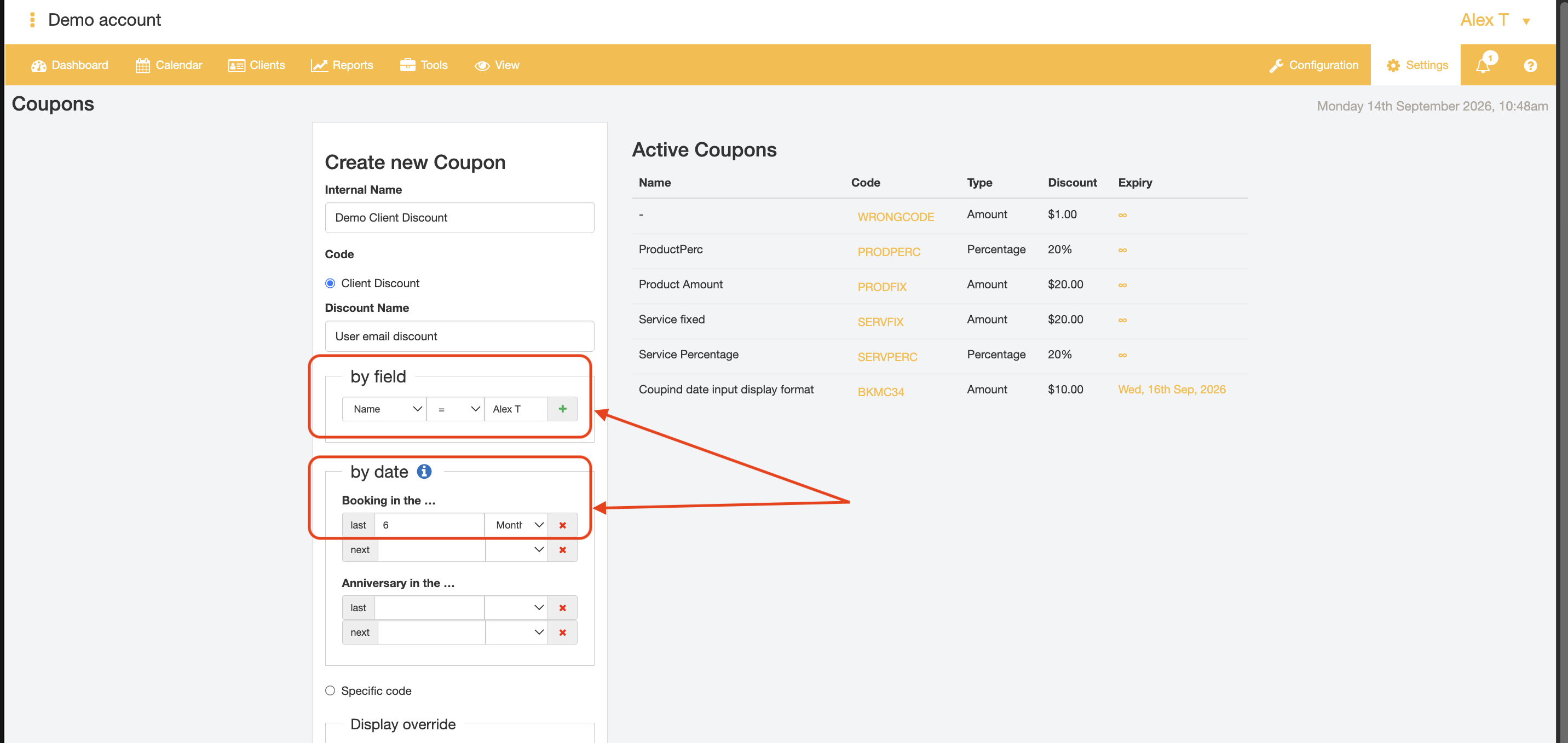
- Set the discount amount that will be applied for this discount rule in the "Type" field. The discount can be either a fixed dollar amount or percentage reduction of the final cost.
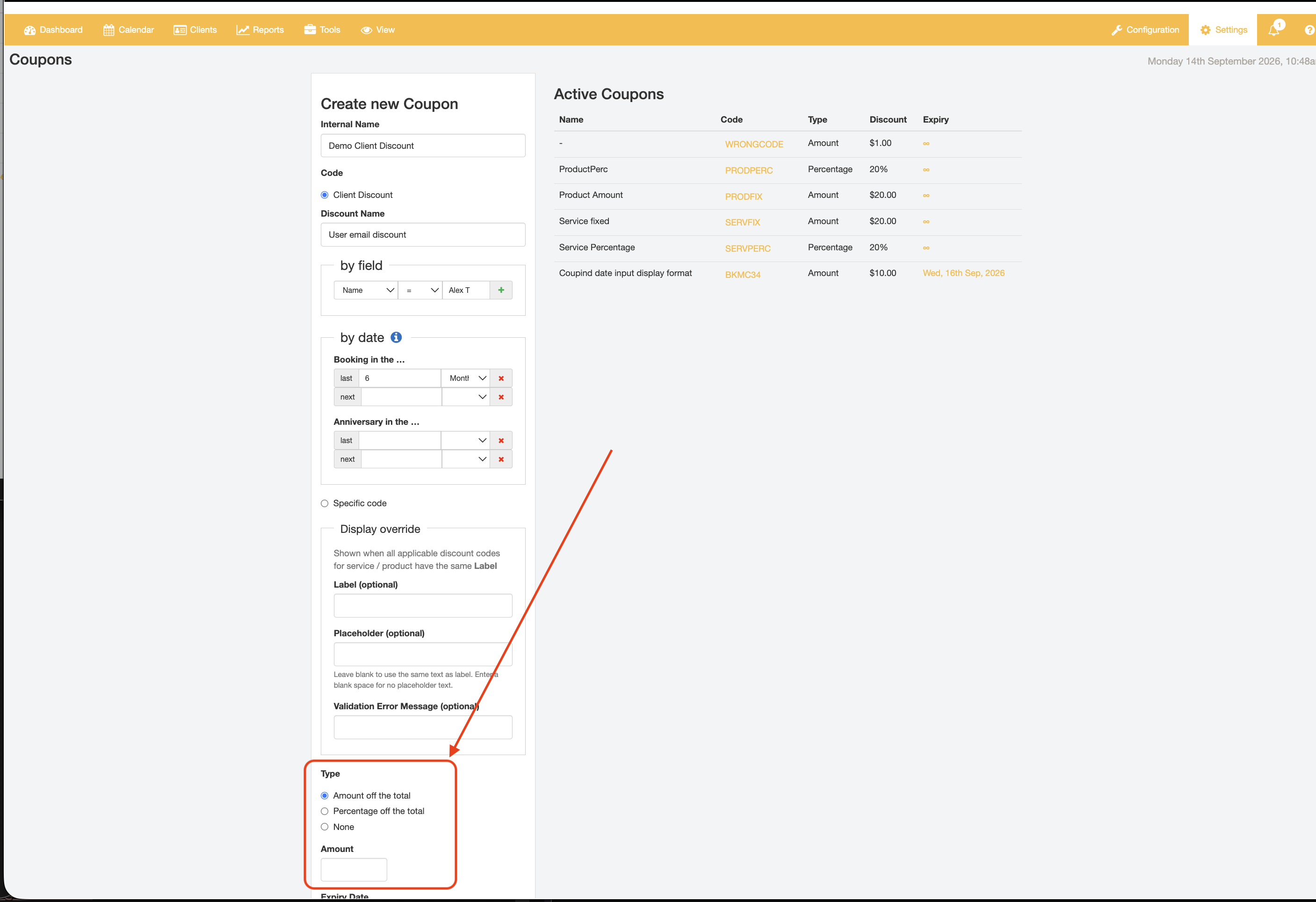
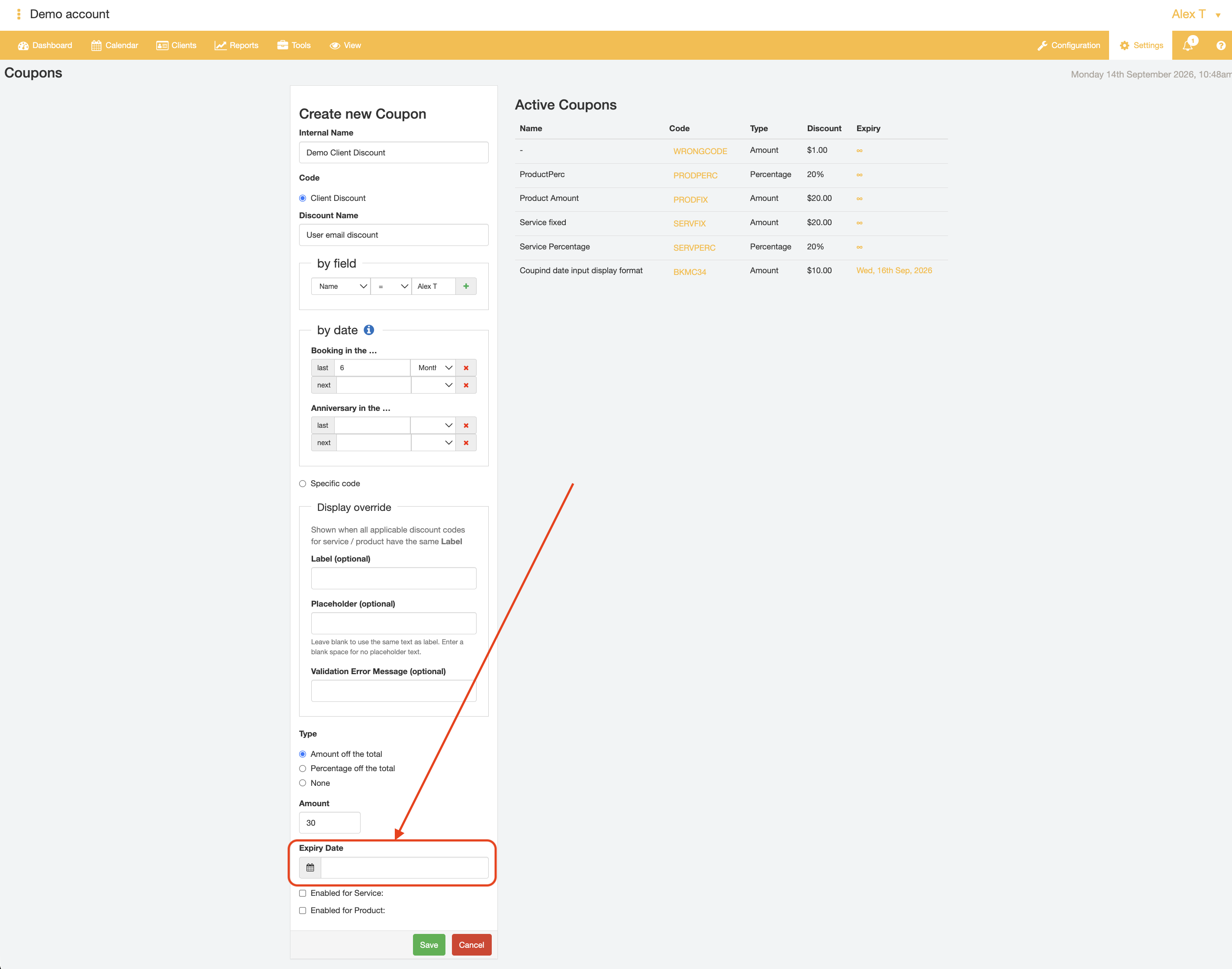
- If desired, an expiry date can be set for this discount rule, so that the discount has a fixed applicability time in the "Expiry Date" field. If you do not wish to set an expiry date on this discount rule, leave the "Expiry Date" field empty.
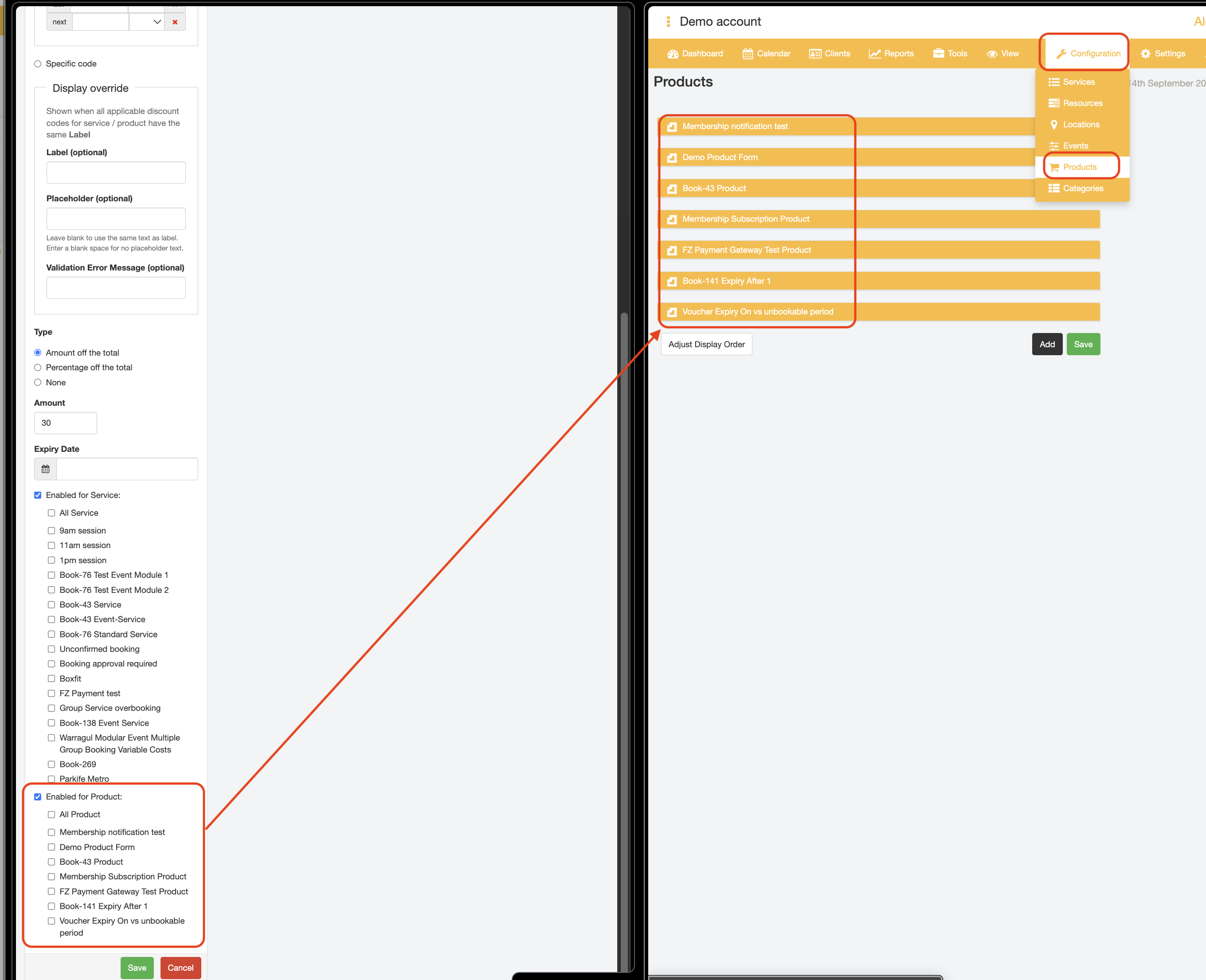
- Specify which Services and/or Products that this Discount Rule is applicable for. by clicking the Checkboxes against the "Enabled for Service:" and/or "Enabled for Product:" checkboxes.
You can target specific items that this discount rule is applied to, and which items that the discount is excluded from.
By default, when ticking the "Enabled for Service:" and/or "Enabled for Product:" checkboxes, the discount rule will be enabled for all Services and Products, respectively.
Unticking the "All Services"/"All Products" checkboxes will then bring up the full list of items that have been set up in the Provider account Services/Products Configuration page as a checkbox field.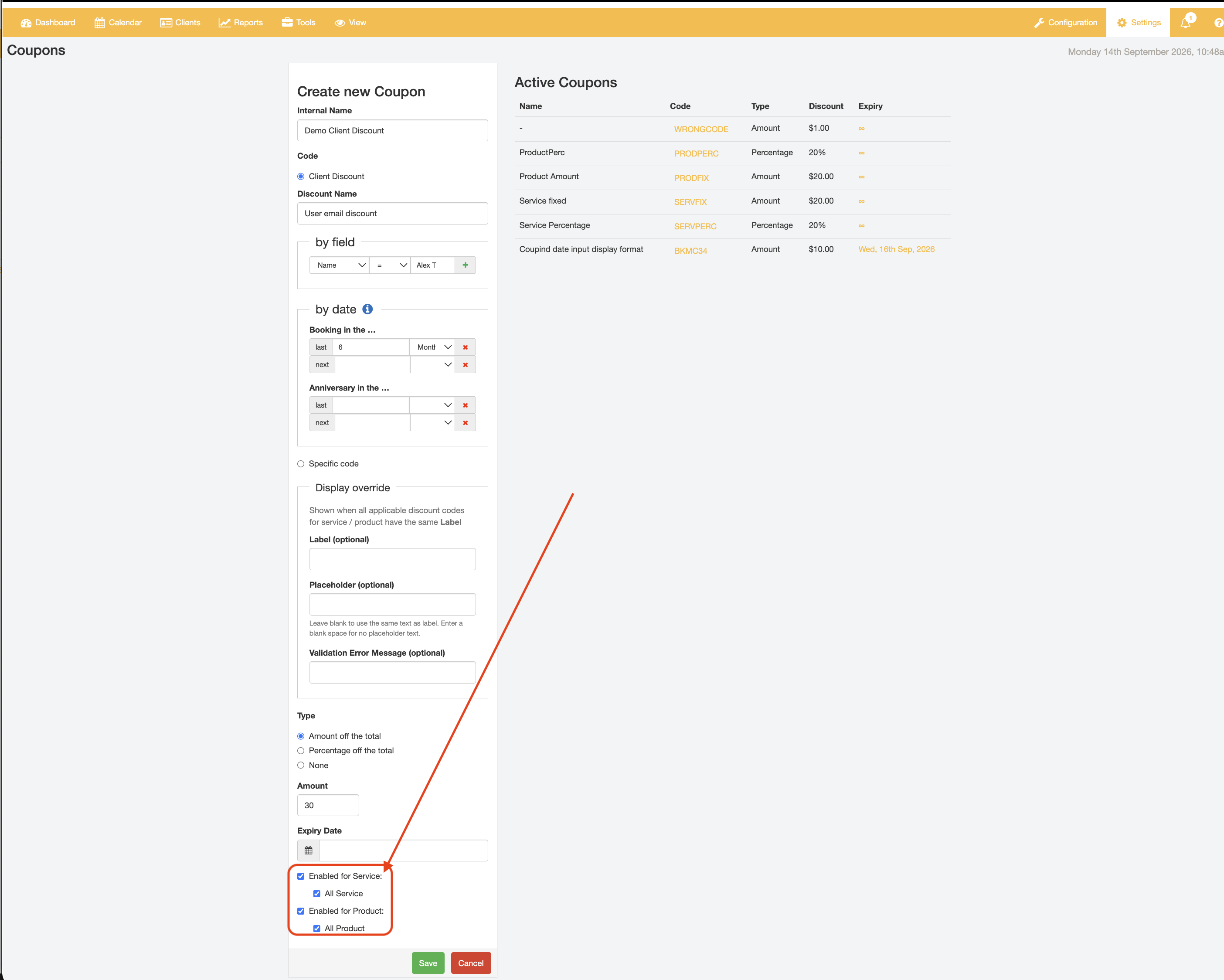
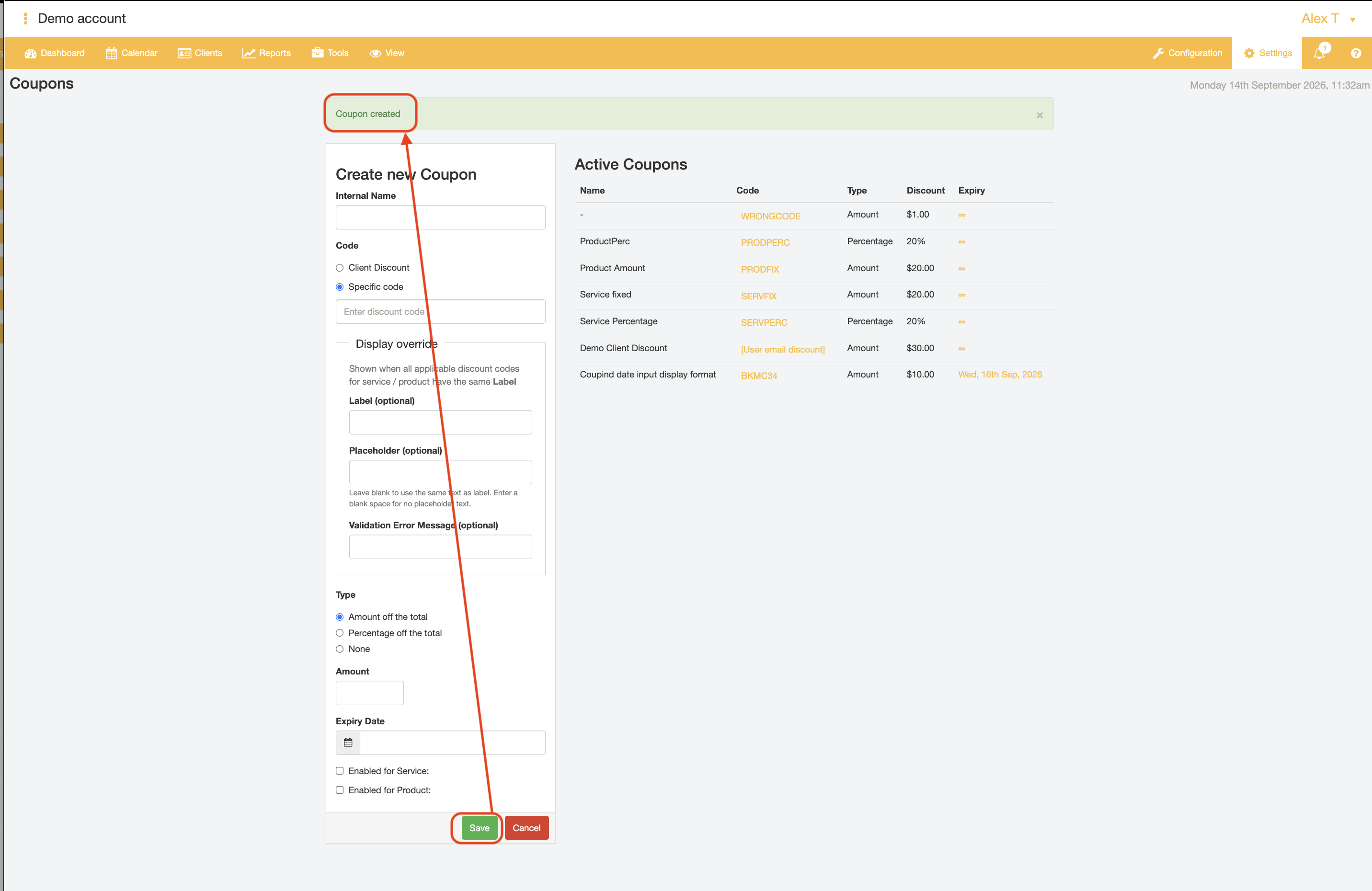
- Click the "Save" button to confirm and create the new discount rule.
After created, the details of the discount rule created can be previewed by clicking on the "Code" field of that record in the "Active Coupons" list.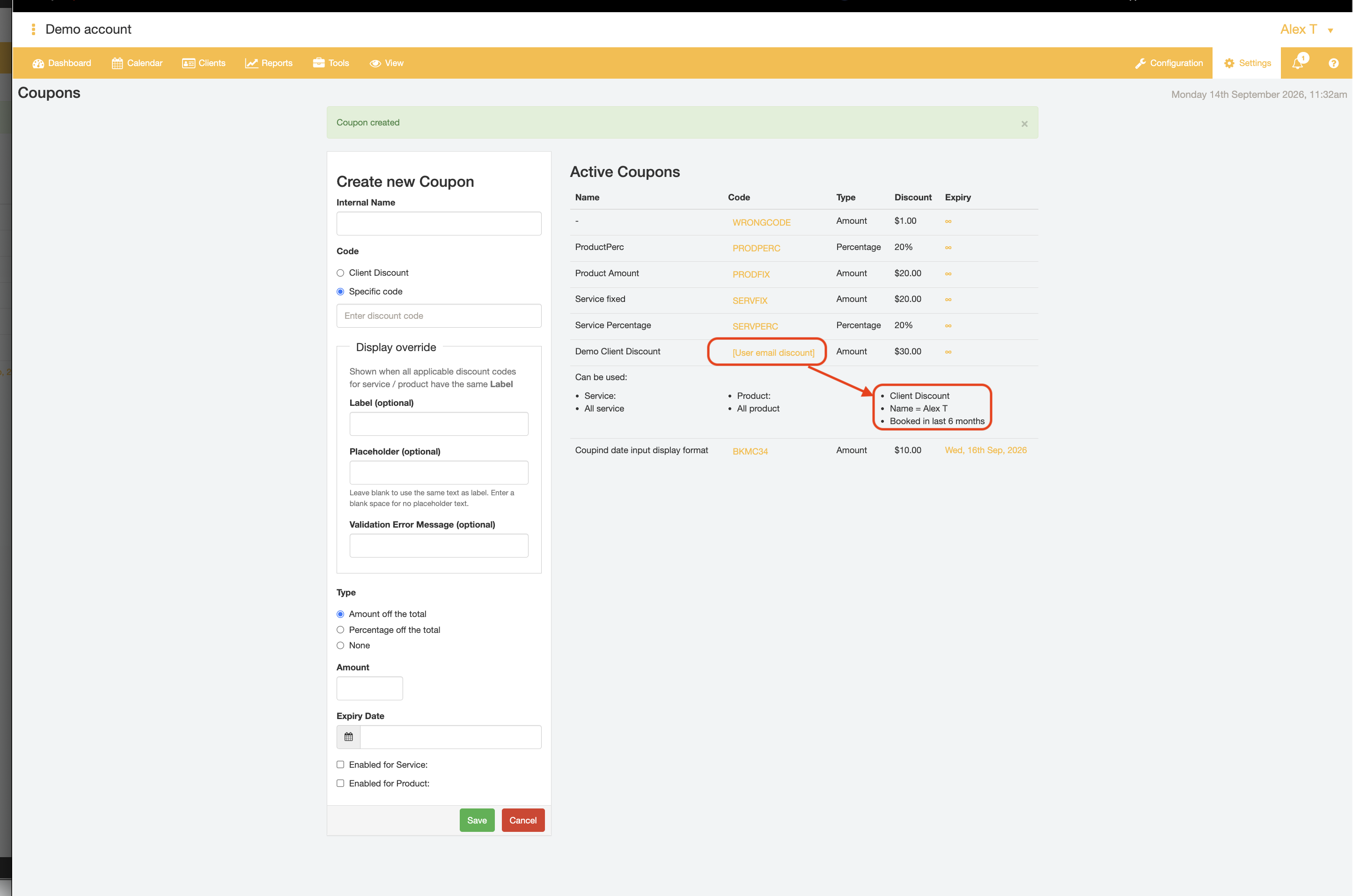
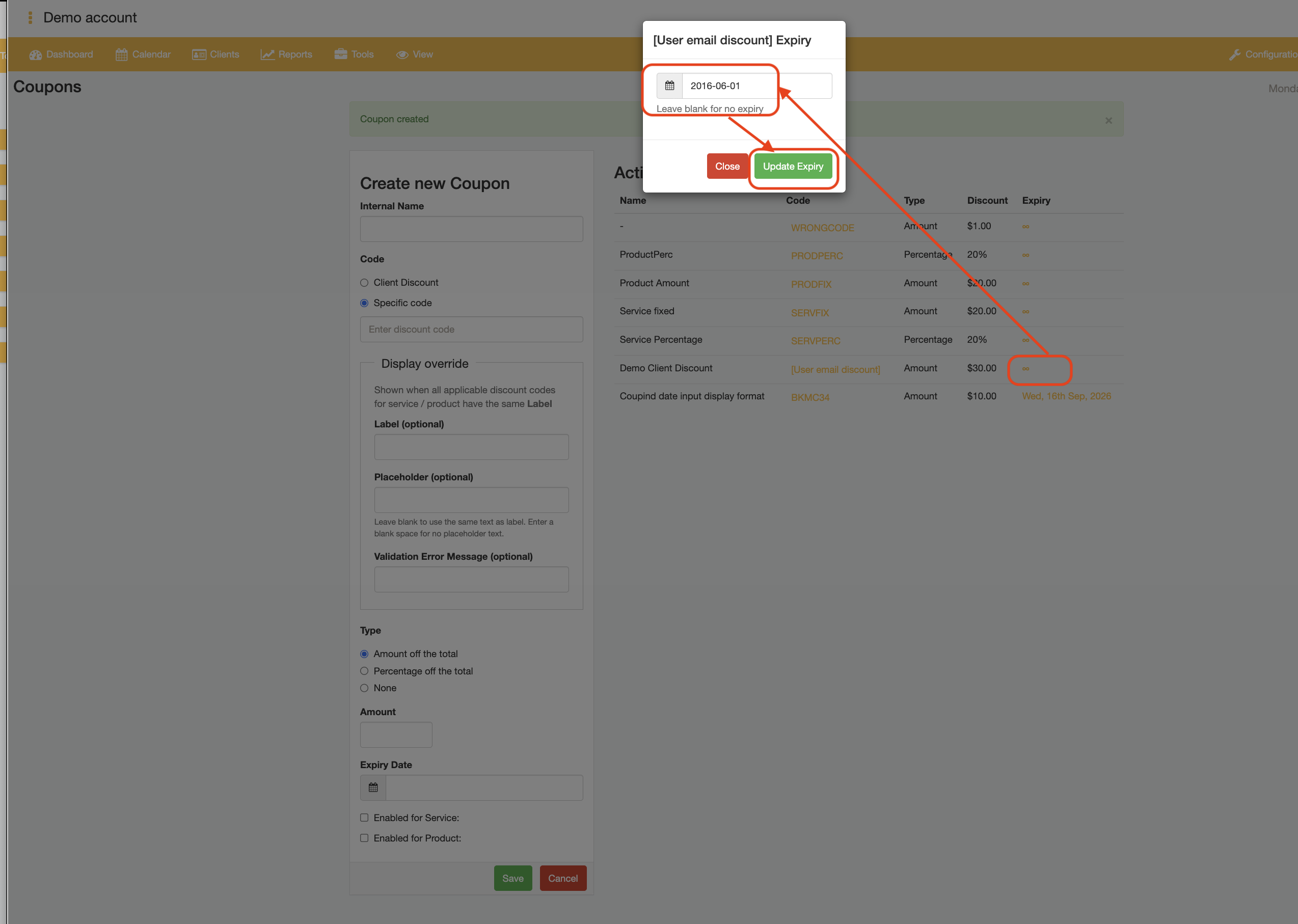
- If needed, the discount rule can be archived or removed by setting the Discount Rule Expiry date to any past date under the "Active Coupons" records list.
- End.
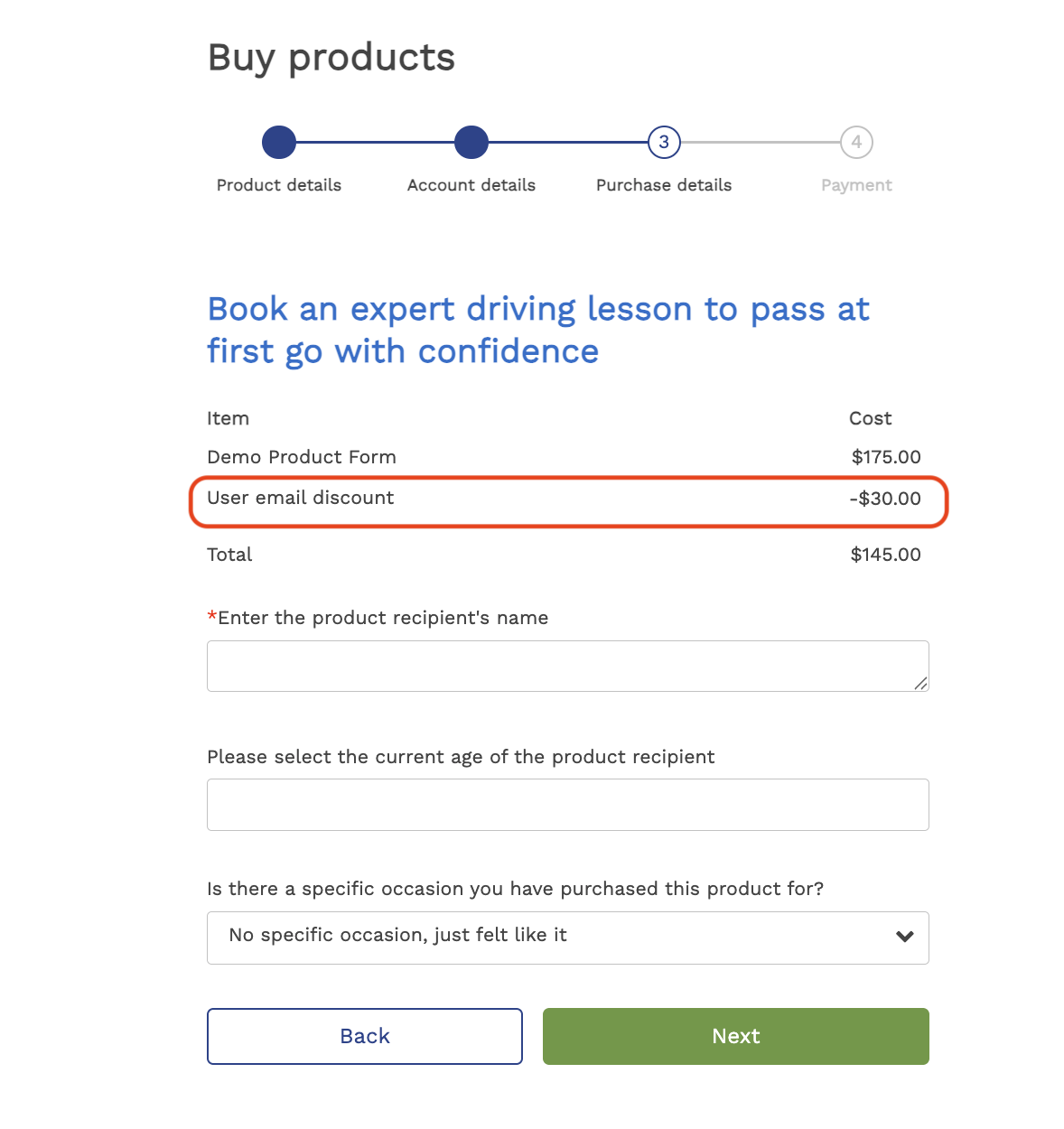
Worked Examples of Client Discount Rules
Example 1 - Concession card holder discount
A discount of $55 off is offered for customers that have a valid concession card at the time the customer purchases a 10 session pass for Exercise sessions.
Discount rule assumptions:
- Concession card holder status is captured in Client profile details, e.g., concession status for each client is captured in the "Group" field
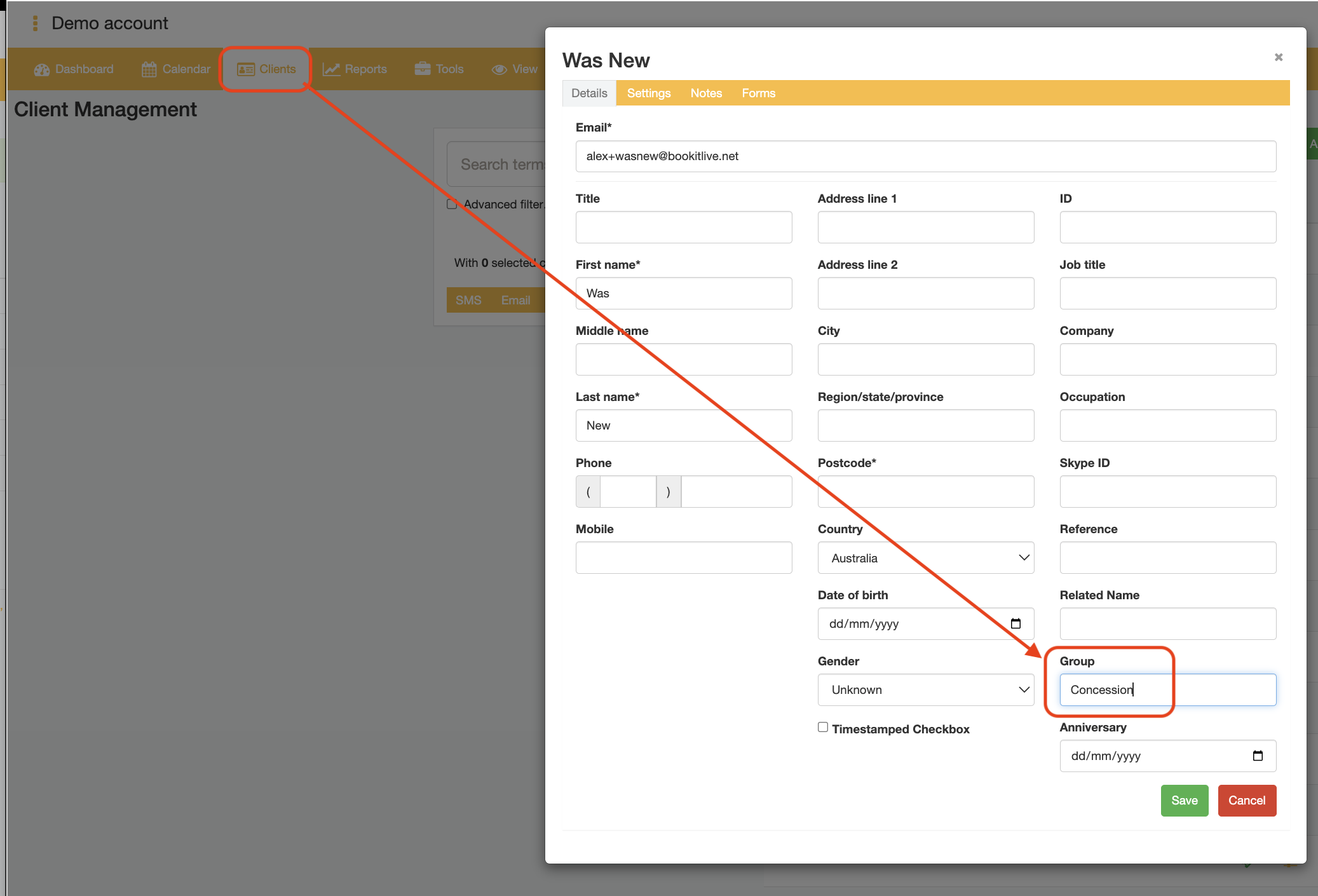
Discount rule inputs:
- Coupon Code "by field"
- Client field selection : Group
- Client field relational value: "="
- Client field value: "Concession"
- Coupon Code "Type"
- Coupon Type: Amount off the total
- Coupon Amount: 55
- Coupon Enabled for
- Coupon Enabled for: Enabled for Product
- Product Name: "10 Session Pass for Exercise Sessions"
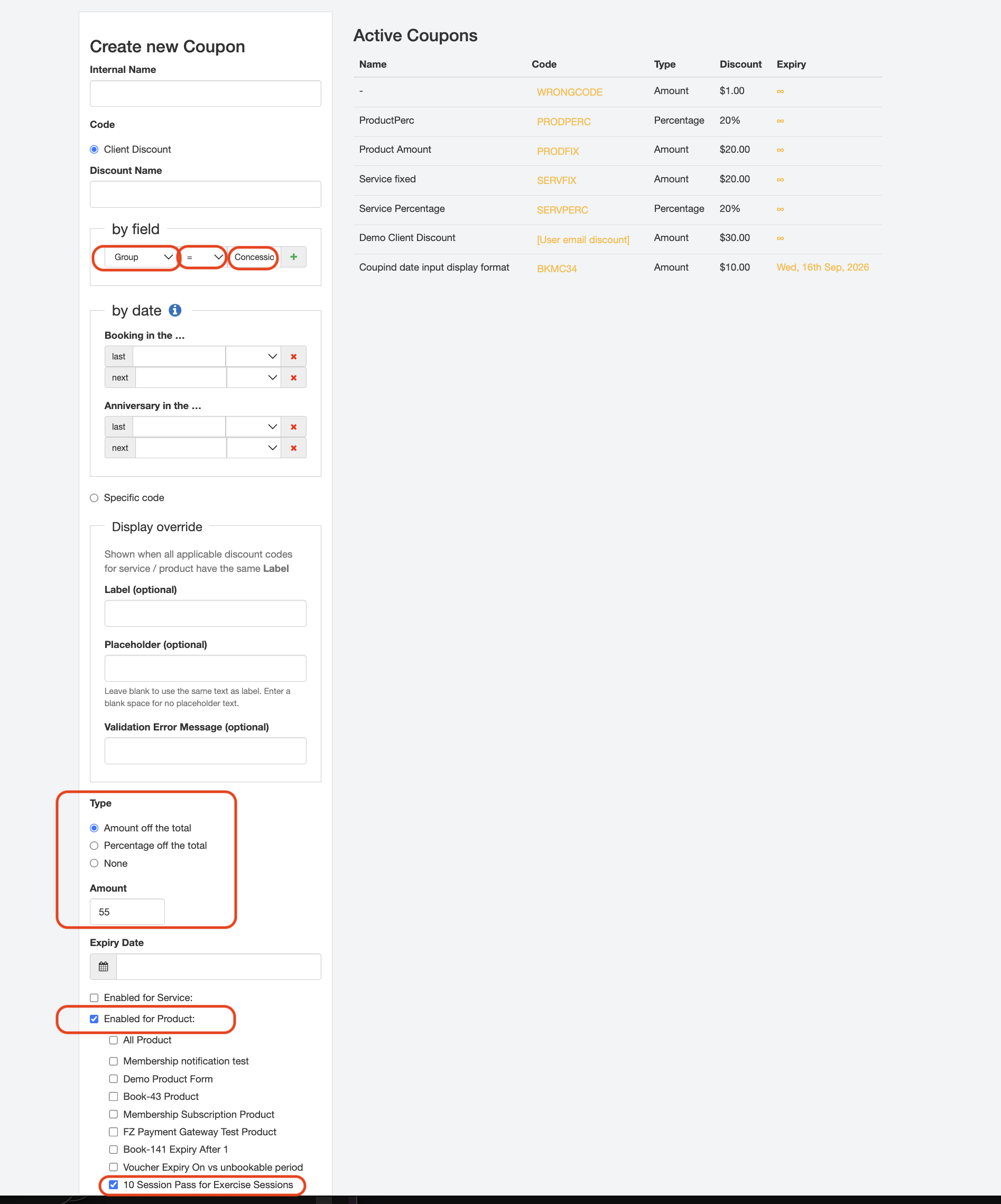
Example 2 - Client that have already made a booking get a discount
A discount of 10% is offered on all bookings if the client has already has a booking in the last 12 months or next 12 months.
Discount rule assumptions:
- None
Discount rule inputs:
- Coupon Code "by date"
- Last value: 12
- Last units: Months
- Next value: 12
- Next units: Months
- Coupon Code "Type"
- Coupon Type: Percentage off the total
- Coupon Amount: 10%
- Coupon Enabled for
- Coupon Enabled for: Enabled for Service
- Service Name: All Services
Example 3 - Client that have their client group field set to PT relieve a 50% discount
A discount of 50% is offered on all bookings if the client record group field is equal to "PT"
Discount rule assumptions:
- PT group status is captured in Client profile details, e.g., group for each client is captured in the "Group" field
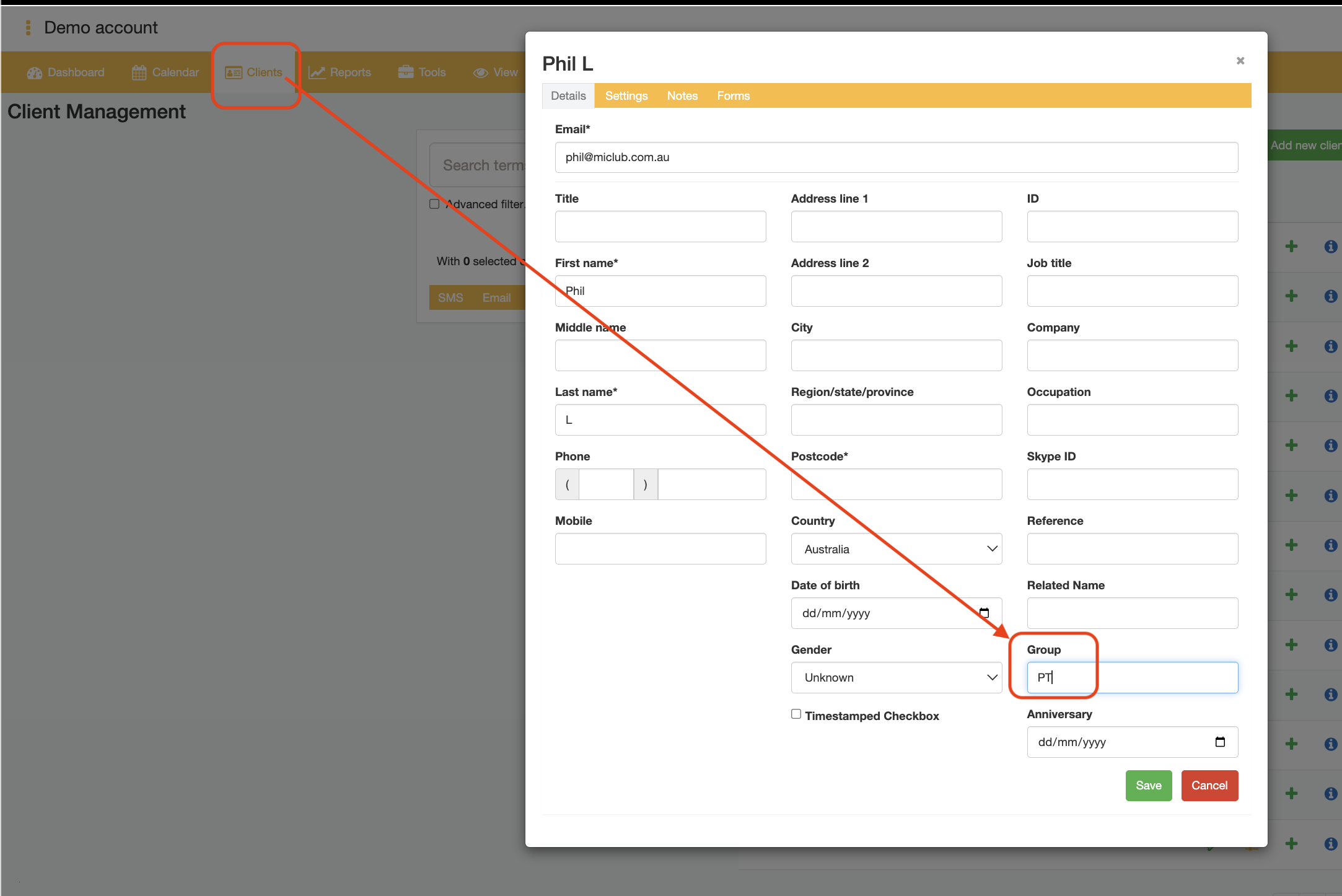
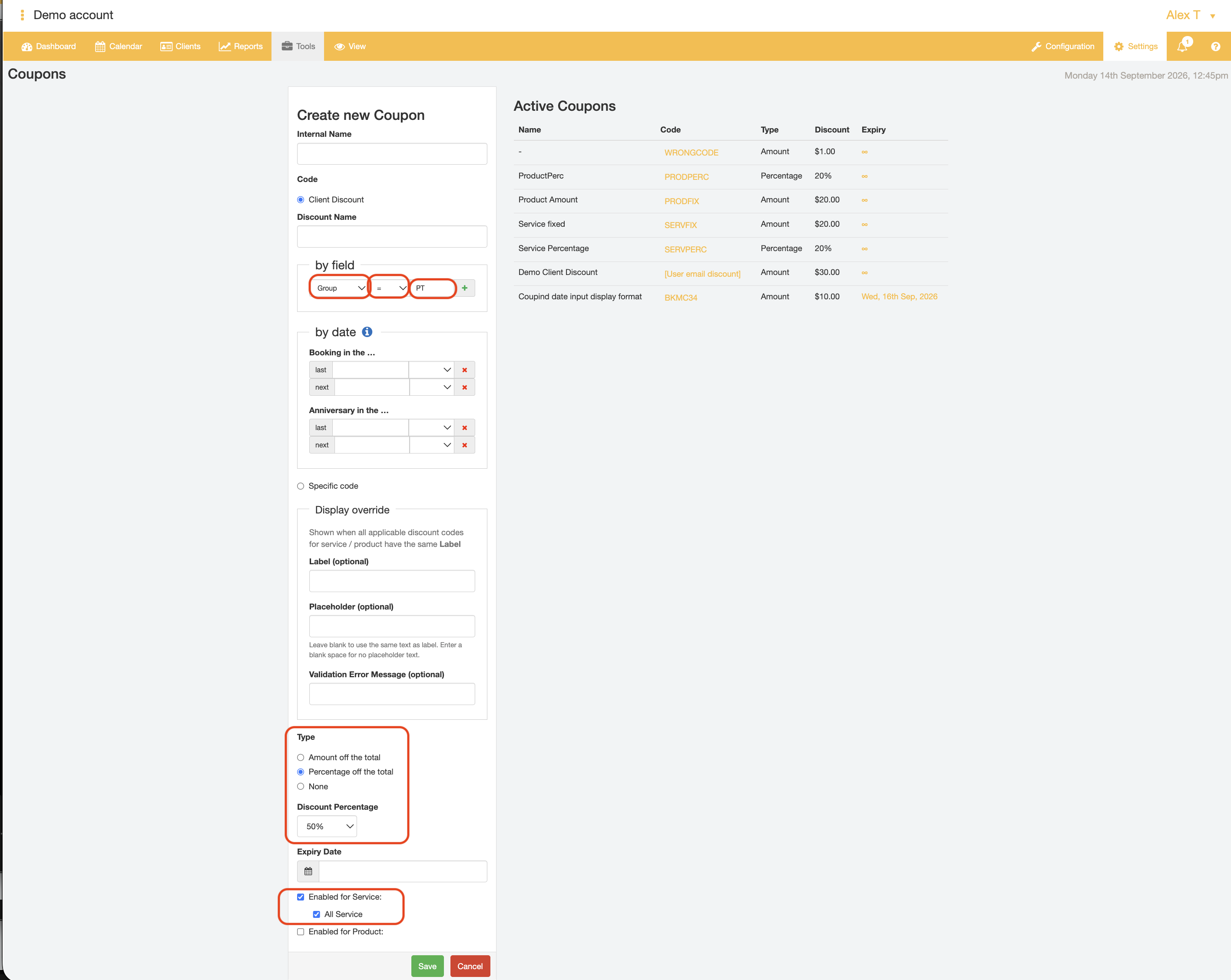
Discount rule inputs:
- Coupon Code "by field"
- Client field selection : Group
- Client field relational value: "="
- Client field value: "PT"
- Coupon Code "Type"
- Coupon Type: Percentage off the total:
- Coupon amount: 55%
- Coupon Enabled for
- Coupon Enabled for: Enabled for Service
- Service Name: All Services
Example 4 - Clients that live in the local area receive a 25% discount
A discount of 25% is offered on all bookings if the clients postcode equals 3030 or clients postcode equals 3031.
Discount rule assumptions:
- Client Postcode is captured in Client profile details
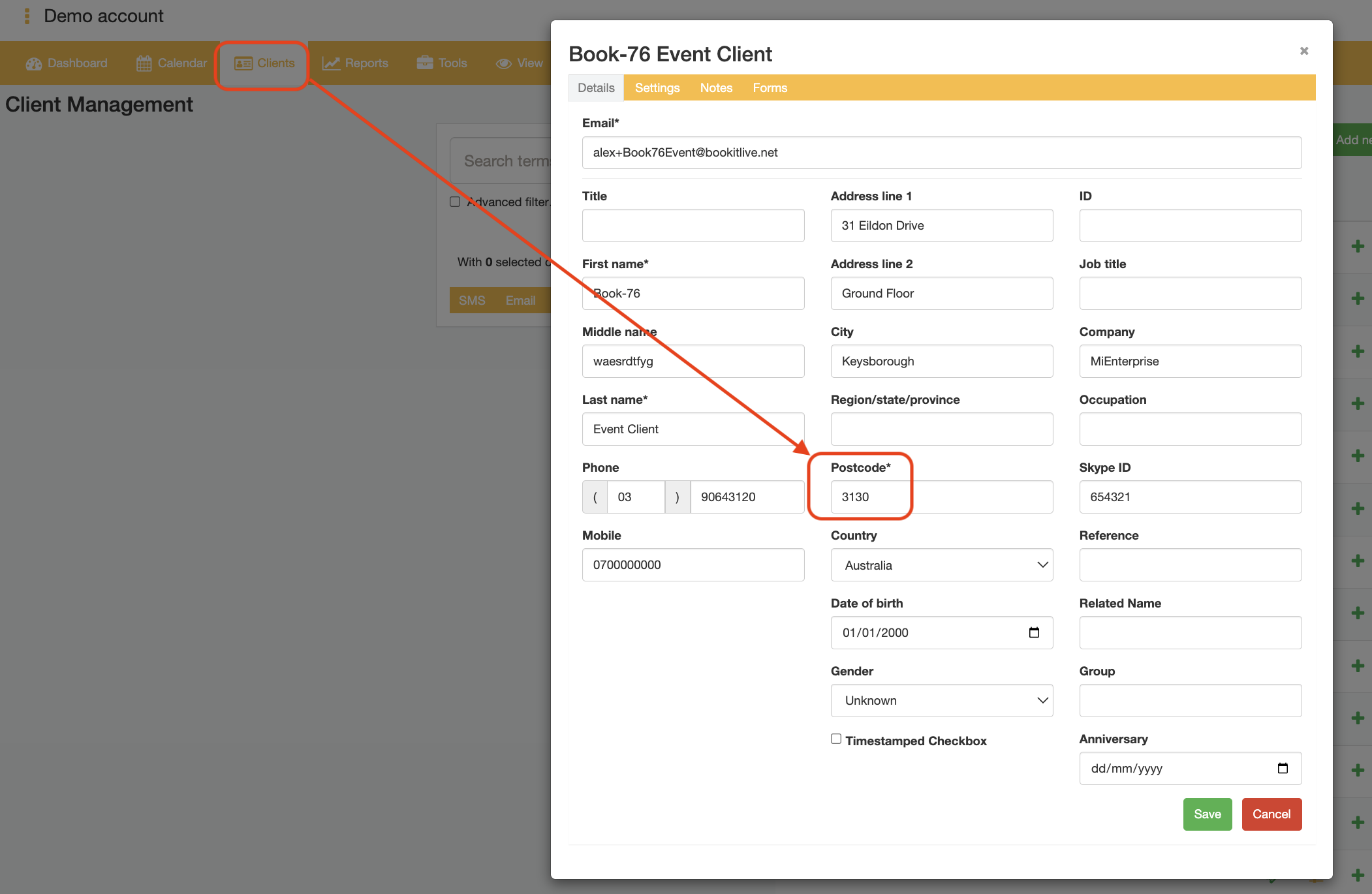
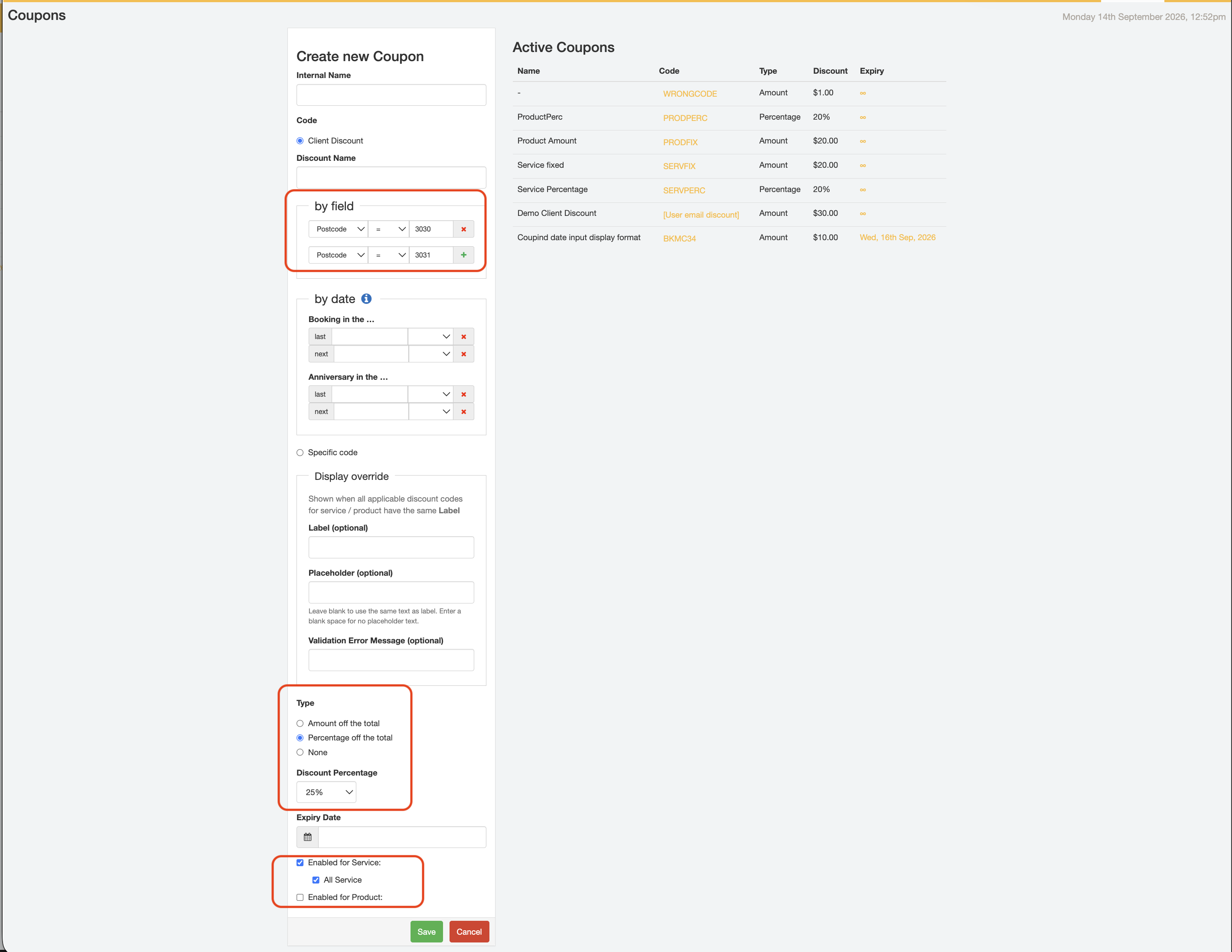
Discount rule inputs:
- Coupon Code "by field"
- Client field selection 1: Postcode
- Client field relational value 1: "="
- Client field value 1: "3030"
- Client field selection 2: Postcode
- Client field relational value 2: "="
- Client field value 2: "3031"
- Coupon Code "Type"
- Coupon Type: Percentage off the total
- Coupon Amount: 25%
- Coupon Enabled for
- Coupon Enabled for: Enabled for Service
- Service Name: All Services
Was this article helpful?
That’s Great!
Thank you for your feedback
Sorry! We couldn't be helpful
Thank you for your feedback
Feedback sent
We appreciate your effort and will try to fix the article