If you run a busy business where your sessions are often booked out and still have clients that want to book you need to have a waitlist. Allowing clients to join a waitlist for the session provides a mechanism for them to be notified when time slots become available when booked client cancel or modify their bookings. A session that is booked out can revert to being available when a booking is cancelled or modified.
A waitlist notification is tiggered when a session is cancelled or booking modified to another time. A waitlist notification (email and or SMS) is sent to the clients to notify them that a session time has become available, the client can then choose if they want to book the timeslot using standard booking processes.
Types of waitlists
Each service your business offers will have the option to offer waitlists.
There are 2 types of waitlists.
- Time
- Day
Waitlist by day
A Day Join Waitlist button is displayed against the date when all sessions in a day are booked out. The Join Waitlist button is not displayed if there are still sessions available within that day.
When a waitlist is enabled on a service for "Waitlist by Day", the following will occur:
- Available session times will be shown with a Book Now button
- Booked our sessions will be shown with a Booked Out button
- A Join Waitlist button will appear under the date.

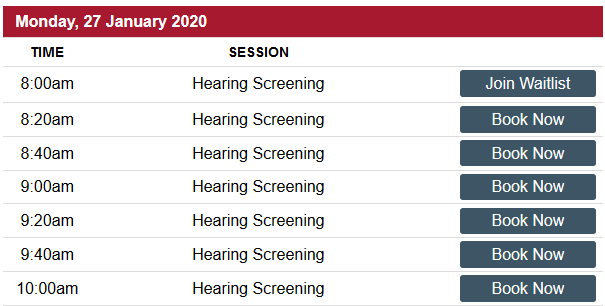
Waitlist by time
A Join Waitlist button is displayed against a session time when the session time is booked out.
When a waitlist is enabled on a service for "Waitlist by Time", the following will occur:
- Available session times will be shown with a Book Now button
- Booked our sessions will be shown with a Join Waitlist button
Managing waitlists
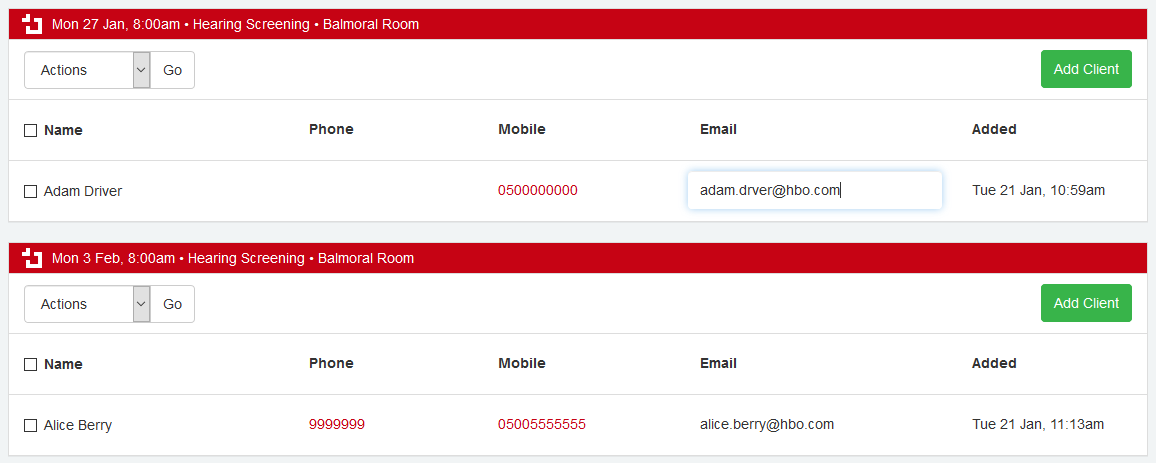
All waitlists can be managed from the business dashboard using action buttons to:
- Remove clients from a waitlist
- View client details
- Add clients to a waitlist
Notifications
The standard client page functionality allows client to be manually notified by email or SMS. The waitlist view action allows all clients on the waitlist to be filtered and shown on the client page.
An option to send the waitlist notification will also be available to trigger the notification for a client/selection of client or All on a waitlist. This will cater for situations where a provider has added more availability and wants to notify the clients on the waiting list.

Removal from waitlist
Clients are removed from the waitlist when:
- A Client that was on a waitlist makes a booking and for the Service at that time or day they were waitlisted for.
- The Provider (business) removes the client from the waitlist by selecting the client and using the Remove action.

Joining a waitlist
Clients are added to a waitlist when:
- Client selects to "Join Waitlist" when trying to make a booking
- The Provider (business) adds the client from the waitlist page using the "Add Client" button associated to the waitlist
Triggering a waitlist notification
The process to trigger when a waitlist notification is sent:
- A client cancelled their own booking
- A client modifies their own booking
- A provider cancels a booking and notifications on the action are set to All (any other notification option selected will not trigger the waitlist notification)
- A provider modifies a booking and notifications on the action are set to All (any other notification option selected will not trigger the waitlist notification)
- The Provider manually selects the option to send waitlist notifications from their Waitlist page on their Dashboard.
A secondary check occurs to confirm that the booking time is still in the future and not within the unbookable period. If the booking is not in the future or within the unbookable period, the waitlist notification will not be sent.
Was this article helpful?
That’s Great!
Thank you for your feedback
Sorry! We couldn't be helpful
Thank you for your feedback
Feedback sent
We appreciate your effort and will try to fix the article