A Business that uses a fixed repeating schedule needs the ability remove times from being available.
Removing time availability could be used for the following reasons:
- You want to remove the time from being bookable
- A Resource is not available for a particular time and day due to other commitments
- A Resource may be on planned leave.
Note: If a Resource is not going to be available for a whole day or multiple days use Tools > Remove availability instead.
Making times unavailable
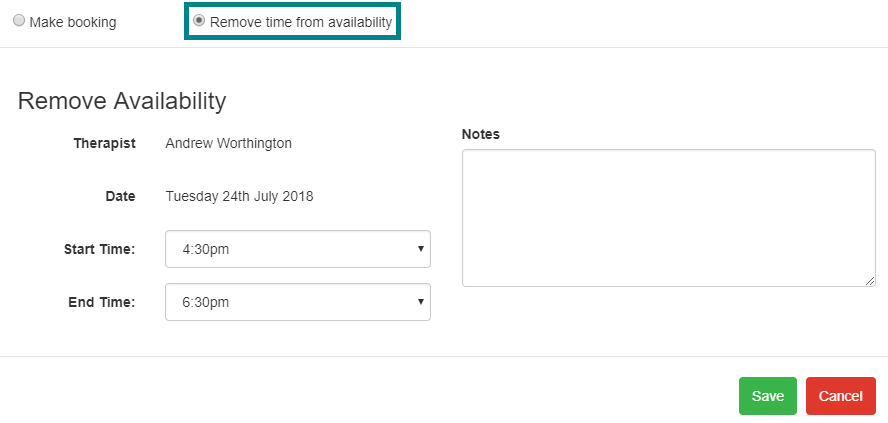
- Select "Calendar" tab.
- Select a Date
- Select a green time that you want to make Unavailable. A popup will be displayed.
- From the top of the Popup select "Remove Time from Availability"
- Select the Start Time.
- Select the End Time.
- Optional: Add a note to the Booking.
- Select Save.
Displaying and removing unavailable times from Remove Availability
The "Remove Availability" page also lists any Times that are not available.
- Select Tools > "Remove Availability".
- Select the Unavailable Times tab to see a list of times that are Unavailable.
- Use the Remove link to remove the time from being unavailable.
Was this article helpful?
That’s Great!
Thank you for your feedback
Sorry! We couldn't be helpful
Thank you for your feedback
Feedback sent
We appreciate your effort and will try to fix the article