Each class type needs to have its own Service (activity) and Resource (facilitator).
For example, if your business offers the following fitness classes with the following repeating schedules each class type would need to have its own Service and own Resource linked to the Service.
Class Type | Class Schedule | Number of participants | Duration |
Box Fit | Monday 6:00am Friday 6:00pm | 20 | 30 minutes |
Spin | Tuesday 7:00pm Wednesday 7:00pm | 10 | 30 minutes |
Tabata Burn | Thursday 6:00am Thursday 6:00pm | 15 | 30 minutes |
Create a Service for the class
- Select Configuration tab and select the "Services" option
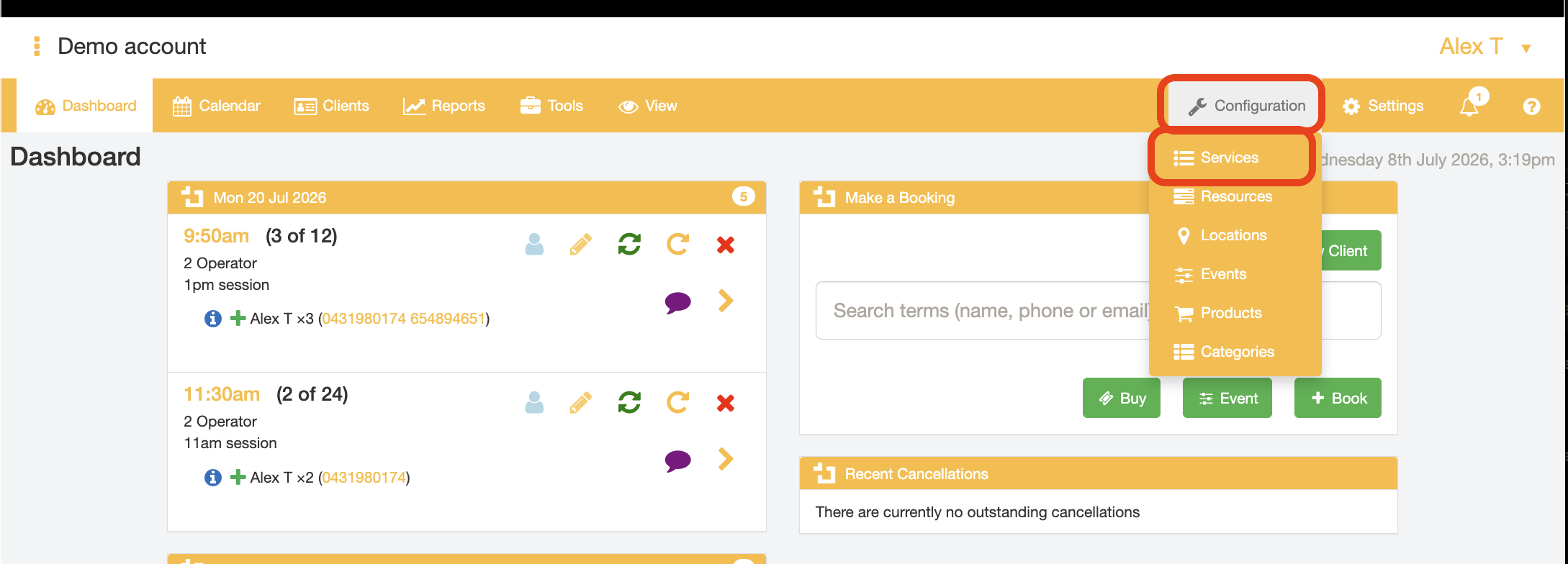
- Click the "Add" button to create a new service record
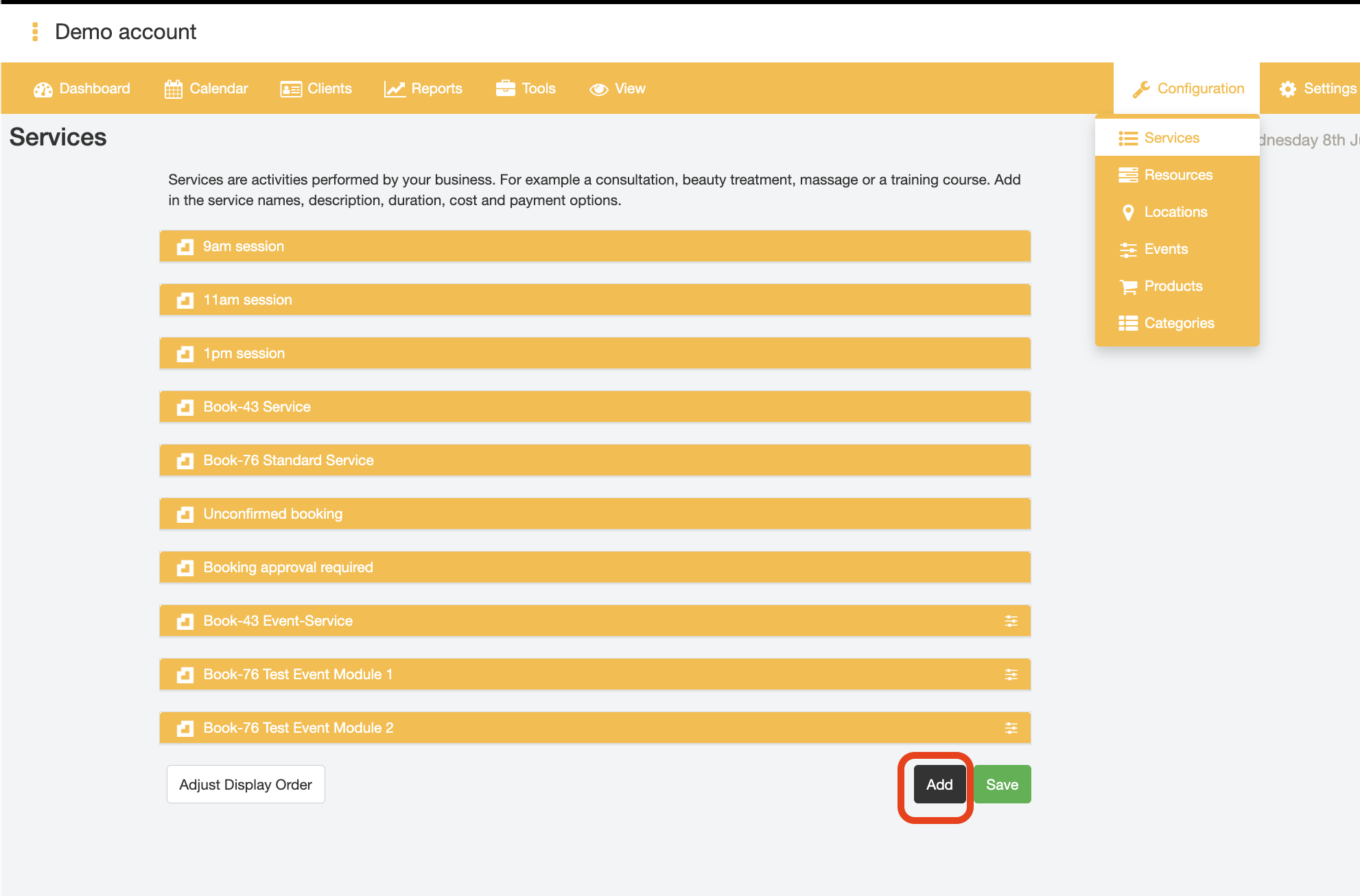
- Enter the class name in the "Service Name" field, e.g.,"Boxfit"
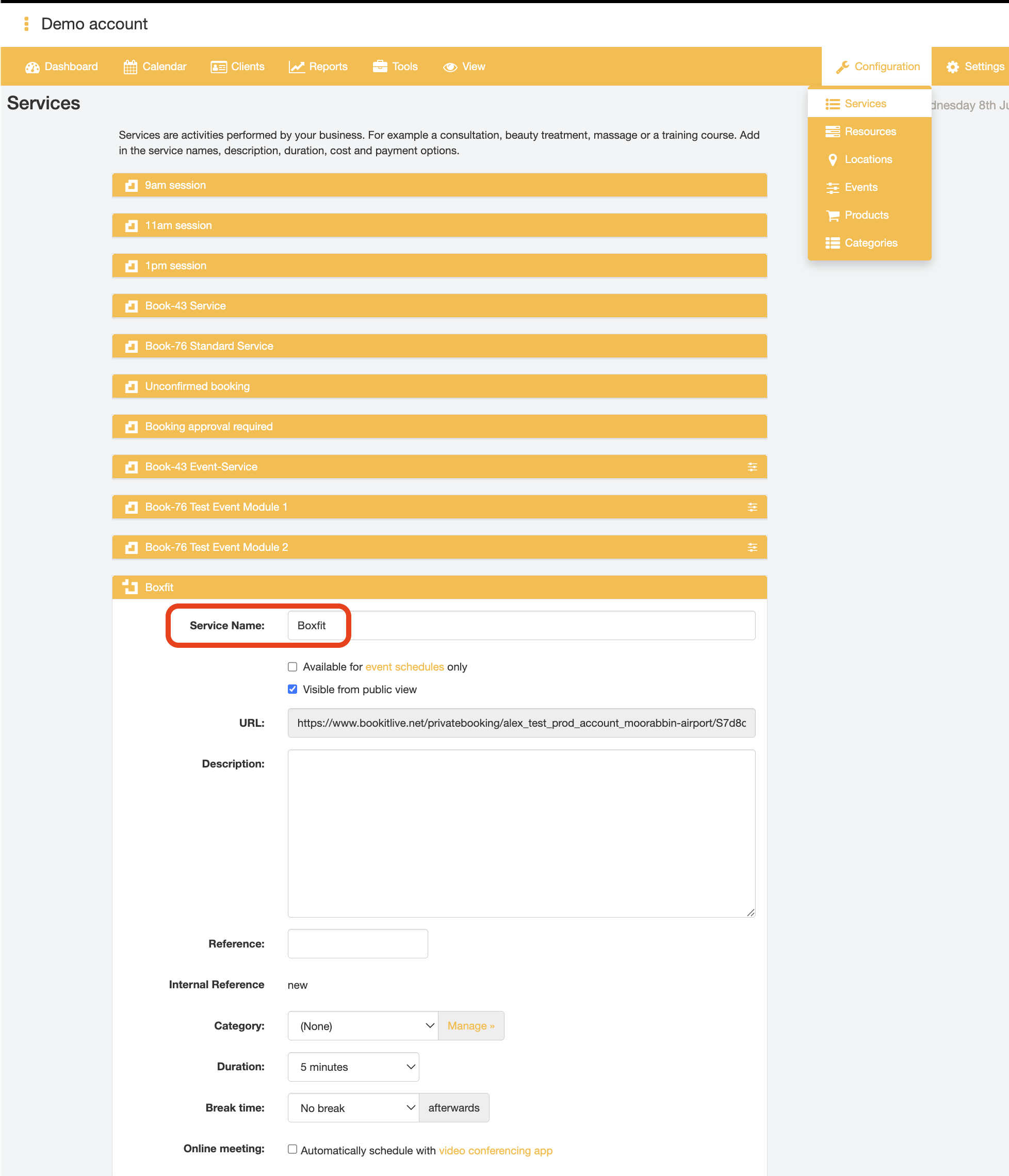
- Set the class runtime length by selecting the Duration value, e.g., 30 minutes
- Make it a group session by ticking the Group Booking checkbox.
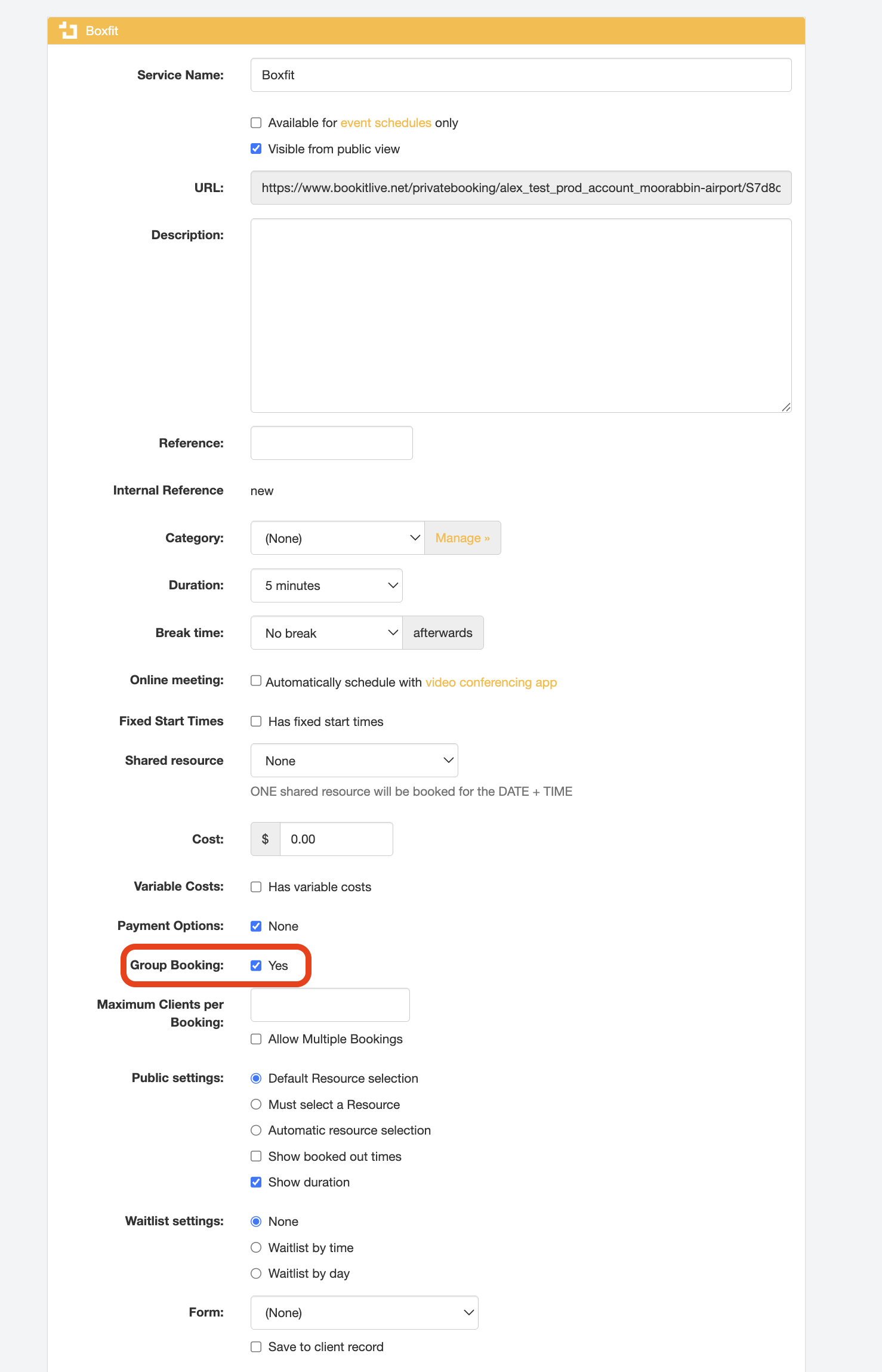
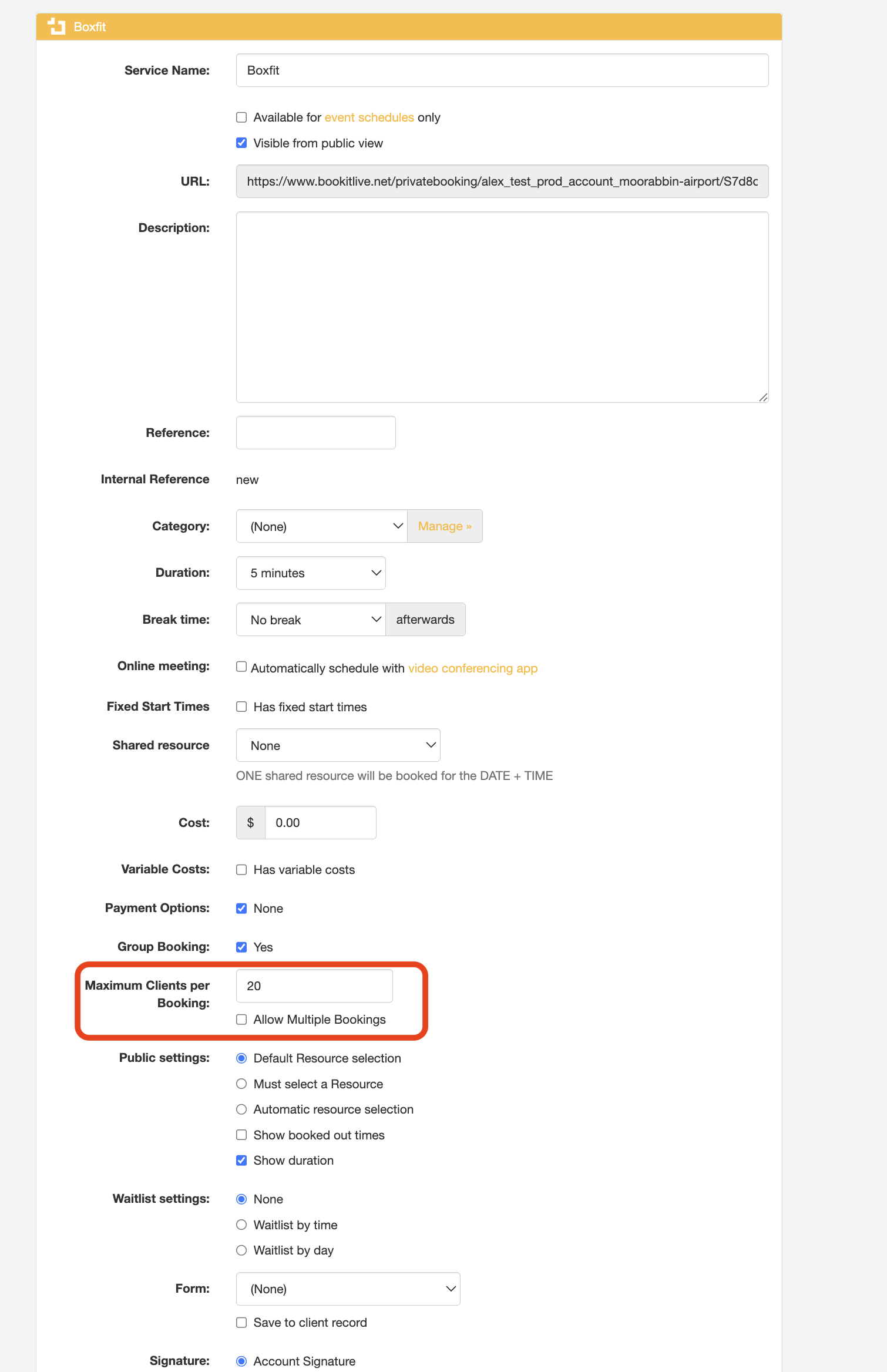
- Enabling the "Group Booking" option will result in the appearance of the "Maximum Clients per Booking" field. In this "Maximum Clients per Booking" field, enter the maximum number of participants for the class, e.g. 20.
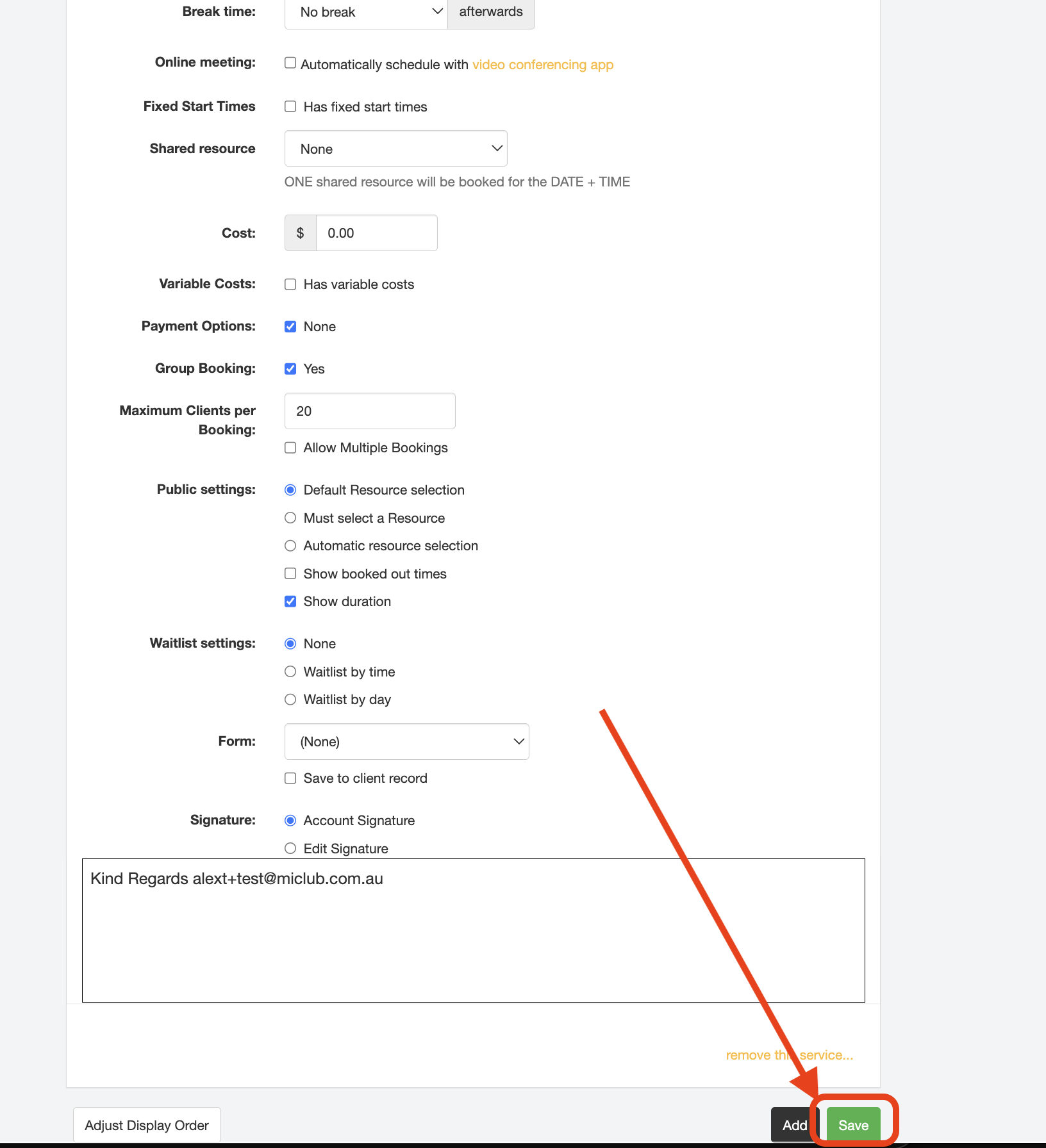
- Submit the updated Service details by clicking the "Save" button at the bottom of the page.
- End.

Create a Resource for the class schedule
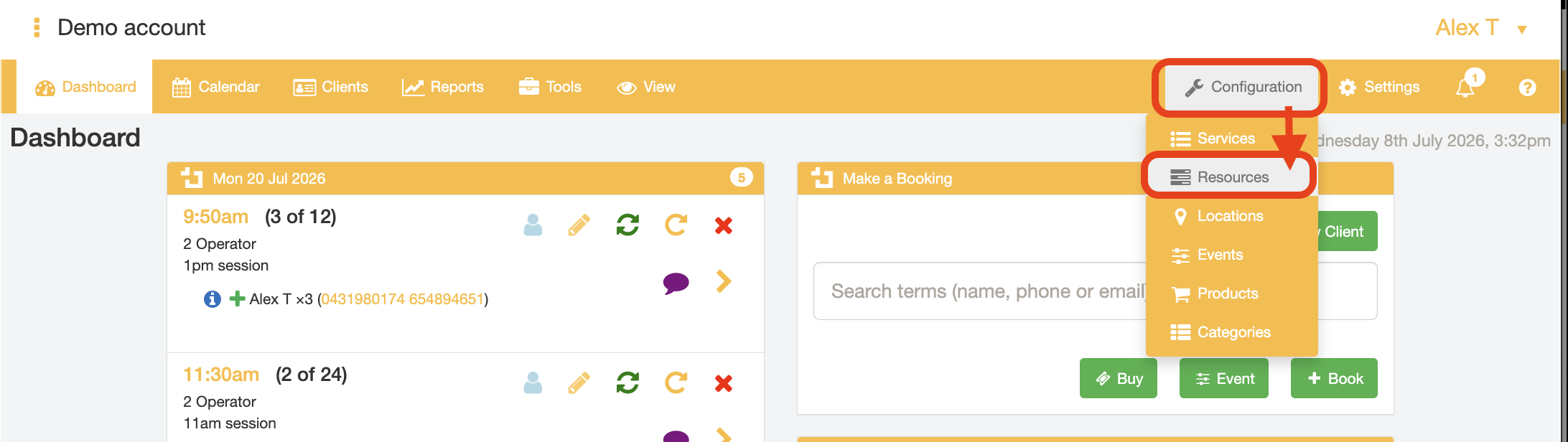
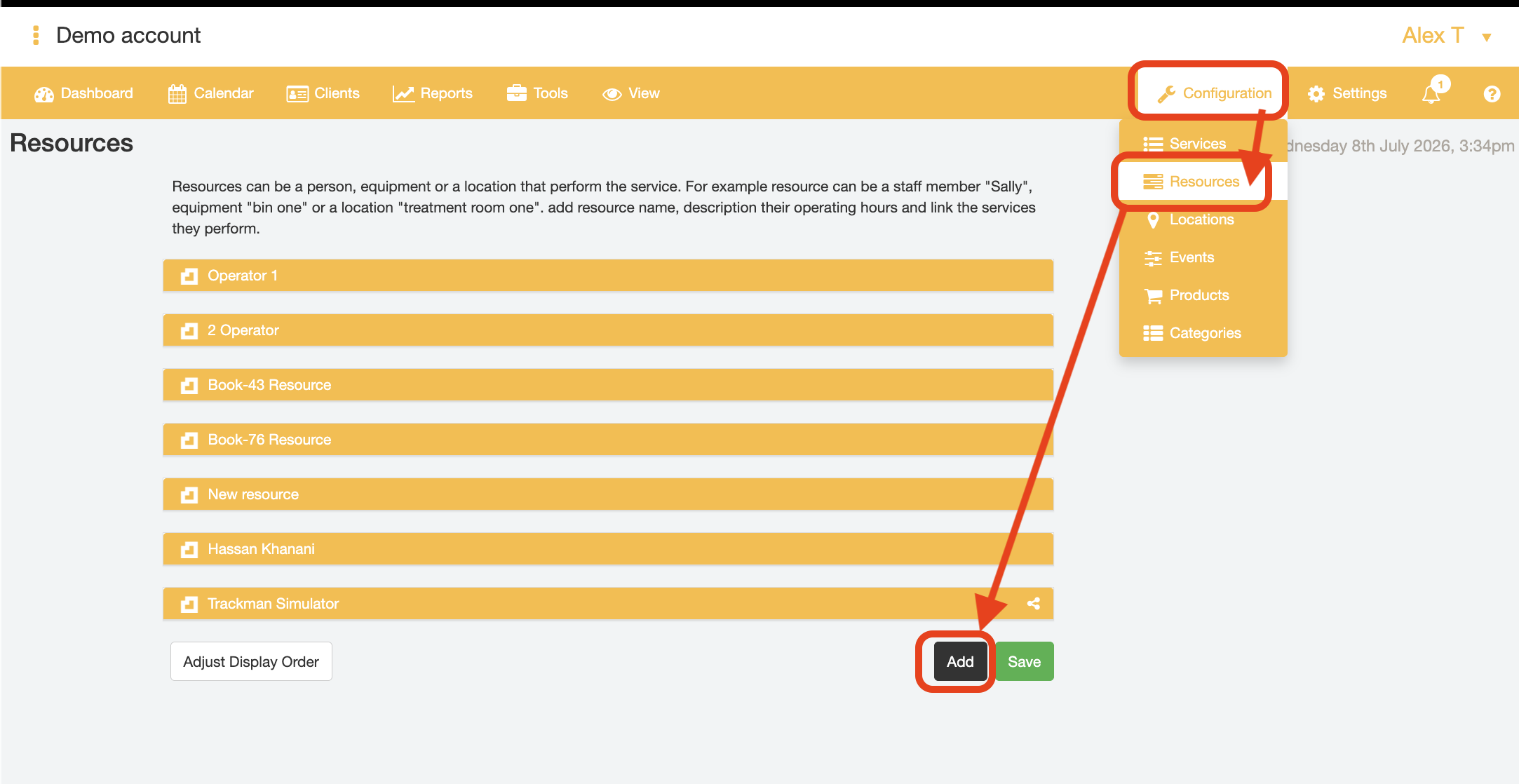
- Select Configuration tab and select the "Resources" option.
- Go to the bottom of the page and select the "Add" button to create a new Resource.
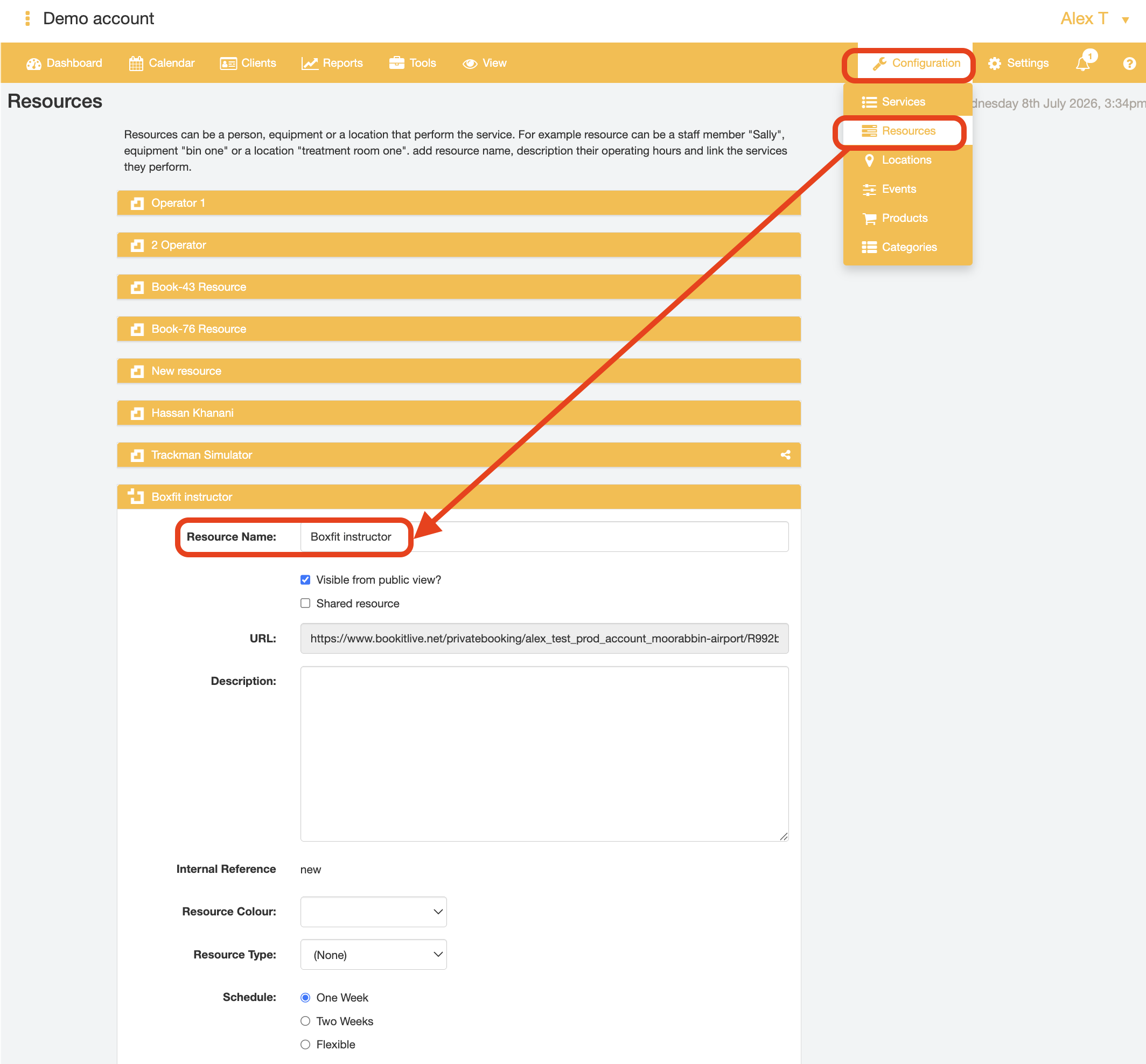
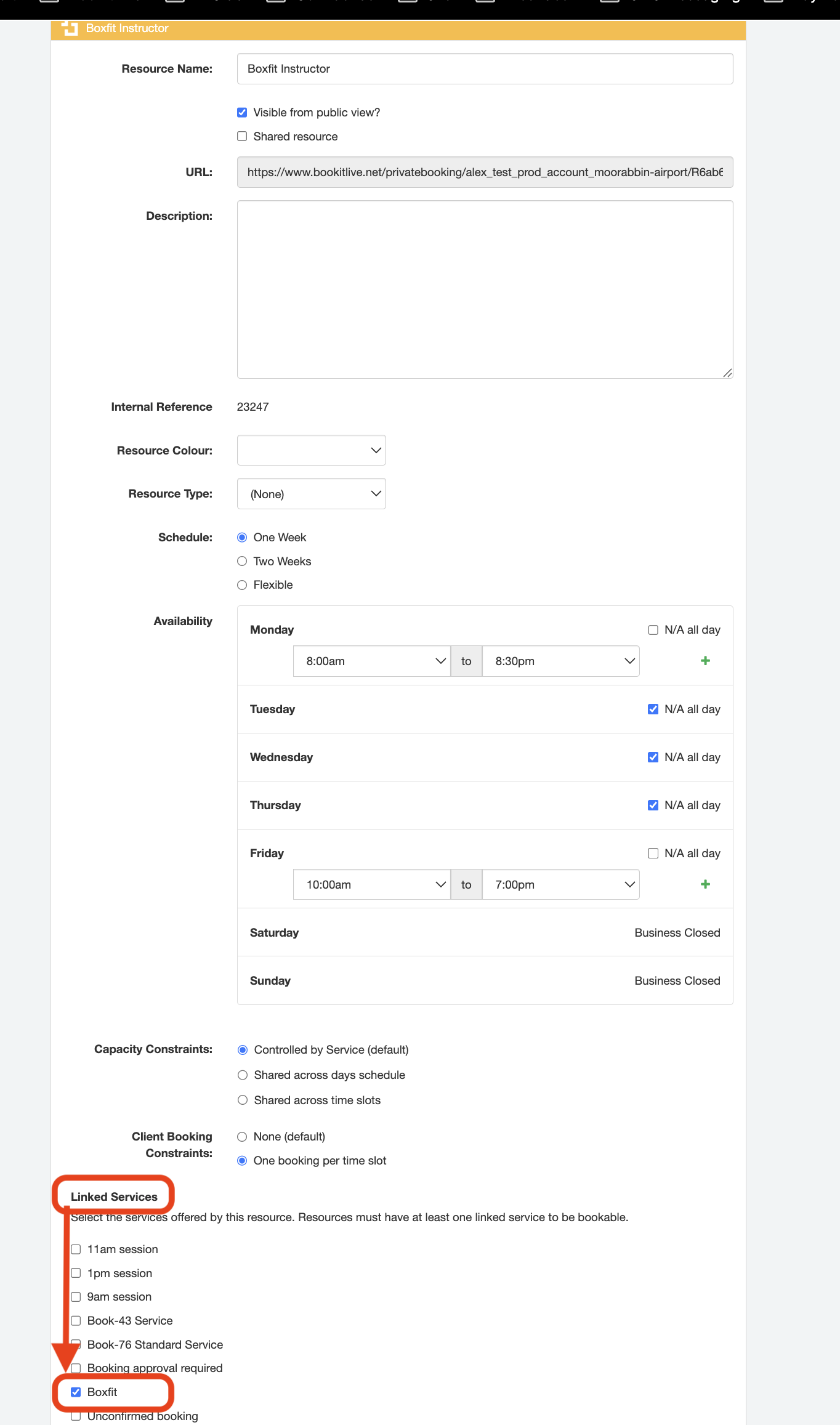
- Enter the Resource name who will deliver the Service in the "Resource Name" field, e.g., "Boxfit Instructor".
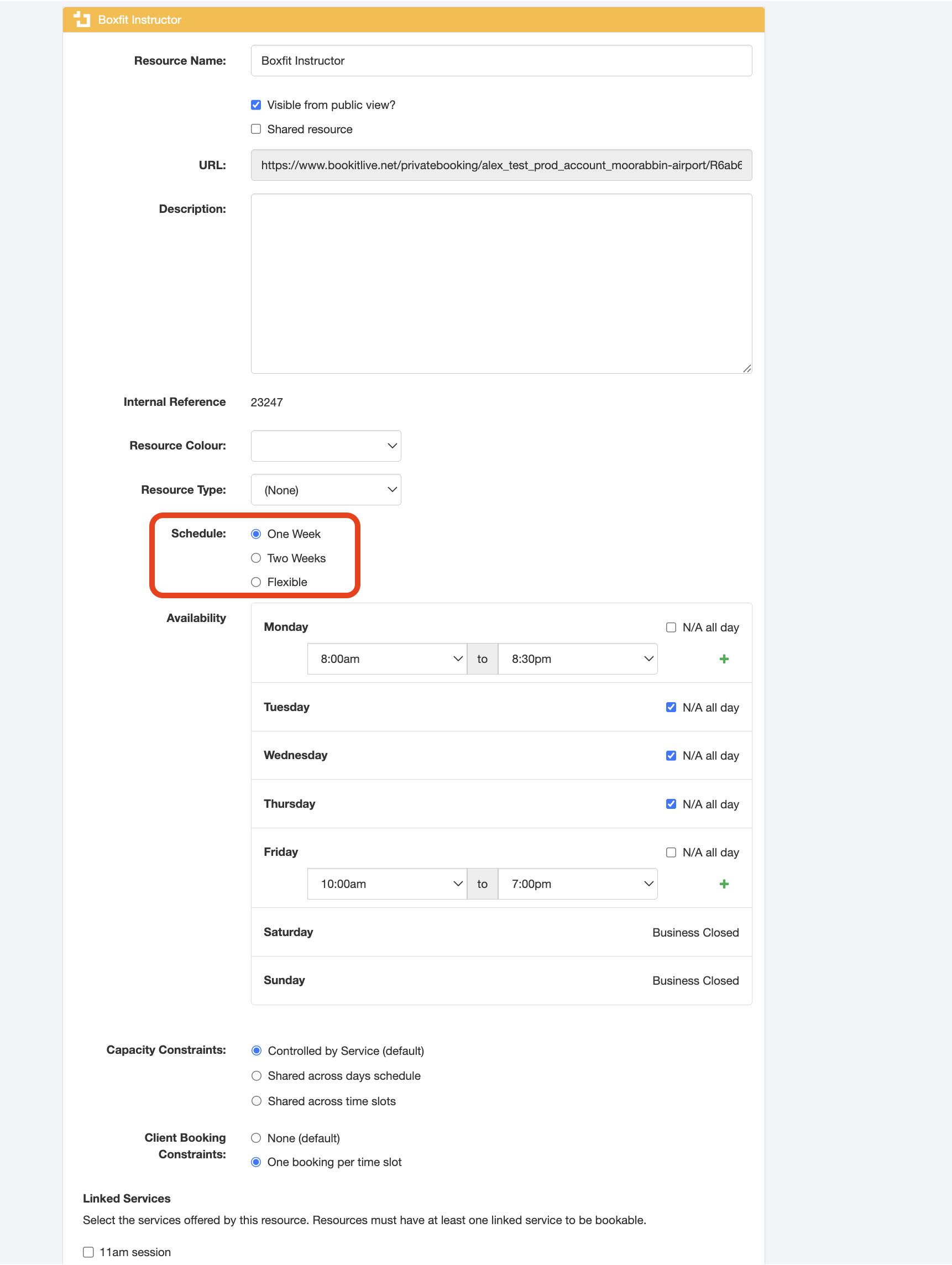
- If the class Schedule repeats each weel, use the select the fixed "One week" option in the "Schedule" field.
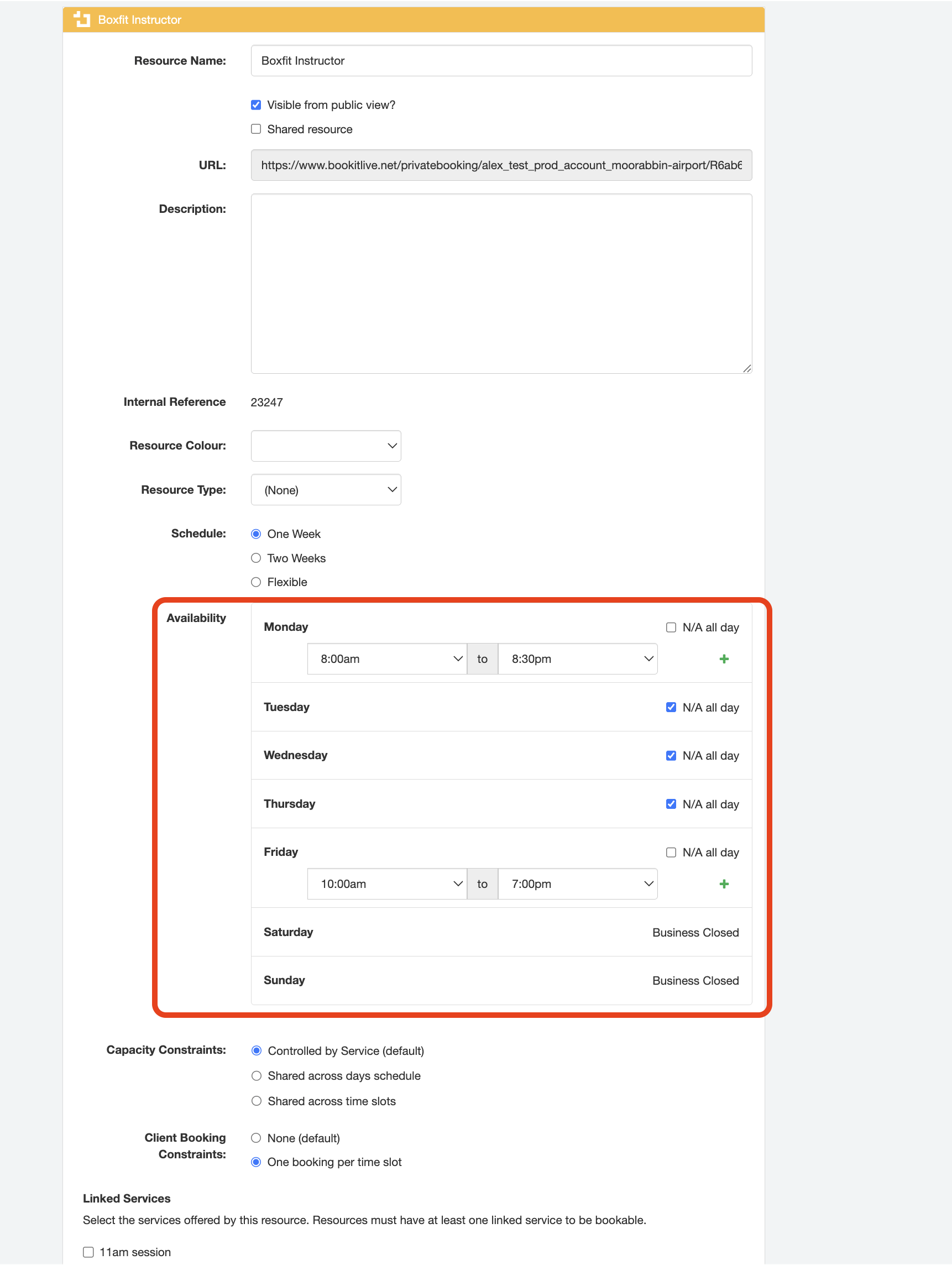
- Adjust theResource's schedule to match the possible class booking times, e.g., set the availability of the Resource (Instructor) to Monday from 8:00am to 8:30pm and Friday 10:00am to 7:00pm each week. For all other days select "N/A all day".
- If classes do not occur on a regular weekly schedule, set the schedule type to Flexible and add each date individually from Tools > Add Schedule
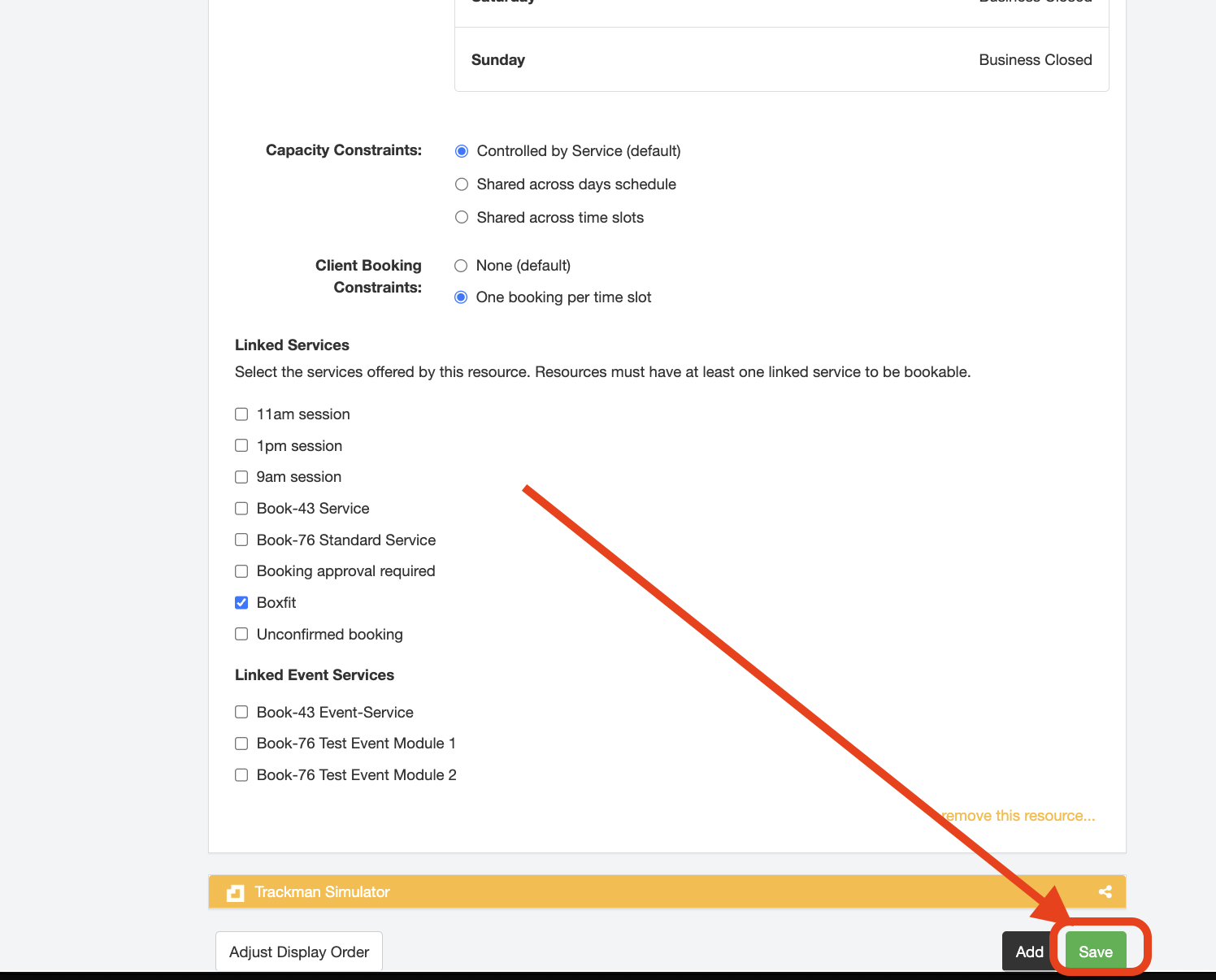
- Link the resource to the "BOXFIT" Service record under the "Linked Services" field.
- Submit the Resource details by selecting the "Save" button at the bottom of the page.
- End.

Was this article helpful?
That’s Great!
Thank you for your feedback
Sorry! We couldn't be helpful
Thank you for your feedback
Feedback sent
We appreciate your effort and will try to fix the article