Each staff member in your business can have their own user account created for them, with their own username and password for data segregation and added security.
Additionally, bookitlive has three different levels of user access rights so that you can provide everyone in your team the appropriate level of access.
Staff Roles Access Differences
Business Owner (Administrator)
The Business owner has full administration rights within the BookItLive business account. They have access to, and can edit everything, including company information, payments, staff user accounts, and all Account settings. They also have the ability to cancel (delete) the business account and all staff users created in that account.
The Business Owner staff user will be assigned to the user that the account was initially created under (although this can be retrosectively changed if desired).
Each BookItLive business account can only have a single Business Owner staff user.
Manager
Staff users assigned to the Manager role have similar access to features as the Business Owner staff user. Manager staff users can configure the business' Services, Resources, and Products, and can generate company-wide Reports and view the business' full list of customers.
However, Managers are restricted from accessing some selected features that the Business Owner has access to, including staff user management, account cancellation, SMS credit purchasing, and business booking page visibility.
Multiple Manager users can exist for a BookItLive business account at any one time. If you have multiple Manager users, you can also restrict them to only give them access to their own staff calendar by selecting that staff member from the drop-down list.
Staff Member
Staff users assigned the Staff member role will only have access to the Dashboard, Calendar and Availability Management tabs. Staff Member users are restricted from accessing the business Configurations and Settings, and will not be able to generate Reports or view the full llist of the business' customers.
Multiple Staff Member users can exist for a BookItLive business account at any one time.
If you have multiple Staff Member users, you can also restrict them to only give them access to their own staff calendar by selecting that staff member from the drop-down list.
| Permission/feature | Business Owner | Manager | Staff Member |
| Account Preferences | ✅ | ✅ | ❌ |
| Add Once-off Schedules | ✅ | ✅ | ❌ |
| Advanced Settings | ✅ | ✅ | ❌ |
| Booking Notes View | ✅ | ✅ | ✅ |
| Booking Summary | ✅ | ✅ | ❌ |
| Calendar | ✅ | ✅ | ✅ |
| Cancel Account | ✅ | ❌ | ❌ |
| Categories | ✅ | ✅ | ❌ |
| Clients | ✅ | ✅ | ❌ |
| Client Preferences | ✅ | ✅ | ❌ |
| Coupons | ✅ | ✅ | ❌ |
| Dashboard | ✅ | ✅ | ✅ |
| Daylight Savings | ✅ | ✅ | ❌ |
| Email Templates | ✅ | ✅ | ❌ |
| Images | ✅ | ✅ | ❌ |
| List Once-off Schedules | ✅ | ✅ | ❌ |
| Locations | ✅ | ✅ | ❌ |
| Manage Availability | ✅ | ✅ | ✅ |
| Membership Subscriptions | ✅ | ✅ | ❌ |
| Notification Settings | ✅ | ✅ | ❌ |
| Offline Backups | ✅ | ✅ | ❌ |
| Online Payments | ✅ | ✅ | ❌ |
| Opening Hours | ✅ | ✅ | ❌ |
| Products | ✅ | ✅ | ❌ |
| Public View Online/Offline | ✅ | ❌ | ❌ |
| Remove Availability | ✅ | ✅ | ✅ |
| Reports | ✅ | ✅ | ❌ |
| Resources | ✅ | ✅ | ❌ |
| Services | ✅ | ✅ | ❌ |
| SMS Credits | ✅ | ❌ | ❌ |
| SMS Templates | ✅ | ✅ | ❌ |
| Terminology | ✅ | ✅ | ❌ |
| Users | ✅ | ❌ | ❌ |
| Vouchers | ✅ | ✅ | ❌ |
Adding new staff user accounts to your business account
- Log in to your BookItLive business account as the Business Owner user
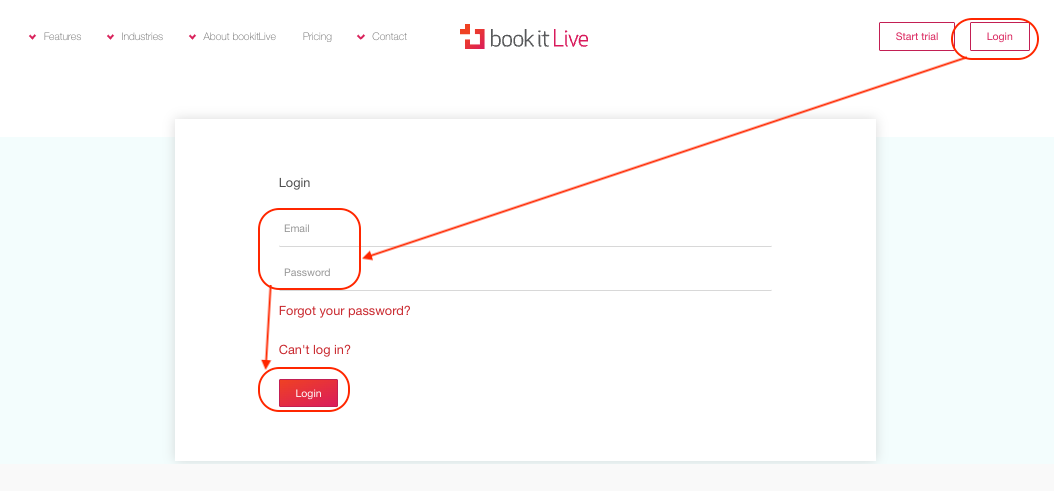
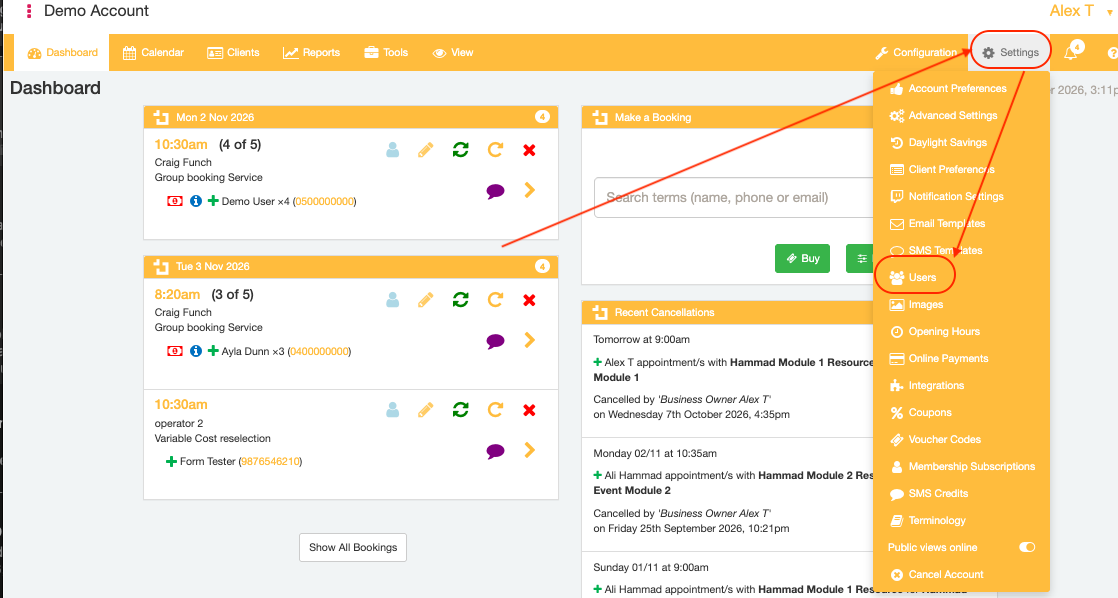
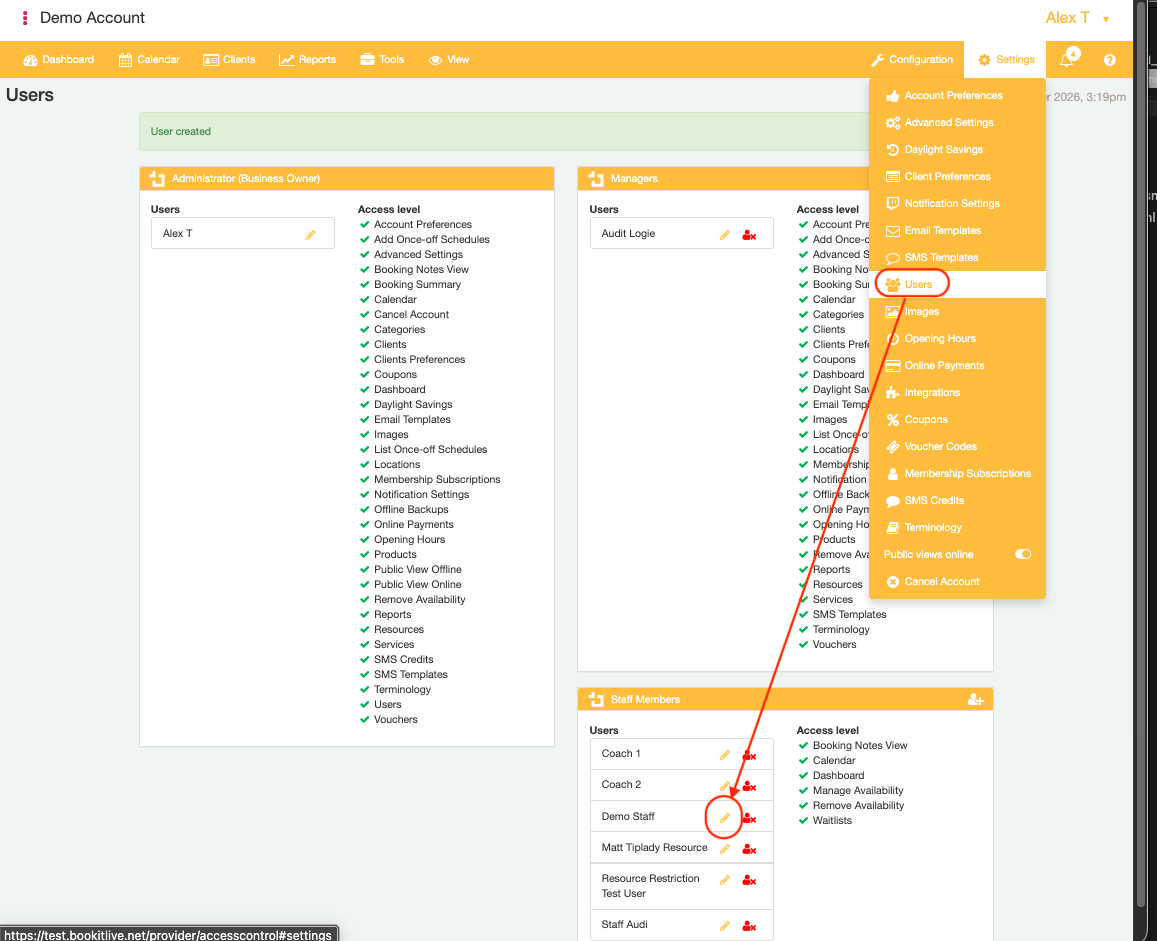
- Open the "Settings" tab and select the "Users" menu option
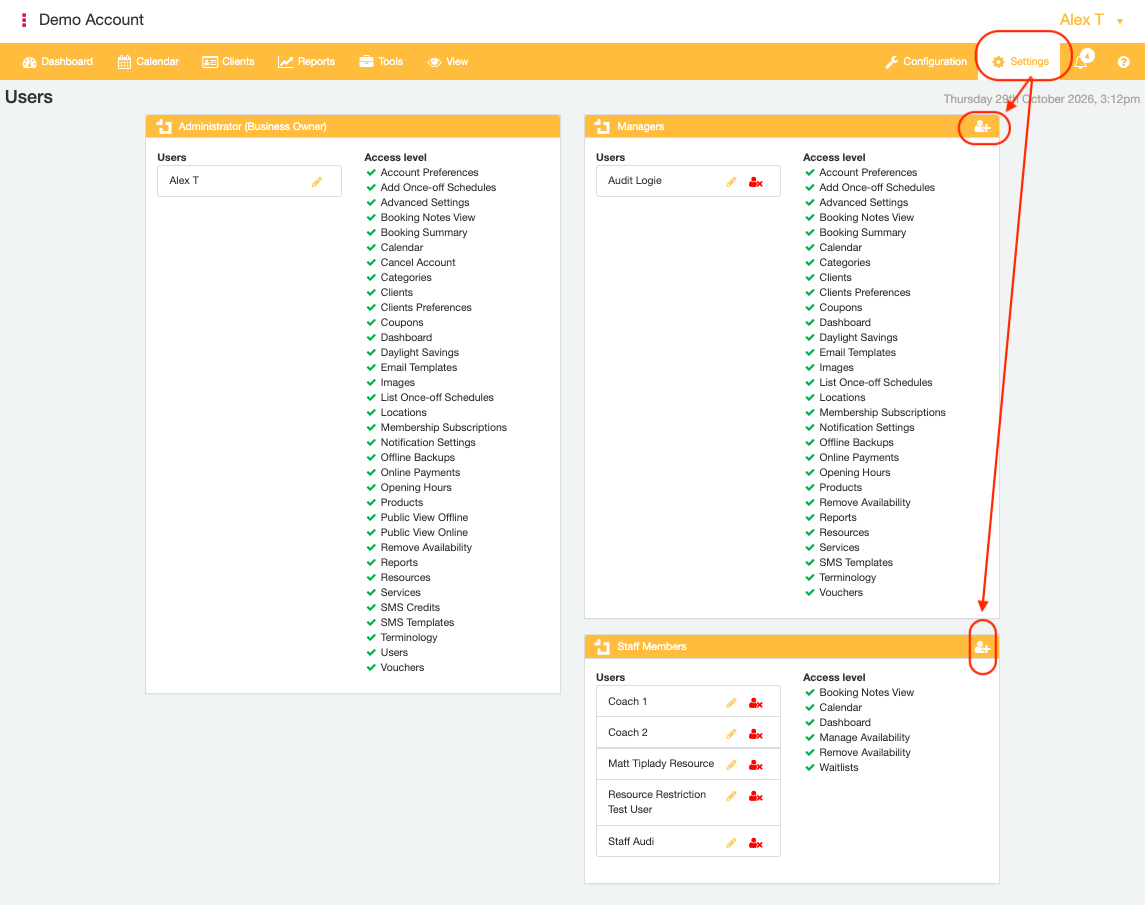
- Locate the user role that you would like to create the new staff user account as and click the "Add user" icon button next to that user role.
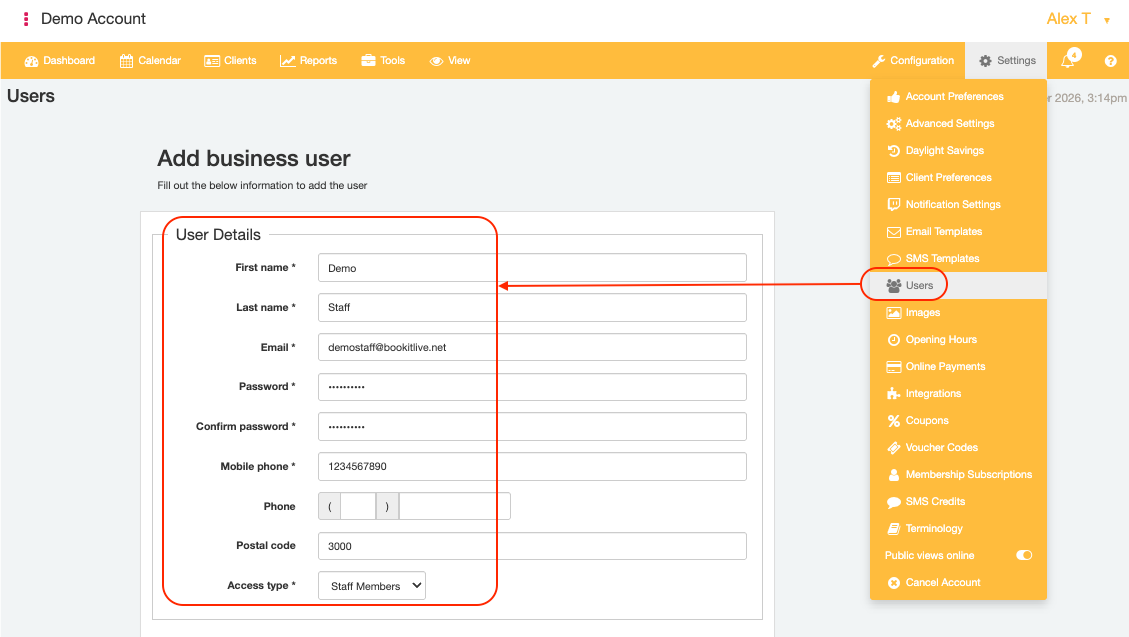
- Enter the Staff User's business details in the "User Details" fields
- Email address
- NOTE: the email address will serve as this user's BookItLive username for logging in
- First name
- Last Name
- Account password
- NOTE: the password must be at least 8 characters in length and contain at least 1 numberic and 1 alphabetic character
- Staff mobile phone number
- Business postcode
- Email address
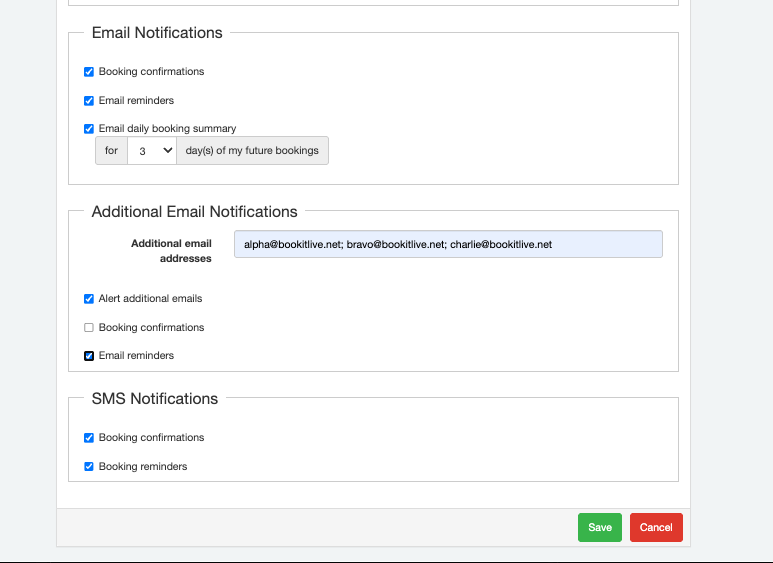
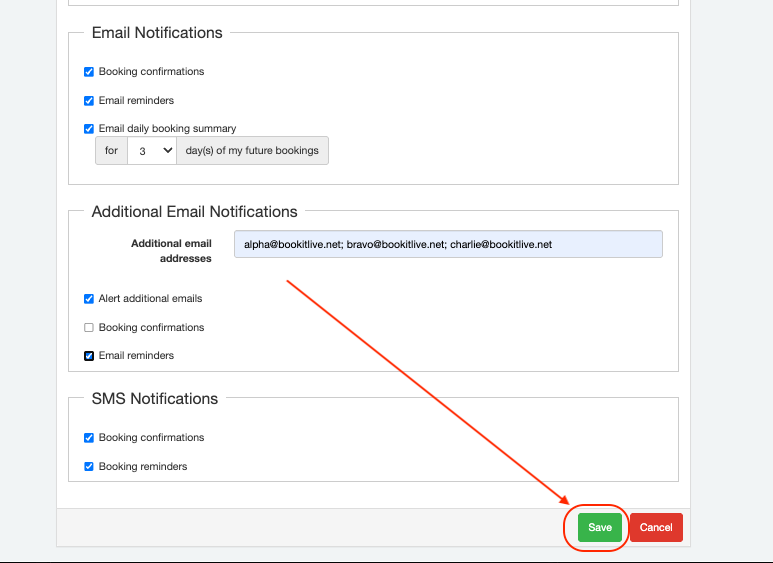
- Configure any booking notification settings for that specific user under the "Email/Additional Email/SMS Notifications" fields
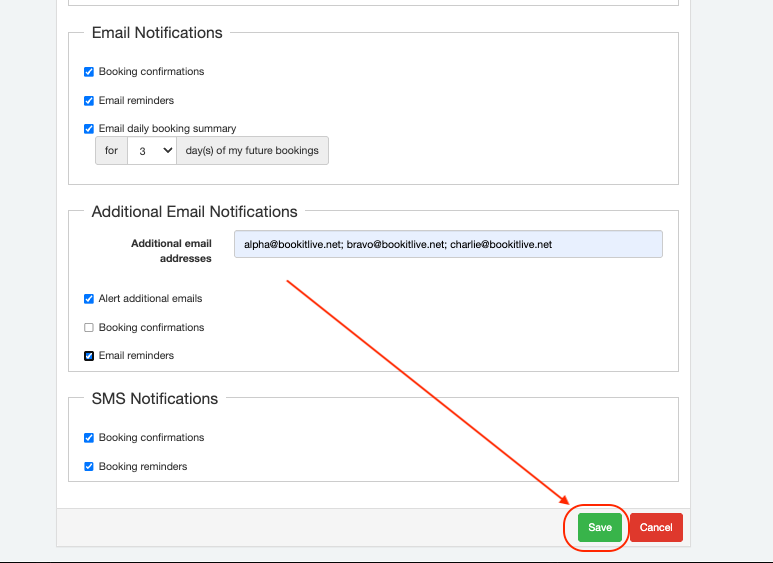
- Click the "Save" button at the bottom of the page to generate the staff user account.
If the new staff user account is successfully created, the user who created the new staff user profile will be redirected back to the main "Users" Settings page.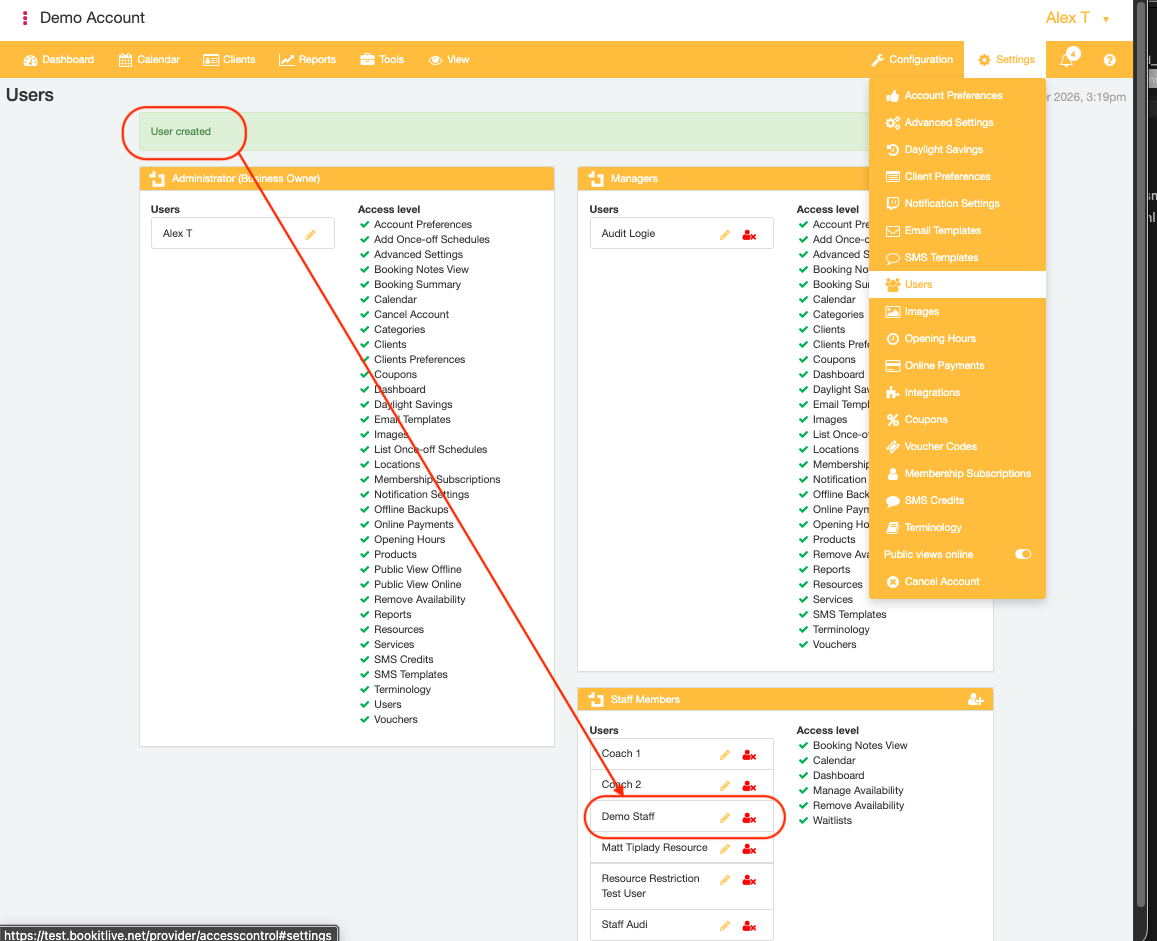
- End.
Restricting staff user diary/Calendar visibility
BookItLive allows Staff Member and Manager users to be restricted to specific Resource(s). This functionality can be used so that a staff user account only has visibility on their own their own calendar and bookings. This association is also used to notify the specific staff user when bookings made with their associated business Resource are added, modified, or cancelled.
On the User page
- Log in to your BookItLive business account as the Business Owner user
- Open the "Settings" tab and select the "Users" menu option
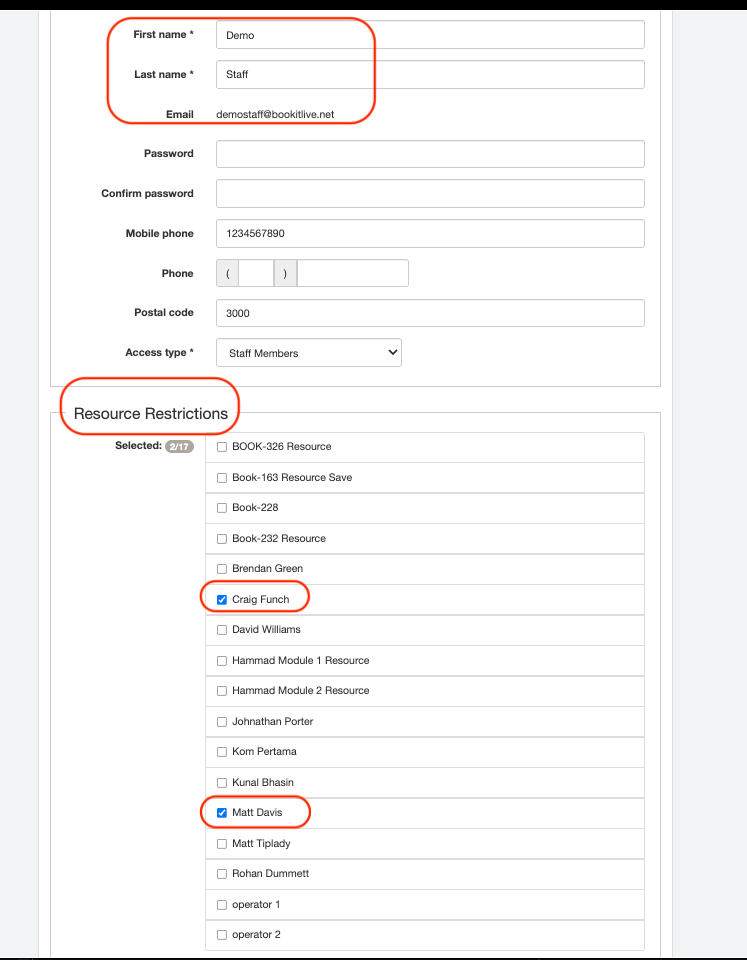
- Locate the user account that you would like to restrict Calendar visibility for create and click the "Edit" icon next to that staff user name.
- Tick the Resource names that you would like this user to have booking diary visibility on. Leave any Resources that you would like to block the selected staff user's account from having visibility on unticked.
- Click the "Save" button at the bottom of the page to generate the staff user account.
- End.
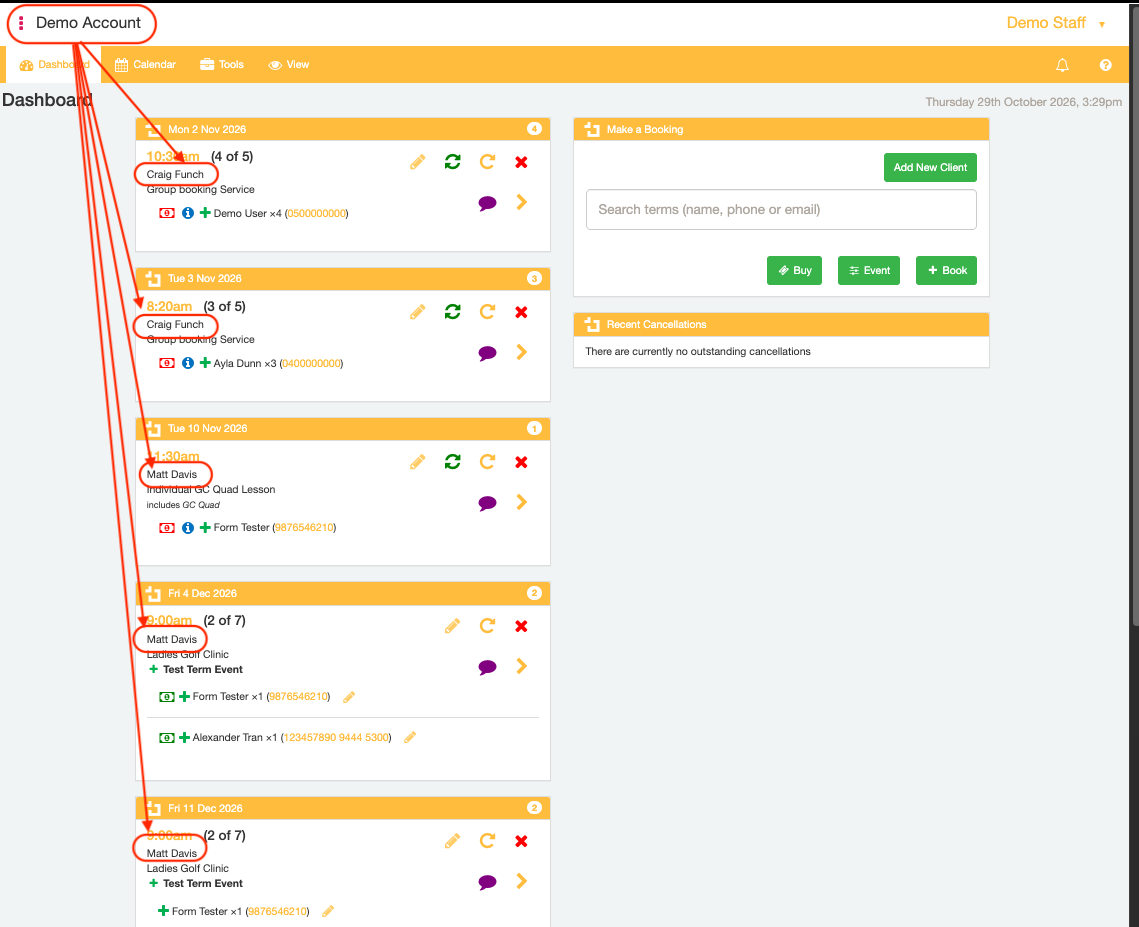
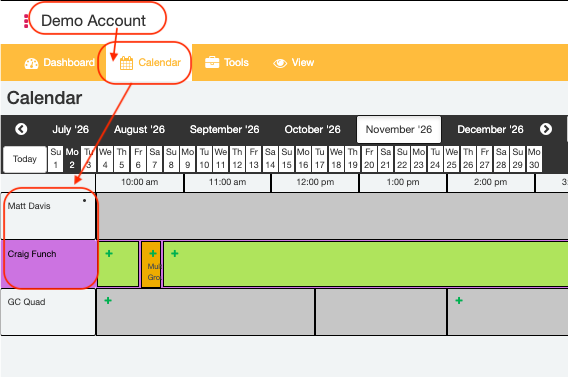
When a user account has Resource Restrictions applied, they can only see the restricted Resource(s) booking on their staff account's Dashboard and only see the restricted Resource(s) (as well as any company Shared Resources, if applicable) displayed on the Calendar page.
Was this article helpful?
That’s Great!
Thank you for your feedback
Sorry! We couldn't be helpful
Thank you for your feedback
Feedback sent
We appreciate your effort and will try to fix the article